|
Buttons |
Action performed |
|
Close |
Closes
form without saving any changes. |
|
Save Configurations |
Applies
the changes that were made and gives a message about when the changes will be
applied. |
|
Add New |
Under
the Tab for each Event Type, you create a new Event of that type with Add New. See the Admin Add / Edit Details for Events. |
|
Details |
Under
the Tab for each Event Type, you edit / modify an Event of that type with Details. See
the Admin Add / Edit Details for Events. |
|
Tabs |
Description |
|
Inspections |
Create
Event types for Inspections. |
|
Generic |
Create
Generic Event types.
This is a catchall event type.
Use it for Phone Calls, General Reminders or tracking a due Report
from the Facility. |
|
Permits |
Create
Permit related event types. For example, you can use Renewal, Expirations, or
Invoice events to track the Permit status. |
|
Pump Outs |
Create
Pump Out types for pumping events. |
|
Samples |
Create
Sample types for sampling events. See Sample Management for more about Sample creation. |
|
Compliance |
The
Compliance Events tab is a collection of all of the Compliance Events created
in each of the other tabs. Once the
Compliance Event is checked on the Details Screen, it will be displayed in
the Compliance Event tab. The
Compliance Event field becomes ‘checked’ by adding values to ‘Days Late Allowed NC’ or ‘SNC’. |
|
Frequency |
Add,
Modify and View Frequencies within this tab.
These frequencies are used throughout the program and specifically in Facility Management and the Auto Scheduler. They are used for creating follow-up events
when an event is completed. |
|
Quick View |
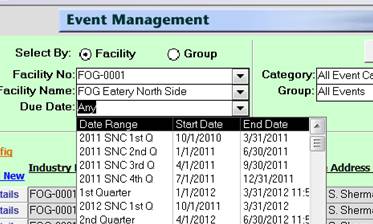
The
Quick View Tab lets the user customize the date options available throughout
the program in the Quick View Combo Box.
Go to Sample Management, Event Management, or Violations to view an example of the
Quick View combo box. It is not always
named quick view but it is always in the same location. The
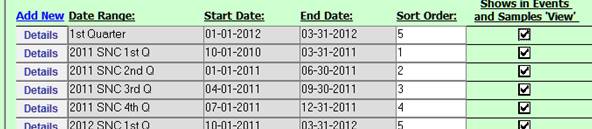
Quick View Tab allows the user to assign SORT ORDER values that change the
order of the displayed Date Ranges: This
sort order:
Produces
this
|
|
Shows in Events and
Samples View List |
This
field under the Quick View Tab allows the user to select which of the Quick
View Date ranges will appear in the Date Listings in Event Management and Sample Management |
|
Compliance Event |
This
field allows the user to select whether or not the type of events will be
used in Compliance calculations. Add Compliance
Events under the Inspections, Generic, Permits, Pump Outs, and Samples Tabs
by adding ‘Days Late Allowed NC’ or ‘SNC’. |
|
Waste Types |
Create different types of wastes that you can
assign to Pump Out Events.
Values from the Waste Types Tab are used in the Configurations Tab when
choosing the Default Pump Out Waste Type
and in the Pump Out Event
Details screen Waste Type drop down list. |
|
Pump Methods |
Create different types of pumping methods that you can assign to Pump Out Events. Values from the Pump Methods Tab are used in the Configurations Tab when choosing the Default Pump Method and in the Pump Out Event Details screen Pump Method drop down list. |
|
Inspection Result Types |
Create different types of Inspection results that you can assign to Inspection Events. Values from the Inspection Result Types Tab are used in the Inspection Details screen and in the Trap Inspection screen |
|
Maintenance Log Types |
Create different types of descriptions about the condition of the Maintenance log that the facility keeps. Values from the Maintenance Log Types Tab are used in the Inspection Details screen and in the Trap Inspection screen |
|
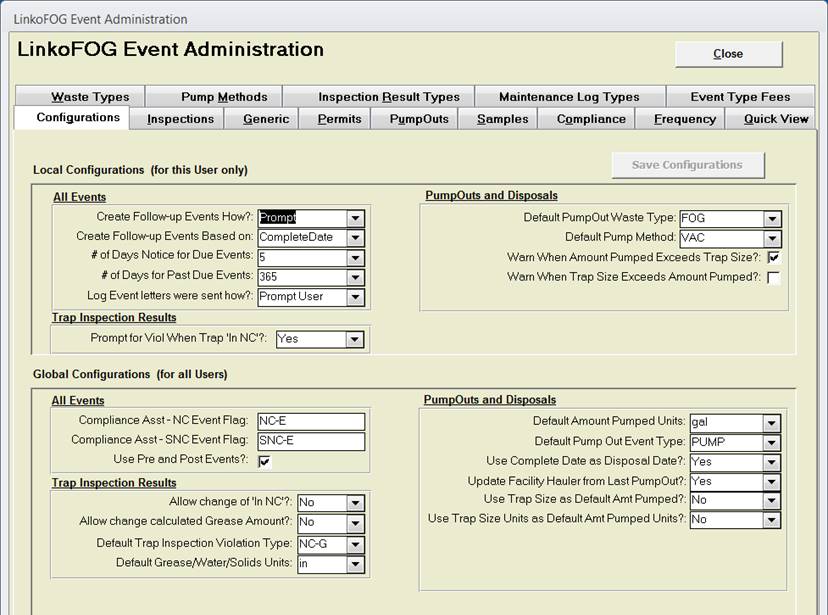
Configuration |
The
Configurations tab is listed below. |
|
Local
Configurations |
For This User
Only |
|
All Events |
|
|
Create Follow-up
Events How? |
LinkoFOG
will automatically create another event for you when you complete an event with a frequency. How should follow-up events be handled?
Choices are: Prompt, Automatically, or
Never. |
|
Create Follow-up
Events Based on: |
When
completing an event with a frequency, what date should the Follow-up Event be
calculated from? Choices are: Due Date
or Complete Date. |
|
# of Days’ Notice
for Due Events |
This
changes the number of days that are used in the “DUE NEXT xx DAYS” button in
the STATUS BAR at the bottom of List View Screens. |
|
# of Days for Past
Due Events |
This
limits the number of days that Linko will go back in time to display Past Due
Events. 365 days will limit the Past Due Events to the last 12 months. |
|
Log Event Letters
were sent how? |
When
printing an event letter, LinkoFOG can automatically log the fact that a
letter was sent on the original event.
How should those letters be logged? Choices are: Automatically, Prompt User, Never. |
|
Trap
Inspection Results |
|
|
Prompt for Viol When
Trap ‘In NC’: |
When
the Inspection Results for a Trap produce a
condition of ‘In NC’ do you want to be prompted to create a Violation?
Choices are Yes and No. Yes will take you to Violation Management to create a Violation. |
|
Pump Outs
and Disposals |
|
|
This
selection chooses the Default Pump Out Waste Type used for the following: Waste
Type in the Pump Out Event
Details Waste Type on the Pump Out Management Screen A
user-defined list of waste types can be selected from the Waste Types Tab in Event Administration The value typically will be FOG but other settings may be used. When you create a new Pump Out, the Waste Type field in the Pump Out Event Details will automatically fill in with the value you choose here. When this setting is changed in the FOG Module it also changes it in the Hauled Waste Module (if available), and the reverse. |
|
|
This
selection chooses the Default Pump Out Pump Method used for the following: Waste
Type in the Pump Out Event
Details Waste Type on the Pump Out Management Screen A
user-defined list of Pump Methods can be selected from the Pump Methods Tab
in Event Administration The value typically will be VAC but other settings may be used. When you create a new Pump Out, the Pump Method field automatically fills in with the value you choose here. When this setting is changed in the FOG Module it also changes it in the Hauled Waste Module (if available), and the reverse. |
|
|
Warn When Amount
Pumped Exceeds Trap Size: |
When
the results are entered for a Pump Out in the
Pump Out Event Details or at the Pump Out Management Screen,
if the amount pumped exceeds the recorded size of the Trap in Extractor Details
(under the Extractor Tab in Facility
Management) then do you wish to be warned? The choices are
Yes or No, and the Message is a simple warning that the entered value exceeds
the recorded size of the trap. |
|
Warn When Trap Size
Exceeds Amount Pumped: |
When
the results are entered for a Pump Out in the
Pump Out Event Details or at the Pump Out Management Screen,
if the amount pumped is less than the recorded size of the Trap in Extractor Details
(under the Extractor Tab in Facility
Management) then do you wish to be warned? The choices are
Yes or No, and the Message is a simple warning that the trap size exceeds the
amount pumped. |
|
Global
Configurations |
For All
Users |
|
All Events |
|
|
Compliance Asst – NC
Event Flag |
The
symbol (or flag) that appears when an event is completed past the Non
Compliance Date. The default flag is NE. To use a different daily flag, type a new
one. This flag shows on the Event
Compliance reports in Compliance Assistant à Event Compliance tab. |
|
Compliance Asst –
SNC Event Flag |
The
symbol (or flag) that appears when an event is completed past the Significant
Non Compliance Date. The default flag
is SE. To use a different daily flag, type a new
one. This flag shows on the Event
Compliance reports in Compliance Assistant à Event Compliance tab. |
|
This configuration allows
the user to enable or disable the software feature called “Pre and Post
Events.” Due to the relative
complexity of the use of Pre and Post Events, Linko is now shipping with Pre
/ Post Events DISABLED and this is the recommended configuration setting. For past users of the Linko
software who were using Pre / Post Events, no changes will be seen as
backward compatibility is being provided. |
|
|
Trap
Inspection Results |
|
|
Allow change of ‘In
NC’? |
Trap
Inspection results containing Grease, Solids and Water measurements can be
entered either at the Trap Inspection Event
Screen or
in the details of the extractor
inspection
listed there. When you enter these
results, LinkoFOG automatically determines if a ‘limit’ has been exceeded and
marks “In NC” as Yes. Do you want to
allow the user the ability to change the automatically set condition of ‘In
NC’? Choices are Yes or No. |
|
Allow change of
calculated Grease Amount |
Trap
Inspection results containing Grease, Solids and Water measurements can be
entered either at the Trap Inspection Event
Screen or
in the details of the extractor
inspection
listed there. When you enter these
results, LinkoFOG automatically determines the Grease Amount (percent
grease). Do you want to allow the
ability to change the automatically calculated Grease Amount? Choices are Yes or No. |
|
Default Trap
Inspection Violation Type: |
When
a Trap Inspection is in Non-Compliance, what kind of Violation do you want to create? The
listed choices come from the Violations Tab under Violations
and Enforcement Administration. |
|
Default Grease/
Water/ Solids Units: |
This
setting is used to assign Units for Grease, Solids and Water measurements at
the Trap Inspection Event Screen or in the Extractor Inspection details listed there. It is also used to assign Units for Trap
Depth in the Extractors Details
screen. The
units that can be selected come from the Units Tab of Samples
and Results Admin. |
|
Pump Outs
and Disposals |
|
|
This selection chooses the
Default Units used for the following: Trap Size in Extractor Details. Amount Pumped in the
Pump Out Event Details. Amount
Pumped on the Pump Out Management Screen The units that can be
selected come from the Units Tab of Samples and Results Admin. The value
typically will be GAL but other settings may be used. When this setting
is changed in the FOG Module it also changes it in the Hauled Waste Module
(if available), and the reverse. |
|
|
This
selection chooses the Default Event Type that will be assigned automatically
to a new Pump Out and Disposal Event. Add New Values for this list at the Pump
Outs Tab under Event Administration. You can then select that
new Pump Out type here. When
you create a new Pump Out, the Event type field in the
Pump Out Event Details will automatically fill in with the value you
choose here. In
Pump Out Management, the Default Event Type of
PUMP will be displayed for the type of Event. (Unless you have used this
Selection to choose a different Default Pump Out Event Type.) When
this setting is changed in the FOG Module it also changes it in the Hauled
Waste Module (if available), and the reverse. |
|
|
When
the results are entered for a Pump Out in the
Pump Out Event Details or at the Pump Out Management Screen,
and you enter in the Date the Pump Out was completed, do you want that date
to be used as the Disposal Date? Choices are Yes or No. This setting anticipates using the Linko Hauled
Waste Tracking system, where the Disposal can be tracked from the Hauler’s
Manifest. If you use the HW Module then you want to set this to NO to allow
the Hauler Tracking Module to set the Disposal Date. Otherwise set to YES. When this setting is changed in the FOG Module, it
also changes it in the Hauled Waste Module (if available) and the reverse. |
|
|
|
|
|
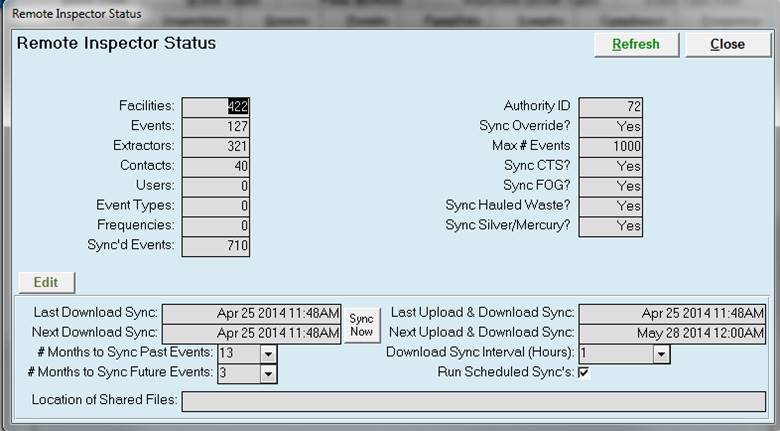
Last Download Sync |
The
last time data entered by inspectors in the field was updated in the Linko
software |
|
Next Download Sync |
The
next time that sync will occur again |
|
# Months to Sync
Past Events: |
Allows
you to limit what the inspectors see in the field. For example, do they need to see
inspections from just last year or 5 years ago? |
|
# of Months to Sync
Future Events |
How
far in the future should inspectors see scheduled inspections. It’s typically not useful to see
inspections scheduled 5 years in the future. |
|
Last Upload and
Download Sync: |
The
last time changes made in the Linko software were updated in Remote Inspector
for the inspectors in the field to see.
Whenever an upload takes place, a download takes places too. |
|
Next Upload &
Download Sync: |
The
next time that sync is scheduled to take place |
|
Download Sync
Interval (Hours): |
How
frequently would you like the Download Sync to occur |
|
Run scheduled Syncs: |
This
allows your to turn off the sync. It
will also appear off if a sync is currently in process. |
|
Location of Shared
Files: |
This
is the location of the Linko Shared Files where Attachments are stored on
your network. This setting is the same
for all users of Linko. |
|
Default: |
Pressing
this will place the currently logged in users Root Location of Shared Files
into the Location of Shared Files field. This is useful during initial
configuration of Remote Inspector |
|
Sync Now |
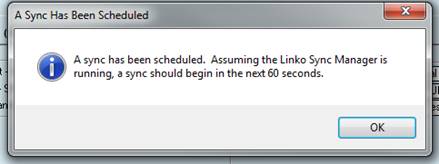
Press
this button to force an upload and download sync immediately. This will tell the Linko Sync Manager
software, which is typically installed on another server, to perform a
sync. Assuming the Linko Sync Manager
is running, a sync will start within 60 seconds. Use Sync Status to confirm the sync ran. |
|
Show Status |
This
displays information about how Remote Inspector is configured. It is used primarily by Linko Technical
Support. Click
the Refresh button to update the values on this screen. After a sync completes, you will see the
Last Upload & Download Sync date and time update so you know the sync has
ran and is done. |
|
|
|
|
Item |
Description |
|
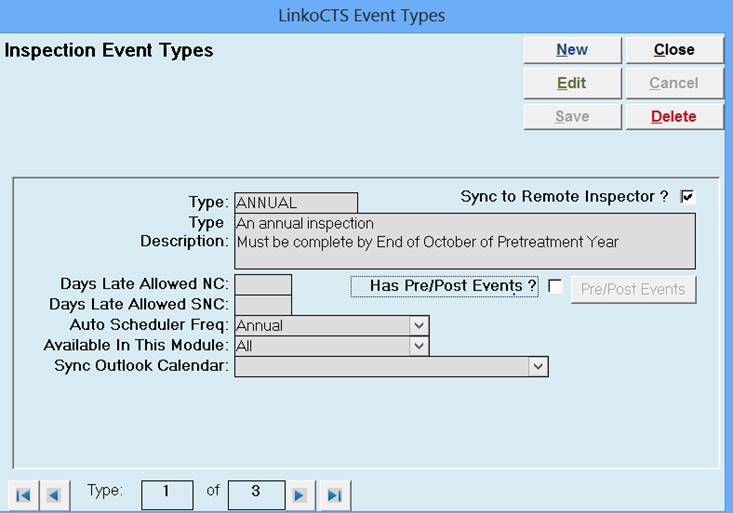
New |
Clears values and allows you to create a new Event type. While editing, the New, Edit, Close, and Record Selector buttons will be disabled. |
|
Edit |
Allows you to edit the displayed Event type. While editing, the New, Edit, Close, and Record Selector buttons will be disabled. |
|
Save |
Saves the changes made to the Event type. Only enabled while editing or creating an entry. |
|
Close |
Closes the screen. |
|
Cancel |
Cancels any changes made to the Event type. Only enabled while editing or creating an entry. |
|
Delete |
Deletes the Event type. |
|
Event Type |
This combo box lists all possible Event types available. |
|
Event Type Descriptions |
Describe the event type. |
|
|
Is this an event you would like to check for non-compliance? If so add a number to this field that represents how many days late an event has to be prior to being considered in Non-Compliance. The software will use this number when calculating event compliance in the Compliance Assistant. |
|
Days Late Allowed SNC |
Is this an event you would like to check for SNC compliance? If so add a number to this field that represents how many days late an event has to be prior to being considered in Significant Non-Compliance. The software will use this number when calculating event compliance in the Compliance Assistant. |
|
Auto Scheduling Freq |
What is the frequency you would like to use for this event in the “Auto Scheduler” and when LinkoFOG automatically creates follow-up events on the completion of existing events? |
|
Available in this Module |
Allows the user to choose in which Module this event will be available for selection. |
|
Sync Outlook Calendar |
Enter in the Path for the Linko to Outlook Synchronization tool to use with this event type. |
|
Use this Detail Form |
This field is only available on the Inspection tab. Linko allows you to customize which screen to use for this type of event. Currently, only Inspections have a choice of screens. “Standard” is used for any screen where Trap Inspections Results like depth of grease are not measured. |
|
Record
Selectors |
Record Selectors allowing you to move between Event Types. |