|
Buttons |
Action performed |
|
Close |
Closes
form without saving any changes. |
|
Save Configurations |
Applies
the changes that were made. These changes will not apply until the next time
you open Linko. |
|
Add New |
Under
each Tab in Samples and Results Admin, you add a member to that Table Listing
by using Add New. |
|
Details |
Under
each Tab in Samples and Results Admin, you edit / modify a member of that
Table Listing by using Details. |
|
Tabs |
Description |
|
Parameters |
Add
or modify the Parameters that are being reviewed by your POTW. Modify TRC Value, add valid Lab Analysis
Methods for each parameter, identify proper preservation methods, Sort Order
and others by using the Details button.
Note: If a user tries to
change the name of a Parameter, LinkoFOG will check and see if that Parameter
is in use in Limits, Results, etc. If
the Parameter is in use, LinkoFOG will prompt the user to that affect and ask
the user if they want to continue with changing the parameter’s name. |
|
Collection Methods |
Add
or modify collection methods being used by your POTW |
|
Units |
This
table lists units used throughout the software. |
|
Sampling Schedule Types |
Who
is scheduled to take the sample? Most
often it is the Facility or Authority.
This allows you to track different kinds of samples. |
|
Laboratories |
A
listing of the different labs that might be doing the testing. Used in the Chain of Custody add-on module. |
|
Lab Fees |
Used to configure fee structures for Group sampling or individual parameter sampling. Used in conjunction with the Sampling Assistant Module to make reports that show the costs of the sampling. |
|
Analysis Methods |
A
list of approved and standardized methods for laboratory analysis associated
with a parameter. |
|
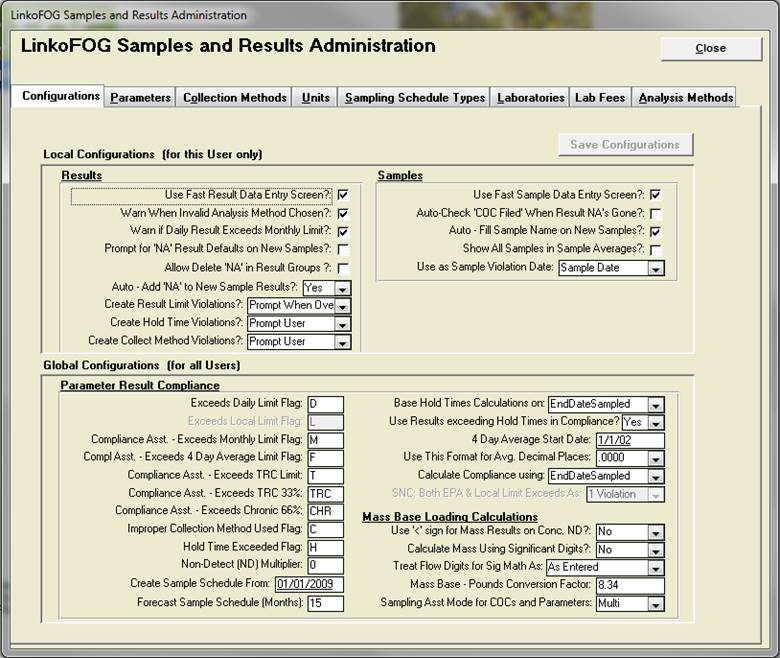
Configurations |
|
|
Local
Configurations |
For This User
Only |
|
Results |
|
|
Use Fast Result Data
Entry Screen? |
When
selected, Parameter Results can be entered directly in the Results Management List screen in addition to using the Results Details screen. Linko
recommends selecting Yes. |
|
Warn When Invalid
Analysis Method Chosen? |
When
entering an Analysis Method for a Parameter in Result Management, should LinkoFOG warn the user when the method they entered is not
listed as a valid Analysis method? |
|
Warn if Daily Result
Exceeds Monthly Limit? |
When
entering a Parameter in Results Management, should LinkoFOG warn the
user if the concentration result exceeds the monthly Average Limit? This is useful if you only sample monthly. |
|
Prompt for ‘NA’
Result Defaults on New Samples? |
When
this configuration is selected, all fields that have the “Prompt for
Defaults” column checked in the Results Management Config screen are displayed in the
Enter Default Results
screen. This screen appears when
entering the Results
Management screen for any new sample. The user has the ability to enter the
information that should be “defaulted” into each parameter result with a value
of “NA”. The same affect is created by
clicking the “Apply Default” button in the Results Details. |
|
Allow Delete ‘Na’ in
Result Groups |
When using Result Groups in
Groups and Queries, the user can use this configuration to select whether the
“Delete Records with NA Results” control is shown or not. Typically this is
more relevant for users of the LinkoCTS module, but is included here for
consistency. |
|
Auto-Add ‘NA’ to New
Sample Results? |
When
in Results Management screen and starting to add
a new sample, do you want a list of the monitoring point parameters to be automatically
displayed? Yes, No and Ask. Selecting
either Yes or Ask will cause the Enter
Default Results screen to be displayed if the “Prompt for
‘NA’ Result Defaults on New Samples?” is checked. |
|
Create Result Limit
Violations? |
When
users enter results that are over the compliance limit, the software can
either automatically create violations, ask the user if they want to create
the violations or never create violations. |
|
Create Hold Time
Violations? |
When entering results data manually, and a hold time is exceeded, how do you want Violations created? Selections are: Automatically, Prompt User, Never. Invalid
hold times are determined by comparing the Lab Analysis Date to either the
End Date Sampled or Start Date Sampled entered on the Result Management screen. (as configured in “Base Hold Time Calculations On” configuration) If
the difference in days exceeds the Hold Time entered for the parameter
in the Parameter Table Listing under Samples and Results
Administration, then the user will be prompted based on this setting. |
|
Create Collect
Method Violations? |
When
entering results data manually, and an improper Collection Method is entered,
how do you want to Violations created? Selections are: Automatically, Prompt User, Never. Improper
Collection Methods are determined by comparing the Collect Method assigned in
the Monitoring Points for each parameter as
compared to the Collection Method entered in the Result Management screen. If the two do not
match, then the user will be prompted based on this setting. |
|
Samples |
|
|
Use Fast Sample Data
Entry Screen? |
When
selected, Samples can be entered directly in the Sample Management List screen in addition to using the Samples
Details. Linko recommends setting this
to Yes. |
|
Auto-Check ‘COC
Filed’ When Result NA’s Gone? |
“COC
filed” has the same significance as saying “All Results Have Been
Entered.” This setting controls the
behavior of the “COC Filed” field on the Sample Management list view. If
this is selected to be auto completed, once results are entered on the Results screen and no “NA” results exist, LinkoFOG will automatically change “COC
filed” on the Samples Screen to Yes.
User will not be able to change the COC filed box on the Samples
Screen. Otherwise
if the Auto Check COC filed is not checked in the system administration,
users will be able to check the COC filed box on the samples screen at their
discretion and LinkoFOG will not automatically set it to Yes. |
|
Auto-Fill Sample
Name on New Samples? |
On
the Sample Management and the Sample Details screen, when the user fills in the Sample Date, and Monitoring
point, our system will automatically fill in the sample name. |
|
Show all Samples in
Sample Averages? |
If
you set this to Yes, then even if you have already used a Sample in a Sample
Average on the Samples Management screen, you can use the
same sample again in another average. |
|
Use as Sample
Violation Date? |
LinkoFOG
can automatically create a violation for parameter non-compliance. What date should it use as the
Non-Compliance date of the Violation? Choices are the Sample Date or Today’s
Date. |
|
Global
Configurations |
For All
Users |
|
Parameter
Result Compliance |
|
|
Exceeds Daily Limit
Flag |
The
symbol (or flag) that appears when a result exceeds the daily limit. The default flag is D.
To use a different daily flag, type a new one. This flag shows on all Compliance
Assistant à Parameter Compliance
reports as well as on the Result Management screens. |
|
Exceeds Local Limit
Flag |
When
Local Limits are enabled, this is the symbol (or flag) that appears when a
result exceeds the Daily Local Limit. The default flag is L. To use a different Daily Local Limit flag, type in
a new one here. |
|
Compliance Asst. –
Exceeds Monthly Limit Flag |
The
flag that appears for monthly averages that exceed the monthly limits. The
default flag is M. To use
a different monthly flag, type a new one.
This flag shows on all Compliance Assistant à Parameter Compliance
reports. |
|
Compl. Asst. –
Exceeds 4 Day Average Limit Flag |
The
flag for violations on 4-Day Average limits.
The default flag is F. To use
a different 4-Day flag, type a new one.
This flag shows on all Compliance Assistantà Parameter Compliance
reports. |
|
Compliance Asst. –
Exceeds TRC Limit |
Flag
for samples that exceed the Technical Review Criteria. The default flag is T. To
use a different TRC flag, type a new one.
This flag shows on all Compliance Assistant à Parameter Compliance SNC
Reports. |
|
Compliance Asst. –
Exceeds TRC 33 % |
Flag
for SNC Summary parameters that are TRC and > 33%. The default flag is ***. To use a different TRCSNC flag, type a new
one. This flag shows on all Compliance
Assistant à Parameter Compliance SNC
Reports. |
|
Compliance Asst. –
Exceeds Chronic 66% |
Flag
for SNC Summary parameters that are chronic. The default flag is +++. Type a new flag if desired. This flag shows on all Compliance
Assistant à Parameter Compliance SNC
Reports. |
|
Improper Collection
Method Used Flag |
The flag for samples that were collected with a
different method than what is set in the monitoring point limit for that
parameter. Default flag is C.
To use a different one, type a new one.
This
flag shows on all Compliance Assistantà Parameter Compliance
Collection Method reports. |
|
Hold Time Exceeded
Flag |
The flag for samples that exceed the recommended
hold time for the testing method. The
default flag is H.
To use a different flag, type a new one.
This
flag shows on all Compliance Assistantà Parameter Compliance Hold
Time reports. |
|
Non-Detect (ND)
Multiplier |
Multiplication
factor used to calculate Adjusted Results and averages when Concentrations
are < or ND. When
calculating compliance in the Compliance Assistant, you can choose how Linko
will handle these < and ND results.
Choosing an ND Multiplier of 0 will cause all Results with <# or ND
to be treated as 0 for the sake of Monthly Averages and SNC. Selecting 1 will cause LinkoFOG to use
either the number following the < sign or the reporting limit if one has
been assigned for calculating Monthly Averages and SNC. |
|
Base Hold Times
Calculations on: |
What
parameter result date should be used for determining Hold
Time Exceedances? Choices are: Start Date Sampled or End Date Sampled. |
|
Use Results
exceeding Hold Times in Compliance? |
When
entering data in Results, if the Result exceeds
the hold time, should it still be marked for use in Compliance, Yes or
No? Selecting No will force any
parameter that exceeds its hold time to NOT be used in compliance
calculations. |
|
4 Day Average Start
Date |
Do
you want your 4 day average to begin at a different time then the selected
reporting period in the compliance assistant? Simply add that start date here. This start date is used in the Compliance
Assistant. |
|
Use this Format for
Avg. Decimal Places |
When
Linko calculates Sample Averages, Monthly Averages, 4 Day Averages, or
non-significant digit Mass Based Results, how many decimal places should be
used in the final values. |
|
Calculate Compliance
Using: |
What
Result Date should be used for Gathering and Calculating Parameter Compliance
in Compliance Assistant? Choices are End Date Sampled or Start Date
Sampled. Any result date that falls
within you selected reporting date range in compliance assistant will be
included in the compliance reports. |
|
SNC: Both EPA and
Local Limit Exceeds as: |
This setting affects the SNC reports in Compliance Assistant. When Local Limits are enabled, and a Result exceeds both the Categorical / EPA limit and the local limit, should Compliance Assistant count it as “One Violation” or as “Two Violations”? |
|
Mass Base
Loading Calculations |
This
section is not available if MASS is not enabled. |
|
Use ‘<’ sign for
Mass Results on Conc. ND? |
If
a Mass Result is calculated on a concentration Result of ND or <#, should
a ‘<’ sign be placed in front of the Mass Result? |
|
Calculate Mass Using
Significant Digits? |
Use
significant digit calculations when calculating Mass Results? If ‘No’, then basic rounding is applied
based on Decimal Places above.
If ‘Yes’, Linko performs significant digit math to determine the Mass
Result and that is what is used in compliance calculations. |
|
Treat Flow Digits
for Sig Math as: |
This
selection is only available when the “Use Significant Digits” is set to YES.
Allows users to select how Linko will treat the FLOW digits. Selections
are: Assume all flow digits are
significant digits, Include Flow when determining mass significant digits, or
Ignore Flow when determining mass significant digits. |
|
Mass Base – Pounds
Conversion Factor |
Allows
the user to customize what value to use for the Pounds / day factor in mass
calculations. |
|
Buttons |
Action performed |
|
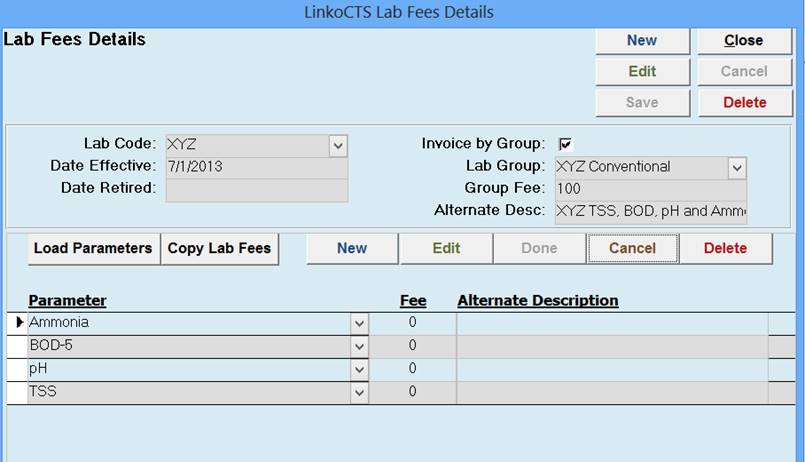
New |
Create a new Lab Fee structure. |
|
Edit |
Edit an existing Lab Fee. |
|
Save |
When finished creating or editing click to save your changes. |
|
Close |
Closes the form to return to the Samples and Results Administration
screen. |
|
Cancel |
Stop the editing you are doing without saving any changes. |
|
Delete |
Delete the selected Lab Fee. |
|
New / Edit |
Click to add a new or edit an existing Parameter listed in the Lab Fee. |
|
Load
Parameters |
This will load ALL the parameters that are listed in the Linko Parameters tab in Samples and Results Administration. |
|
Copy
Lab Fees |
If you have another similar Lab Fee already set up you can copy the lab fees from that one and use it to start another. |
|
Done / Cancel |
Click on Done when you have finished entering the Parameter information. Click on Cancel to exit the Parameter input or edit mode without saving changes. |
|
Delete |
Remove the highlighted Parameter from the listing. |
|
Lab Code |
Use the dropdown listing to select which of the Laboratories the Lab Fee Schedule will be for. |
|
Date Effective |
Each Lab Fee is applied to samples in its date range. The Date Effective is the first date of the range of samples it will be applied to. |
|
Date Retired |
When you no longer use a Lab Fee use the Date Retired to close out the date range the Lab Fee was used for. |
|
Invoice by Group |
Click in this box to make Lab Group, Group Fee and Alternate Desc become available. Then make a Group of Parameters with one Lab Fee for the group. |
|
Lab Group |
Type in or choose from the DropDown the name of the group of parameters. |
|
Group Fee |
How much does the lab charge to process the parameters tested in this group. |
|
Alternate Desc |
Additional information to describe what is being tested in the group of parameters. |