|
Buttons |
Action performed |
|
Close |
Closes
form without saving any changes. |
|
Save Configurations |
Applies
the changes that were made. |
|
Add New |
Under
the different Tabs, Add New provides you the
ability to create a new member of the table. |
|
Details |
Under
the different Tabs, you edit / modify a member of the table with Details. |
|
Tabs |
Description |
|
Class Codes |
Add
or edit the Facility Classifications being pulled into the Facility
Management Screen. |
|
CAT Codes |
Add
or edit the CAT Codes being pulled into the Facility Management Screen. |
|
SIC Codes |
Add
or edit the SIC Codes being pulled into the Facility Management Screen. |
|
NAICS Codes |
Add
or edit the NAIC Codes being pulled into the Facility Management Screen. |
|
Misc. Codes |
Add
or edit the MICS Codes being pulled into the Facility Management Screen. |
|
Compliance Status |
Add
or edit the Compliance Status being applied to the Facility. |
|
Permit Note Types |
Add
or edit the Facility Note Types being pulled into the Facility Management
Screen. Facility notes are used to
describe all aspects of the facilities operation. |
|
Contact Type |
Add
or edit the Facility Contact Types being pulled into the Contacts Details
Screen. Contact Types are used to
categorize your contacts and make sending letters to groups of Facilities
easier. |
|
Extractors |
Add
or edit the Extractors types and descriptions being pulled into the Facility
Management Screen. |
|
Equipment |
Add
or edit the Equipment that can be added to the Facility Management Screen. |
|
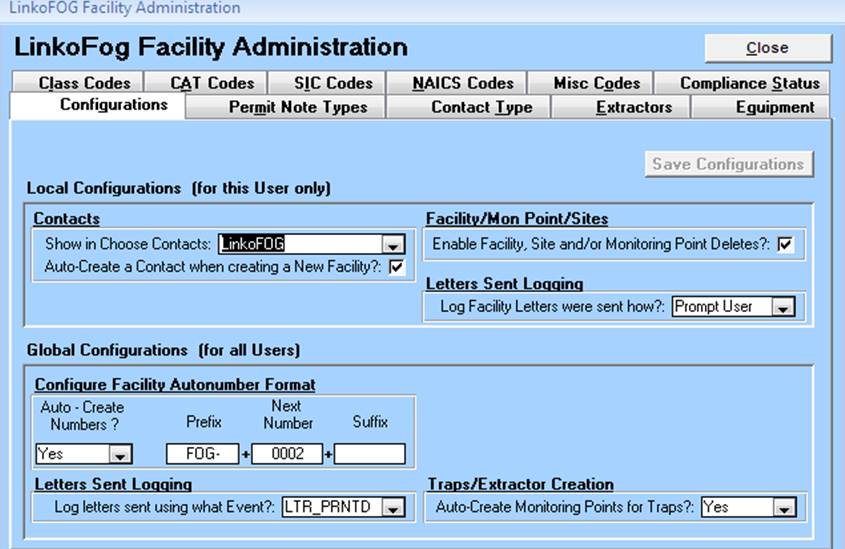
Configurations |
Customize
how LinkoFOG works for you. |
|
Local
Configurations |
For This User Only |
|
Contacts |
|
|
Show in Choose
Contacts |
When
Selecting Contacts from the Choose Contacts screen on the Contact Details screen, show all the Contacts or just the Contacts from
the selected available Linko Applications? You could choose LinkoFOG here;
then just the Contacts from the FOG side of the software would be available
to select. If you also have LinkoCTS
software and select “All” then LinkoCTS contacts would also be available to
choose. |
|
Auto-Create A Contact when creating a New
Facility? |
When
you create a new Facility you can control whether or not a New Contact will
be automatically created. Having
contacts for each Facility makes sending letters easier and more reliable. Linko recommends that you always create a
Contact for each facility. |
|
Facility/Mon Point / Sites |
|
|
Enable Facility,
Site and / or Monitoring Point Deletes? |
To
allow the deletion of Facilities / Industries, Sites, and Monitoring Points, check this box. When not checked, the “Delete” button is
disabled on those screens and these items may not be deleted. |
|
Letters
Sent Logging |
|
|
Log Facility Letters
were sent how? |
LinkoFOG
can automatically create a history in Event Management of when you send
letters to a Facility. When Facility
letters are sent from the Facility Management or Groups screens, should that letter sent action be logged? Choices are:
Automatically, Prompt User, or Never. |
|
Global
Configurations |
For All
Users |
|
Configure
Facility AutoNumber Format |
|
|
Auto-Create Numbers? |
LinkoFOG
can automatically assign Facility #’s (Permit #’s) when a new facility is
created. Facility #’s are
required. When creating a new
Facility, should Linko auto-generate a new number? |
|
Prefix |
What
letters should be placed at the beginning of the auto-generated Permit
number? |
|
Next Number |
The
next number that will be assigned to a New Facility. Numbers are automatically incremented by 1. |
|
Suffix |
What
letters should be placed at the end of the auto-generated Permit number? |
|
Letters
Sent Logging |
|
|
Log Letters sent
using what Event? |
When
Printing a Facility letter what Generic Event Type should be used to log that
action in Event Management? |
|
Traps /
Extractor Creation |
|
|
Auto-Create
Monitoring Points for Traps? |
LinkoFOG
can create Monitoring Points (necessary if you plan on
doing sampling) for your extractors. When creating new
Extractors, do you want LinkoFOG to Automatically create a Monitoring Point also?
Yes or no. |
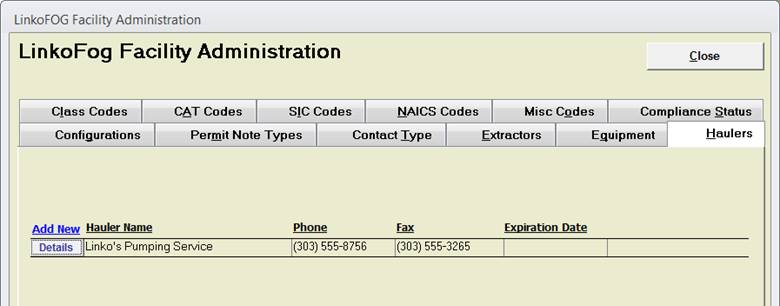
Add a list of Haulers to the software. This Haulers Tab is only available when Linko Hauled Waste (LinkoHW) is not installed.
|
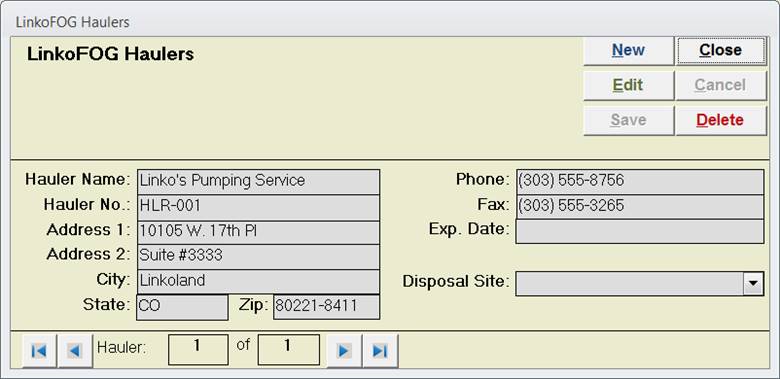
Item |
Description |
|
Hauler Name |
Company name of the Hauler. |
|
Hauler No |
The assigned number of the Hauler. |
|
Address, City, State, Zip |
Address of the Hauler. |
|
Phone / Fax |
Hauler Phone Numbers. |
|
Exp. Date |
If your system permits the Haulers, when does the permit expire? |
|
Record
Selectors |
Standard Record Selectors allowing you to move between the Details of different Haulers. |
|
Disposal
Site |
Set the default disposal site for selected haulers. |