Quickly organize and sort Facilities according to your needs.
|
Using System and Custom Groups |
Use
the Facility Group pull-down box to select the Group you want to view. After you select a name, the permits for
that group will be displayed. By
default, the System Groups are not modifiable. To view the criteria that the Group you
have selected is based on, click on the <Groups/Filter> Button The
Facility Group dropdown is alphabetical by name. |
|
Custom Groups and Filters |
View
Custom Groups and Filters by going to Groups and Filters Form. Easily filter on any of
the fields that you see within the screen. These filters can then be saved as
Groups and applied in several areas of the software including; Sample Groups,
Result Groups, Event Management, Violation Management and various reporting
features. |
|
Reports |
After developing your groups
and gathering specific data of interest, can easily view reports or export
data to Excel using the Reports
Button at the bottom of the screen. |
|
Item |
Description |
|
Facility Group |
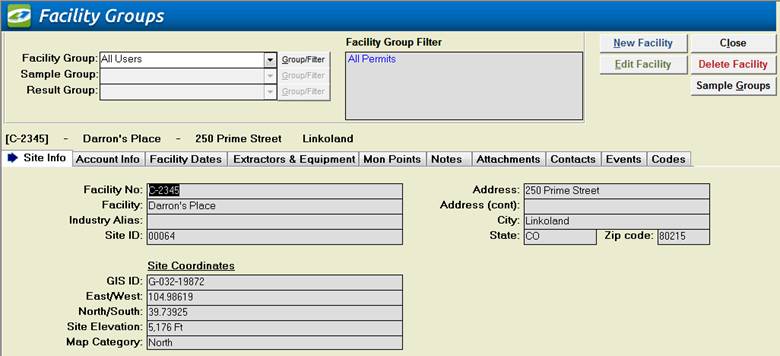
Make a selection to place a quickly filter on the Facility information displayed below. |
|
Group / Filter |
This opens the Group or Filter form that is used on all of our filtering screens. For more information regarding this Screen go to Filter Form. |
|
Sample
Groups |
Goes to the Sample Groups Screen and passes the last used Facility Group filter. You can also get the Sample Groups Screen by using your menu bar. |
|
New |
Opens Facility Management Edit window allowing you to create a new Facility/Permit. |
|
Edit |
Opens Facility Management Edit window allowing you to edit the selected Facility/Permit. |
|
Close |
Closes the screen, returns to the Main Menu. |
|
Delete |
Deletes the selected Facility/Permit from the system. This button is disabled by default. The ability to delete Facility/Permits can be enabled/disabled from System Admin à Facility Admin à Configurations screen. |
|
Site Info Tab |
The Site Info Tab displays site information for the Facility/Permit, such as address and site coordinates. |
|
Account Info Tab |
The Account Info Tab displays account information for the Facility/Permit, such as Classification, Metering, Hours, etc. |
|
Facility Dates Tab |
The Facility Dates Tab displays date information for the Facility/Permit, such as Effective Date, Application Date, and various frequencies. |
|
Extractor & Equipment
Tab |
The Extractor / Equip. Tab lists the Extractor and Food Equipment information for the Facility. |
|
Mon Points Tab
(Monitoring Points) |
The Mon Points Tab lists the monitoring points for this Facility/Permit. |
|
Notes Tab |
The Notes Tab lists the notes associated with this Facility/Permit. |
|
Contacts Tab |
The Contacts Tab lists the contacts for this Facility/Permit. |
|
Events Tab |
The Events Tab lists any events for this Facility/Permit. |
|
Codes Tab |
The Codes Tab displays the SIC, CAT, and NAICS codes assigned to this Industry/Permit. |
|
Record
Selectors |
Standard Record Selectors allowing you to move between displayed Facilities. When selecting different filtering options these numbers will change accordingly to the number of Facilities that match your filter. |
|
Status
Bar |
Standard Status Bar allowing you to jump to a listing of Violations without enforcements, a listing of overdue Events, a listing of related Reports, a Calendar, a Calculator, Contact Information, or a new Phone Log Event. |
|
Quick Filter |
Access the Quick Filter function by a Right Click on a field of interest and sort for and select just the records you want to display. This is available on all fields except the Events Tab. |