|
Add List/Delete NAs |
Clicking this Add List button will load the list of parameters that are currently in affect (based on the sample date) and are not retired from the Monitoring Point associated with this sample. Clicking on Delete NAs will remove any of the results that have a result of NA as the value. |
|
Results with NAs/All Results |
Use these toggle buttons to
display only results with NA as their Value or All Results. Note: when
adding lots of results it will be advantageous to view only the results that
you have not yet entered (results with NA as their value). |
|
Add Parameter Results |
When you click the <R>
(results) button on the Sample Management Screen on a new sample, the Results
Management screen opens and the list of parameters with a result of NA is
loaded automatically instead of manually as explained in the Add List
button above. You can control how this
listed is populated in Samples and Results Administration with the “Auto-Add ‘NA’ to New Sample Results?” selection. Your choices are Yes, No or Ask. |
|
|
Click on the New button if
a parameter you tested for is not automatically loaded into the screen. This allows you to select a New Parameter
from the Parameter Pull-down, and add the corresponding details to the result
record. You can also click the details button button to open the Result Details screen for the results. |
|
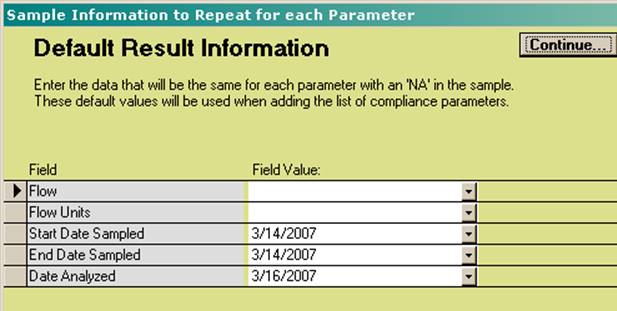
Default Results |
Choosing “Prompt for ‘NA’
Result Defaults on New Samples?” in the Configurations Tab under Samples and Results Admin, you will be presented with a Default Results Screen when you enter Results Management.
This screen allows you to
enter default data that will be applied to each parameter that has a result
of NA. Configure the Fields displayed in the Result Defaults window by using
the Config hyperlink and by checking the “Prompt for Default” Box for the fields desired.
|
|
|
Please take note that your
sample Collection Method, Start and Stop Date and Times, as well as flow information
can all be filled in on this Default Results screen. |
|
Parameter info auto-filled |
When you select the
parameter, the default units, daily and monthly limits (Mass Based limits
also if enabled) are automatically filled in from the Monitoring Point Limits for that Monitoring Point. |
|
Parameter
Exceedance |
Choosing “Create Result
Limit Violations?” under Samples and Results Admin gives
you the options to Automatically, Prompt When Over Limit, or Never open a
prompt Message to go to the Violations Management screen and create a
violation. When entering your
Parameter results, if you are prompted, select Yes to create a Violation, and
Linko will take you to Violation Management. Users can leave the Violation
description as created by the software or Edit the description right there on
the Violation Screen. Then Save the displayed Violation and you will be
returned to the Results screen. If you select No at the
previous prompt, you will return immediately to the Results screen. As users enter results, the
value of that daily result is compared to the Categorical Limit (configured
in the Monitoring Point Parameters list) that is in effect for that sample date. If the result is over the
categorical limit, the ‘flag’ field is set to ‘D’. This flag is user
configurable in Sample and Result Administration under the Configurations tab. |
|
Auto-Save |
Moving to another result
record automatically saves the information you entered. |
|
Delete Parameter Results |
Select the Parameter that
you would like to delete, click on the Delete button. |
|
|
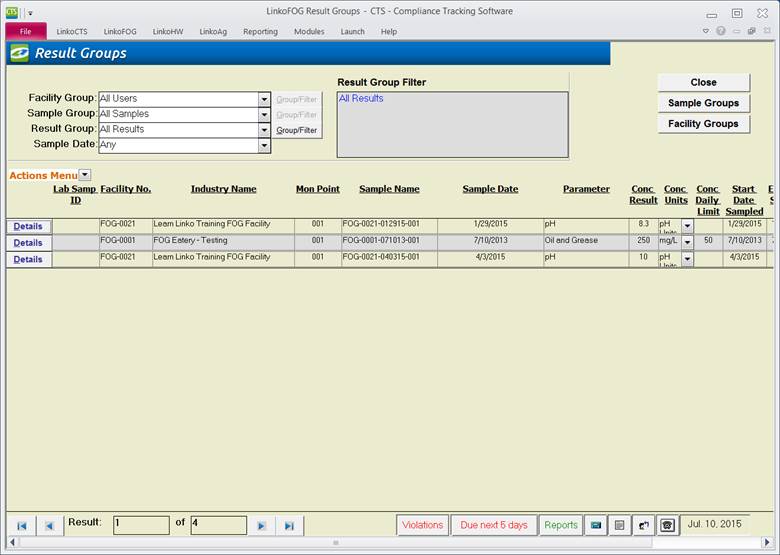
Click on the Reports button |
|
Item |
Description |
|
Facility No |
Number of Facility whose Sample Results are being displayed below |
|
Facility Name |
Name of Facility whose Sample Results are being displayed below |
|
Sample Name |
Name of Sample whose Results are being displayed below |
|
Monitoring Point |
Monitoring Point of Sample whose Results are being displayed below |
|
Sampler |
Person who took the Sample whose Results are being displayed below |
|
Sample Event Date |
Date that Sample was taken |
|
Results with NA’s or All Results |
You may choose to display all Results, the default, or only display those results whose Concentration Result is ‘NA’. This allows you to easily list, and then edit, the Results whose values have not been entered |
|
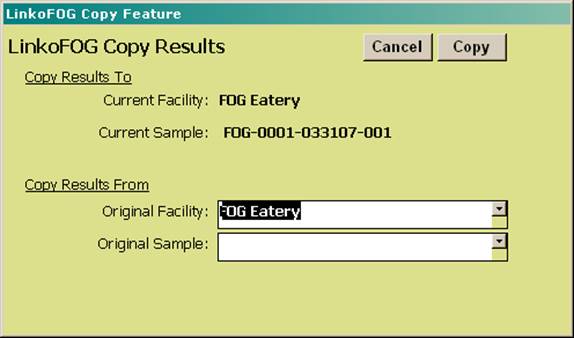
Copy |
Opens Copy Results window allowing you to copy results from a different sample |
|
Add List |
Adds a Result item for each parameter associated with the Sample’s Monitoring Point. Each new Result is created with the default value of ‘NA’ |
|
Delete NA |
Deletes all Results whose value is ‘NA’ |
|
New |
Opens Result Details screen allowing you to create a new Sample |
|
Delete |
Deletes the selected Parameter |
|
Close |
Closes the screen |
|
Cancel |
If editing or adding a Parameter, allows you to cancel your changes without saving |
|
Details |
Opens Result Details screen displaying the selected Parameter and results |
|
Parameter |
The pollutant parameter name |
|
Analysis Method |
The lab method used to analyze the sample. |
|
Conc.
Result |
The concentration result for this parameter |
|
Numeric
Result |
The concentration result for this parameter stored as a numeric value. If exported to Excel, this value will not require conversion from text to number. |
|
Adjusted
Result |
The concentration value after applying any concentration value adjustments to the concentration result. |
|
Result Flag |
Displays a flag when Hold Times (H) or Collection methods (C) are violated. You may enter your own flags to identify this result. |
|
Conc Units |
The concentration unit of measurement for this parameter |
|
Collection
Method |
This field will auto-fill based upon the method configured in the Monitoring Point for collecting the sample. |
|
Reporting
Limit |
Reporting limit for this result. When entering a < value, the value following the < will be automatically entered into this field. |
|
Conc
Daily Limit |
The concentration daily limit for this parameter |
|
Conc Limit Units |
The concentration limit units assigned to this parameter in Monitoring Point Limits |
|
Exceedance |
Non-compliance flag. If the result exceeded limits, a red ‘flag’ (D) is shown here. This flag is configurable in the Samples Admin. Double-clicking the field when the flag is displayed will take you to the Violation Management screen if a Violation exists, otherwise you will be prompted to create a violation. |
|
Start Date Sampled |
Beginning date of a composite sample. |
|
End Date Sampled |
End date of a composite sample. If a grab sample, both Start and End will be the same. Both dates are automatically set to the Sample Complete Date entered for the Sample. |
|
Date Analyzed |
The date the sample was analyzed at the lab. |
|
Record Selectors |
Standard Record Selectors allowing you to move between displayed Results. |
|
Status Bar |
Standard Status Bar allowing you to jump to a listing of Violations without enforcements, a listing of due and overdue Events, a listing of related Reports, a Calendar, a Calculator, Contact Information, or a new Phone Log Event |
|
Other Field
Names and Action Menu – Config Layout |
The List View
Configure Link Allows you
to select which fields are displayed, their order and settings. The Result
Management screen has a variety of Fields that can be used including Mass
information (often not used in FOG), lab information and comments. |
|
Action
Menu – Excel Preview |
Excel preview will take your current list view and create a spreadsheet view you can export to Excel. |
|
Conc
Monthly Limit |
The concentration monthly limit for this parameter |
|
Compliance
Result |
Should this Result be used for compliance calculations in Compliance Assistant? |
|
Mass
Result |
This field value is auto-calculated by Linko based upon the Flow, Flow Units and Conc. Result. |
|
Mass
Daily Limit |
The mass daily limit as assigned in the Monitoring Point. |
|
Mass
Units |
The units of measurement for mass limits |
|
Mass
Exceedance |
Non-compliance flag. If the result exceeded limits, a red ‘flag’ (D) is shown here. This flag is configurable in the Samples and Results Administration screen. Double-clicking the field when the flag is displayed will take you to the Violation Management screen if a Violation record exists. |
|
Mass Monthly Limit |
The monthly limit assigned for the mass in ppd. |
|
Flow |
Flow measurement for the sample. Necessary to calculate Mass Based Results. |
|
Flow Units |
Flow measurement units for the sample, mgd or gpd. Necessary to calculate Mass Based Results. |
|
Lab Samp ID |
Lab Identification number of the sample. |
|
Method Detection Limit |
The limit determined by the lab to be their effective level they can measure accurately. |
|
Diluted by Lab |
Whether or not the lab needed to dilute a particularly dirty sample. |
|
Use in Avg? |
Whether or not this parameter is being used in a Sample Average. |
|
Comments |
Comments about the parameter result. |
|
Param Sort Order |
Provides the ability to sort the Parameters based upon the Sort Order number assigned under the Parameter Details in Samples and Results Administration. |

Reduce data entry by
entering common (or Default) information one time for all the newly entered
Results in the Sample.
|
Enable
Default Results |
You can enable Default Results
under “Sample and Result Administration” à “Configurations tab” à “Local Configurations” à “Results Section” à “Prompt for ‘NA’ Result Defaults
on New Samples.” When selected, the Default Results window opens when you
open the Result Management screen to enter data. |
|
Item |
Description |
|
Continue... |
Once you have entered the information that will be applied to all the results, Continue takes you to the Results Management screen |
|
Field / Field Value |
Enter in the information that is common for each parameter for that sample. The data you enter will be applied to each parameter with a concentration result of ‘NA’. The fields displayed depend on what you configured using the Config Hyperlink on the Results Management screen with a check in the ‘Prompt for Defaults’ box. |
|
The following are just
examples of fields you can select. |
More fields
can be selected using the Config
link. |
|
Flow / Flow Units |
Selecting these fields for a Default Result allows you to enter in the Flow and Flow Units just once for all the Parameters you sampled. |
|
Start / End Date Sampled |
Selecting these fields for a Default Result allows you to enter in the Sampling dates just once. |
|
Date Analyzed |
This field will automatically pull the Value for the “Analyzed Date” at Sample Management, entered when you created the Sample. |
|
Item |
Description |
|
Cancel |
Closes window without copying any Results |
|
Copy |
Copies Results from selected Original Sample |
|
Current Facility |
Facility that the Results will be copied to |
|
Current Sample |
Sample that Results will be copied to |
|
Original Facility |
Facility that has the Sample the Results will be copied from. This drop down box lists all Facilities |
|
Original Sample |
Sample that the Results will be copied from. This drop down box lists all Results for the selected Original Facility |
|
Buttons |
Action performed |
|
New |
Adds a new parameter result |
|
Edit |
Opens the current results
for changes. |
|
Save |
Saves Record. |
|
Close |
Closes the screen, returns
to the Results Management screen |
|
Cancel |
Cancels modifications or
newly added information |
|
Delete |
Deletes the selected result |
|
Item |
Description |
|
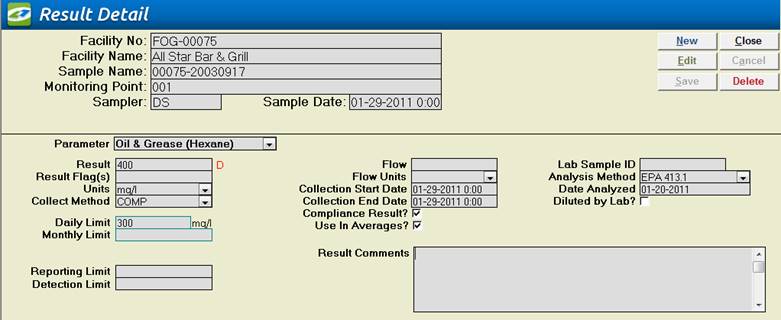
Facility No |
Displays the Facility’s
identification number |
|
Facility Name |
Displays the Facility name |
|
Sample Name |
The sample for which the
results on this screen apply |
|
Monitoring Point |
The monitoring point
associated with these results |
|
Sampler |
The name of the person that
collected the sample |
|
Sample Event Date |
The date and time that the
sample was collected |
|
Results with NA’s or All Results |
You may choose to display all Results, the default, or only display those results whose Concentration Result is ‘NA’. This allows you to move quickly through the parameters you need to enter. |
|
Parameter |
The parameter or pollutant
name. The parameter entered must
exist in the drop down list |
|
Conc. Result |
The analytical testing
result of the parameter. |
|
Result Flag (s) |
If the results are over the
daily limit a D will flag the result. |
|
Units |
The unit of measure for
this parameter. The unit entered must exist in the drop down list |
|
Conc. Daily Limit |
The daily concentration
limit for this parameter. Daily and Monthly Limits come from the Facility's Monitoring Point Limits. This field will be
automatically filled if the parameter's limit has been set for this
monitoring point. Note: The effective
date within the Monitoring Point
Limits must be prior to
the sample date for the Daily Limits to be displayed on this screen |
|
Conc. Monthly Limit |
The monthly or average
concentration limit for this parameter.
This field will be automatically filled if the parameter's limit has
been set for this monitoring point |
|
Reporting Limit |
This field can be used for
the PQL or Reporting Limit. |
|
Detection Limit |
The limit that the Lab
indicates is their measurement limit. |
|
Analysis Method |
EPA Regulation requirements
regarding the sample testing procedure |
|
Date Analyzed |
The date the Lab completed
its analysis. |
|
Compliance
Result |
Should this result be used in compliance checking within the compliance assistant? |
|
Diluted
by lab |
Was a dilution used in sample? |
|
Used in
Sample Average |
Should this result be used in sample averages? The Default for this field is Checked or Yes. If this result is used in a sample average, only results marked as Used in Sample Average will be included in the Sample average. Do you want to see the sample Averages Screen? |
|
Flow |
That amount of gallons being discharged at the monitoring point |
|
Flow
Units |
Unit of measurement the flow was measured in. Linko Software accepts Million Gallons Per Day (MGD) and Gallons Per Day (GPD) |
|
Collection
Start/End Date |
The date and time the sample was taken. These dates default to the Sample Date entered on the Sample Management screen. |
|
Collection
Method |
The method in which the sample was taken, Grab, Composite… These are configurable in the Samples and Results Configuration Screen |
|
Lab
Sample ID |
Lab Identification for the Sample |
|
Result
Comments |
Any additional information for the Parameter result. |