Reporting is a requirement for every FOG program and report data and formatting needs vary with every program. LinkoFOG approaches these needs in two ways.
First: we provide over 70 system reports. Access system reports at any screen with a Status Bar by clicking on the Reports Button.
Second: We do not expect that our system reports will meet each FOG Program’s exact reporting needs so we created the Flexible Reporter. The Flexible Reporter allows the user to edit existing system reports, to add or remove data, and customize the format for each report. These reports can then be saved and used throughout the system.
Note: Reports from the Compliance Assistant are not modifiable with the Flexible Reporter.
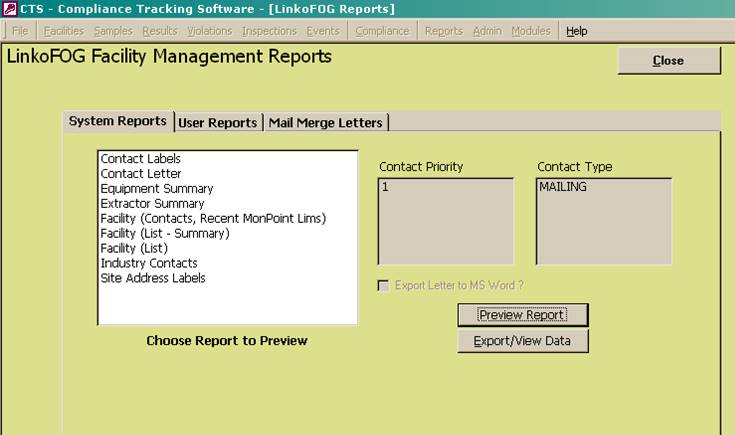
Access the Reports screen by selecting the “Reports” button on the status bar at the bottom of a screen.
|
Tabs |
Description |
|
System
Reports and Letters |
Displays all of the System Reports and Letters that can be applied from the previous screen. This form is displayed each time the Report button is clicked on. The only difference will be what reports and letters are displayed. |
|
User
Reports and Letters |
Displays all of the User Reports and Letters that can be applied from the previous screen. |
|
Mail
Merge Letters |
Displays all Mail Merge letters available for the previous screen. Mail merge letters use MS Word to ‘merge’ data from the database into a MS Word template that you can create. This allows you to use one letter that can be addressed to several Facilities. |
|
Items |
Description |
|
Choose a Report to View |
List of Reports available to view. Double-click a report name to preview it |
|
Contact Priority |
Choose contacts by priority that you would like to send letters. Contact Priority comes from the Contact Priority on the Contacts screen in the Facility Management. Only Facilities that have contacts with the priority you choose will have a report or letter generated for them. If you choose to generate a mail merge letter for a group of Facilities and have it sent to just those contacts with a priority of 2, facilities that do not have a contact with a priority of 2 will not be sent the letter. |
|
Contact Type |
Choose contacts by Contact Type that you would like to send letters. Contact Type comes from the Contact Type field on the contacts screen. Only Facilities that have contacts with the type you choose will have a report or letter generated for them. If you choose to generate a mail merge letter for a group of Facilities and have it sent to just those contacts with a type of Mailing, facilities that do not have a contact with that type of Mailing will not be sent the letter. |
|
Preview Report |
Opens the report or letter for viewing. Mail Merge letters are opened in MS Word. |
|
Export / View Data |
Opens a datasheet view of the information displayed in the report or letter chosen. This information can then be easily exported to Excel. |
|
Dental Amalgam Compliance |
EPA’s one-time compliance mail merge report for
dental dischargers |
|
Sample Event Details |
The details of each event
for the selected Industry |
|
Samples by Quarter |
Detailed list of each event
in each quarter for the selected Industry |
|
Samples Signed Off
Late |
Summary of late sign-offs |
|
Samples Signed Off
Late Crosstab |
Statistical analysis of late
sign-offs |
|
Samples Signed Off
Late Summary |
Monthly count of late
sign-offs |
|
Results by Industry and Sample |
Sample details for each parameter in the selected
Sample |
|
Results by Parameter |
Parameter result details for the selected Sample |
|
Count of Facilities
w/Violations by Class, Type |
Provides a count of unique
facilities with violations by month, quarter and year |
|
Violation Summary |
Provides a detailed list of
violations during each period |
|
Violation Summary by
Classification, Facility, Type |
Provides a list of
facilities with violations for each period |
|
Violation Summary
with Enforcements |
Provides a detailed list of violations
and associated enforcements. |
|
Provides a detailed explanation
of the selected violation |
|
|
Violation Summary
with Enforcements |
Provides a detailed explanation
of the selected violation and associated enforcements. |
|
Violations with Related
Items |
Detailed description the
violation and each related event |
|
Summary by Class,
Facility, Type |
Provides a sorted list of
enforcements |
|
Summary by Class,
Type |
Provides an anonymous count
of enforcements by month |
|
Enforcements with
Related Items |
Provides a detailed
explanation of each enforcement |
|
NOV with 1 Violation |
Letter template |
|
NOV with Multiple
Violations |
Letter template |
|
Violations and
Enforcements |
Provides a detailed list of violations
and associated enforcement. |
|
Event Summary by
Complete Date, Performed By |
Chart of the number of
events each inspector completed each year and month |
|
Events by Complete
Date |
List of the events completed
each month |
|
Events by Due Date |
List of events ordered by
due date by month with totals for month |
|
Events by Due Date w
/ Addr. And Phone |
List of events due with the
Facility name and phone by month |
|
Events by Facility |
Detailed list of events for
each facility |
|
Events by Facility
(List) |
List of events for each
facility |
|
Generic Event
Details |
List of generic events |
|
Inspection Event
Details |
List of inspection events |
|
Permit Event Details |
List of Permit Events |
|
Pump Out Details |
List of Pump Outs |
Pump Out Management
|
Pump Out Details |
List of Pump Outs and
details of events |
|
Pump Outs by
Complete Date |
List of the Pump Out events
completed each month |
|
Pump Outs by Due
Date w / Addr. And Phone |
List of Pump Out events
ordered by due date by month with totals for month with the Facility name and
phone |
|
Pump Outs by Map
Category, Date, and Waste Type |
List of Pump Out events ordered
by due date by month with totals for month ordered by Map Category, Date and
Waste Types with total gallons pumped and number of Pump Outs |
|
Event Violations |
Listing of the events that are
in non-compliance |
|
Facilities in SNC |
List of the Facilities that
have one or more events in non-compliance. |
|
Event Table Report |
Event violations in table
format. |
|
Contact Labels |
Print on adhesive labels,
addressed to contact |
|
Contact Letter |
Blank letter with industry
contact |
|
Industries by SIC
(List-Summary) |
Ordered list of Facilities
by SIC number. |
|
Industry (Contacts
and Mon Point Limits) |
Detailed industry report
with monitoring points |
|
Industry (Contacts,
Recent Mon Point Lims) |
Detailed industry report with current monitoring points |
|
Industry (List –
Summary) |
List of industry contacts
with compliance status |
|
Industry (List) |
Detailed list of industry
contacts with user categories |
|
Industry Contacts |
Rolodex inserts |
|
Industry List with
Mon Points |
List of monitoring points by
industry |
|
Industry Summary
(Notes & Codes) |
Detailed industry report |
|
Site Address Labels |
Print on adhesive labels,
industry name only |
|
Site Sampling Plan |
List of pollutants
associated with monitoring points |
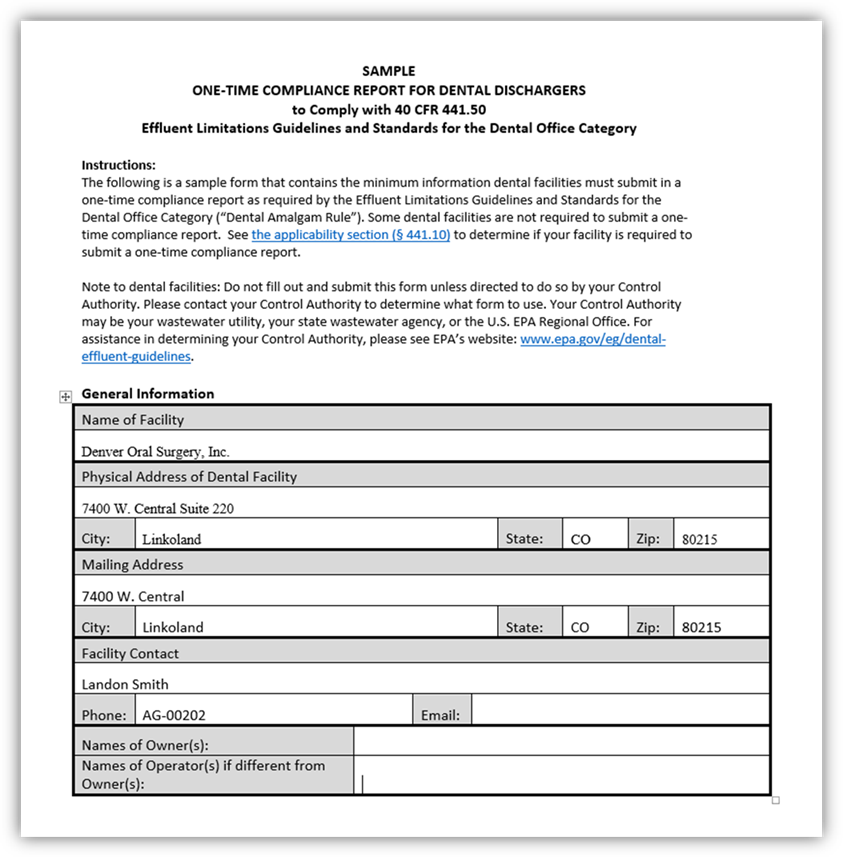
You can use your Linko software to track
your dental amalgam program.
We have added the EPA’s Sample One-Time Compliance Report for Dental Dischargers
as a mail merge letter into LinkoCTS, LinkoFOG and LinkoAg to use in meeting
your Dental Amalgam regulatory
requirements. You can easily generate this report out
of the Linko software for mailing to your dentists.
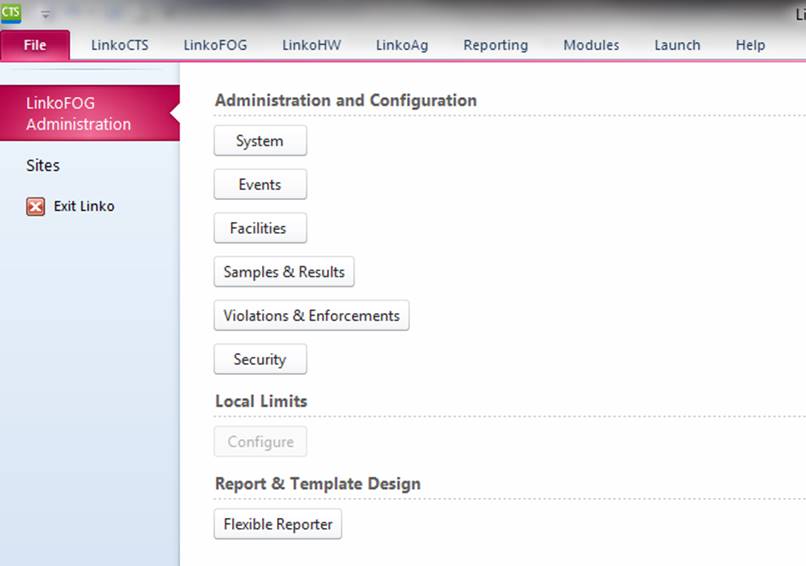
Access the Flexible Reporter screen from the Menu Bar at the top of the screen by selecting File à LinkoFOG Administration à Flexible Reporter. This is where you ‘create’ reports. You do not print reports from here. That should only be done from the Reports screen previously discussed.
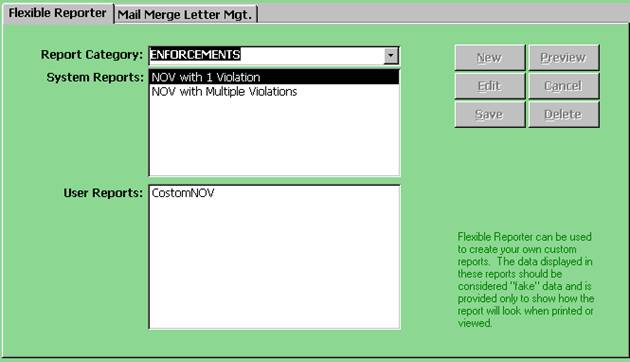
The Flexible Reporter button on the Linko Menu Bar (Reports à Create Reports and Letters) is used to modify existing system reports to create new user reports. The Flexible Reporter offers our users the ability to take our current system reports and customize them. To use the report writer, the user is expected to have an intermediate understanding of creating reports with Access.
When User Reports are created, those reports are automatically distributed to other users of the software.
|
Report Category |
Choose
the area of the software where the report you would like to create exists. |
|
System Reports /
User Reports |
Choose
a report to modify and use. Click on
New or Preview button if you select a System Report. Click on New, Preview,
Edit or Delete if you select a User Report.
|
|
New |
Select
an existing report, and Choose NEW to open the report in the MS Access Design
mode where it can immediately be modified and then saved as a New User
report. Use standard MS Access report
design protocols to modify the report.
Now click on the close or the Save button. You will be prompted to
save the changes you have made. Click on the YES button. |
|
Edit |
Used
to modify existing user reports.
Note: You cannot alter or
delete a system report. You create a NEW report from a system report and then
save it as a USER report. Then you can come back at any time and EDIT the
User report you made. |
|
Save |
When
returning to the report editor screen after modifying a report, click on the
Save button across from the User Reports Section. Now enter the desired
description for the Name of the report.
Your report is now saved as a user report. |
|
Preview |
Will
open the report in the view mode. The
view mode cannot be modified; however you can see what the finished product
looks like. |
|
Cancel |
Exits
and discards the report without saving. |
|
Delete |
Will
remove the chosen User Report from our system. |
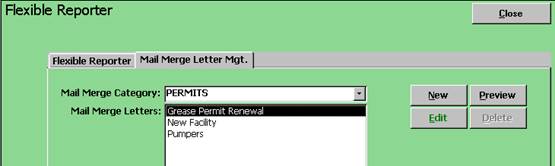
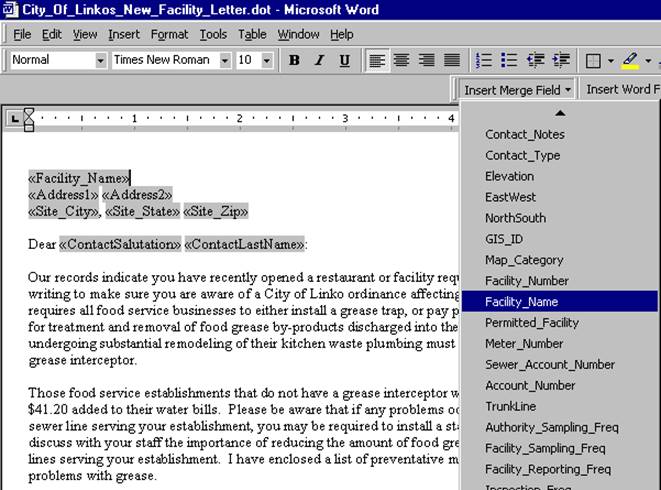
Using the power of MS Word, you can create your own Templates and then reuse those templates for creating and sending letters to your Facilities. LinkoFOG will “merge” the data from the database into the Templates that you create. This allows you to create one Mail Merge Letter template and use it with all of your Facilities and each time the appropriate Facility’s name, address and other information will be displayed in the letter.

|
Mail Merge Category |
Choose
the area of the software where the letter you would like to create will
exist. |
|
Mail Merge Letters |
Choose
a system report to modify and use.
Click on the either the New or Preview button. The
user can select Mail Merge letters that are not based on contacts. These
letters are identified “(No Contacts)” and are based on the Facility
alone. This means that you don’t have
to worry about a Facility not getting a letter because they did not have a
contact with a priority of 2 for example. |
|
New |
Enter
a name for your letter and click OK.
Keep names short and descriptive.
Avoid using: , : ; ‘ “ ? / @ # $ % & *. The name you enter will be added to the
Mail Merge Letters list. Next choose
that letter and click on the Edit button. |
|
Edit |
Opens
existing Mail Merge document in MS Word to be edited. |
|
Preview |
Will
open the Mail Merge Letter in MS Word and will ‘merge’ fake data into the
letter so you can have an idea of what the letter might look like later when
you go to use it. |
|
Delete |
Will
remove the chosen user created Mail Merge letter from our system. You cannot remove system Mail Merge
letters. |