Track and report Facilities that are in non-compliance for any reason. Manage notices of non-compliance related to failed Inspections, late receipt of reports, failure to perform Pump Outs on time, and other activities.
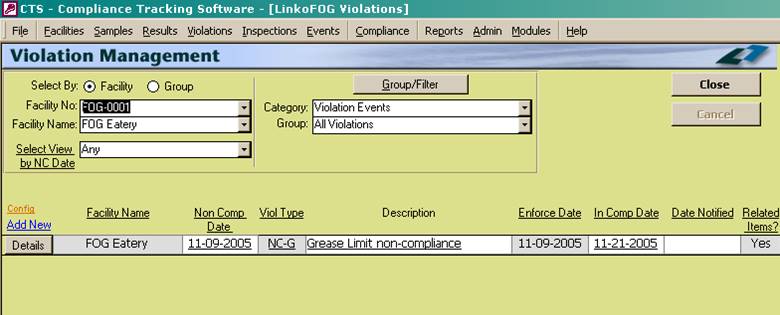
This list view is User Modifiable in the “white” fields. The “grey” fields remain locked and cannot be updated by the Users. The information changed here will be shown in the details screens of the individual Violations.
|
Violations Management Screen |
When you first enter the Violations screen, you are viewing a list of violations that meet the selection criteria. If you do not see any violations, it is because none match the criteria. Try clicking the Group option and / or expanding the date range. Review
violations for a particular Facility or a group of Facilities. You will see a list of violations
corresponding to the selected Facility or Group. Click the Details button to see all of the
violation information. To understand
how to create a group, go to the Groups section. After
a Violation has been created you can send a Notice of Non-Compliance letter
and even track a compliance plan related to the violation. Create
your own violation and enforcement types and compliance plans in Violation
and Enforcement Administration |
||
|
Creating
a Violation |
Create
a Violation from multiple locations:
Directly from the Violations screen, used for
violations such as a Reporting Non-Compliance event. Click the Add New button.
This will take you to the Violation Details screen. Automatically
from the Results screen <Parameter Violation> for
exceeding the Daily concentration or mass limit of a pollutant. When
at the Event Management screen, and an event takes place that results in a
violation, you can quickly add the violation from the Event Detail Screen. Running
Compliance Assistant will give you the option to create violations
that it identifies. Double-clicking
in a blank “Violation” field at the Event Management screen, and the “Has
Violation” field in Sample Management will ask you to create a
Violation. If these fields show a red YES,
then double-clicking the Yes will take you to the Violation Management
screen. |
||
|
In Compliance |
If
the violation is complete, enter the date the Industry became in compliance. |
||
|
Enforcements |
Use
the Enforcements tab then New to enter enforcement actions in response to the
Violation. On the Enforcement Detail Screen fill in the appropriate fields, choose violations to enforce
if you have more than one, and click on the save button. After you click Save, you can print an NOV
letter summarizing the Violation by clicking the Reports button |
||
|
Buttons |
Action performed |
||
|
Add New |
Goes
to the Violation screen to create a new violation for the selected permit. |
||
|
Details |
Goes
to the Violation Details Screen, where details may be entered and/or reviewed
for the violation, compliance schedule, and enforcement action(s). |
||
|
Close |
Closes
the form, returns to the Main Menu. |
||
|
Cancel |
Closes
and exits without saving changes. |
||
|
Group/Filter |
Opens
the Filter form to create and modify groups and filters. For more information go to the Filter Form |
||
|
Quick Filter |
Access the Quick Filter function by a Right Click on a field of interest and sort for and select just the records you want to display. |
||
|
Filter Criteria |
Description |
||
|
Select by: |
Facility: Allows you to select, and
work with violations for a single Facility at a one time. Group: Allows you to select, and
work with violations for a whole group of Facilities at the same time. These groups are created in the Facility
Groups
Section of the software |
||
|
Facility No |
Displays
the Facility number of the Facility
associated with the violations displayed.
Displayed only when using "Select by: Facility" mode. |
||
|
Facility Name |
Displays
the Facility name of the Facility
associated with the violations displayed.
Displayed only when using "Select by: Facility" mode. |
||
|
Group |
Displays
the Group name of the Facilities
associated with the violations displayed.
Displayed only when using "Select by: Group" mode. |
||
|
Select View by NC Date |
Drop
down box offering a list of time periods.
Choosing a time period limits the Violations displayed to the ones
that have a Date of Non-Compliance within that time period. The user can
create a Custom Date range (See the Custom Date explanation in the List and Details
View section of Common Features) or add / modify / delete Date Ranges
available in the listing via the Quick View tab of Event Administration. |
||
|
Category |
Choose the Category Group for the violations. At this point, only the violations category is available. |
||
|
Group / Type |
Choose
the Violation type group that you would like to filter on. These can be customized by clicking on the
Groups/Filter button above it. |
||
|
Item |
Description |
||
|
Facility |
Displays
the Facility Name associated with the violations displayed. |
||
|
NC Date |
The
date that the Non-Compliance (violation) occurred. This date is filtered on by the Quick View
Due Date function. |
||
|
Violation Type |
The
type of violation. Violation types may
be added to the list box via the Violation Types of Violation
and Enforcement Admin. |
||
|
Violation
Description |
Description
of the violation (8000 character limit). |
||
|
Enforce Date |
The
last enforcement date associated with the violation. |
||
|
In Compl Date |
Date
the Facility is back in compliance.
This can be edited on the Violation Detail Screen. |
||
|
Date Notified |
The
date that the Industry notified the POTW of the violation. |
||
|
Related Items |
Does
this violation stem from another event, such as a sample? Or were there other
events generated from this violation?
The software will track items like this in the related items section. This is a great place to view the
“Escalation Of Events” that has taken place. |
||
|
Other Field Names and Config |
The List View Configure
Link Allows you to select which fields are displayed, their order and
settings. The Violation Management screen has a variety of Fields that can be
used including additional Facility info, and Internal Comments. |
||
|
Industry No |
The Industry’s unique identification number. |
||
|
Site Address 1 |
Industry Address |
||
|
Site Address 2 |
Industry Address |
||
|
City |
Industry’s location city |
||
|
State |
Industry’s location State |
||
|
Zip |
Zip code |
||
|
24 Hr. |
Did
the Facility give the POTW notice of the violation within 24 hrs? This field NOT auto populated with the
information displayed on the Violations Details screen, however it is
manually checkable. |
||
|
Map Category |
The map code location you assigned in the Industry Management Site Info tab. |
||
|
Created By |
Shows the listing of POTW employees from the Personnel Tab in System Administration and one can be selected to indicate that the Event was created by them. |
||
|
Date Detected |
The date the violation was first detected. |
||
|
Detected By |
This may be either personnel for the POTW or the Industry or other means. |
||
|
Internal Comments |
Your comments (8000 character max). |
||
|
Attachments: |
Add new
attachments or view existing. See Using
Attachments for more
details |
|
||

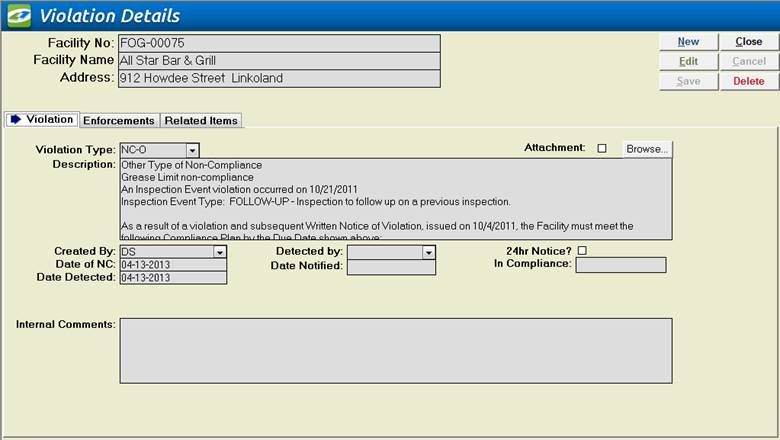
Create a record of a
violation by an Industry.
|
Action performed |
|
|
New |
Clears values and allows you to create a new Violation. While editing, the New, Edit, Close, and Record Selector buttons will be disabled. |
|
Edit |
Allows you to edit the displayed Violation. While editing, the New, Edit, Close, and Record Selector buttons will be disabled. |
|
Save |
Saves the changes made to the Violation. Only enabled while editing or creating an entry. |
|
Close |
Closes the screen. |
|
Cancel |
Cancels any changes made to the Violation. Only enabled while editing or creating an entry. |
|
Delete |
Deletes the Violation. |
|
Tabs |
Description |
|
Violations |
Use
to enter the violation description, violation type, the date of
non-compliance, and the date that the user is back in compliance. Description: Used to enter up to 8000 character description of
the violation. Violation Type: The type of violation. e.g., parameter, reporting, compliance
schedule, other, etc... Created By: Who within the POTW created
the violation? Date of NC:
The date that the violation occurred. Date Detected: When was the violation
action was first noticed? Detected by: Who first noticed the
violation? This is not limited to
Facility contacts or Municipal employees. Date notified: This field is used to help
POTW employees verify if 24-hr notice was given. 24 hr.: Was 24-hr notice given to
the POTW by the Industry? In compliance: The date that the
violation has been resolved and the Facility is back in compliance. Attachment: Use Browse. to store the
location of any electronic document, which may apply to the violation |
|
Enforcements |
Enter
enforcement actions taken for this violation. Also has quick access to an NOV letter. Add New:
Enter a new enforcement for this Violation. Details: View and modify
enforcement information. Enforcement type: The type of enforcement
that was taken. E.g., verbal warning,
written NOV, fine, etc. Enforcement
Description:
Detail information of up to 8000 characters about the enforcement. Enforce Date: The date the enforcement
was taken. Default date is
"today". To change the date,
enter a new one. Penalty amount: The dollar amount of the
fine levied, if any. Plan Due: The date the compliance
action(s) must be completed. Enforced By: POTW employee who completed
the enforcement for this violation? Person
Contacted:
Industry person contacted about the Enforcement. Mail
Receipt: If you send notice via US Mail did you get
a delivery receipt number? Compliance Plan What is the Compliance plan
for this violation? There may be
several per violation. Add or Remove Violations: This allows you add
additional violations to be covered under the same enforcement action. |
|
Related
Events |
View
the event causing the violation, enforcement actions and follow-up compliance
plans and events. Details: View and modify event
information. This button will open up
the details screen for the event. An
example of this screen can be seen on the “Events Details Screen” Event Category: Category of event. Event Type : Type of event Date
Created:
The Date the Enforcement and Event were created. Completed Date The date that this event
was actually completed. Source: Was this event the “Source” of the violation? Often the source of the violation is the
sample that had a parameter compliance violation or failed Inspection. |