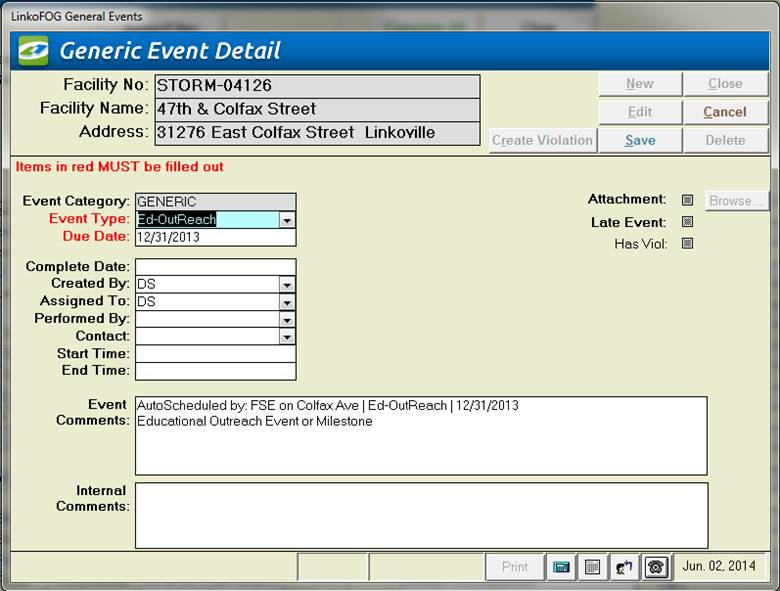
The General Event type has fields on it to record and display Generic information including Letter Printed events and Phone Call log events.
|
Event Categories |
Different fields will become available in Event Details depending on which category was chosen at the Event Pick Box. This Generic Details screen has
fields on it to record and display Generic (phone log and other) information.
|
|
Sample Events |
Because Sample Events are of particular interest
to our users they have their own section in the Users’ Guide. Click on Sample Events to view specific information on entering sample information. |
|
Selector |
Description |
|
Facility No |
ID of Facility who’s Events are being displayed below. |
|
Facility |
Name of Facility who’s Events are being displayed below. |
|
Address |
Address of Facility who’s Events are being displayed below. |
|
Buttons |
Action performed |
|
Opens Violation Details page allowing you to create a new Violation for this Event |
|
|
New |
Clears values and allows you to create a new Event. While editing, the New, Edit, Close, and Record Selector buttons will be disabled |
|
Edit |
Allows you to edit the displayed Event. While editing, the New, Edit, Close, and Record Selector buttons will be disabled |
|
Save |
Saves the changes made to the Event. Only enabled while editing or creating an entry |
|
Close |
Closes the screen |
|
Cancel |
Cancels any changes made to the Event. Only enabled while editing or creating an entry |
|
Delete |
Deletes the Event. |
|
Record
Selectors |
Standard Record Selectors allowing you to move between displayed Events. |
|
Status
Bar |
Reduced Status Bar allowing you to view a Calendar, a Calculator, Contact Information, or create a new Phone Log Event. |
|
Item |
Description |
|
Event Category |
Event Category selected for this event. This field is not editable, and will always display what was previously chosen |
|
Event Type |
This combo box lists all possible Generic types available. These types are editable in Event Administration Screen. |
|
Due Date |
The scheduled date for the Sample to be taken |
|
Complete Date |
Date the event was done. |
|
Attachments: |
Add new attachments or
view existing. See Using Attachments for more details |
|
Browse.. |
Opens a file browser allowing you to select a file for association. View the document once it has been entered here by clicking on the Browse button. |
|
Created By |
Person who created this event. This can be used in bigger systems to track who is scheduling the events to be completed |
|
Assigned to |
POTW person assigned to complete the event. |
|
Performed by |
Who completed the event. |
|
Contact |
If
interaction with the industry occurs, recording the contact will be useful
information to have. This field is
not limited to contacts associated with an industry. Simply type in the contact that you worked
with |
|
Start and End Times |
Again,
if interaction with the industry occurs, recording the time of interaction
may be necessary information |
|
Late Event |
Whether or not this Event is late. If the event is late, this will be automatically filled in by the system |
|
Has Viol |
Whether or not there are any violations associated with this Event. If there are Violations, clicking this label will open the Violation screen listing all of the violations for this single event |
|
Pre Notify/Post Notify? |
Pre Notify Events are either created on an Event Type level in the Event Administration Screen or on the fly within any of the Events screens (Samples Included). Pre and Post Notify will automatically generate events before and after the original events are due. For example, users can create a pre-event to notify POTW personnel of an upcoming sample event. This can be used to prepare the sample bottles and review the types of samples to take. This is a discontinued feature provided for backwards compatibility. Please see the Pre / Post Configuration setting. |
|
Event Comments |
Comments about this Event (8000 character limit). |
|
Internal Comments |
Internal Comments (8000 character max) about this Event. These do not display on reports. |