This utility is for Linko software users upgrading from version 13.3 or earlier. It will allow you to see a list of all the files that were attached or linked in earlier versions of the software. It will then inventory those files, identifying which still exist at the location they were linked and which are missing.
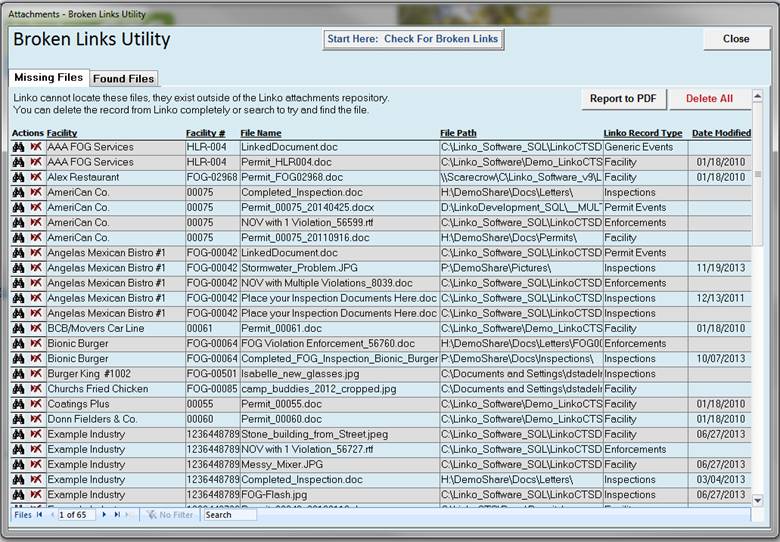
Click Start Here: Check For Broken Links and Linko will get a list of all files attached in version 13.3 or earlier and determine if they exist. The screen below will be displayed.
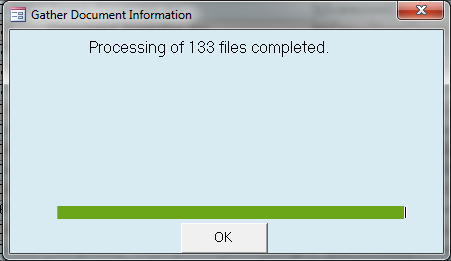
After completion you can
toggle betwee Missing Files and Found Files
Missing Files – Files that Linko can’t find. The path to the file is not valid or the file
has been moved or deleted. Follow the on
screen instructions to either delete or try to find the file.
Use Report to
PDF to generate a report that includes more details about the Linko
record the file was attached to. This
allows you to go to that area of the software to further investigate the file.
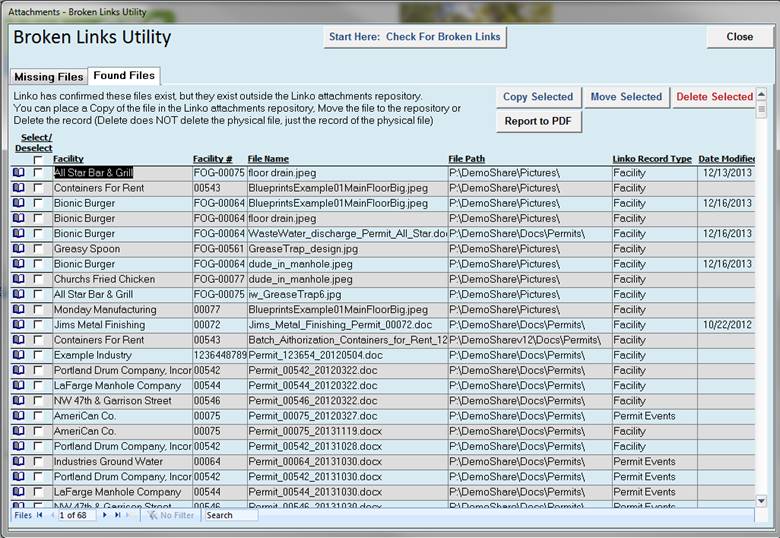
Found Files – These files exist, but they are not within the
Linko Attachments repository. We recommend you Move these files to the
Linko Repository so there is no chance of them going missing again in the
future
Use Report to
PDF to generate a report that includes more details about the Linko
record the file was attached to. This
allows you to go to that area of the software to further investigate the file.
Use Move Selected to actually move
the file from it’s current location and place it into the Linko Attachments
Respository. The file will no longer
exist at is original location.
Use Copy Selected to place a copy of
the file into the Linko Attachments Respository. The original file stays as is. If you select this option, you should then
archive the original, place it where it can not be accidentally edited or
mistaken as the File of Record.
Use Delete Selected to remove the
attachment record from the software altogether.
This DOES NOT delete the file, just the reference to it in the Linko
software.