Track the details of any type of inspection like Kitchen Best Management Practices, New Facilities, Grease Trap installation plans, Maintenance Logs, etc.
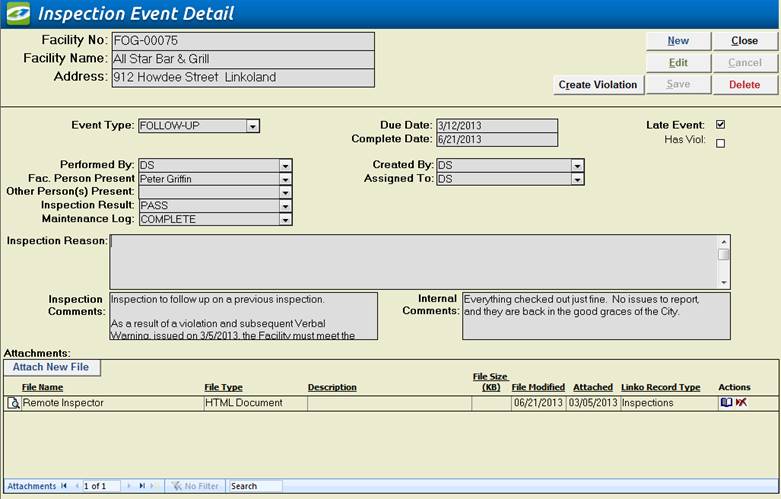
|
Buttons |
|
|
Create
Violation |
Opens Violation Details page allowing you to create a new Violation for this Event. |
|
New |
Clears values and allows you to create a new Inspection. While editing, the New, Edit, Close, and Record Selector buttons will be disabled. |
|
Edit |
Allows you to edit the displayed Inspection. While editing, the New, Edit, Close, and Record Selector buttons will be disabled. |
|
Save |
Saves the changes made to the Inspection. |
|
Close |
Closes the screen. |
|
Cancel |
Cancels any changes made to the Inspection. |
|
Delete |
Deletes the Inspection Event. |
|
Item |
Description |
|
Facility No |
ID of Facility that was Inspected. |
|
Facility |
Name of Facility that was Inspected. |
|
Address |
Address where the Inspection took place. |
|
Event Type |
This combo box lists all possible Inspection types available. These types are editable in Event Administration Screen. |
|
Due Date |
When is the Inspection scheduled to be completed. |
|
Complete Date |
When was the Inspection completed. |
|
Performed by |
You can select from a pull-down list of POTW employees. |
|
Fac. Person Present |
This field will show a list of the contacts that exists for the Facility, but a user can type any name that they want into the field. This identifies who the Facility representative was that was present during the inspection. |
|
Other Person(s) Present |
This field allows the user to add any other interested party who was present during the inspection. Multiple persons’ names may be typed directly into the field. |
|
Inspection Result |
You can select the result of the inspection from a list of typical results. When you want to add additional inspection results types to the list, simply type it in and tell Linko to add it to the database when it asks. Or go to Event Administration under the Inspection Result Types tab and <Add New>. |
|
Maintenance Log |
This allows the user to monitor the status of the Maintenance Log at the Facility if needed. You can select the status or condition of the Maintenance Log that the Facility keeps for the extractor. When you want to add additional maintenance log types to the list, simply type it in and tell Linko to add it to the database when it asks. Or go to Event Administration under the Maintenance Log Types tab and <Add New>. |
|
Created by |
You can select from a pull-down list of POTW employees to assign who created the Inspection. |
|
Assigned to |
Who was the POTW employee assigned to the Inspection. |
|
Pre Notify/Post Notify? |
Pre Notify Events are created within any of the Events screens (Samples Included). Pre and Post Notify will automatically generate events before and after the original events are due. For example, users can create a pre-event to notify POTW personnel of an upcoming inspection event where a letter needs sending to the Facility. This is a discontinued feature provided for backwards compatibility. Please see the Pre / Post Configuration setting. |
|
Inspection Reason |
Why is it being inspected? Annual, surprise, education and so forth. This field has a 254 character limit. |
|
Inspection Comments |
Any
comments/notes by the Inspector about the inspection. This field has an 8000 character limit. |
|
Internal Comments |
Other comments that will not show up on reports. This field has an 8000 character limit. |
|
Attachments: |
Add new
attachments or view existing. See Using
Attachments for more
details |
|
Late Event |
Linko automatically sets this field when the Inspection is overdue or if it completed late. |
|
Has Viol |
Linko automatically sets this field when the Inspection has a Violation associated with it. |
Record detailed inspection information including measurements
of depth of grease, solids and water.
LinkoFOG will automatically determine the percentage of grease as well
as calculate non-compliance based on the formula and limits of your choice.
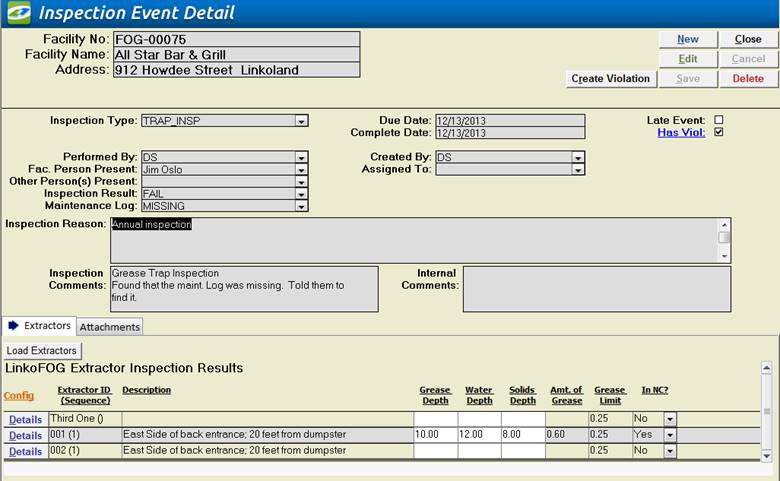
|
Buttons |
|
|
Load
Extractors |
Clicking
this button will load a list of all extractors for the Facility where the
Extractor Retire Date is empty. Any Extractor with a Retire Date will not be
loaded. |
|
Details |
Opens
the Extractor Inspection Results Details Screen. |
|
Item |
Description of additional items |
|
Config |
Allows
you to configure the fields displayed in this section of the Details screen,
their width and order. See List View Config Link |
|
Extractor ID |
The
Extractor’s unique ID number for that Facility. |
|
Grease Depth |
The
depth of Grease as measured by the Inspector. |
|
Units |
The
units of measurement for the Grease Depth. These units are automatically
assigned based upon the global configuration in Event Admin under “Trap Inspection Results,”
“Default Grease / Water / Solids units”. |
|
Depth of Grease Limit |
The
limit for the Depth of Grease as configured in the Extractor Details under
Facilities Management. |
|
Water Depth |
The
depth of Water as measured by the Inspector. |
|
Units |
The
units of measurement for the Water Depth. These units are automatically
assigned based upon the global configuration in Event Admin under “Trap Inspection Results”, “Default Grease / Water / Solids
units”. |
|
Solids Depth |
The
depth of the Solids as measured by the Inspector. |
|
Units |
The
units of measurement for the Solids Depth. These units are automatically
assigned based upon the global configuration in Event Admin under “Trap Inspection Results”, “Default Grease / Water / Solids
units”. |
|
Depth of Solids Limit |
The
limit for the Depth of Solids as configured in the Extractor Details under
Facilities Management. |
|
Amount of Grease |
After
the values for Grease, Water, and Solids are entered, Linko calculates the
amount of Grease based upon the formula configured in the Extractor Details under Facilities Management. By
default, the user cannot change the value of this amount. You can configure LinkoFOG to allow you to
override the amount. Go to Event Admin, Configurations, Global
Configurations, Trap Inspection Results, “Allow Change Calculated Grease Amount.”
You
can allow the user to make changes in the Amount of Grease field to reflect
observations made by the Inspector that are not reflected in the Depth
measurements. No
amount is calculated if Depth of Solids, Grease or Water is empty. |
|
Grease Limit |
The
limit on the Grease ratio (percent grease) as configured in the Extractor Details under Facilities Management. |
|
Custom Amount |
After
the values for Grease, Water, and Solids are entered, Linko calculates the
amount of Grease based upon the Custom Calculation formula configured in the Extractor Details under Facilities Management. Custom
Amount represents any custom formula a POTW can define for a specific trap. No
amount is calculated if Depth of Solids, Grease or Water is empty. |
|
Custom Limit |
The
Custom limit for the Custom Amount calculation as configured in the Extractor Details under Facilities Management. |
|
In NC? |
In
non-compliance? This will show YES
when Grease Amount, Custom Amount, Depth of Grease or Depth of Solids exceeds
their limits. By default the user cannot change the value of this field. You can configure LinkoFOG to allow you to
override this field by going to Event Admin, Configurations, Global
Configurations, Trap Inspection Results, and “Allow Change of “IN NC”. This
allows the user to make changes in the ‘IN NC’ field to reflect observations
made by the Inspector that are not reflected in the Depth measurements. The
‘IN NC’ Flag is set to YES if any of the 4 limits have been exceeded AND they
have been marked “In Effect” for verifying compliance. Linko
will prompt the user to create a Violation if there is one limit in effect
that has been exceeded. If multiple limits are exceeded, they are combined
into 1 violation; the user will only be prompted once. No check for Violation
will occur until info is entered into each of the Depth of Grease, Solids,
and Water / Amount of Grease fields. You
can configure whether or not the user is prompted to create a violation at Event Admin, Local Configuration, Trap Inspection Results, “Prompt for Violation
When Trap IN NC”. |