LinkoFOG has 2 inspection detail screens. One for tracking inspections related to trap measurements, such as depth of grease/solids/water and percent grease; and another for non-measurement inspections, where a simple Inspection Result or Maintenance Log status can be entered. You can define which screen you want to use for a specific inspection type in the Event Type Details screen for inspections.
Track facility and grease trap/extractor inspections. This screen allows you to view and report on completed inspections or generate inspection checklists you can take into the field for scheduled inspections. User Editable fields means you can update your Inspections from this screen.
|
Managing Inspection Events |
Inspection
Events can be entered via: § Facilities Management à Inspection Events tab § Inspections (Main Menu)
|
|
Adding Events |
From
the Inspection Management Screen, select a Facility from
the <Facility No.> or <Facility Name> list box. Next,
click the <Add New> button to open the Event Pick Box where you select an Event Category of “Inspection” and an Inspection
Event type of your choice. Next
you enter the Inspection Details Screen, complete all the fields,
and click <Save>. Adding
a New Trap_Insp. type of Inspection Event and saving it will
automatically load the list of Extractors not retired for the Facility. |
|
Inspections Displayed |
The
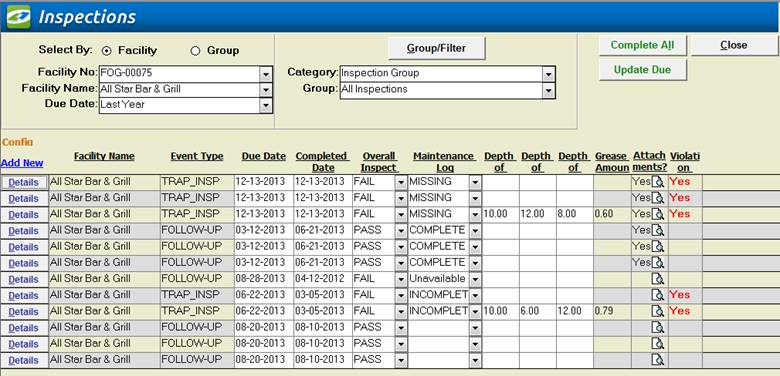
Inspection Management Screen shows all the Inspections
in the database for a Facility or group of Facilities. Any event of category
“Inspection” shows up here. If a Trap Inspection has results from more than
one Trap, the results from each Trap will show up as separate records. |
|
Follow-up Events |
When
an Inspection Event is completed, a follow-up event is created. This is
user-configurable in Event Admin à Configurations Tab à Local Configurations à All Events à “Create
follow-up Events how?” Automatically, Prompt, or Never. “Create
follow-up Events based on?” Due Date or Complete Date. These
settings apply to all types of Events. These settings affect the currently
logged on user if Linko is configured with the Security feature. Without Security, they
apply to the local computer. |
|
Inspection Event Frequency |
A
follow-up Inspection Event is created after an Inspection has been completed.
The Frequency for the Follow-up Inspection is taken from the value of the
field “Auto Scheduler Freq” for the Inspection Event Type in Event Admin à Inspection tab. This value may be anything the user
chooses. An
“Auto Scheduler Freq” of “Permit Pump” will indicate that the
frequency of the next Pump Out Event be taken from the Pump Frequency
assigned for that Facility in Facility Management. |
|
View or Modify |
To
modify, open the Details Screen by clicking on the
<Details> Button and click on the <Modify> Button. To make any changes, you must click on the
<Edit> Button prior to making any changes. |
|
Counting Inspections |
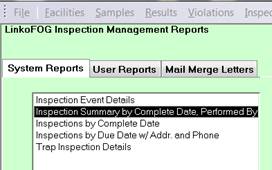
See
the “Inspection Summary by Complete Date, Performed By” under the System
Reports, for a report that counts the Total Number of Inspections.
|
|
Buttons |
Action performed |
|
Close |
Closes
the screen, returns to the Main Menu |
|
Complete All |
Allows you to add the Completed date for every
event on the screen at one time. After
you “Complete All”, a new Inspection will be created automatically based on
the Frequencies assigned for that Inspection Event Type. |
|
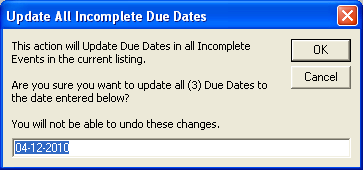
Update Due |
Mark all Incomplete Events with new Due Date.
Clicking this control opens this window:
Enter the Due Date you want to change the Event
to. |
|
Group/Filter |
Opens
the Filter form to create and modify groups and filters. For more information go to the Filter Form |
|
Quick Filter |
Access the Quick Filter function by a Right Click on a field of interest and sort for and select just the records you want to display. |
|
Filter Criteria |
Description |
|
Select by: |
Facility: Allows you to select, and
work with events for a single Facility one at a time. Group: Allows you to select, and
work with events for a whole group of Facilities at the same time. These groups are created in the Facility Groups Section of the software |
|
Facility No |
Displays
the Facility number of the Facility
associated with the events displayed.
Displayed only when using "Select by: Facility" mode |
|
Facility Name |
Displays
the Facility name of the Facility
associated with the events displayed.
Displayed only when using "Select by: Facility" mode |
|
Facility Group |
Displays
the Group name of the Facilities
associated with the events displayed.
Displayed only when using "Select by: Group" mode |
|
Due Date |
Drop
down box offering a list of time periods.
Choosing a time period limits the Inspection Events displayed to the
ones that have a Due Date within that time period. The user can create a
Custom Date range (See the Custom Date explanation in the List and Details
View section of Common Features) or add / modify / delete Date Ranges
available in the listing via the Quick View tab of Event Administration. |
|
Category |
The
Inspection Management screen only shows INSPECTIONS. |
|
Category / Group |
Choose
the Event type group that you would like to filter on. These can be customized by clicking on the
Groups/Filter button above it |
|
Item |
Description |
|
Opens
the create New Event Pick box to create a new
Inspection event for the selected
Facility. If the “Select by Group”
option button is selected, users will have the ability to choose which
Facility to create an event for. NOTE:
Only on Add New can a user create Pre and Post Notification
Events. |
|
|
Details |
Opens the Event Details Screen. Modifications can
be completed by clicking on the <<Edit>> Button. |
|
Facility |
Displays the Facility Name
associated with the events displayed |
|
Event Type |
The
type of Inspection event. A new Inspection Event type may be added to the
drop down list via the Event Administration, Inspections tab. |
|
Due Date |
The
date that this event is due to be completed.
This date is filtered on by the Quick View Due Date function |
|
Completed Date |
The
actual date that the event was completed |
|
Overall Inspect
Result |
This
field shows the result of the Inspection as entered by the Inspector. |
|
Maintenance log |
Shows
the status of the Maintenance log as kept by Facility representatives and
entered by the Inspector. |
|
Depth Of Grease |
The
depth of Grease as measured by the Inspector. |
|
Depth of Water |
The
depth of Water as measured by the Inspector. |
|
Depth Of Solids |
The
depth of the Solids as measured by the Inspector. |
|
Grease Amount |
The
calculated amount of Grease as compared to the total volume of the extractor,
based upon the calculations as configured in the Extractor Details under
Facilities Management. |
|
Violation Exists |
Has
a violation been created in association with this event? You can create a violation from any event
from the Event Details screen. That violation is then associated or
related to the event for the life of the event. Double-clicking this field
when it has a red YES will take you to the
Violations Management screen where all the violations for that event will be
listed. Double-clicking this field when it is blank will ask you if you want
to Create a Violation. |
|
Other Field Names and Config |
The List View Configure
Link Allows you to select which fields are displayed, their order and
settings. The Inspection Management screen has a variety of Fields that can
be used including additional Facility address info, and Extractor info. |
|
Facility No. |
ID of Facility that was Inspected. |
|
Site Address 1 / 2 |
Address where the Inspection took place. |
|
State / Zip Code |
State and Zip of Inspected Facility. |
|
Extractor ID |
The Extractor’s ID number for that Facility. |
|
Flow Seq. |
This can help identify how the water flows between extractors before it enters the sewer. Useful when multi-compartment extractors are used. |
|
Extractor Desc. |
Allows the user to identify an extractor by its location, size, proximity, and so forth. |
|
Trap Size |
The size of the Extractor / Trap. This value must be numerical and decimals are okay. |
|
Trap Depth |
The depth of the Extractor / Trap. This value must be numerical and decimals are okay. |
|
DoG Units |
The units of measurement for the Grease Depth. |
|
Event ID |
This represents a unique database ID for a specific inspection. No data entry or editing can be done here. This field is useful for searching for one unique record. |
|
Result ID |
This represents a unique database ID for a specific Trap Inspection result. This field may be blank if an inspection does not have a trap inspection result. This identifies different database records when two or more traps are inspected in one Inspection. |
|
DoW Units |
The units of measurement for the Water Depth. |
|
DoS Units |
The depth of the Solids as measured by the Inspector. |
|
Custom Amount |
The
calculated amount of Grease based upon the Custom Formula calculations
configured in the Extractor Details under Facilities Management |
|
Trap In NC? |
The Grease amount (percent grease) and Custom Amount is automatically calculated by Linko. These values as well as the depth of grease and solids, are then compared to the limits assigned to the Extractor to determine if the Trap is In non-compliance (NC). |
|
Trap Inspection
Comments |
Comments made by the Inspector about the Inspection. |
|
Performed By |
The POTW personnel who completed the Inspection. |
|
Created By |
The POTW personnel who created the Inspection. |
|
Assigned To |
The POTW personnel who was assigned the Inspection. |
|
Inspection Reason |
Why was it being inspected? Annual, surprise, education and so forth. |
|
Fac. Person Present |
Which one of the Facility Contacts was present during the Inspection? |
|
Internal Comments |
These comments that will not show up on reports. (8000 character max) |
|
Other Person Present |
This field allows the user to add any other interested party who was present during the inspection. Multiple persons’ names may be typed directly into the field. |
|
Attachments: |
Add new attachments or
view existing. See Using Attachments for more details |
|
Complete? |
This field will show NO if the Inspection has not been completed. |
|
Late? |
This field will show YES if the Inspection has not been done and is late, or if it has been done but was late. |
|
Event Comments |
Comments/notes by the Inspector about the inspection. This field has an 8000 character limit. |