Pump Outs are one of the most important activities that the FSE can perform to eliminate FOG from entering the sewer. Pump Outs are trap or interceptors cleanings, where a liquid waste hauler ("Hauler") uses a vacuum truck or vacuum device to remove ("Pump Out") FOG from the Trap or Interceptor into a waste tank for removal from the FSE. The FOG is then trucked to a disposal site where it is dumped, treated and disposed of.
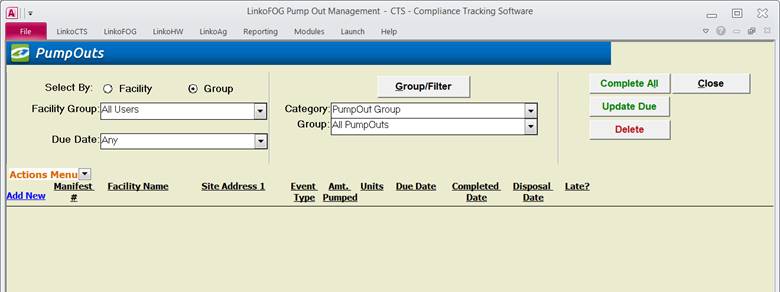
Allows you to focus on scheduling and reporting for Pump Outs. You can display the Pump Out Events for just one Facility or for a Group of your choice. Edit existing Events or use Add New to create a new Pump Out Event.
As of Version 10.1 of the LinkoCTS SQL version, this list view is User Modifiable in the “white” fields. The “grey” fields remain locked and cannot be updated by the Users. The information changed here will be shown in the details screens of the individual Pump Outs.
|
Entering Pump Out Events |
Pump
Out Events can be entered via: § Facilities Management à Pump Out Events tab § Pump Out Management (Main
Menu à Pump Outs) § Event Management (Main Menu
à Events) § LinkoHW – Linko Hauled
Waste Software (sold separately) To
add an event to track, select a Facility from the <Facility No> or
<Facility Name>list box then click the <Add New> button. Complete
all the fields, and then click <Save>. |
|
View or Modify |
To
modify, open the Pump Out Details Screen by clicking on the
<Details> Button and click on the <Edit> Button. Alternatively,
you can edit some event information directly in this list view screen by
simply changing any data with a white background. |
|
Follow-up Events |
When
a Pump Out Event is completed, a follow-up event is created. This is
user-configurable in Event Admin à Configurations Tab à Local Configurations à All Events à “Create
follow-up Events how?”
Automatically, Prompt, or Never. “Create
follow-up Events based on?” Due
Date or Complete Date. These
settings apply to all types of Events. These settings affect the currently
logged on user if Linko is configured with the Security feature. Without Security, they
apply to the local computer. |
|
Pump Out Follow-up
Event Frequency |
A
follow-up Pump Out Event is created after a Pump Out has been completed. The
Frequency for the Follow-up Event is the Extractor Cleaning Frequency from the Extractor Details for that Facility. If
there is no Extractor or if there is no Cleaning Frequency assigned in the
Extractor, then the Frequency for the next Pump Out event, takes the value of
the field “Auto Scheduler Freq” for the Pump Out Event Type in Event Admin à Pump Outs tab. This value
may be anything the user chooses. An
“Auto Scheduler Freq” of “Permit Pump” will indicate that the
frequency of the next Pump Out Event be taken from the Pump Frequency
assigned for that Facility in Facility Management. |
|
Buttons |
Action performed |
|
Complete All |
Allows you to add the Completed date for every
event on the screen at one time.
Useful for tracking that letters have been sent for groups of
Facilities. After you “Complete All”,
a new Pump Outs will be created automatically based on the Frequencies assigned
for that Pump Out Event Type. |
|
Update Due |
Mark all Incomplete Events with new Due Date.
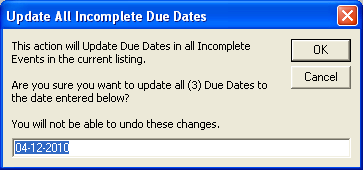
Clicking this control opens this window:
Enter the Due Date you want to change the Event
to. |
|
Delete |
Delete an event. |
|
Close |
Closes
the screen, returns to the Main Menu |
|
Record
Selectors |
Standard Record Selectors allowing you to move between displayed Pump Outs. |
|
Status
Bar |
Reduced Status Bar allowing you to view a Calendar, a Calculator, Contact Information, or create a new Phone Log Event. |
|
Group/Filter |
Opens
the Filter form to create and modify groups and filters. For more information go to the Filter Form |
|
Quick Filter |
Access the Quick Filter function by a Right Click on a field of interest and sort for and select just the records you want to display. |
|
Filter Criteria |
Description |
|
Select by: |
Facility: Allows you to select, and
work with events for a single Facility one at a time. Group: Allows you to select, and
work with events for a whole group of Facilities at the same time. These groups are created in the Facility Groups Section of the software |
|
Facility No |
Displays
the Facility number of the Facility
associated with the events displayed.
Displayed only when using "Select by: Facility" mode |
|
Facility Name |
Displays
the Facility name of the Facility
associated with the events displayed.
Displayed only when using "Select by: Facility" mode. |
|
Facility Group |
Displays
the Group name of the Facilities
associated with the events displayed.
Displayed only when using "Select by: Group" mode |
|
Due Date |
Drop
down box offering a list of time periods.
Choosing a time period limits the Pump Out and Disposal Events
displayed to the ones that have a Due Date within that time period. The user
can create a Custom Date range (See the Custom Date explanation in the List and Details
View section of Common Features) or add / modify / delete Date Ranges
available in the listing via the Quick View tab of Event Administration. |
|
Category |
The
Pump Out Management screen only shows Pump Out Groups. |
|
Category / Group |
Choose
the Pump Out Group type that you would like to filter on. These can be customized by clicking on the
Groups/Filter button above it, but the groups you select will only be Pump
Out related. |
|
Item |
Description |
|
Opens
the create New Event Pick box to create a new Pump
Out event for the selected Facility.
If the Select By Group option button is selected at the Pump Out
Management screen, the New Event Pick Box will allow users to select a
Facility to create a Pump Out. |
|
|
Details |
Opens the Event Details Screen. Modifications can
be completed by clicking on the <<Edit>> Button. |
|
Facility Name |
The
Facility that was pumped. New
in version 15, you can double click on the facility name on the Pump Out
Events List view, and retrieve contact information from the pop-up screen. |
|
Site Address |
Address
of the facility for the displayed Pump Out |
|
Event Type |
In
Pump Out Management, the Event Type will typically be the Default Event type
of PUMP. See
Default Pump Out Event Type to configure a different
Default Type if you have previously created another Pump Out Type to use. To
create new Pump Out Event types go to the Event Types of Event Administration, Pump Outs tab. |
|
Amount Pumped |
How
much the Hauler pumped. This must be a
numeric value. |
|
Units |
Units
for Measuring the volume of waste pumped from the Extractor. See
“Default Amount Pumped Units” for configuration
information. |
|
Due Date |
The
date that this event is due to be completed.
This date is filtered on by the Quick View Due Date function |
|
Completed Date Disposal Date |
The
Complete Date is the date that the Pump Out Event was actually completed.
This identifies when the Hauler actually pumped the Trap at the Facility. The
Disposal Date is the date that the Hauler disposed of the pumped materials.
Depending on the emphasis of your FOG program, you may not be tracking the
Disposal Date of the Wastes, or you may not be receiving that information. Disposal
Information was added to the Pump Out and Disposal event to allow the POTW to
track both Pump Out Date and the Disposal date together as part of 1 database
record. Linko’s
default setup works this way: If a
user enters a Pump Out Complete Date, the Disposal Date will be automatically
populated with the same date. See
“Use Complete Date as
Disposal Date”
for configuration information. When
the “Use Complete Date as Disposal Date” is set to NO, then the Date of the
Disposal and the Complete Date of the Pump Out must be entered into Linko separately. This
provides the ability to track when the Facility Extractor was pumped (Complete Date); and
then see if and when the Hauled Waste is disposed of (Disposal Date). |
|
Manifest # |
If
you are tracking Pump Outs via a Manifest # you can enter that number here. |
|
Late |
This
field will display YES if the Pump Out was completed late, or if it is
incomplete as of the current date. |
|
Other Field Names and Action
Menu – Config Layout |
The
List View Configure Link Allows you to select which fields are displayed,
their width, and order. The Pump Out Management screen has a variety of
additional Fields that can be used including additional Facility address
info, Extractor info, Hauler info, and Pump Out event information. |
|
Action
Menu – Excel Preview |
Excel preview will take your current list view and
create a spreadsheet view you can export to Excel. |
|
Facility No. |
ID of Facility where the Extractor was pumped. |
|
Site Address 2 |
Address where the Pump Out took place. |
|
State / Zip |
State and Zip code of the Facility. |
|
Hauler |
When a new Pump Out is created, this information is pulled from the Facilities Management Account Info tab for the Facility. The Inspector may also choose a different Hauler than the one that is listed in the Facility info. Haulers entered on a manifest will update the hauler entry on the FSE details. |
|
Extractor ID |
This item comes from the Extractor Details screen. This is a unique identifier for an Extractor at a particular Facility. |
|
Extractor Description |
This item comes from the Extractor Details screen. Allows the user to identify an extractor by its location, size, proximity, and so forth. |
|
Extractor Type |
This item comes from the Extractor Details screen. Users define different types of Extractors in the Facilities Administration section under the Extractors tab and apply them to the Extractor.. |
|
Flow Seq. |
This item comes from the Extractor Details screen. Identifies what point in a multi-stage process belongs to this Extractor when more than one extractor or more than one stage in an extractor is used. This can help identify how the water flows before it enters the sewer. |
|
Trap Size |
This item comes from the Extractor Details screen. This value must be numerical and decimals are okay. This Trap Size value from the Extractor is used in a Pump Out Event to check the amount that is Pumped. If the Amount Pumped exceeds the Trap Size you will receive a warning from Linko. |
|
Facility Person Present |
You can select from the Contacts for the Facility or add one to the list by simply typing it in. |
|
Waste Type |
When
you create a new Pump Out, the Waste Type field will automatically fill in
with the default type of Pump Out waste. The value typically will be FOG. See “Default Pump Out Waste Type” for configuration. |
|
Vehicle # |
The vehicle number of the Hauler. If you enter a Hauler and that Hauler only has 1 vehicle, that vehicle is automatically entered here. Changing the Hauler causes this information to be reset. |
|
Driver |
The driver of the vehicle for the Hauler. If you enter a Hauler and that Hauler only has 1 driver, that vehicle is automatically entered here. Changing the Hauler causes this information to be reset. |
|
Pump Method |
When
you create a new Pump Out, the Pump Method field will automatically fill in
with the default type of Pump Method. The value typically will be FOG but a
user-defined list can be created. The Inspector may choose an alternate or add
a new Method to the list. See “Default Pump Method” for configuration. |
|
Disposal Site |
The location the Hauler disposed of the pumped materials. |
|
Disposal Person Present |
Personnel
of the Disposal site who was present at the disposal. |
|
Created By |
You can select from a pull-down list of POTW employees to assign who created the Pump Out. |
|
Assigned To |
You can select from a pull-down list of POTW employees to assign who the Pump Out is assigned to. |
|
Performed By |
You can select from a pull-down list of POTW employees to assign the party that completed the Pump Out event. |
|
Event Comments |
The Inspector can enter explanatory notes in this field (8000 character max). These will be displayed on reports. |
|
Internal Comments |
The Inspector can enter explanatory notes in this field. The notes in this field will NOT be displayed on reports. (8000 character max) |
|
Attachments: |
Add new attachments or
view existing. See Using Attachments for more details |
|
Complete? |
This field will show NO if the event is not complete. |
|
Violation Exists |
Has a violation been created in association with this event? You can create a violation from any event from the Event Details screen. That violation is then associated or related to the event for the life of the event. Double-clicking this field when it has a red YES will take you to the Violations Management screen where all the violations for that event will be listed. Double-clicking this field when it is blank will ask you if you want to Create a Violation. |
|
Record ID |
Linko assigns a unique number to each Pump Out so that it can be searched on. This allows the user to quickly limit their search to one record and report on it or send a letter regarding it. |
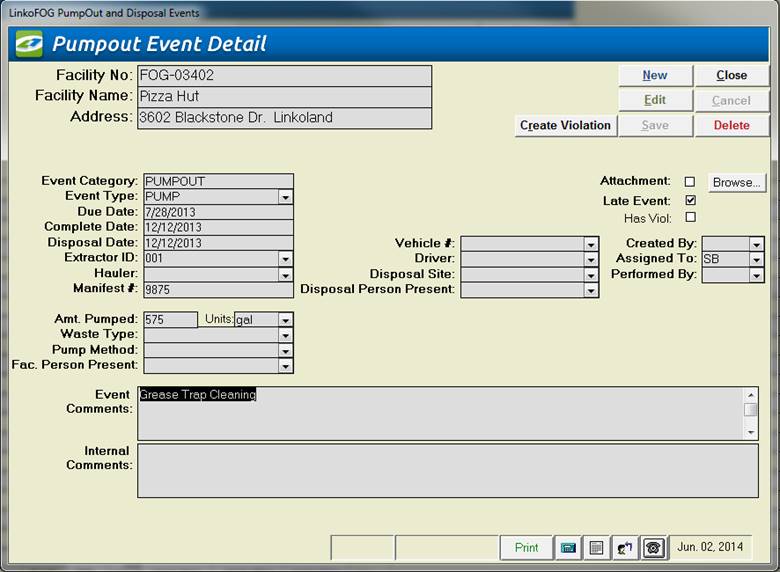
Add all the field results of the Pump Out. Disposal Information also exists within the Pump Out events so that Pump Out and Disposal can be tracked together as part of 1 database record.
With the addition of the Linko Hauled Waste Module (LinkoHW), Pump Outs and Disposals can be tracked from “cradle to grave.” Disposal Sites are managed via the Disposal Sites choice on the Menubar selection under File. If you are not using the LinkoHW Module, you can still add Haulers via the Facility Admin --> Haulers Tab.
|
Buttons |
|
|
Create
Violation |
Opens Violation Details page allowing you to create a new Violation for this Pump Out. |
|
New |
Clears values and allows you to create a new Pump Out. While editing, the New, Edit, Close, and Record Selector buttons will be disabled. |
|
Edit |
Allows you to edit the displayed Pump Out. While editing, the New, Edit, Close, and Record Selector buttons will be disabled. |
|
Save |
Saves the changes made to the Inspection. |
|
Close |
Closes the screen. |
|
Cancel |
Cancels any changes made to the Inspection. |
|
Delete |
Deletes the Inspection Event. |
|
Attachments: |
Add new attachments or
view existing. See Using Attachments for more details |
|
Record
Selectors |
Standard Record Selectors allowing you to move between the Details of different Pump Out events. |
|
Status
Bar |
Reduced Status Bar allowing you to view a Calendar, a Calculator, Contact Information, or create a new Phone Log Event. |
|
Item |
Description |
|
Facility No |
ID of Facility where the Extractor was pumped. |
|
Facility |
Name of Facility where the Extractor was pumped. |
|
Address |
Address where the Pump Out took place. |
|
Event Category / Type |
This
displays that you have selected the Event Category of “Pump Out “. Linko will automatically enter
the Default Pump Out event Type. For configuration see “Default Pump Out Event Type.” Pump
Out / Pump will typically be the event you are performing at this step, but
you can create other types of Pump Outs using the Event Administration, Pump Outs tab. |
|
Due Date |
The
date the Pump Out Event is due to be completed. |
|
Complete Date Disposal Date |
The
Complete Date is the date that the Pump Out Event was actually completed.
This identifies when the Hauler actually pumped the Trap at the Facility. The
Disposal Date is the date that the Hauler disposed of the pumped materials.
Depending on the emphasis of your FOG program, you may not be tracking the
Disposal Date of the Wastes, or you may not be receiving that information. Disposal
Information was added to the Pump Out and Disposal event to allow the POTW to
track both Pump Out Date and the Disposal date together as part of 1 database
record. Linko’s
default setup works this way: If a
user enters a Pump Out Complete Date, the Disposal Date will be automatically
populated with the same date. See
“Use Complete Date as
Disposal Date”
for configuration information. When
the “Use Complete Date as Disposal Date” is set to NO, then the Date of the
Disposal and the Complete Date of the Pump Out must be entered into Linko
separately. This
provides the ability to track when the Facility Extractor was pumped (Complete Date); and
then see if and when the Hauled Waste is disposed of (Disposal Date). |
|
Extractor ID |
The
Extractor’s ID number for that Facility. Other Extractors for that Facility
can be selected from the pull-down. This will show all the Extractors for the
Facility that do not have a retire date. If a retire date has been assigned
then the extractor does not show up in this list. When creating a new Pump
Out, if only 1 Extractor exists, for a Facility, it shows up in this field
automatically. |
|
Manifest # |
A
number that the POTW uses to identify the Pump Out. This number is not
required and does not have to be unique. Manifests are typically printed up
ahead of time with unique numbering schemes. Linko does not auto-create the
Manifest number. This can also be a Manifest number that the Hauler has
created, and the Hauler may report several Pump Outs on the same Manifest. |
|
Amount Pumped |
The
volume of waste pumped from the Extractor. The system will warn you if the
amount pumped is greater than or less than the extractor size. This setting can be found in the Event
Administration in System Administration. |
|
Amount Pumped
Units |
Units
for Measuring the volume of waste pumped from the Extractor. See
“Default Amount Pumped Units” for configuration
information. |
|
Waste Type |
When
you create a new Pump Out, the Waste Type field will automatically fill in
with the default type of Pump Out waste. The value typically will be FOG. See
“Default Pump Out Waste
Type” for
configuration. |
|
Pump Method |
When
you create a new Pump Out, the Pump Method field will automatically fill in
with the default type of Pump Method. The value typically will be FOG but a
user-defined list can be created. The Inspector may choose an alternate or
add a new Method to the list. See
“Default Pump Method” for configuration. |
|
Facility Person Present |
If
you want to track who was present from the Facility during the Pump Out, you
can select from the Contacts for the Facility or add one to the list by
simply typing it in. |
|
Late Event |
Linko automatically sets this field when the Pump Out is overdue or if it is completed late. |
|
Has Viol |
Linko automatically sets this field when the Pump Out has a Violation associated with it. |
|
Created by |
You can select from a pull-down list of POTW employees to assign who created the Pump Out. It defaults to the currently logged on user if Linko is configured with the Security feature. |
|
Assigned to |
You can select from a pull-down list of POTW employees to assign who the Pump Out is assigned to. |
|
Performed by |
You can select from a pull-down list of POTW employees to assign the party who completed the Pump Out event. |
|
Pre Notify/Post Notify? |
Pre Notify Events are created within any of the Events screens (Samples Included). Pre and Post Notify will automatically generate events before and after the original events are due. For example, users can create a pre-event to notify POTW personnel of an upcoming sample event. This is a discontinued feature provided for backwards compatibility. Please see the Pre / Post Configuration setting. |
|
Event Comments |
The Inspector can enter explanatory notes in this field (8000 character max). These will be displayed on reports. |
|
Internal Comments |
The Inspector can enter explanatory notes in this field. The notes in this field will NOT be displayed on reports. (8000 character max) |
|
Pump Out and Disposal Event Details: Differing Functionality when using Linko’s Hauled Waste
Module (LinkoHW) |
|
|
Hauler |
This
is a list of the Haulers in the database. If a user selects a Hauler whose
permit has expired, the user will be notified to consider making a different
selection. When
adding a new Pump Out, if a Hauler / Pumper has been assigned to this
Facility in Facility Management, it will be automatically added into this
field. The Inspector may also choose a different Hauler than the one that is
listed in the Facility info. The FSE
details will update if a different hauler than the default is selected on the
pump out manifest. Haulers
are added to the database via the Linko Hauled Waste Module (LinkoHW) when it
is installed. Otherwise,
you can add Haulers to the database via the Haulers Tab in Facility Admin. |
|
Vehicle Number |
The
vehicle number of the Hauler. This field is available only when Linko
Hauled Waste Module (LinkoHW) is used. A
user must select a Hauler to be able to select a Vehicle. If a user assigns a
Hauler and only 1 Vehicle exists for that Hauler, it is defaulted to this
field. If a user assigns a Hauler and Vehicle, and then changes the Hauler,
the user is requested to change the Vehicle also. A user may enter a Vehicle
Number that is not in the list, and they will be prompted to add it to the
list. |
|
Driver |
The
driver of the vehicle for the Hauler. This field is available only when
Linko Hauled Waste Module (LinkoHW) is used. A
user must select a Hauler to be able to select a Driver. If a user assigns a
Hauler and only 1 Driver exists for that Hauler, it is defaulted to this
field. If a user assigns a Hauler and a Driver, and then changes the Hauler,
the user is requested to change the Driver also. A user may enter a Driver
that is not in the list, and they will be prompted to add it to the list. |
|
Disposal Site |
The
location the Hauler disposed of the pumped materials. This field is always
available. A user can assign a Disposal Site to a Pump Out even when the
Linko Hauled Waste Module is not in use. Disposal
Sites with a retire date will not show in the drop-down list. Disposal
Sites are added / managed via the Disposal Sites screen under the Facilities
selection of the Menu Bar. Linko
will compare the Expiration Date on the Disposal Site to the Complete Date of
the Pump Out and warn you if the date is out of range. (You can’t dispose of
a Pump Out at an Expired Disposal Site.) Using
Linko Hauled Waste (LinkoHW): If
a Hauler has been assigned a Default Disposal Site in Hauler Management in
Linko Hauled Waste (LinkoHW), that disposal site is automatically entered
into the Disposal Site field when a new Pump Out Event is created. If you
then select a different Hauler from the drop-down list, the Disposal Site is
not changed. |
|
Disposal Person Present |
Personnel
of the Disposal site who were present at the disposal. This field is always
available. Choose from a list of all the Disposal Persons ever entered for
all Pump Outs ever disposed of at that Disposal Site. You may also type in a
person of your choice. |