Schedule multiple
events quickly.
|
Access
the Auto Scheduler from the button on the Event Management List View screen.
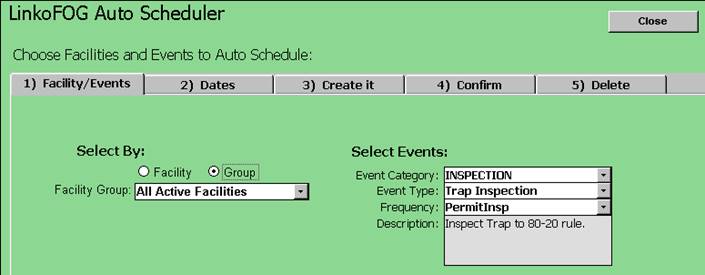
Then use the selection options to select the Industry or Group of Industries
to schedule an event for. |
|
|
Select the type of event you want to schedule |
Use
the drop down list under “Select Events” to choose the event you want to
schedule for the selected Industry or Group of Industries. Then choose the event category and
type. If
the event has an auto schedule frequency it will be automatically added to
the frequency selector. However, you
can change it at this point. If
the Event has Pre or Post events set up for it, <Create Pre and Post
Events too> will be checked and those events will also be created. You may deselect creation of Pre and Post
events but you cannot choose to add Pre and Post events unless they have
already been set up in the <Event Type> utility table in Event Administration. Note! Each Event has an "Auto Schedule
Frequency" which may be set in the Event Type of Event
Administration. This frequency tells
the system how often the event occurs.
You can also set up Pre and Post events for each Event as well. |
|
Items |
Description |
|
Facilities or Group |
Choose
the group or Facility you would like to Auto schedule for |
|
Event Type |
Choose
the type of events you would like to schedule. If you do not see the events you would like
to schedule in the drop down box, go to the Event Administration Screen, click on the
appropriate Event Type tab and add / modify an event type. |
|
Frequency |
How
often is the event going to be generated?
Frequencies will be auto populated with the Auto Scheduling Frequency
from the event type selection.
However, users can change the frequency at this point. To see where you can add an event type Auto
Schedule Frequency, go to the Event Administration Screen. |
|
Create Pre and Post Events |
If
the event type chosen has pre and post events associated with it, this check
box will be filled in. This will
automatically generate pre and post events for the chosen event type. (Pre / Post Events:) This is a discontinued feature provided for backwards compatibility. Please see the Pre / Post Configuration setting. |



|
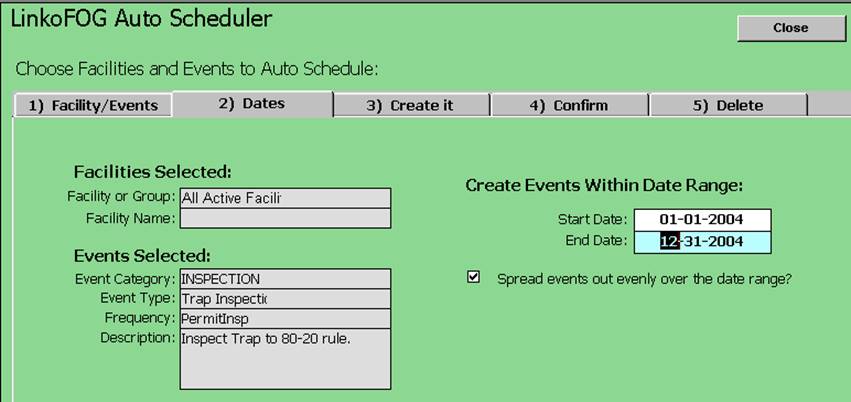
Choose a date range |
Click
the <Dates> tab, and enter a Date Range to schedule the event for. If you choose <Spread out evenly over
the date range>, all events will be spread out proportionately over the
date range, otherwise, all events for multiple Haulers will be scheduled on
the same date. |
|
Items |
Description |
|
Start Date |
Start
Date for the Auto Scheduling Process.
When do you want to schedule your first event? |
|
End Date |
End
Date for Auto Scheduling Process. |
|
Spread Events out evenly over the date range |
Instead
of scheduling all of the events on the same days, each event will be spread
out throughout the frequency time period.
This helps to alleviate overloading certain days of the month or week
with too many events |
|
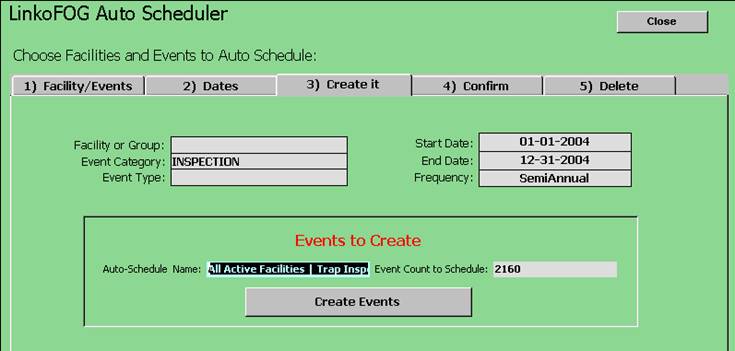
Schedule Summary and Name |
To
make the schedule, click the <Create It> tab and it will display the
number of events that are going to be created. An Auto Schedule Name will be automatically
created for you or you may enter your own name. Click on the <Create it> button and
all the events will be temporarily created and displayed on the
<Confirm> Tab. |
|
Items |
Description |
|
Events To Create |
This
Section of the software will identify how many events will be scheduled when
you click on the Create Events Button. |
|
Auto-Schedule Name |
Auto
populates with a suggested name that includes the Group or Facility, Event
Type and Date. However, users can
change this field |
|
Event Count to Schedule |
Number
of events that are going to be created.
Keep in mind the creation process is a two-step process and once the
events are created they must be confirmed on the following screen |
|
Create
Events |
Use
this button to create temporary events that can be confirmed within the
“Confirm Tab”. Keep in mind that these
events will only be temporarily created until confirmed. |
|
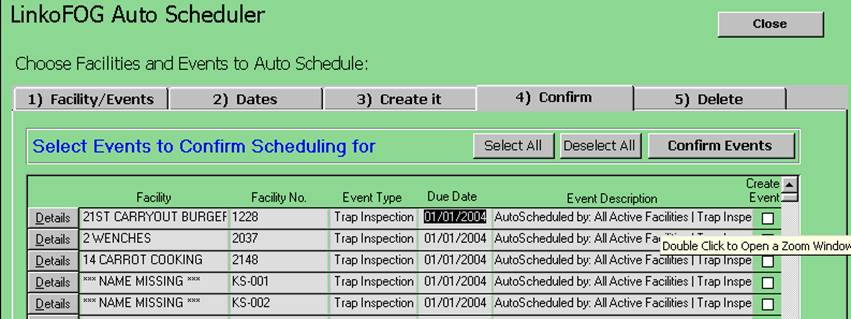
Confirm Tab |
This
Section of the software will identify how many events will be scheduled when
you click on the Create Events Button |
|
|
Use
<Select All>
and <Deselect
All> buttons for rapid over-all changes or the ‘Create Event’
check box for individual events you wish to Confirm creation for. Click <Confirm Events> and all events marked
as ‘Create Event’ will be created. |
|
Items |
Description |
|
Confirm Tab |
This
Section of the software will identify how many events will be scheduled when
you click on the Create Events Button |
|
Confirm
Events |
Choose
the event that you would like to create, and then click on the Confirm Events
button to create the events. Users can
use the select all and deselect all buttons to quickly choose events. |
|
Select
All |
This
will select all events in the list and mark the Create Event check box as
true |
|
Deselect
All |
This
will deselect all events in the list and mark the Create Event check box as false |
|
Event Check Box |
Check
the boxes for the events that you would like to create events for. Users can also use the Deselect All and
Select All to rapidly Select all events |
|
Details |
Opens
the details form to view or edit information regarding the events you are
about to Confirm |
|
Due Date |
If
the dates scheduled are not the dates you want, you can edit the date right
here. |
|
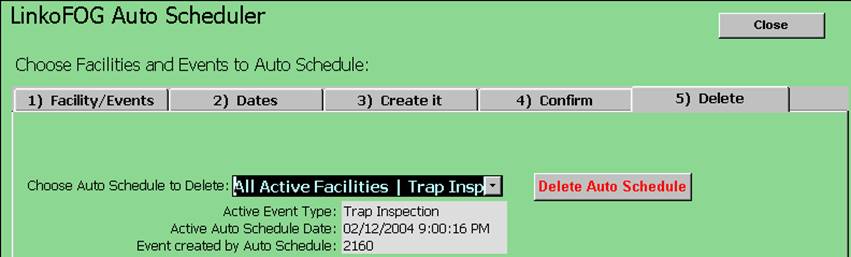
Delete
A Schedule of Events |
Should
you need to delete the scheduled events for any reason, click the
<Delete> tab, then select the Batch to delete from the drop down list
and click the red <Delete Auto Schedule> button. |
|
Items |
Description |
|
Choose Auto Schedule to Delete |
Use
the drop down list to choose the auto schedule event you would like to
delete. Clicking on the Delete Auto
Schedule button will delete the events that were created from that
Auto Scheduling Event. Note: This
Delete Function will not delete any event that has other events, such as
Violations associated with it. The
system will indicate how many events were deleted. This number may differ from the number
created because of the reasons just indicated. Also, only event that do not have Complete
Dates are deleted. |
|
Active Event Type |
This
is the type of event that was scheduled with the chosen Auto Schedule Item |
|
Active Auto Schedule Date |
The
date the Auto Scheduling item was created |
|
Events Created by Auto Schedule |
Number
of events that were created by the Auto Schedule item |