|
Item |
Description |
|
Disposal Site |
The typical location that the Waste Hauler utilizes to dispose of wastes. |
|
Annual Fee |
The Permit fee amount billed to the user, if any. |
|
Monthly Fee |
The Permit fee amount billed to the user, if any. |
|
Sewer Account # |
POTW account number for the Waste Hauler’s sewer tap. |
|
Number of Employees |
Number of employees for this Waste Hauler |
|
Billing Rate |
Identify the type of billing for the Waste Hauler. |
|
Hours |
Hours of operation for this Waste Hauler. Tracking this information will help you to get a feel for what their production hours are and when to monitor them. |
|
Square Feet |
Square feet at this Waste Hauler’s location |
|
Receiving Plant |
WWTP that the Waste Hauler uses to dispose of wastes. |
|
Compliance Status |
A Compliance Status can be assigned to a Facility based upon their status in a Violation and Enforcements proceedings. This field is managed in Facility Administration. |
|
POTW Personnel |
POTW Personnel assigned to work with this Waste Hauler |
|
Hauler Alias |
Alternative Name for the Waste
Hauler for use in secure labeling of Haulers. |
|
Meter Number |
Meter number for this Waste Hauler |
|
Trunk Line |
Track where in the POTW collection system the Waste Hauler resides. |
|
Account # |
Track an account number for the Waste Hauler’s permit if desired. |
NOTE: Dynamic System Labels will be italicized and can be Edited.
Site & Date Info Tab
|
Item |
Description |
|
Site ID |
Assign the site / location associated with this Waste Hauler. |
|
GIS ID |
|
|
East/West |
East/West (X) grid coordinates |
|
North/South |
North/South (Y) grid coordinates |
|
Site Elevation |
This location’s elevation |
|
Map Category |
Record the POTW map category for this location. |
|
Invoice Date |
The date of the permit’s next invoice. This value is taken from a Permit Invoice Event associated with this Permit and cannot be edited here |
|
Next Renewal |
The next time that the permit is due to be renewed. This value is taken from a Permit Renewal Event associated with this Permit and cannot be edited here |
|
Last Renewal |
The last time that the permit was renewed. This value is taken from a Permit Renewal Event associated with this Permit and cannot be edited here |
|
Application Date |
Track the Permit Application Date for the Hauler |
|
Effective Date |
The date the permit becomes effective, used as the default date effective for monitoring point limits |
|
In Business Since |
The date the Waste Hauler opened. This value may be used in grandfather clauses |
|
Close Date |
Track Waste Haulers that have been closed. |
|
Authority Sampling Freq |
The frequency with which the Authority should sample. Can be used in the Auto Scheduler to generate events |
|
Waste Hauler Reporting Freq |
The frequency with which the Waste Hauler should file a compliance report with the Authority. Can be used in the Auto Scheduler to generate events |
|
Inspection Freq |
The frequency with which the Authority should inspect the Waste Hauler. Can be used in the Auto Scheduler to generate events |
NOTE: Dynamic System Labels will be italicized and can be Edited.
|
Vehicle and Driver Info |
Select
Add New to add a new Vehicle and enter
Vehicle ID No, type, tank size, make and license number for all the Vehicles
the Waste Hauler runs. Use the Drivers Info button to track the name,
licensing and endorsements for the Drivers employed by the Waste Hauler. |
|
Group / Filter Info |
From
the Hauler Groups screen in Groups and Queries, both the Vehicle Details and the Driver Details information fields are
available to search on when using Group / Filter. |
|
Buttons |
Action performed |
|
Details |
Opens
the Vehicle Details screen for viewing or changes. Editing
Vehicle information must be done at the Vehicle Details screen. |
|
Drivers
Info |
Opens
the Driver Details Screen for viewing or changes. |
|
Config |
Use
the Configuration Screen hyperlink to modify the fields that are displayed
under the Vehicles and Drivers tab, including VIN, DOT #, O.V.I.D. #,
Comments, Effective Date, Expiration Date, and Retire Date. |
|
Add New |
Opens
the Vehicle Details screen to create a new Vehicle. Waste
Hauler Number and Name are loaded from the Waste Hauler Management screen,
and a unique Vehicle No. is automatically generated. The Vehicle Number can
be user changed but must remain unique. |
|
Item |
Description |
|
Vehicle No. |
The
Vehicle Number must be unique across all Vehicles in the entire Database, not
just per Waste Hauler. The Vehicle Number can be used as an identifier for a
vehicle, or as a Vehicle Permit # for Waste Haulers that are Permitted. The
Vehicle Number is generated automatically when you select NEW to create a new
Vehicle. The number is created in sequence starting at ‘001’ appended to the
Waste Hauler Number. This Vehicle number can be changed by the Linko User but
must be unique. |
|
Vehicle Type |
Displays
the Vehicle Make. |
|
Tank Size |
Displays
the Tank Size. |
|
Year / Make / Model |
Displays
the Year of Manufacture of the Vehicle and the Manufacturer and Model to
identify clearly the vehicle. |
|
License # |
Displays
the Vehicle License Number. |
NOTE: Dynamic System Labels will be italicized and can be Edited.
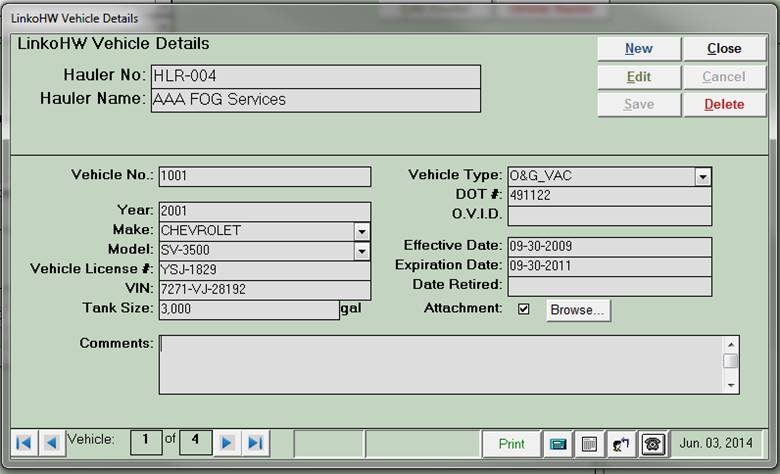
Track the Waste Hauler Vehicles’ make, model, VIN, License and tank size.
|
Selection |
Description |
|
Hauler No |
No of Hauler whose Vehicle is being displayed below. |
|
Hauler Name |
Name of Hauler whose Vehicle is being displayed below. |
|
Buttons |
Action performed |
|
New |
Clears values and allows you to create a new Vehicle. While editing, the New, Close, Delete and Record Selector buttons will be disabled. |
|
Edit |
Allows you to edit the displayed Vehicle. While editing, the New, Close, Delete and Record Selector buttons will be disabled. |
|
Save |
Saves the changes made to the Vehicle. |
|
Close |
Closes the screen. |
|
Cancel |
Cancels any changes made to the Vehicle. |
|
Delete |
Deletes the Vehicle. |
|
Browse… |
Opens a file browser allowing you to preview existing attached files or select a file to associate with this Hauler. |
|
Record
Selectors |
Standard Record Selectors allowing you to move between Vehicles that have been created for this Hauler. |
|
Status
Bar |
Reduced Status Bar allowing you to view a Calendar, a Calculator, Contact Information, or create a new Phone Log Event |
|
Item |
Description |
|
Vehicle No.: |
The Vehicle Number must be unique across all Vehicles in the entire Database, not just per Waste Hauler. The Vehicle Number can be used as an identifier for a vehicle, or as a Permit #, for Waste Haulers that are Permitted. The Vehicle Number is generated automatically when you select NEW to create a new Vehicle. The number is created in sequence starting at ‘001’ appended to the number of the Waste Hauler. This number can be changed by the Linko User but must be unique. |
|
Year: |
Enter the year of manufacture of the Vehicle. |
|
Make: |
Choose a description of the Vehicle Make from the List Table administered in the Vehicle Makes Tab of Hauler Administration. If you type in a value that is not in the list, you will be prompted to add it. |
|
Model: |
Choose a description from the list or type in the appropriate Vehicle Model from the Manufacturer and it will be added to the selection list for future use. |
|
Vehicle License: |
Enter the Vehicle License number. |
|
VIN: |
Enter the Vehicle Identification number. |
|
Tank Size: |
Enter the tank size. |
|
Vehicle Type: |
Choose a description of the Vehicle Type from the List Table administered in the Vehicle Types Tab of Hauler Administration. If you type in a value that is not in the list, you will be prompted to add it. |
|
DOT #: |
Enter the DOT number |
|
O.V.I.D. |
Enter any Other Vehicle I.D. number you choose to track. |
|
Effective Date: |
If the POTW permits Vehicles, track the date the Permit for the Vehicle was issued. |
|
Expiration Date: |
If the POTW permits Vehicles, track the date the Permit for the Vehicle expires. Linko software warns the user if the Pump Out Completed Date of a Disposal Event is earlier than the Expiration date of the Vehicle involved in the Pump Out. The vehicle is still used in the event. |
|
Date Retired: |
Assign a date retired to remove the Vehicle from the combo listing boxes in the software. |
|
Comments: |
Enter any additional Comments of interest regarding the vehicle. |
|
Document Link |
Keep a copy of the Permit or any other information relevant to the vehicle. Stores the location of an existing file for rapid retrieval. PDF, DOC, EXL, and many more can easily be associated with these notes. |
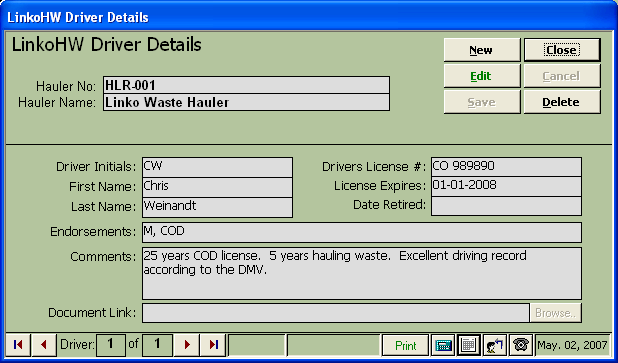
Track information for drivers employed by the Waste Haulers.
|
Selection |
Description |
|
Hauler No |
No of Hauler whose Driver is being displayed below. |
|
Hauler Name |
Name of Hauler whose Driver is being displayed below. |
|
Buttons |
Action performed |
|
New |
Allows you to create a new Driver. While editing, the New, Close, Delete and Record Selector buttons are disabled. |
|
Edit |
Allows you to edit the displayed Driver. While editing, the New, Close, Delete and Record Selector buttons will be disabled. |
|
Save |
Saves the changes made to the Driver. |
|
Close |
Closes the screen. |
|
Cancel |
Cancels any changes made to the Driver. |
|
Delete |
Deletes the Driver. |
|
Browse… |
Opens a file browser allowing you to select a file to associate with this Driver. View the document once it has been entered here by clicking on the Browse button. |
|
Record
Selectors |
Standard Record Selectors allowing you to move between Drivers that have been created for this Hauler. |
|
Status
Bar |
Reduced Status Bar allowing you to view a Calendar, a Calculator, Contact Information, or create a new Phone Log Event |
|
Item |
Description |
|
Driver Initials |
Driver Initials are used in Reports in the Hauled Waste Module and must be unique for each Waste Hauler. |
|
First Name / Last Name |
Driver’s name. |
|
Driver’s License# |
Enter in the State of issuance and the driver license number |
|
License Expires: |
Track the status of the Driver’s license to confirm it is active. |
|
Date Retired: |
Assign a Date Retired to remove a Driver from the drop-downs in the listing boxes in the software. |
|
Endorsements: |
Special qualifications of the driver. |
|
Comments: |
Any additional information regarding the driver and his driving record. |
|
Document Link |
Stores the location of an existing file for rapid retrieval. PDF, DOC, EXL, and many more can easily be associated with these notes |
|
From
the Status Bar you can quickly look up any Waste Hauler
Contact you would like. A full list of
information will be displayed. Simply
start typing in the Contact’s last name and the software will jump to it. Waste
Hauler Contacts can also be viewed on the Contacts Tab in Waste Hauler
Management. A Contact is automatically
created for each Waste Hauler without full information when you create a new
Hauler. You should then complete this Contact using the information for that
Waste Hauler as the contact information is used on several reports. This
is user configurable at Hauler Admin, Configurations, Local
Configurations, “Auto-Create a New Contact when Creating a New Hauler.” |
|
|
Add New |
Use
the familiar <<Add New>> Link to open the Contact Details screen and create a new Contact.
The company name and address are automatically loaded from the Site
Information from the Hauler. |
|
View or Modify |
To
view more comprehensive Contact information from the list view, click on the <<Details>>
button. Once the Details
Screen has been opened, you have the ability to modify, delete or simply
view the material. To
make any changes, you must first click on the <Edit> Button and when
the changes are complete, you must click on the save button. |
|
Buttons |
Action performed |
|
Add New |
Opens Hauler Contacts screen allowing you to create a new Contact |
|
Details |
Opens Hauler Contacts screen displaying selected Contact |
|
Item |
Description |
|
(Salutation) |
|
|
First Name |
First name of this contact |
|
Last Name |
Last name of this contact |
|
Title |
Title for this contact, for example ‘Director of Operations’ or ‘President’ |
|
Phone |
Phone number of this contact |
|
Contact Type |
Type of contact for this Hauler, for example Legal or Mailing |
|
Email |
Email address for this contact |
|
Selection |
Description |
|
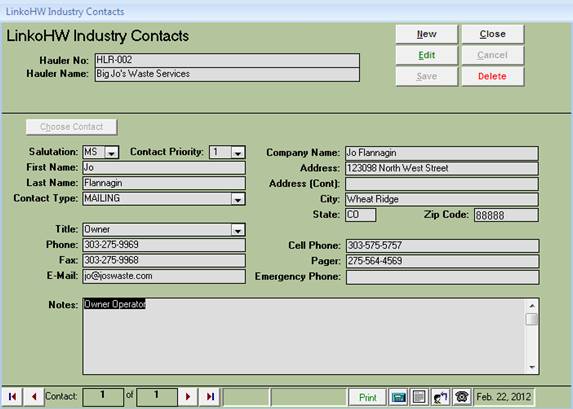
Hauler No |
No of Hauler whose contacts are being displayed below |
|
Hauler Name |
Name of Hauler whose contacts are being displayed below |
|
Buttons |
Action performed |
|
New |
Clears values and allows you to create a new Contact. While editing, the New, Edit, Close, and Record Selector buttons will be disabled |
|
Edit |
Allows you to edit the displayed Contact. While editing, the New, Edit, Close, and Record Selector buttons will be disabled |
|
Save |
Saves the changes made to the Contact |
|
Close |
Closes the screen |
|
Cancel |
Cancels any changes made to the Contact |
|
Delete |
Deletes the Contact |
|
Choose
a Contact |
Allows you to choose an existing contact for association with this Hauler/Permit |
|
Record
Selectors |
Standard Record Selectors allowing you to move between the Contacts for this Hauler. |
|
Status
Bar |
Reduced Status Bar allowing you to view a Calendar, a Calculator, Contact Information, or create a new Phone Log Event |
|
Item |
Description |
|
Salutation |
Salutation for this Contact, for example ‘Dr.’ or ‘Mr.’ |
|
Contact
Priority |
Priority for this Contact. Keep in mind that there has to be at least one contact with a priority of 1 |
|
First Name |
First Name of this Contact |
|
Last Name |
Last Name of this Contact |
|
Contact Type |
Type of contact for this Hauler, for example Shipping, Legal, Mailing Contact, etc. |
|
Company Name |
Name of Contact’s Company. (Most likely the name of the Hauler) |
|
Address 1 / 2, City,
State, Zip |
Full address information for the Company. |
|
Title |
Title for this Contact, for example ‘Director of Operations’ |
|
Phone |
Business phone number for this Contact |
|
Fax |
Fax phone number for this Contact |
|
E-Mail |
Email address for this Contact |
|
Cell Phone |
Cell phone number for this Contact |
|
Pager |
Pager number for this Contact |
|
Emergency Phone |
Emergency phone number for this Contact |
|
Notes |
Comments about this Contact |
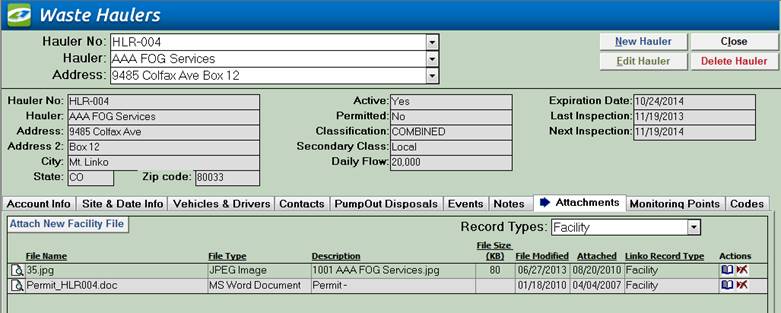
1.
Attach New (Facility) File allows
you to attach a file to this Hauler
2.
 - click this button to open the Attachment Preview screen
3.
 - click this button to open the file so it can be edited
or printed
- click this button to open the file so it can be edited
or printed
4.
 - click this button to delete the attached file. It will be permanently deleted
5. Record Types drop down list allows you to filter the list of attachments to see specific types of attachments. Examples include:
i. Facility – this would be an attachment added under the Attachments Tab above.
ii. Monitoring Points – an attachment that was added to the Monitoring Point via the Monitoring Point and Limits screen.
iii. Permit Events – an attachment added to a Permit Event.
iv. Inspections – an attachment added to an Inspection Event
See Using Attachments in the Common Features area of this guide for more details.
|
Track Pump Outs and Disposals |
Shows
all Pump Outs and Disposal Events for the selected Waste
Hauler. Show the Facility that was pumped, the manifest number, when it was
disposed, where it was disposed, and what type of waste and how much was
pumped. |
|
Create New Disposals |
Add
a new Pump Out and Disposal Event by clicking on the Add … to open the Disposal Data Entry screen. |
|
Buttons |
Action performed |
|
Config |
Use
the Configuration Screen hyperlink to modify the fields that are displayed
under the Pump Out Disposals tab, including Hauler Vehicle, Pump Out Due
Date, Facility Information, Extractor Information, and Event Information. |
|
Add… |
Opens
the Disposal Data Entry screen. Three
actions can then be completed: 1. Complete an existing Facility Pump Out and Disposal Event. 2.
Create a New Pump Out and Disposal Event for any type of Permit /
Facility in the database. 3.
Create a new Permit / Facility and then create a new Pump Out and
Disposal Event. |
|
Details |
Opens
the Pump Out Details screen for viewing or changes. |
|
Item |
Description |
|
Manifest # |
When
the POTW uses a Manifest to track a Pump Out by a Hauler, you can show that
Number here. |
|
Facility Name |
What Facility was pumped? |
|
Pump Out Complete |
Date the Pump Out was completed |
|
Disposal Date |
Date the Waste Hauler disposed of its tank load. |
|
Waste Type |
Type of Waste
the Waste Hauler disposed of. Waste types are added to the List Table in Event
Administration under the
Waste Types Tab. |
|
Amount Pumped |
How
much the Waste Hauler pumped. This
must be a numeric value. |
|
Disposal Site |
What
Disposal Site the Waste Hauler utilized. |
|
Violation |
This
field indicates that the Facility is in Violation, not the Waste Hauler. Pump
Out Violations are Facility related. |
|
Adding New Events |
Clicking
on the <Add
New> link opens the Event Pick Box. First Choose an Event Category and Type and
click Ok. This opens the Events
Details screen for that Event Type and Category. Fill in all of the
information you can for the event item and save it. After you have added and saved the
information, it will appear in the list view under the Events Tab. |
|
View |
Using
the Event Category drop down box, choose the criteria to filter by. If you would like to see all of the events
for the Hauler regardless of type, select ALL. |
|
View/Modify |
To
view more comprehensive schedule information from the list view, click on the
Details button. Once the Details Screen has been opened, you have
the ability to modify, delete or simply view the material. To
make any changes, you must first click on the <Edit> Button and when
the changes are complete, you must click on the save button. |
|
Buttons |
Action performed |
|
Event Category |
Combo box offering a choice of Event Categories, or All, to be displayed in the list below |
|
Add New |
Opens New Event Pick Box window for this Hauler and allows you to choose the type of Event you want to create. Once you choose an Event Category and Event Type, an Edit Event window opens for the appropriate Event Category. Event Category options are Generic Event, Inspection Event, Permit Event, and Sample Event |
|
Details |
Opens the Event Details window to edit / modify the event. |
|
Item |
Description |
|
Category |
The Event Category for this event |
|
Event Type |
Type of Event. This is user editable in (system admin) |
|
Description |
Description of this event. If you double click on this field a pop-up window will open allowing you to view the full text. Any edits you make in this pop-up window will NOT be saved |
|
Due Date |
The date this Event is due to be completed |
|
Completed Date |
The date that this Event was completed |
|
If
you have not added any items yet, click on the <Add
New> link. This link opens the Notes Details screen where you can choose a Notes Type and fill in the
description. Feel free to add new note
types and modify existing ones in our Hauler Administration
Section. Also use the Document Link to store links
to Documents, Images or any other type of electronic file that you may use
when tracking Hauler information. |
|
|
View/Modify |
To
view more comprehensive Note Information from the list view, click on the
Details button. Once the Details Screen has been opened, you have
the ability to modify, delete or simply view the material. To make any changes, you must first click on
the <Edit> Button and when the changes are complete, you must click on
the save button. |
|
Buttons |
Action performed |
|
Add New |
Opens Hauler Notes screen allowing you to create a new Note |
|
Details |
Opens Hauler Notes screen displaying selected Note |
|
Item |
Description |
|
Notes Type |
Type of note this is, such as HazMat or Spill |
|
Industry Notes |
Actual notes, such as information about the hazardous materials stored at this Hauler (for HazMat Note Type) or a description of the site’s Spill Plan (for Spill Note Type) |
|
Linked Documents |
This checkbox indicates whether or not you have associated a word document with this note |
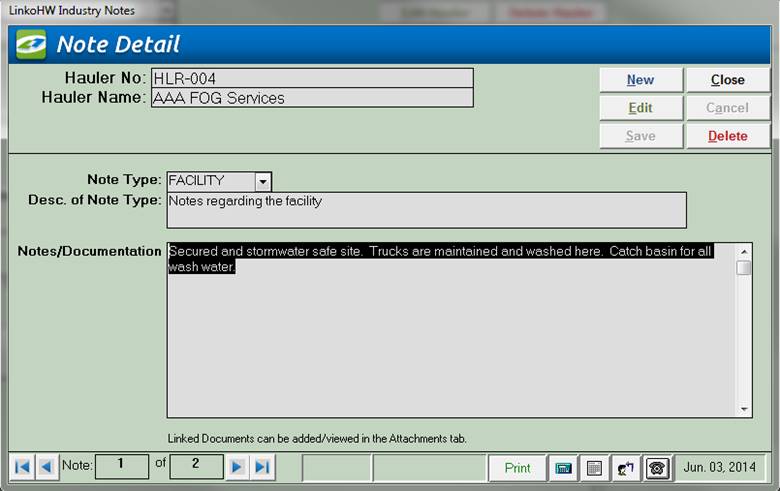
Use the document link within each “Note” to quickly view documents associated with the Waste Hauler.
|
Selection |
Description |
|
Hauler No |
No of Hauler whose notes are being displayed below |
|
Hauler |
Name of Hauler whose notes are being displayed below |
|
Buttons |
Action performed |
|
New |
Clears values and allows you to create a new Note. While editing, the New, Edit, Close, and Record Selector buttons will be disabled |
|
Edit |
Allows you to edit the displayed Note. While editing, the New, Edit, Close, and Record Selector buttons will be disabled |
|
Save |
Saves the changes made to the Note |
|
Close |
Closes the screen |
|
Cancel |
Cancels any changes made to the Note |
|
Delete |
Deletes the Note |
|
Record
Selectors |
Standard Record Selectors allowing you to move between Notes that have been created for this Hauler. |
|
Status
Bar |
Reduced Status Bar allowing you to view a Calendar, a Calculator, Contact Information, or create a new Phone Log Event |
|
Print |
Clicking on PRINT
will print a Note Details report that includes the document link if it
exists. |
|
Item |
Description |
|
Note Type |
Type of note this is, such as HazMat or Spill |
|
Document Link |
Stores the location of an existing file for rapid retrieval. PDF, DOC, EXL, and many more can easily be associated with these notes |
|
Desc. of Note Type |
Description of this Note Type. Keep in mind that this list is updateable in the Hauler Administration Section |
|
Notes/Documentation |
Actual notes, such as history of Hauler and more |
|
Add a new Monitoring Point |
To
add a new Monitoring Point, click on the Add New
hyperlink to open the Monitoring Point Details
Screen.
Fill in the Monitoring Point Number and a Description. After you have added and saved the
information, it will appear in the list view under the Monitoring Points tab. |
|
View/Modify |
To
view comprehensive Monitoring Point information from the list view under the Monitoring
Point tab, click on the Details button of the Monitoring Point of
interest. Once the Details screen has
been opened, you have the ability to modify, delete or simply view the
material. |
|
Buttons |
Action performed |
|
Add New |
Opens Monitoring Points screen allowing you to create a new Monitoring Point |
|
Details |
Opens Monitoring Points screen displays selected Monitoring Point |
|
Item |
Description |
|
Monitoring Point |
Name of the Monitoring Point |
|
Date Issued |
Date this Monitoring Point was issued |
|
Description |
Description of the Monitoring Point |
|
Selection |
Description |
|
Hauler No |
Hauler No whose Monitoring Points are being displayed |
|
Hauler Name |
Name of Hauler whose Monitoring Points are being displayed. |
|
Buttons |
Action performed |
|
Copy
Limits |
Opens Copy Monitoring Point Limits screen. This screen allows you to copy limits from a different Monitoring Point to this one. |
|
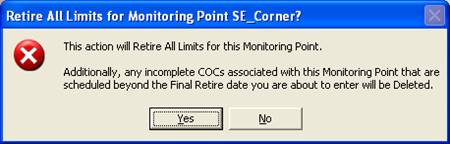
Retire
Limits |
Prompts the user to enter a date from which to Retire all the Limits for the Monitoring Point.
|
|
New |
Clears values and allows you to create a new Monitoring Point. While editing, the New, Edit, Close, and Record Selector buttons will be disabled |
|
Edit |
Allows you to edit the displayed Monitoring Point. While editing, the New, Edit, Close, and Record Selector buttons will be disabled |
|
Save |
Saves the changes made to the Monitoring Point |
|
Close |
Closes the screen |
|
Cancel |
Cancels any changes made to the Monitoring Point |
|
Delete |
Deletes the Monitoring Point. Users may be required to remove all of the limits and results using those limits prior to deleting the monitoring point |
|
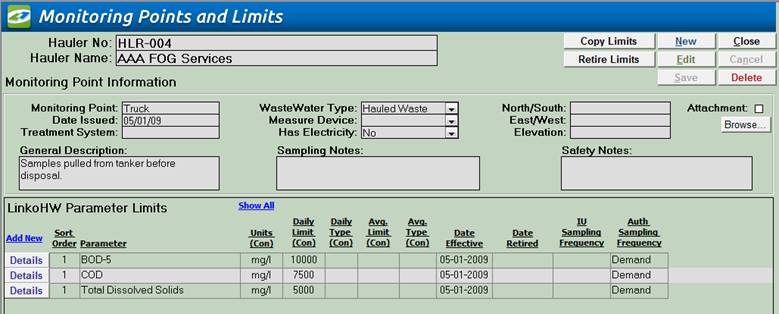
Monitoring Point Information Section |
Show Monitoring Point details information at the top with a list of limits underneath. |
|
Item |
Description |
|
Monitoring Point |
The identifying name or number for the monitoring point |
|
Date Issued |
The date this Monitoring Point was issued |
|
Treatment System |
Treatment system used at this Monitoring Point |
|
Wastewater Type |
Wastewater type at this Monitoring Point |
|
Measure Device |
Flow Measurement device used for this Monitoring Point |
|
Has Electricity |
Is there Electricity available at this Monitoring Point? Yes or No |
|
North/South |
North/South (Y) grid coordinates for this Monitoring Point |
|
East/West |
East/West (X) grid coordinates for this Monitoring Point |
|
Elevation |
Elevation of this Monitoring Point |
|
General Description |
Short description of this Monitoring Point |
|
Sampling Notes |
Notes about how samples are taken from this Monitoring Point |
|
Safety Notes |
Safety notes about this Monitoring Point |
|
|
|
|
Add New |
Opens the Monitoring Point Limits screen to create a new Parameter Limit. |
|
Sort Order |
Provides the ability to sort the Parameters based upon the Sort Order number assigned under the Parameter Details in Samples and Results Administration. |
|
Parameter |
The pollutant parameter name |
|
Units (Con) |
The concentration unit of measurement for this parameter |
|
Daily Limit (Con) |
The concentration daily limit for this parameter |
|
Daily Type (Con) |
The type of daily limit, e.g. local, categorical, state, etc. |
|
Monthly Limit (Con) |
The concentration monthly limit for this parameter |
|
Monthly Type (Con) |
The type of monthly limit, e.g. local, categorical, state, etc. |
|
Date Effective |
The date these limits became effective |
|
IU Sampling Frequency |
The frequency at which the parameter should be sampled by the Industry. |
|
Auth. Sampling Frequency |
The frequency at which the Authority (POTW) should sample the parameter. |
|
Record
Selectors |
Standard Record Selectors allowing you to move between selected Monitoring Points for that Waste Hauler (if more than one). |
|
Status
Bar |
Standard Status Bar allowing you to jump to a listing of Violations without enforcements, a listing of overdue Events, a listing of related Reports, a Calendar, a Calculator, Contact Information, or a new Phone Log Event |
NOTE: Dynamic System Labels will be italicized and can be Edited.
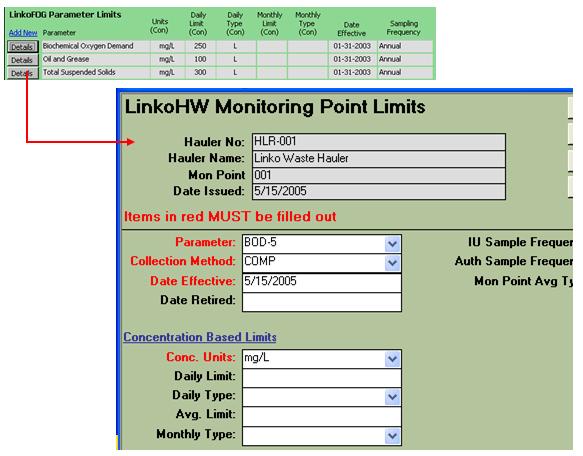
Assign Parameters and Limits to the Monitoring Point.
|
Adding Monitoring Point Limits |
From
the Monitoring Points Details Screen, add a new Parameter Limit by clicking
on the Add New hyperlink in the Linko
HW Parameter Limit section to open the Monitoring Point Limit Details screen.
|
|
Selection |
Description |
|
Hauler No |
No of Hauler whose Monitoring Point Limits are being displayed |
|
Hauler |
Name of Hauler whose Monitoring Point Limits are being displayed |
|
Monitoring Point |
The identifying name or number for the Monitoring Point whose limits are being displayed |
|
Date Issued |
The issue date for the Monitoring Point whose limits are being displayed |
|
Buttons |
Action performed |
|
New |
Clears values and allows you to create a new Monitoring Point Limit. While editing, the New, Next, Edit, Close, and Record Selector buttons will be disabled |
|
Edit |
Allows you to edit the displayed Monitoring Point Limit. While editing, the New, Next, Edit, Close, and Record Selector buttons will be disabled |
|
Save |
Saves the changes made to the Monitoring Point Limit. Only enabled while editing or creating an entry |
|
Next |
Displays the next Monitoring Point Limit |
|
Close |
Closes the screen |
|
Cancel |
Cancels any changes made to the Monitoring Point Limit. Only enabled while editing or creating an entry |
|
Delete |
Deletes the Monitoring Point Limit |
|
Record
Selectors |
Standard Record Selectors allowing you to move between Limits. |
|
Status
Bar |
Reduced Status Bar allowing you to view a Calendar, a Calculator, Contact Information, or create a new Phone Log Event |
|
Item |
Description |
|
Parameter |
The pollutant parameter name. Where can I add a new parameter or change an existing one? In the Sample Administration Section. |
|
Date Effective |
The date these limits became effective |
|
Date Retired |
The Date the Limit is no longer in effect. |
|
Collection Method |
The method to be used when taking a sample for this parameter |
|
IU / Authority Sample Frequency |
The frequency at which the parameter should be sampled. The fields are for reference only and are not flagged as a violation if the parameter is not sampled according to the frequency noted here. Reports generated in Compliance Assistant indicate required vs. actual IU Sample Frequency based upon these settings. |
|
Mon Point Avg. Type |
The type of average for the Parameter. The default is "MO" for monthly averages. You can select "F" for Four-Day Averages (used for older electroplaters). |
|
Concentration Units |
The concentration unit of measurement for this parameter |
|
Concentration Daily Limit |
The concentration daily limit for this parameter |
|
Concentration Daily Type |
The type of daily limit, e.g. local, categorical, state, etc. |
|
Concentration Monthly Limit |
The concentration monthly or average limit for this parameter |
|
Concentration Monthly Type |
The type of monthly limit or average, e.g. local, categorical, state, etc. |
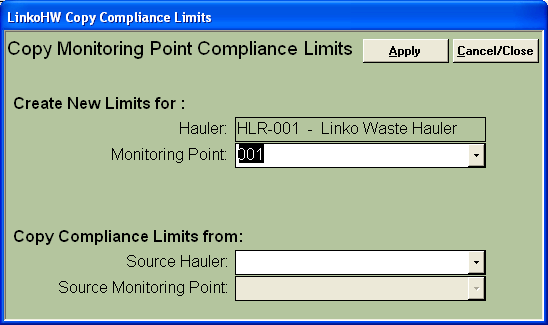
Easily copy limits from one Monitoring Point to another.
|
Apply |
Copies monitoring point limits from selected Source Monitoring Point |
|
Cancel/Close |
Closes window without copying any monitoring point limits |
|
Create New Limits for: Hauler |
The Waste Hauler that Monitoring Point Limits will be copied to. This is a non-editable field and simply lists the current Waste Hauler being modified. |
|
Create new Limits for Monitoring Point |
Monitoring Point that Limits will be copied to. This drop down box lists all Monitoring Points for the current Waste Hauler being edited. |
|
Copy Compliance Limits from: Source Hauler |
Waste Hauler that contains the Monitoring Point that Limits will be copied from. This drop down box lists all Waste Haulers. |
|
Copy Compliance Limits from Source Monitoring Point |
Monitoring Point that the Monitoring Point Limits will be copied from. This drop down box lists all Monitoring Points for the selected Source Waste Hauler. This field will remain grey until the Source Waste Hauler is selected. |
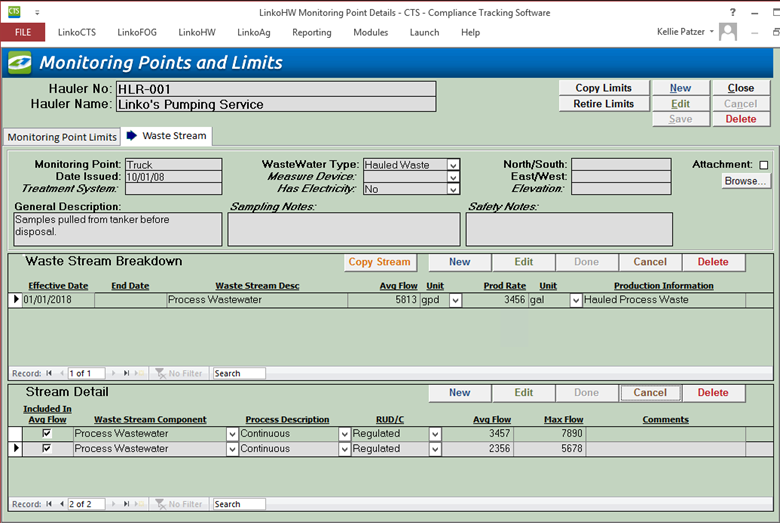
This feature allows you to enter a detailed breakdown of a waste stream for each monitoring point. This is used to identify process (categorical) vs. non-process flows, allows you to identify the correct EPA Category for the limits assignment to this Monitoring Point and allows you to populate the Industries permit with the detailed waste stream information.
|
Items |
Description |
|
Effective Date |
Date the waste stream breakdown took effect |
|
End Date |
Date the waste stream breakdown is retired |
|
Waste Stream Description |
Human-readable description of waste stream |
|
Avg Flow |
System calculation of waste stream flow average |
|
Unit |
The Avg Flow units of either gpd or mgd |
|
Production Rate |
Rate of waste stream production |
|
Unit |
Production Rate unit of measure |
|
Production Information |
Human-readable description of waste production type |
|
Included In Avg Flow |
A checkbox telling system to use in Avg Flow calculations |
|
Waste Stream Component |
Dropdown to choose what type of waste stream |
|
Process Description |
Dropdown of Continuous, Batch or Intermittent |
|
RUD/C |
Dropdown of Regulated, Unregulated, Dilute or Cyanide |
|
Avg Flow |
Avg Flow of individual Stream Detail record |
|
Max Flow |
Max Flow of individual Stream Detail record |
|
Comments |
Human-readable optional comment field |
For a waste stream:
- Only one record can be in effect at a time.
- You must enter end date of previous record before creating a new record
- You can use the Copy Stream feature to copy data from old/retired stream and create a new one
- Waste Stream Desc, Production Information and Comments are text entry, 255 characters max
- Effective Date required
- End Date is required before creating a new record.
- Avg Flow at Waste Stream level cannot be edited, this is calculated and stored in the field based on Avg Flow entered into each Waste Stream Component when the Include field is checked.
- Flow Unit in Waste Stream Breakdown is limited to gpd and mgd.
- Any unit for Prod Rate Unit is valid
- A self-Lookup is used for Waste Stream Component. Meaning, whatever value you entered for a previous industries Component will be in this list for you to choose when you enter the next Component.
- Process Description is fixed values: Continuous, Batch, Intermittent
- RUD/C is a fixed list: Regulated, Unregulated, Dilute, Cyanide.
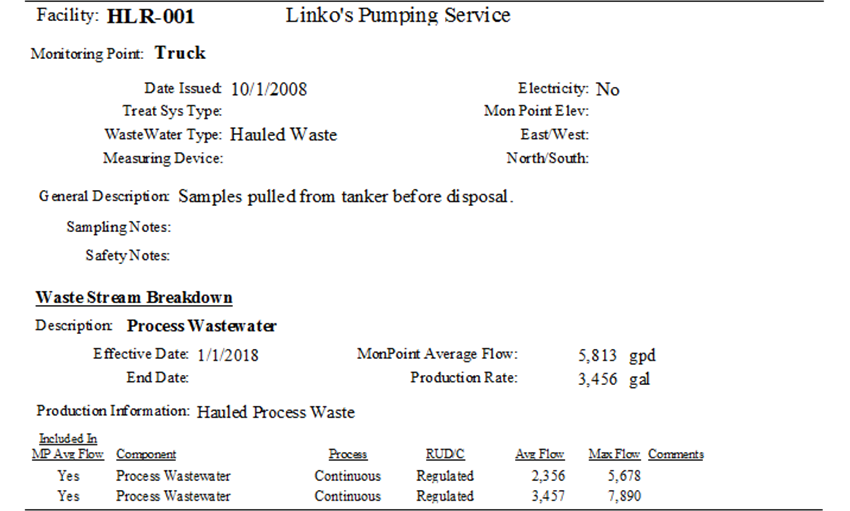
Waste Stream Details were added to these reports.
|
Area of Software |
Report Title |
|
Groups and Queries - Industry Groups |
Industry (Contacts and MonPoint Limits) |
|
|
Industry (Contacts, Recent MonPoint Lims) MB |
|
|
Industry (Contacts, Recent MonPoint Lims) |
|
Industry Management |
Industry (Contacts and MonPoint Limits) |
|
|
Industry (Contacts, Recent MonPoint Lims) MB |
|
|
Industry (Contacts, Recent MonPoint Lims) |
|
Industry List View |
Industry (Contacts and MonPoint Limits) |
|
|
Industry (Contacts, Recent MonPoint Lims) MB |
|
|
Industry (Contacts, Recent MonPoint Lims) |
We also added new reports to Mon Point Details that show just waste stream details.
New Mail Merge letters were update because of the 1 to many relationship
between Mon Points and Waste Streams.
Codes Tab
|
Clicking
on the<< Edit Button>> opens the Waste Hauler Codes
Details Screen. Choose your Code
either by the code itself or by the description and click on the Add Button.
To remove a code association from the list click on the <<Remove>>
Button. Add new codes and modify existing ones in our Hauler
Administration Section. |
|
|
Item |
Description |
|
Associated SIC Codes |
List of all SIC codes associated with this Waste Hauler. Keep in mind that the complete SIC code list is updateable in the Hauler Administration Section. |
|
Edit (SIC Codes) |
Opens Assign Codes window allowing you to change the SIC codes associated with this Waste Hauler. |
|
Associated CAT Codes |
List of all CAT codes associated with this Waste Hauler. Keep in mind that this complete CAT code list is updateable in the Hauler Administration Section. |
|
Edit (CAT Codes) |
Opens Assign Codes window allowing you to change the CAT codes associated with this Waste Hauler. |
|
Associated NAICS Codes |
List of all NAICS codes associated with this Waste Hauler. Keep in mind that the complete NAICS code list is updateable in the Hauler Administration Section. |
|
Edit (NAICS Codes) |
Opens Assign Codes window allowing you to change the NAICS codes associated with this Waste Hauler. |
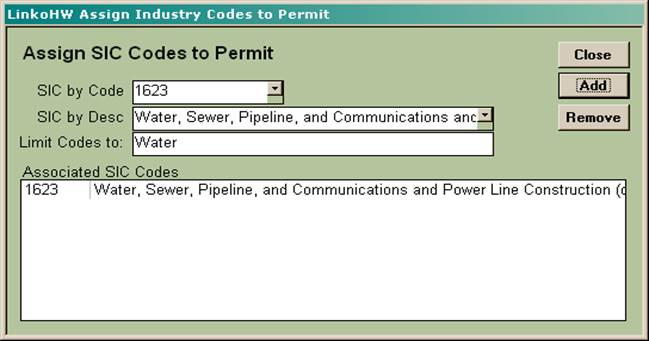
|
Item |
Description |
|
Close |
Closes window. |
|
Add |
Adds the Code on the left to the list of Codes associated with this Waste Hauler. |
|
Remove |
Removes the Code selected in the list below |
|
NAICS – SIC – CAT by Code |
Drop-down listing NAICS – SIC – CAT Codes by their Code value. |
|
NAICS – SIC – CAT by Desc |
Drop-down listing NAICS – SIC – CAT Codes by their Description. |
|
Limit Codes to |
By entering a term in this box and hitting enter or tab, you can limit the Codes listed in the drop down boxes above |
|
Associated NAICS – SIC – CAT Codes |
A list of all the NAICS – SIC – CAT codes associated with the Waste Hauler |