Create or complete a Pump Out and Disposal Event for an Existing Facility, or add a Facility and create a Pump Out and Disposal Event.
|
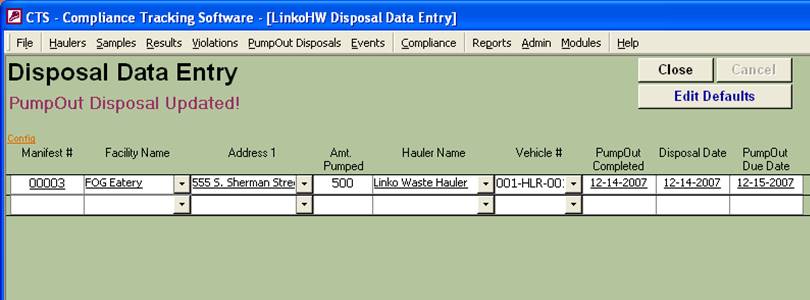
Begin Disposal Data Entry |
Enter
the Manifest # and the Facility Name or Address. Linko checks the database to
determine if this Facility currently exists. As the user types the info, the
list moves to the matching record. The
Facility Name / Number / Address pull-downs will list all the facilities in
the entire Linko Database including LinkoFOG, LinkoCTS, or the Waste Hauler
Module’s Other Facilities. The
user can then either select the desired Facility with the mouse or type to
limit the list and select the currently highlighted Facility by hitting
“Enter”. |
|
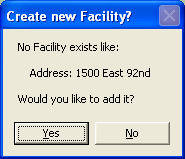
If a Facility does not exist in the Linko Database. |
If
the user types in a Facility Name, Address, or Facility Number that does not
exist in the drop down lists, the use is prompted to create a new Facility.
Selecting
Yes takes you to the New Pump Out Location
Screen. Here
you can complete the information for the New Facility and choose whether to
add it to LinkoFOG or the Hauled Waste OTHER Facilities list. The
information that appears in the New Pump Out Location Screen is configured in
Event Admin, Configurations Tab, by selecting the “Set New Facility Defaults
Used During Disposal Entry.” This
opens the Default New Facility
Information Screen. Finally
you are asked to create a new Pump Out and Disposal Event for the new
Facility. |
|
Facilities that have more than one extractor. Check for an existing Event Complete the Existing Event or create a new one Follow-up Event Choose which Linko Modules will list their Events |
Linko
will show an existing Facility with more than one Extractor and list each
Extractor separately so you may choose precisely what was pumped out. When a
new Facility is being created within the Disposal Data Entry process, no
provision is made for which Extractor is being pumped, as that information
has not yet been added to the new Facility. Linko
checks the Facility you chose to see if it already has an event scheduled. If
Linko finds an existing event, it asks if you want to complete that event. If
you say “Yes” it uses the Date Disposed and Waste Hauler that you are
entering to complete the already existing Pump Out and Disposal Event. If you
say “No” it creates a completely new Pump Out and Disposal Event for that
facility. Once
you have completed the Event (New or Existing) Linko will prompt you to
create another Pump Out and Disposal Event for that Facility. This follow-up
event is scheduled based upon the Cleaning Frequency of the Extractor, or if
that is not assigned, then it will use the Frequency assigned to the event
type. Use
the Configurations Tab in Event Administration, under the Pump Outs and
Disposals section, choose “Facilities Visible for Hauler Disposals” to list
if LinkoFOG, LinkoCTS, or Other, types of Facilities and Addresses are listed
to select from. |
|
Choose What Type of Event Linko Will Look For |
In
Event Admin, under the Configurations Tab, in the Global Configurations Section,
under Pump Outs and Disposals, you can choose “Default Pump Out Event Type.”
Linko uses this selection to limit its search for existing Pump Out events to
that type. So when you enter the Manifest Number and Facility, it will search
that Facility’s events of that Type for one that DOES NOT have a Disposal
Date. It will offer that as the event to associate to the Disposal you are
creating. |
|
Filter on Disposals by Date entered |
The
Pump Out Disposal Event is also marked with a Modified Date / Time that
represents when the Pump Out was updated / created. This is useful for
filtering Disposals entered by date on the Disposals List View screen. |
|
Default Pump Out Disposal Information |
When
using the Disposal Data Entry Screen, click on the Edit
Defaults Button to configure Default Pump Out Disposal Information. This allows
the user to enter data that will be the same for each Pump Out Disposal
Event. If you receive a number of manifests from one Waste Hauler, you only
have to enter the Waste Hauler info once for all of the manifests. |
|
Pump Out and Disposal Follow-up Events. |
When
a Pump Out and Disposal Event is completed, a follow-up event is created.
This is user-configurable in Event Admin, Configurations Tab, Local
Configurations, All Events. Create
follow-up Events how? Choices are:
Automatically, Prompt, or Never. Create
follow-up Events based on? Due Date or
Complete Date. |
|
Buttons |
Action performed |
|
Close |
Closes the screen. |
|
Cancel |
Cancels the Pump Out Disposal Event creation process and resets the screen for choosing the next facility / start the next manifest. |
|
Edit Defaults |
Users can change the Default Disposal Information at any time by clicking the Edit Defaults button. |
|
Item |
Description |
|
Manifest # |
Track the waste disposal by the Manifest number and enter it here. If a Manifest # is entered, the software will check to see if that Manifest # has already been used. If so the user is notified, but can still use the number. Manifest #s do not have to be unique in the software, but in practice typically will be, but it is helpful when the numbers are duplicated to notify the user. |
|
Facility Name / Facility No. / Address 1 |
These fields will list all the facilities in the entire database. Users select which Linko Modules to choose facilities from via the “Facilities Visible for Hauler Disposals” selection in the Pump Outs and Disposals under Local Configurations of the Configurations tab in Event Admin. This Facilities configuration requires careful entry of the Modules’ names, with commas separating the values. For example: LinkoFOG, LinkoAg, Other would show the Facilities from the FOG and Silver Modules and the Other Facilities in the Hauled Waste module. |
|
Address 2 / City |
Additional Address information for the Facility. These lines are not user editable at this screen and do not provide a pull-down listing of Facilities. |
|
Amt. Pumped |
How many gallons did the Waste Hauler pump from the Facility? |
|
Hauler Name |
Choose the Waste Hauler name from the pull-down listing. |
|
Vehicle # |
Choose the number of Vehicle that performed the Pump Out. If you select a Vehicle number from the drop-down list that has been assigned a Retire Date that is earlier than the Complete Date of the Pump Out and Disposal Event, a message is displayed to the User but the Vehicle is still used in the event. |
|
Complete Date Disposal Date |
The
Complete Date is the date that the Pump Out and Disposal Event was actually
completed. This identifies when the Waste Hauler actually pumped the Trap at
the Facility. The
Disposal Date is the date that the Waste Hauler disposed of the pumped
materials. When a user enters a Pump Out and Disposal Event Complete Date,
the Disposal Date can be automatically populated with the same date. This is
the Linko Default setup. Disposal
Information was added to the Pump Out and Disposal event to allow the POTW to
track both Pump Out Date and the Disposal date together as part of 1 database
record. See
“Use Complete Date as Disposal Date” for configuration
information. When
the “Use Complete Date as Disposal Date” is set to NO, then the Date of the
Disposal and the Complete Date of the Pump Out must be entered into Linko
separately. This
provides the ability to track when the Facility Extractor was pumped (Complete Date). Then
see if and when the Hauled Waste is disposed of (Disposal Date). And last
this provides the full “Cradle to Grave” tracking of the waste. If
you are tracking Cradle to Grave, you may want to change the Disposal Data
Entry List view so that the Disposal Date is listed first. See CONFIG. Changing the order like this works with the above setting set to
NO. Enter
the Disposal Date and then enter the Pump Out Completed Date. Linko automatically
fills the Pump Out Due Date by making it the same as the Completed
date. (This only applies if you are creating a new Pump Out and Disposal
Event from a manifest.) |
|
Pump Out Due Date |
Linko Typically will enter this automatically from the Pump Out Details unless you have entered a new Pump Out and Disposal Event during the use of the Disposal Data Entry Screen. Then you must enter the Pump Out Due Date. |
|
Other Field Names and Config |
The
List View Configure Link Allows you to select which fields are displayed,
their width, and order. The Disposal Data Entry screen has a variety of
additional Fields that can be used including additional Hauler address info,
Extractor info, Hauler info, and Pump Out event information. The
Disposal Data Entry Configuration can also be used to configure what Disposal
Fields are required and which ones should be included in the Default Pump Out Disposal Screen. Required
fields must be filled out before a Pump Out Disposal is completed. Some
fields MUST be included on the form as they are required to save a new Pump
Out Disposal Event. These are Disposal Date, Pump Out Complete Date, Due
Date, Facility Name, and Hauler Name. |
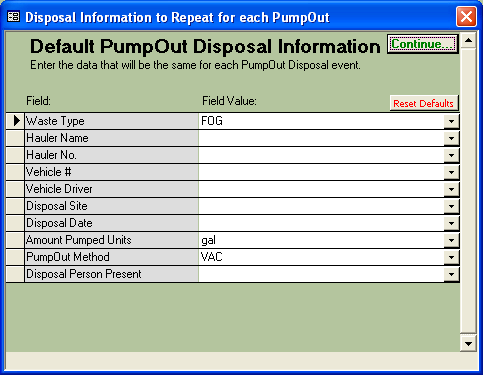
Use the Default Pump Out Disposal screen to configure the Disposal Data Entry Screen to enter the same information on each Disposal you enter.
|
Edit Disposal Data Entry Default Values |
Select the Default information that will be
applied to each Pump Out and Disposal Event being created or modified from
the Disposal Data
Entry screen EDIT DEFAULTS button. |
|
Adding fields to the Default List |
Open the Configuration window for the Disposal Data Entry
Screen by
clicking on the Config link. Select the
Fields to be used as defaults by selecting the “Prompt For Defaults” column.
That adds or removes fields from this screen, and then you can add the
Default information here. |
|
Buttons |
Action performed |
|
Continue |
Saves the data and returns to the Disposal Data Entry Screen. |
|
Reset Defaults |
Users can reset the drop down lists at any time by selecting this button. Selecting Reset Defaults clears all fields except: “Amount Pumped Units”, “Waste Type”, and “Pump Out Method” as the default values for these fields are configured under the Configurations tab in Event Admin. The “Created by” field is the currently logged on user. Fields recently selected for “Prompt for Defaults” can be added by clicking on the Reset Defaults if they are not displayed yet.. |
|
Item |
Description |
|
Waste Type |
It
you enter a waste type that does not exist in the list, you will be prompted
to add it to the list immediately. This list also can be modified in the
Waste Types Tab of the Event Admin screen. |
|
Hauler Name |
When
Waste Hauler Name is one of the default fields, if the Hauler has only 1
vehicle or 1 driver, that information automatically fills in the appropriate
field (if the field is visible on the Defaults screen.) If
the user changes the Waste Hauler Name, and the vehicle or driver had values,
then those values are removed. Each Waste Hauler has different vehicles and
drivers. If
the Waste Hauler has a Disposal Site associated with it in Waste
Hauler Management, the value is entered into the Disposal Site field but is not
changed if the Hauler is changed. |
|
Vehicle
# |
Enter
the Waste Hauler Name and Number first. You can type in a Vehicle Number that
does not exist in the list, and it will prompt you to add it immediately.
Otherwise choose from the List of Vehicles for that Waste Hauler. |
|
Vehicle Driver |
Enter
the Waste Hauler Name and Number first. You can type in a Vehicle Driver that
does not exist in the list, and it will prompt you to add it immediately.
Otherwise choose from the List of Drivers for that Waste Hauler. |
|
Disposal Site |
What
site the Waste Hauler utilized to dispose of the wastes. If you are entering
manifests for disposals at your POTW then put your WWTP in here. This
requires you to add your WWTP as a Disposal Site under Disposal Sites |
|
Disposal Date |
Enter
the date the Waste Hauler disposed of the wastes. This is for a large number
of Manifests for the same day. |
|
Pump Out Method |
It
you enter a Pump Out method that does not exist in the list, you will be
prompted to add it to the list immediately. This list can be modified in the
Pump Methods Tab of the Event Admin screen. |
|
Disposal Person
Present |
What
employee of the Disposal Site monitored the waste disposal process? |
|
Pump Out Complete
Date |
If
the Pump Out Complete Date is entered here and the “Use Complete Date as
Disposal Date” setting is set to YES in the Pump Outs and Disposals section,
Global Configurations, Configurations Tab of Event Admin, then the Disposal Date will be set to the Complete Date of
the Pump Out and Disposal Event. |
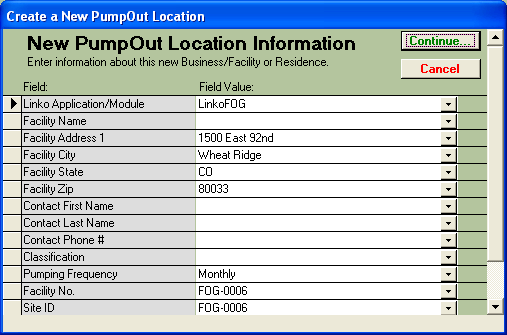
Create a new Facility for a Pump Out and Disposal Event within the Disposal Data Entry screen.
|
Adding a New Facility |
When you are entering a Pump Out and Disposal
event for which you have no current Facility / Industry in the Linko
database, you can add a new Facility just by typing in the Facility Name or
Address. When Linko does not find that information it will ask if you want to
create a New Facility.
Selecting
Yes displays this “New Pump Out Location Information” screen. If you say NO
Linko will force you to re-enter information relevant to an existing Facility
/ Industry. Linko
adds as much default information for the new Facility as possible. |
|
Select Fields to be Displayed in the New Pump
Out Location Screen |
Use the “Set New Facility
Defaults Used During Disposal Entry” selection from the Event Admin
Configurations tab. Users can choose which fields to be displayed. Users can
then define what fields they require and the order in which they want them to
appear here on the New Pump Out Location screen. |
|
Using the Hauled Waste OTHER Facilities |
When you are recording a Disposal for a new
Facility that does not produce FOG, you might want to add it to the Linko
OTHER Facilities Management section by selecting “OTHER” for the value in the
Linko Application / Module field. |
|
Buttons |
Action performed |
|
Continue |
Saves the data and returns to
the Disposal
Data Entry Screen. |
|
Cancel |
Closes out of the screen
without saving data. |
|
Item: |
Description |
|
Linko Application / Module |
This is part of the Default Information that Linko
loads for the new Facility. Any new Facility has to be added to one of the
Linko Modules. The Default value for this field is configured in Event Admin,
Configurations, Global Configurations, and “New Facility Application Type
Default.” Choose which application you typically will be adding new
Facilities into. The Pull-Down arrow also allows you to select which Module. This is a required field. |
|
Facility Number |
The Facility Number, or Permit # is automatically
generated by Linko and must be unique. If a user tries to enter an existing
Permit # when creating a new Facility, they are notified that the number is
already in use. |
|
Facility Name |
Facility Name is a required field and must be
entered when creating a new Facility. |
|
Site ID |
Site ID is a required field and must be entered
when creating a new Facility. Linko automatically sets it to be the same as
the Facility Number. |
|
Facility Number |
Linko automatically generates a Facility number
for the New Facility based upon the application you chose to add it to. |
|
Active Facility |
Linko automatically assigns the new Facility as
Active. |
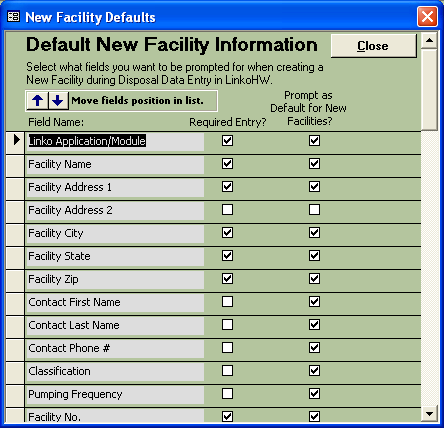
Select what fields you want to be prompted for when creating a New Facility during the Disposal Data Entry process. This screen is accessed via the “Set New Facility Defaults Used During Disposal Entry…” button on the Event Admin screen Configurations tab.
|
Function of the Default New Facility
Information Screen |
Use this Default New Facility Information screen
to configure the New
Pump Out Location Information data entry screen. You can define what
fields are required, what order they appear in, and whether they are appear
at all. Some fields are always required: Facility #, Facility Name, Linko
Application Type, and Site ID. Add or remove fields based upon your data
entry needs. |
|
Linko
handles Facilities, Industries, and OTHER Facilities, in a similar manner in
the database. The Fields describing each are very similar. See Waste Hauler Management Screen for full Field
Details. A
new Facility that is created during the Disposal Data Entry process can be
added to any of the Modules in Linko, though typically you will add them to
FOG or to OTHER Facilities (for SEPTIC disposals.) Other_Facilities_Management also lists the fields available. |
|
|
Use
this field to select which Fields you wish to have on the displayed listing
on the New
Pump Out Location screen. |
|
|
Select
required entry to force the user to input information into this field. Every
required field is automatically set to a Prompt as Default For New
Facilities. |
|
|
Exits
and saves changes. |
|
|
|
Positioning
arrows allow you to move the Fields up and down the list to change the order
they are displayed. |
