Other Facilities View
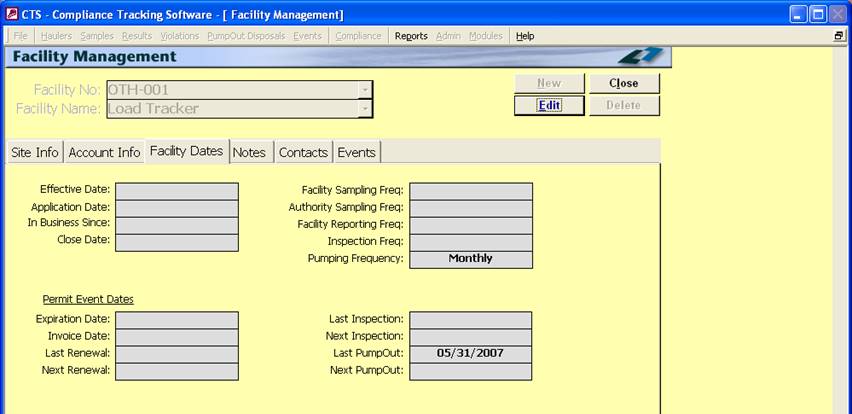
This Facility Management screen only displays one Facility at a time. The Facility NO and Facility Name are not available to select / change Facilities.
|
Accessing the OTHER Facility Management Screen |
This
screen is only accessed from the OTHER Facility List View by selecting the Details
(HourGlass) Button. |
|
Adding a New OTHER Facility |
A
new OTHER Facility cannot be created from this screen. The <<NEW>>
button is not available. To create a new OTHER Facility you must use the OTHER Facility List View and select ADD NEW. |
|
Modifying Existing OTHER Facilities |
From
the Facility Management Screen, click on the Edit button, opening the OTHER
Facility Details Screen. Make any modifications that you would like. Next click the <Save> button to
record the change or the <Cancel> button to abandon the change. To return to the OTHER Facility Management
Screen, click on the <Close> button.
From the OTHER Facility Details Screen you can edit the information on the Site Info, the Account Info and the Facility Dates
tabs. Note: All other information is added and modified
through the Add New and Details links on their respective tabs on the OTHER
Facility Management Screen. |
|
Selecting Tabs |
The
Tab control will remember where you have been. If the last time you were in
OTHER Facility Management, you were in Events, the next time you enter the
tab selector will be on Events. |
|
Deleting OTHER Facilities |
This
function is disabled by default in order to prevent unplanned Facility
deletions. You can enable it in the Configuration
Screen. |
|
Facility / Industry / Waste Hauler Management Details |
Linko
handles Facilities, Industries, and OTHER Facilities, in a similar manner in
the database. The Fields describing each are very similar. See Waste Hauler Management Screen for full Field and
Tab Details. Field
explanations are also available in the FOG User Guide under Facility
Management. |
|
Buttons |
Action performed |
|
New |
Is disabled on this screen. |
|
Edit |
Opens the OTHER Facility Details Screen window allowing you to edit the selected Hauler/Permit. |
|
Close |
Closes the screen and returns to Facility List View. |
|
Delete |
Deletes the selected OTHER Facility from the system. This button is disabled by default. To enable the ability to delete Facility /Permits go to Hauler Admin à Configurations à Local Configurations à Enable Hauler, Site and / or Monitoring Point Deletes and check the box. |
|
Record
Selectors |
The Record Selector has no functionality on this screen as you are displaying only one Facility. |
|
Status
Bar |
Reduced Status Bar allowing you to jump to a listing of related Reports, a Calendar, a Calculator, Contact Information, or a new Phone Log Event. |
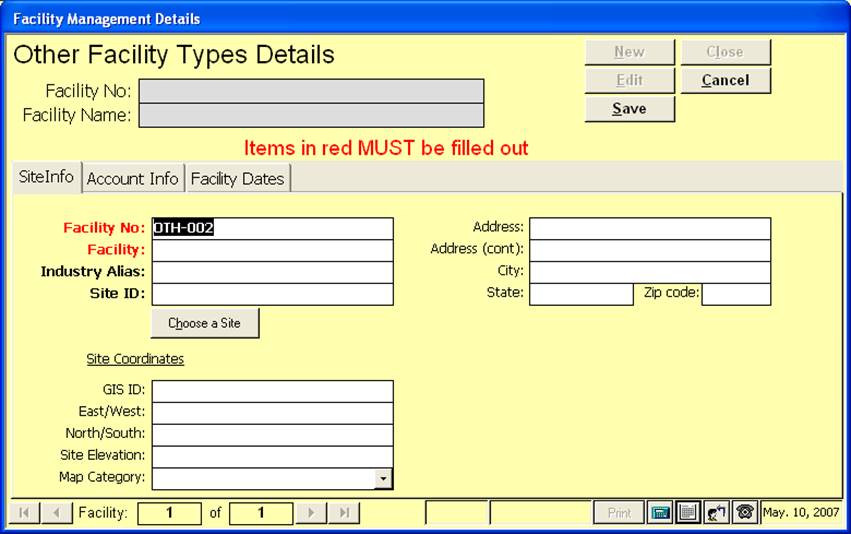
Edit existing OTHER Facilities or enter a new OTHER Facility through the details screen.
|
Selection |
Description |
|
Facility No |
No of Facility whose info is being displayed below. |
|
Facility Name |
Name of Facility whose info is being displayed below. |
|
Buttons |
Action performed |
|
New |
Not available at this screen. |
|
Edit |
Allows you to edit the displayed Facility. While editing, the New, Edit, Close, and Record Selector buttons will be disabled. |
|
Save |
Saves the changes made to the Facility. |
|
Close |
Closes the screen. |
|
Cancel |
Cancels any changes made to the Facility |
|
Record
Selectors |
This standard Record Selector has no functionality as you can only display one Facility at a time under OTHER Facility Management. |
|
Status
Bar |
Reduced Status Bar allowing you to print the Facility Details Screen, to view a Calendar, a Calculator, Contact Information, or create a new Phone Log Event |
|
Item |
Description |
|
Facility / Industry / Waste Hauler Management Details |
Linko
handles Facilities, Industries, and OTHER Facilities, in a similar manner in
the database. The Fields describing each are very similar. See Waste Hauler Management Screen for full Field and
Tab Details. Field
explanations are also available in the FOG User Guide under Facility
Management. |