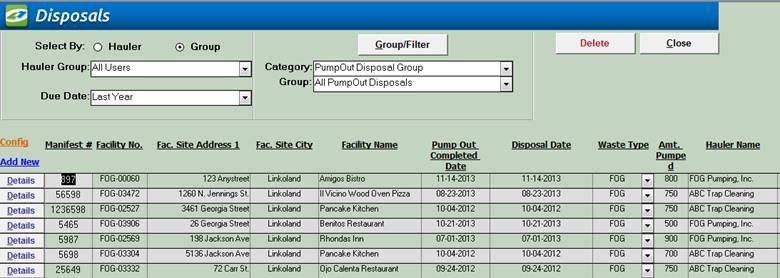
Track all your Pump Out and Disposal Events for a Waste Hauler. Manage Manifest numbers, Facilities pumped, and create reports. Only Pump Out and Disposal Events are available in Disposal Management.
|
Track Pump Outs and Disposals from the Waste Hauler perspective |
Use
Select By to choose the Waste Hauler you want to track, or choose a group of
Waste Haulers. Shows
all Pump Out and Disposal Events for the selected Waste
Hauler or Group of Waste Haulers. Show the Facility that was pumped, the
manifest number, when it was disposed, where it was disposed, and what type
of waste and how much was pumped. Click
on the Details Button to open, view and modify the Pump Out and Disposals Details Screen. Any
Pump Out created in LinkoFOG that has been assigned a Waste Hauler will be
listed here for that Hauler. This tracks the Pump Out and Disposal Event from
the Waste Hauler perspective. |
|
Track Disposals by Manifest Number |
Enter
disposal manifest information for new or existing waste generators. |
|
Track Waste Types and Disposal Sites |
Keep
detailed track of the kinds of waste being disposed and where it is being
disposed. New Waste Types can be added in Event Admin, Waste Types Tab. |
|
Create New Pump Out and Disposal Events |
Add
a new Disposal by clicking on the Add …
to open the Disposal Data Entry screen. Three
actions can then be completed:
|
|
Create Follow Up Pump Out and Disposal Events |
Use
the “Create Follow-up Events How” selection in the All Events section of
Local Configurations under the Configurations Tab for Event Admin to choose if follow-up events should be created Automatically, by
User Prompting, or Never. The
follow-up Pump Out and Disposal Event is created based upon the Cleaning
Frequency of the Extractor (seen in the Facility Management section of
LinkoFOG) or if the Cleaning Frequency is not assigned, then the Frequency
assigned to the Event Type will be used. See Event Admin to check the event frequency. |
|
Other Facilities |
Create
a new Facility and choose which Linko Module it will be part of. OTHER FACILITIES Management allows the user to Manage a list of Facilities that don’t
classify as Fats, Oils, and Grease Facilities. A Facility that had its septic
system pumped fits here. |
|
Reports |
Generate
a number of reports that can include identifying the amounts of waste and
origination points |
|
Buttons |
Action performed |
|
Delete |
Delete an event. |
|
Close |
Closes
the screen, returns to the Main Menu |
|
Record
Selectors |
Standard Record Selectors allowing you to move between displayed Disposals. |
|
Status
Bar |
Reduced Status Bar allowing you to view a Calendar, a Calculator, Contact Information, or create a new Phone Log Event. |
|
Filter Criteria |
Description |
|
Select by: |
Hauler: Allows you to select, and
work with events for a single Waste Hauler one at a time. Group: Allows you to select, and
work with events for a whole group of Waste Haulers at the same time. These groups are created in the Hauler Groups Section of the software |
|
Hauler No |
Displays
the Hauler number of the Hauler
associated with the events displayed.
Displayed only when using "Select by: Hauler" mode |
|
Hauler Name |
Displays
the Hauler name of the Hauler
associated with the events displayed.
Displayed only when using "Select by: Hauler" mode |
|
Hauler Group |
Displays
the Group name of the Haulers
associated with the events displayed.
Displayed only when using "Select by: Group" mode |
|
Due Date |
Drop
down box offering a list of time periods.
Choosing a time period limits the Pump Out and Disposal Events
displayed to the ones that have a Due Date within that time period. The user
can create a Custom Date range (See the Custom Date explanation in the List and Details
View section of Common Features) or add / modify / delete Date Ranges
available in the listing via the Quick View tab of Event Administration. |
|
Category |
The
Pump Out Management screen only shows Pump Out Disposal Groups. |
|
Category / Group |
Choose
the Pump Out and Disposal Group type that you would like to filter on. Click on the Groups/Filter button to
customize the selections, but the groups you select will only be Pump Out
related. |
|
Group/Filter |
Opens
the Filter form to create and modify groups and filters. |
|
Quick Filter |
Access the Quick Filter function by a Right Click on a field of interest and sort for and select just the records you want to display. |
|
Item |
Description |
|
Add… |
Opens
the Disposal Data Entry screen to create a new Pump
Out and Disposal event for the selected Hauler. |
|
Details |
Opens the Pump
Out and Disposal Details Screen. Complete modifications by clicking
on the <<Edit>> Button. |
|
Manifest # |
If
you are tracking Pump Outs via a Manifest # enter that number is displayed
here. |
|
Hauler Name |
The
Waste Hauler that performed and is disposing the Pump Out. |
|
Facility Name |
The
Facility that was pumped. |
|
Pump Out Completed Disposal Date |
The
Pump Out Completed Date is the date that the Pump Out and Disposal Event was
actually completed. This identifies when the Waste Hauler actually pumped the
Trap at the Facility. The
Disposal Date is the date that the Waste Hauler disposed of the pumped
materials. When a user enters a Pump Out and Disposal Event Complete Date,
the Disposal Date can be automatically populated with the same date. This is
the Linko Default setup. Disposal
Information was added to the Pump Out and Disposal event to allow the POTW to
track both Pump Out Date and the Disposal date together as part of 1 database
record. See
“Use Complete Date as Disposal Date” for configuration
information. When
the “Use Complete Date as Disposal Date” is set to NO, then the Date of the
Disposal and the Complete Date of the Pump Out must be entered into Linko
separately. This
provides the ability to track when the Facility Extractor was pumped (Complete Date). Then
see if and when the Hauled Waste is disposed of (Disposal Date). And last
this provides the full “Cradle to Grave” tracking of the waste. |
|
Waste Type |
When
you create a new Pump Out, the Waste Type field will automatically fill in
with the default type of Pump Out waste. The value typically will be FOG but
you can also assign SEPTIC or create your own list. See
“Default Pump Out Waste
Type” for
configuration. |
|
Pump Method |
When
you create a new Pump Out, the Pump Method field will automatically fill in
with the default type of Pump Method. The value typically will be FOG but a
user-defined list can be created. The Inspector may choose an alternate or
add a new Method to the list. See
“Default Pump Method” for configuration. |
|
Amount Pumped |
How
much the Waste Hauler pumped. This
must be a numeric value. |
|
Disposal Site |
Where
the Waste Hauler dumped what it pumped. To create or edit Disposal Sites go
to the Disposal Site Screen, see Haulers on the Menu
Bar, and Select Disposal Sites on the menu. |
|
Other Field Names and Config |
The
List View Configure Link Allows you to select which fields are displayed,
their width, and order. The Disposal Management screen has a variety of
additional Fields that can be used including additional Waste Hauler address
info, Facility info, Extractor info, Facility Pump Out info, Vehicle and
Driver info, and event information. |
|
Record ID |
Linko assigns a unique number to the Record so that it can be searched on. This allows the user to quickly limit their search to one record. |
|
Hauler No |
Unique
ID number of the Waste Hauler |
|
Hauler Site Address 1 / 2 |
Address
lines for the Waste Hauler that performed the Pump Out and Disposal Event. |
|
City / State / Zip |
City, State and Zip code of the Waste Hauler. |
|
Facility No |
Unique
ID number of the Facility that was pumped. This item comes from the Facility
Management screen in LinkoFOG. |
|
Facility Site
Address 1 / 2, City, State, Zip |
Address
lines, City, State, and Zip for the Facility that was pumped. These items
come from the Facility Management screen in LinkoFOG. |
|
Facility Map
Category |
Map Category for the Facility. This item comes
from the Facility Management screen in LinkoFOG. |
|
Facility Class Code |
What type of Facility is this? E.g. Fast Food, Cafeteria, Hotel… This item comes from the Facility Management screen in LinkoFOG. |
|
Facility Secondary
Class |
A second classification to describe this Facility, which can be utilized in conjunction with “Classification” to group Facilities in a more specific manner. This item comes from the Facility Management screen in LinkoFOG. |
|
Event Type |
In
Disposal Management, the Event Type will typically be the Default Event type
of PUMP. See
Default Pump Out Event Type to configure a different
Default Type if you have previously created another Pump Out Type to use. To
create new Pump Out Event types go to the Event Types of Event Administration, Pump Outs tab. |
|
Extractor ID |
This
item comes from the Extractor Details screen in LinkoFOG. This is a unique
identifier for an Extractor at a particular Facility. |
|
Flow Sequence |
This
item comes from the Extractor Details screen in LinkoFOG. Identifies what
point in a multi-stage process belongs to this Extractor when more than one
extractor or more than one stage in an extractor is used. This can help
identify how the water flows before it enters the sewer. |
|
Trap Size |
This
item comes from the Extractor Details screen in LinkoFOG. This value must be
numerical and decimals are okay. |
|
Pump Out Due Date |
The
date that the Facility Pump Out was scheduled to be completed. |
|
Amt. Pumped Units |
Units
for Measuring the volume of waste pumped from the Extractor at the Facility. See
“Default Amount Pumped Units” for configuration
information. |
|
Facility Person Present |
You
can select from the Contacts for the Facility. This item comes from the
Facility Management screen in LinkoFOG. |
|
Vehicle # |
The
vehicle number of the Waste Hauler. |
|
Driver |
The
driver of the vehicle for the Waste Hauler |
|
Disposal Person
Present |
Personnel
of the Disposal site who was present at the disposal. |
|
Created By |
You can select from a pull-down list of POTW employees to assign the Pump Out and Disposal Event creator. |
|
Assigned to |
You can select from a pull-down list of POTW employees to assign who the Pump Out and Disposal Event is assigned to. |
|
Performed By |
You can select from a pull-down list of POTW employees to assign the party who completed the Pump Out and Disposal Event. |
|
Event Comments |
The POTW personnel completing the Pump Out and Disposal Event can enter explanatory notes in this field. These will be displayed on reports. (8000 character max) |
|
Internal Comments |
The POTW personnel completing the Pump Out and Disposal Event can enter explanatory notes in this field. The notes in this field will NOT be displayed on reports. (8000 character max) |
|
Attachment |
Attach or view existing attachments by clicking the magnifying glass |
|
Pump Out Complete? |
Shows a NO if the Pump Out and Disposal Event does not have a Complete Date entry. |
|
Pump Out Late? |
Indicates if the Pump Out was completed past its due date. |
|
Violation Exists |
Shows YES if a Violation was created for the Event. |
|
Date Modified |
Shows the date that the user Modifies the record. |