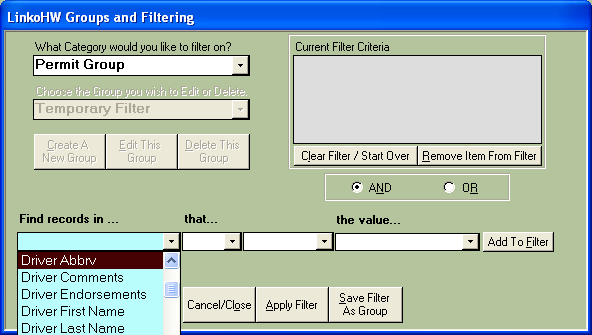
|
Click
on Group/Filter
button to open the filter form and then click on Create New Group. Filter
options become available to you. § Simply click on the “Find
Record In” combo box and choose from the list of fields available to filter
on. The fields in the list match the fields visible on the screen you are filtering
for. § Choose from the options
available to you in the combo boxes to your right. Pay particular attention to the Value
Option. In most cases the Value box is
automatically loaded with all of the values from the “Find Records in “ Drop
down box. § You can use these items or
you can type in whatever meets your filtering needs. § Also if you are selecting a
date range you will notice that you can double click on the Values combo box
to open a calendar. § Finally click on Add to Filter. |
|
|
Apply Filter |
Now
that you have Criteria in the “Current Filter Criteria” you can either apply
the filter to Hauler Groups screen or Save it. Applying the filter criteria does not save
it, but it will apply it to the screen.
Using the Apply feature to review the information that has been
filtered on permits you to see if you want to save the filter as a
Group. If you get the results that you
want from the filter you can click on the Groups/Filter button again and save the
Filter. |
|
Save Filter |
Saving
the filter criteria is as simple as applying it. Once you have added your filter criteria to
the big “Current Filter Criteria” box, Click on the save button. You will be prompted to give this filter a
name. It is important to be
descriptive but short with your filter name because you will be able to use
it over and over again throughout the software program. |
|
Item |
Description |
|
Category to Filter on |
Indicates the type of group that you will be filtering on. Categories are not modifiable. Each Category may have several “Groups” Associated with it. |
|
Group to Edit or Delete |
Displays the Group Options for the Category you have selected. These are the groups that you can edit and add to. |
|
Create
a New Group |
Clears the Current Filter Criteria and sets up the form to create a new group |
|
Edit
This Group |
Put the screen in edit mode allowing you to add or remove items from the Current Filter. |
|
Delete
This Group |
Deletes the selected group and removes it from the database. |
|
Current Filter Criteria |
This is a very important component of the Filter Form. Only what is displayed in the Current Filter Selection will be Applied or Saved. This area holds the filter criteria that you are building in the query areas below until you choose to apply the filter or save it as a group. |
|
Find Records in… |
Use this field to select the Field that you would like to search on. Every field that is on the screen that you are coming from will be displayed in this list. Depending on what screen you are coming from i.e. Events, Violations, Hauler Groups, you will have different options to select. |
|
That… |
Use these items for narrowing down your search criteria. Your options are Do, Do Not, Is, Equal to, Greater Than, Less Than, Starts with, Ends with and Contains. |
|
The Value |
Displays all of the values for the field that you chose in the “Find Records in…”. Users can easily choose a value to filter on or type what they want to filter on. In the case of searching for a Date Range Users can double click on the Combo Box to bring up the Calendar. |
|
Add
To Filter |
Add to Filter will add what you have entered into the combo box selections to the filter. You can later Apply or Save that filter to the form. |
|
Cancel/Close |
Will close the screen without applying the filter |
|
Apply
Filter |
Will Apply the filter that is in the “Current Filter Box” without saving the group. You will notice that your filter is applied to the Group “Temporary Filter” when Apply Filter has been used. Note: When using
Save Filter or Apply filter all of the filter information must FIRST be moved
to the “Current Filter Selection” box to be applied. |
|
Save
Filter as Group |
Save your filter and searching criteria to an existing group or a new one. Click on the Save button and type in the name that you want to call your Group and click on the OK button. Be descriptive when naming your groups they may be used in other parts of the program. |
|
Clear
Filter/Start over |
Removes all of the contents from the “Current Filter Selection” |
|
Remove
Item From Filter |
Removes only the selected items from the “Current Filter Selection” |
|
And
& OR |
These are
filtering expression to limit or expand your search. Follow these guidelines when using AND or
OR: And – Limits your search so that ALL
of the criteria that you have in the Current Filter Selection must be
met. Such as: Classification
Starts with C And Permit Active
equals YES This will return
only the Haulers with a
Classification that Starts with C and that are currently Active. Both
of the Conditions must be met for the Industry to be included in the returned
information. OR – Expand your search so that ANY of the criteria that you have in
the Current Filter Criteria box must
be met Classification
Starts with C Or Permit Active
equals YES This will return
the Haulers that have a Classification that Starts with C or that are currently Active. If an Industry meets Either of the
two conditions it will be included in the returned information. |