Complete a Pump Out and Disposal Event to track which Facilities the Waste Haulers pumped and are now disposing of its wastes.
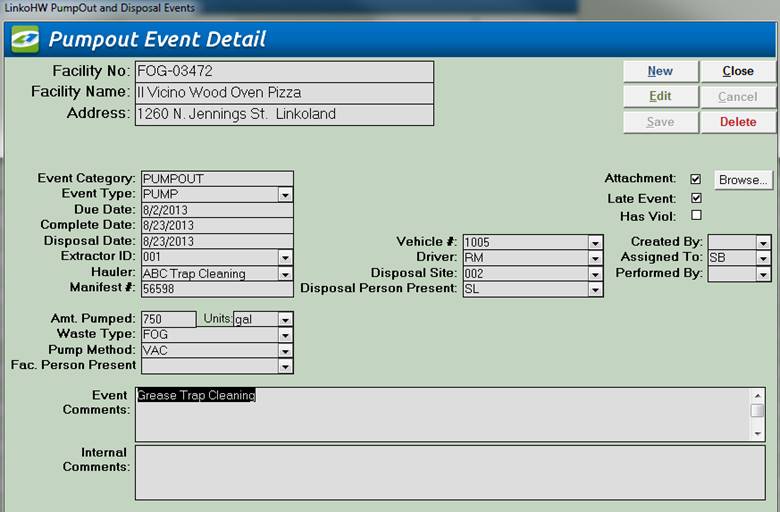
|
Item |
Description |
|
Facility No. |
ID of the Facility that was pumped. |
|
Facility Name |
Name of the Facility that was pumped. |
|
Address |
Address where the Pump Out took place. |
|
Buttons |
Action performed |
|
New |
Clears values and allows you to create a new Pump Out and Disposal Event. While editing, the New, Edit, Close, and Record Selector buttons will be disabled. |
|
Edit |
Opens the displayed Pump Out and Disposal Event for changes and editing. While editing, the New, Edit, Close, and Record Selector buttons will be disabled. |
|
Save |
Saves the changes made to the Inspection. |
|
Close |
Closes the screen. |
|
Cancel |
Cancels any changes made to the Inspection. |
|
Delete |
Deletes the Inspection Event. |
|
Event Category / Type |
This
displays that you have selected the Event Category of “Pump Out”. Linko will
automatically enter the Default Pump Out event Type that you select. For
configuration see “Default Pump Out Event
Type.” Pump
Out / Pump will typically be the event you are performing at this step, but
you can create other types of Pump Outs using the Event Administration, Pump Outs tab. |
|
Due Date |
The
date the Pump Out Event is due to be completed. |
|
Complete Date Disposal Date |
The
Complete Date is the date that the Pump Out and Disposal Event was actually
completed. This identifies when the Waste Hauler actually pumped the Trap at
the Facility. The
Disposal Date is the date that the Waste Hauler disposed of the pumped
materials. When a user enters a Pump Out and Disposal Event Complete Date,
the Disposal Date can be automatically populated with the same date.
This is the Linko Default setup. Disposal
Information was added to the Pump Out and Disposal event to allow the POTW to
track both Pump Out Date and the Disposal date together as part of 1 database
record. See
“Use Complete Date as Disposal Date” for configuration
information. When
the “Use Complete Date as Disposal Date” is set to NO, then the Date of the
Disposal and the Complete Date of the Pump Out must be entered into Linko
separately. This
provides the ability to track when the Facility Extractor was pumped (Complete Date). Then
see if and when the Hauled Waste is disposed of (Disposal Date). And last
this provides the full “Cradle to Grave” tracking of the waste. |
|
Extractor ID |
The
Extractor’s ID number for that Facility. Other Extractors for that Facility
can be selected from the pull-down. This will show all the Extractors for
that Facility that do not have a retire date. If a retire date has been
assigned then the extractor does not show up in this list. When creating a
new Pump Out and Disposal Event, if only 1 Extractor exists, for a Facility,
it shows up in this field. When
a Pump Out and Disposal Event is created from within Disposal Data Entry, often the Extractor ID is
not known, and the Event Details will not have an Extractor ID listed. |
|
Hauler |
This
is a list of the Haulers in the database. If a user selects a Hauler that is
expired, the user will be notified to make a different selection. When
adding a new Pump Out and Disposal Event, if a Hauler / Pumper has been
assigned to this FSE / Facility in FOG Management, it will be defaulted into
this field. The Inspector may also choose a different Hauler than the one
that is listed in the Facility Info Tab. Choose
from the Waste Haulers available in the Hauled Waste module which one
completed the Pump Out and Disposal Event. |
|
Manifest # |
A
number that the POTW uses to identify the Pump Out. This number is not
required and does not have to be unique. Manifests are typically printed up
ahead of time with unique numbering schemes. Linko does not auto-create the
Manifest number. This can also be a Manifest number that the Hauler has
created, and the Hauler may report several Pump Outs on the same Manifest. |
|
Amount Pumped |
The
volume of waste pumped from the Extractor. |
|
Amount Pumped Units |
Units
for Measuring the volume of waste pumped from the Extractor at the Facility. See
“Default Amount Pumped Units” for configuration
information. |
|
Waste Type |
When
you create a new Pump Out and Disposal Event, the Waste Type field will
automatically fill in with the default type of Pump Out waste. The value
typically will be FOG but you can also assign SEPTIC or create your own list. See
“Default Pump Out Waste
Type” for
configuration. |
|
Pump Method |
When
you create a new Pump Out and Disposal Event, the Pump Method field will
automatically fill in with the default type of Pump Method. The value
typically will be FOG but a user-defined list can be created. The Inspector
may choose an alternate or add a new Method to the list. See
“Default Pump Method” for configuration. |
|
Facility Person Present |
If
you want to track who was present from the Facility during the Pump Out, you
can select from the Contacts for the Facility or add one to the list. This
information may not be included on a manifest that you receive from the Waste
Hauler or Facility. |
|
Vehicle Number |
The
vehicle number of the Hauler A
user must select a Hauler to be able to select a Vehicle. If a user assigns a
Hauler and only 1 Vehicle exists for that Hauler, it is defaulted to this
field. If a user assigns a Hauler and Vehicle, and then changes the Hauler,
the user is requested to change the Vehicle also. A user may enter a Vehicle Number
that is not in the list, and they will be prompted to add it to the list. |
|
Driver |
The
driver of the vehicle for the Hauler. A
user must select a Hauler to be able to select a Driver. If a user assigns a
Hauler and only 1 Driver exists for that Hauler, it is defaulted to this
field. If a user assigns a Hauler and a Driver, and then changes the Hauler,
the user is requested to change the Driver also. A user may enter a Driver
that is not in the list, and they will be prompted to add it to the list. |
|
Disposal Site |
The
location the Hauler disposed of the pumped materials. Disposal Sites with a
retire date will not show in the list. Disposal
Sites are added / managed via the Disposal Sites screen under the Haulers
selection of the Menu Bar. Linko
will test the expiration date on the Disposal Site versus the date of the Pump
Out and warn if the date is out of range. (You can’t dispose of a Pump Out at
an Expired Disposal Site.) If
a Hauler has been assigned a Default Disposal Site in Hauler Management in
Linko Hauled Waste, that disposal site is added to the Pump Out and Disposal
event automatically in the Disposal Site Field. If the Hauler is changed, the
Disposal Site is not changed. |
|
Disposal Person Present |
Personnel
of the Disposal site who were present at the disposal. Choose from a list of
all the Disposal Persons ever entered for all Pump Outs ever disposed of at
that Disposal Site. You may also type in a person of your choice. |
|
Late Event |
Linko automatically sets this field when the Pump Out and Disposal Event is overdue or if it completed late. |
|
Has Viol |
Linko automatically sets this field when the Pump Out and Disposal Event has a Violation associated with it. |
|
Created by |
You can select from a pull-down list of POTW employees to assign who created the Pump Out. It defaults to the currently logged on user if Linko is configured with the Security feature. |
|
Assigned to |
You can select from a pull-down list of POTW employees to assign who the Pump Out is assigned to. |
|
Performed by |
You can select from a pull-down list of POTW employees to assign the party who completed the Pump Out event. |
|
Pre Notify/Post Notify? |
Pre Notify Events are created within any of the Events screens (Samples Included). Pre and Post Notify will automatically generate events before and after the original events are due. For example, users can create a pre-event to notify POTW personnel of an upcoming sample event. This is a discontinued feature provided for backwards compatibility. Please see the Pre / Post Configuration setting. |
|
Event Comments |
The Inspector can enter explanatory notes in this field. These will be displayed on reports. (8000 character max) |
|
Internal Comments |
The Inspector can enter explanatory notes in this field. The notes in this field will NOT be displayed on reports. (8000 character max) |
|
Attachment / Browse |
Attach or view existing attachments by clicking the magnifying glass |
|
Record
Selectors |
Standard Record Selectors allowing you to move between the Details of different Pump Out and Disposal Events. |
|
Status
Bar |
Reduced Status Bar allowing you to view a Calendar, a Calculator, Contact Information, or create a new Phone Log Event. |