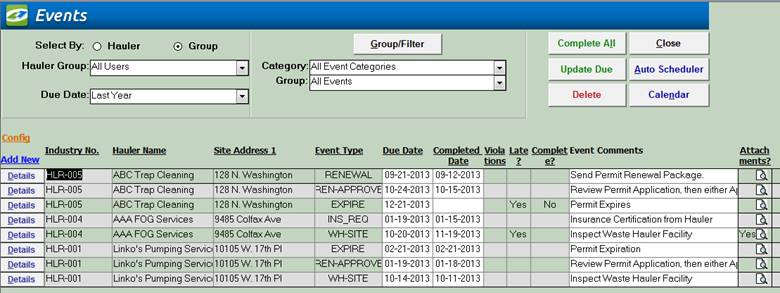
The Event Management list view allows the user to manage Waste Hauler activities including Inspections, Permit events, and receipt of compliance reports. Both planned and spontaneous activities are referred to as "Events". Use this screen to view events that are part of your program.
This list view is User Modifiable in the “white” fields. The “grey” fields remain locked and cannot be updated by the Users. The information changed here will be shown in the details screens of the individual Events.
|
Filtering for chosen Events |
Use both the Hauler Groups
(Created in the Hauler Groups Screen) and the Event Category and Type Groups to filter
your selection of list items. For
more information on our Filtering and Grouping System, Click here |
||
|
Adding Events |
To add an event to track,
select a Hauler from the <Hauler ID> or <Hauler Name>list boxes
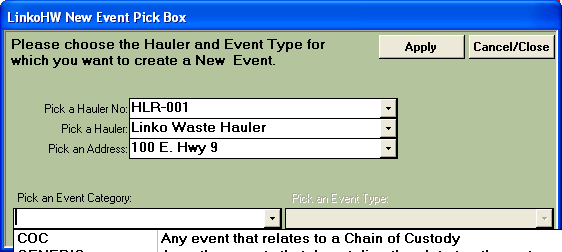
then click Add New. This opens the New Event Pick Box, where you choose the Event Category and Type.
Then the Event Details screen for that Event Type opens. Complete all
the fields, and then click Save. |
||
|
View or Modify |
To view or modify the
Event, open the Details Screen by clicking on the <Details> Button and click on the Edit
Button. Alternatively, you can edit
some event information directly in this list view screen by simply changing
any data with a white background. |
||
|
Follow-up Events |
When an Event is completed,
a follow-up event is created. This is user-configurable in Event Admin, Configurations Tab, Local Configurations, All
Events. Create follow-up Events
how? Choices are: Automatically,
Prompt, or Never. Create follow-up Events
based on? Due Date or Complete Date. These settings apply to all
types of Events, and to the currently logged on user if Linko is configured
with the Security feature. Without Security, they apply to the local
computer. |
||
|
Buttons |
Action performed |
||
|
Complete All |
Allows
you to add the Completed date for every event on the screen at one time. |
||
|
Update Due |
Mark
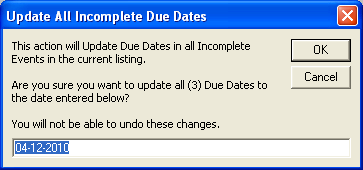
all Incomplete Events with new Due Date. Clicking this control opens this
window:
Enter
the Due Date you want to change the Event to. |
||
|
Delete |
Delete
an event. |
||
|
Close |
Closes the screen, returns
to the Main Menu |
||
|
Auto Scheduler |
Goes to the Auto Scheduler screen where events may be scheduled for multiple
Industries at one time |
||
|
Calendar |
Opens the Calendar view. The
default view is for the current month |
||
|
Record
Selectors |
Standard Record Selectors allowing you to move between displayed Events. |
||
|
Status Bar |
Reduced Status Bar allowing you to view a Calendar, a Calculator, Contact Information, or create a new Phone Log Event. |
||
|
Filter Criteria |
Description |
||
|
Select
by: |
Hauler: Allows
you to select, and work with events for a single Hauler one at a time. Group: Allows
you to select, and work with events for a whole group of Haulers at the same
time. These groups are created in the Hauler Groups Section of the software |
||
|
Group |
Displays the Group name of the Haulers associated with
the events displayed. Displayed only
when using "Select by: Group" mode |
||
|
Hauler No |
Displays the Hauler number of the Hauler associated with
the events displayed. Displayed only
when using "Select by: Hauler" mode |
||
|
Hauler Name |
Displays the Hauler name of the Hauler associated with the
events displayed. Displayed only when
using "Select by: Hauler" mode |
||
|
Due Date |
Drop down box offering a list of time periods. Choosing a time period limits the Events displayed to the ones that have a Due Date within that time period. The user can create a Custom Date range (See the Custom Date explanation in the List and Details View section of Common Features) or add / modify / delete Date Ranges available in the listing via the Quick View tab of Event Administration. |
||
|
Category |
Choose the Category Group
for the events. Customize a Category
with more than one Type of group by creating a new group using Group/Filter. |
||
|
Category / Group |
Choose the Event type Group
that you would like to filter on.
These can be customized by clicking on the Groups/Filter button above it |
||
|
Group/Filter |
Opens the Filter form to
create and modify groups and filters.
For more information go to the Filter Form |
||
|
Quick Filter |
Access the Quick Filter function by a Right Click on a field of interest and sort for and select just the records you want to display. |
||
|
Item |
Description |
||
|
Add New |
Opens the create New Event Pick box to create a new event for the selected
industry. Users can select an event
category and type for the event. |
||
|
Details |
Opens
the Event Details Screen. Complete Modifications by clicking on the Edit Button. |
||
|
Hauler |
Displays the Hauler Name
associated with the events displayed |
||
|
Event Type |
The type of event. E.g. sampling, inspection, receive report,
etc. Event types may be added to the
drop down list via the Event Types of Event Administration. |
||
|
Event
Comments |
Your comments about the
event, these will show up on reports. (8000
character max) |
||
|
Due Date |
The date that this event is
due to be completed. This date is
filtered on by the Quick View Due Date function in Event Management. |
||
|
Completed Date |
The actual date that the
event was completed. If an event is given a Complete
Date, and that event has a violation that does not have an In Compliance
Date, the user is prompted to enter the In Compliance Date. If they select
“Yes” the Violations screen is displayed. |
||
|
Performed By |
User who is scheduled to
perform this event or User who has performed the event |
||
|
Violation
Exists |
Has a violation been
created in association with this event?
You can create a violation for any event from the Event Details screen.
That violation is then associated or related to the event for the life
of the event. Double-clicking this field when it has a red YES will take you to the Violations Management
screen where all the violations for that event will be listed.
Double-clicking this field when it is blank will ask you if you want to
Create a Violation. |
||
|
Late |
Is this event late or was
it completed late? If the event was
completed late it will display a Yes. |
||
|
Record
ID |
Linko assigns a unique
number to the Record by Linko so that it can be searched on. This allows the
user to quickly limit their search to one record. |
||
|
Other
Field Names and Config |
The
List View Config Link Allows you to select which fields
are displayed, their order and settings. Event Management has a variety of
additional Fields that can you can choose to display, including more complete
Hauler address info and Event information. |
||
|
Hauler
No |
The unique number assigned
to the Hauler. |
||
|
Site
Address 1 / 2 |
Lines for site information |
||
|
State
/ Zip |
What state and the Zip code
for the Hauler. |
||
|
Event Category |
Category of event. Depending on which Category is chosen,
different fields will be displayed to the user. |
||
|
Created by |
User who created this event
within the POTW |
||
|
Assigned
to |
Shows the listing of POTW
employees from the Personnel Tab in System Administration and one can be
selected to indicate that the Event was assigned to them. |
||
|
Complete |
Will show NO if the event
is not complete. |
||
|
Internal
Comments |
Your comments (8000
character max). |
||
|
Attachments |
Attach or view existing attachments by clicking the magnifying glass |
|
||
Choose the Event Category and Type for the
specified Waste Hauler.
|
Tabs |
Functions |
|
Pick
a Hauler No. |
Choose the Hauler you would
like to create this event for. This
field will be populated with the current Hauler selected. However, if the last screen that was being
used, had a group selected, this item would need to be filled in. |
|
Pick
a Hauler |
Choose the Hauler by its
Name. |
|
Pick
an Address |
Search for a Waste Hauler
by its address. |
|
Pick
an Event Category |
Choose the event Category
for the event. Remember that the event
category will affect the fields that will be displayed. Once an event category is chosen, the Pick
Event Type drop down list will be populated with only the event types that
apply to the category |
|
Pick
an Event Type |
Choose the event type that
best describes the event you are entering.
If you do not see an event that meets your needs you can always add or
modify event types in the Event Administration Screen |
|
Apply |
This button will open the
corresponding event details screen to continue the event creation process |
|
Cancel/Close |
This button will cancel the
event creation process and close the form |