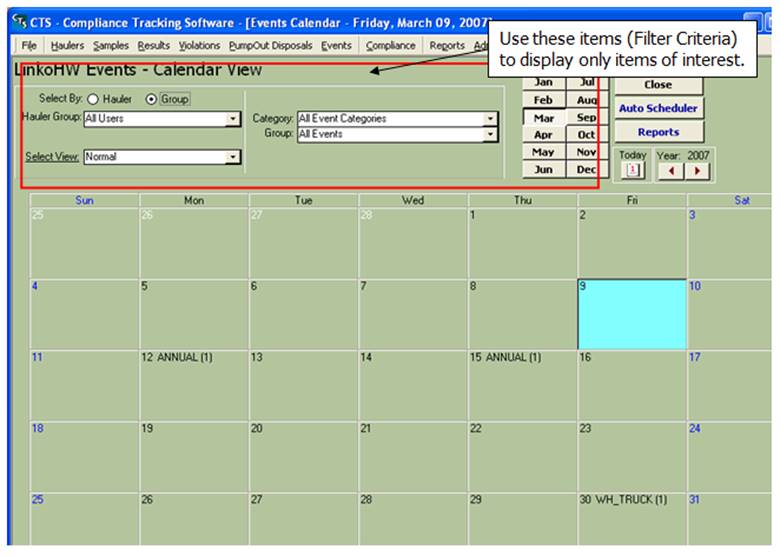
View all of the events planned in monthly segments.
|
Calendar view |
View monthly events and the
days they fall on, from the calendar view.
To add a new event, modify or simply view all of the events for a
given day, double click on the day of interest. A new screen is opened and all of these
actions can be completed there.
Calendar view defaults to the current month. |
|
Actual dates |
For each day of the month,
a complete list of events that meet the filter criteria will be
displayed. You can change the filter
criteria by simply selecting different options in the drop down lists. |
|
|
To view more information
about a particular day, double click on date to see a list view of ALL the
events scheduled that day. Note: This
feature does not limit you to see only the events that meet the filter
criteria. |
|
Date List View |
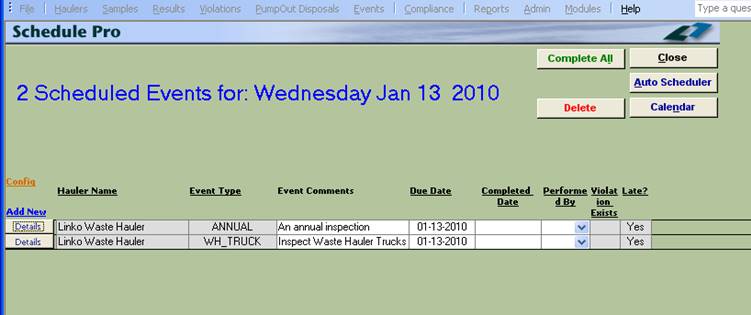
Double clicking on any date
will bring up a new screen that has all of the events listed on it for that
day. Each of these items has a <<Details>> button so you can view
or edit each of the events. |
|
|
The Calendar uses the same type of filtering and grouping as the Event Management Screen, however, groups cannot be created from this screen. Also a “full size” view,
which is a larger view of the calendar, is available in the Select View combo
box. |
|
Buttons |
Action performed |
|
Close |
Closes the screen, returns
to the Main Menu. |
|
Auto
Scheduler |
Goes to the Auto Scheduler
screen where events may be scheduled for multiple Haulers at one time. |
|
Reports |
Opens the Reports page
where a user can develop reports for a set of events. |
|
Filter Criteria |
Description |
|
Select by: |
Hauler:
Allows you to select, and work with events for a single Hauler at a one time. Group: Allows you to select, and
work with events for a whole group of Haulers at the same time. These groups are created in the Hauler Groups Section of the software Any selection made here
will be kept if you switch back to the List View in Event Management via the
“Select View”. And the selection you had while in Event Management will be
maintained when you switch from there over to Calendar View. |
|
Hauler No |
Displays the Hauler number of the Hauler associated with
the events displayed. Displayed only
when using "Select by: Hauler" mode. |
|
Hauler Name |
Displays the Hauler name of the Hauler associated with the
events displayed. Displayed only when
using "Select by: Hauler" mode. |
|
Group |
Displays the Group name of the Haulers associated with
the events displayed. Displayed only
when using "Select by: Group" mode. |
|
Select View |
Use this selection to
switch to the Event Management screen with “List View.” Or change to a larger
Calendar view using more of the screen with “Full Size.” |
|
Category |
Choose the Category Group
for the events. Under all events you
can customize a group to contain more than one category. |
|
Group |
Choose the Event type group
that you would like to filter on. |
|
Buttons |
Action performed |
|
Complete All |
Allows
you to add the Completed date for every event on the screen at one time. |
|
Delete |
Delete
an event. |
|
Close |
Closes the screen, returns
to the Main Menu. |
|
Auto Schedule |
Goes to the Auto Scheduler
screen where events may be scheduled for multiple Industries at one time. |
|
Calendar |
Opens the Calendar
view. The default view is for the
current month |
|
Add New |
Opens the Details screen in
a format that is ready to accept new events. |
|
Details |
Opens the Details Page for
the Event. You can modify existing
event records in this screen. |
|
Fields |
Description |
|
Displays the Hauler Name
associated with the events displayed. |
|
|
Event Category |
Category of event. Depending on which Category is chosen,
different fields will be available to the user. |
|
Event Type |
The type of event. E.g. sampling, inspection, receive report,
etc. Event types may be added to the
list box via the Event Types of Event Admin. |
|
Due Date |
The date that this event is
due to be completed. This date is
filtered on by the Quick View Due Date function. |
|
Completed Date |
The actual date that the
event was completed. |
|
Created by |
User who created this event
within the POTW. |
|
Performed By |
User who is scheduled to
perform this event or User who has performed the event. |
|
Violation
Exists |
Has a violation been
created in association with this event?
You can create a violation from any event from the event details
screen. That violation is then
associated or related to the event for the life of the event. |
|
Late |
Is this event late or was
it completed late? If the event was
completed late it will display a check.
|
|
Other
Field Names and Config |
The
List View Configure Link Allows you to select which fields
are displayed, their order and settings. The Calendar screen has the same
variety of Fields that are used on the Event Management screen. This Field
listing is the same as the Event Management List View. |