Associate specific Permit Sections - with an Industry. Create new permit sections that can be assigned to an Industry. Create Permit Schemas.
When you assign Permit Sections to an Industry here, the list of the Sections assigned to that Industry is stored in the Database for that Industry. Thus each Industry has its own specific Permit Sections that are saved and remembered between Permit Document creations.
- Under “Section Name” use the pull-down listing to choose the Section(s) that you want to assign to the Industry.
- Under “Print Order” use the pull-down listing to choose the order you want for the Sections to follow when they print out.
- Use the “Page Break” to enter a page break after the section.
- When you are ready to build the Permit, click on the Go To Build Permits button.
- Click on the Edit button to open the MS Word or HTML Template for the Section.
2. If you are creating a Schema, edit the Template with the information you want to have on each Permit for all the Industries.
- Before Editing Templates, decide if you want to keep the changes permanently. If so, then use the Add Section button to create a new Section Template. Make your permanent changes on the New Section Template.
See More Information on Templates.
1. Click on Add Section to open the Create New Permit Section Screen.
2. Enter the Name and Description of the New Section.
3. Click on Select to choose which existing Permit Section Template to use as the base for the New Section.
4. A new Permit Section Template will be created and added to the Section Name Listing where it can be edited and customized. This new section will have the same MS Word Template text and HTML template text as the Permit Section selected in #3 above. The new Permit Section will be available for use in all Permits.
1. Complete assigning Section Names and Print Order to the Industry.
2. Click on the Save As Schema button to open the Save Permit Schema screen.
3. Enter the Name and Description of the new Schema and click on Save / Close.
- Click on the Apply Schema button to open the Select Schema to Apply screen.
- Click on the Select button to choose the Schema you want to apply.
- If Permit Sections have already been applied to the Industry, a warning message will be displayed. Click ‘Yes’ or ‘No’ as appropriate.
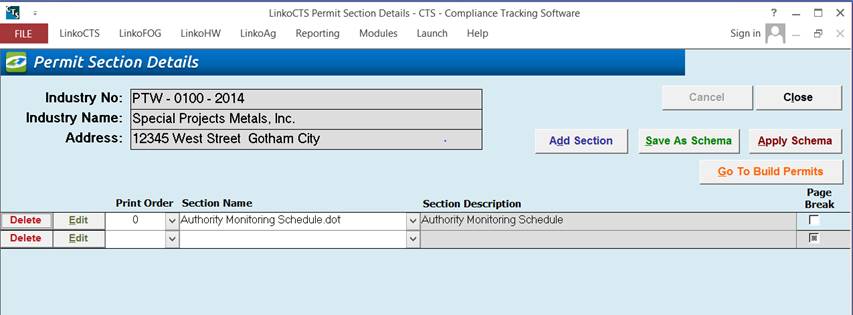
|
Industry No / Name / Address: |
Industry Information. |
|
Cancel |
Cancel the action in progress; only available when changing the Print Order and Section Name. |
|
Close |
Exit and return to the calling screen. |
|
Add Section |
Click on Add Section to open the Create New Permit Section Screen. |
|
Save As Schema |
Click on the Save As Schema button to open the Save Permit Schema screen. |
|
Apply Schema |
Click on the Apply Schema button to open the Select Schema to Apply screen. |
|
Go to Build Permits |
Open the Build Permits Screen. |
|
Remove |
Un-assign the selected Section Name from the Industry. |
|
Edit |
Open the selected Section Template for editing in Word. |
|
Print Order |
Under “Print Order” use the pull-down listing to choose the order you want for the Sections to follow when they print out. |
|
Section Name |
Under “Section Name” use the pull-down listing to choose the Template for the Section that you want. |
|
Section Description |
Linko displays the description of the Section Template. |
|
Page Break |
Use this to add a Page Break after the section in the Permit. |
Choose an existing Template as a basis for a new Template.
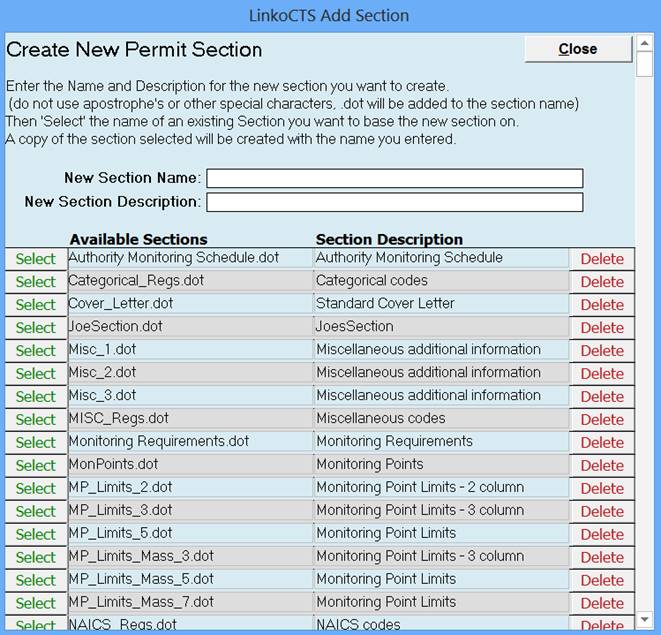
|
Close |
Exits this window. |
|
Select |
Takes the Selected Section and uses it as the basis for the new Section Template. A “Section Created” message window will appear notifying you of the successful creation of the new Section. |
|
Delete |
Deletes the Selected Section. NOTE: This deletes the Template document from the database and from the hard drive. |
|
New Section Name / Description |
Enter in the Name and description of the section you are creating. |
|
Available Sections |
These show the current available sections. |
|
Section Description |
The description of the section. |
After assigning sections to a Permit / Industry use this screen to save the listing as a Schema.
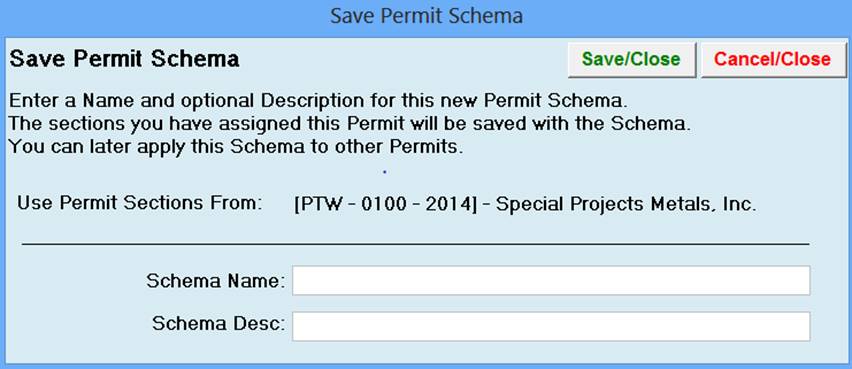
|
Save / Close |
Save the new Schema and exit. |
|
Cancel / Close |
Exit without saving. |
|
Permit Schema |
Enter the name of your new Schema. |
|
Schema Description |
Details of the schema so you can choose the one you want. |
Choose the Schema to apply to the Selected Industry.
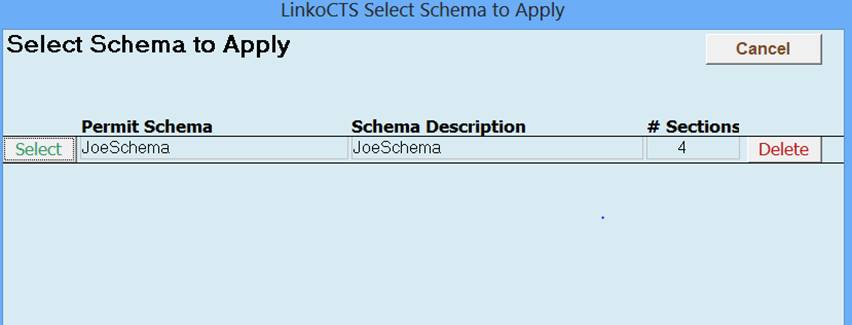
|
Cancel |
Exits this window without any action taken. |
|
Select |
Applies the selected Schema to the Industry. |
|
Delete |
Removes the selected Schema from the list of available schemas. |
|
Permit Schema |
Identifies the schema by name. |
|
Schema Description |
Details of the schema so you can choose the one you want. |
|
# Sections |
Displays the number of Section Templates in the schema. |