View an Industry or a Group of Industries, Apply a Schema, or determine whether or not those Industries have had Permit Sections Assigned to them.
1. A YES / NO field called “Sections Assigned” quickly displays whether or not an Industries or Group of Industries have had Permit Sections assigned to them.
1. Choose the Industry or Group.
2. The listing will display the selected Industry or Industries in the Group.
3. Click on the Apply Schema button to open the “Select Schema to apply” screen.
4.
Choose the Schema you wish to have applied to
the Industry / Group by Clicking on Select in
the “Select Schema to Apply” screen.
5. If the Industry currently has Permit Sections associated with it, you will be warned and asked if you are sure that you want to apply the Schema. This “Delete and Replace Sections?” warning screen is Linko’s way of making sure that you don’t accidentally change the Permit Sections assigned to an Industry.
6. When you select “Yes” from the warning screen, you will be notified that the selected Schema has been applied to the Industry, and then you are returned to the Permit Sections screen.
7. If you are assigning the schema to a group, Linko works through each Industry successively applying the Permit Sections in the schema to all the members of the group.
Selecting DETAILS opens the Permit Section Details Screen for these functions:
1. Select which Sections to assign to the Industry
2. Select the Print order and Page Breaks for the Sections
3. Edit the MS Word or HTML templates that make up each Permit Section
4. Create a new, customized Permit Section, MS Word or HTML template
5. Save the assigned Permit Sections as a Permit Schema
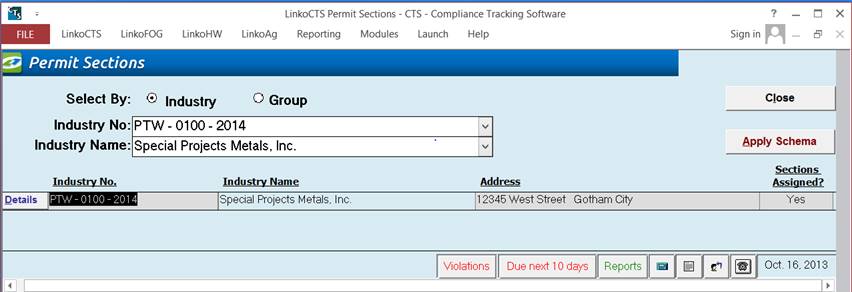
|
Select by: |
Industry: Allows you to select, and
work with permits for a single Industry one at a time. Group: Allows you to select, and
work with permits for a whole group of Industries at the same time. These groups are created in the Industry Groups Section of the software |
|
Industry No: |
Use the Industry No: pull-down listing to select which Industry’s Permit information you want to view. Type in the first few letters and Linko will jump to that Industry. Displayed only when using "Select by: Industry" mode |
|
Industry Name: |
Use the Industry Name: pull-down listing to select which Industry’s Permit information you want to view. Type in the first few letters and Linko will jump to that Industry. Displayed only when using "Select by: Industry" mode |
|
Industry Group |
Displays the Group name of the Industries associated with the events displayed. Displayed only when using "Select by: Group" mode |
|
Close |
Close this window. |
|
Apply Schema |
Clicking on Apply Schema will open the Select Schema to Apply screen, which will list previously created schemas of Permit sections. You select the Schema to apply and the Permits sections associated with that schema will be applied to the Industry. |
|
Details |
Click on details to enter the Permit Section Details screen and manage print order, sections that are assigned, build schemas, add new sections, and edit templates. |
|
Industry No / Name / Address |
Identifies
the selected Industry. |
|
Sections Assigned? |
Yes
/ No indicator tells whether or not Sections have been applied to the
Industry. |