File
locations
Permit
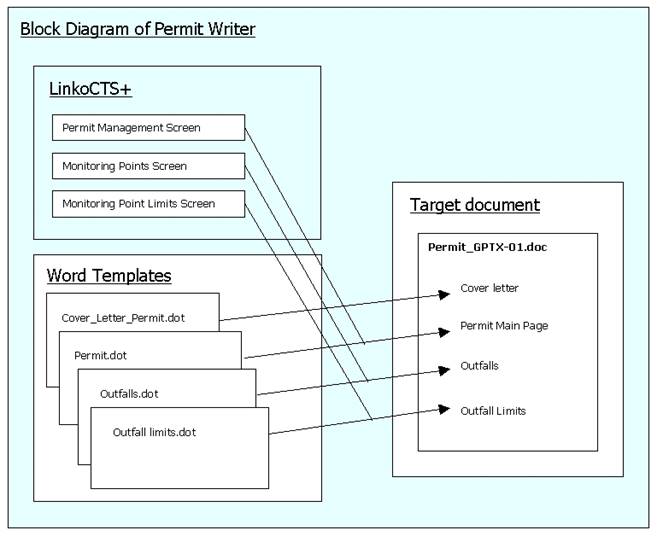
writer creates documents from Word templates (also called ".dot"
or.”dotx” files because that is the extension Word uses for templates). Some of the templates use the mail merge
feature to link in data from the permits and other templates use html
tables. The templates and target
documents are located in subdirectories of the Server location. In the Linko
SQL version this is the shared files folder. See LinkoCTS™ System
Administration, Database tab for a listing of the folder locations for the
Linko software. For example: if you've
installed the Server component in "L:\LinkoCTS" then the Templates
directory will be "L:\LinkoCTS\Server\Templates", and the Docs
directory will be "L:\LinkoCTS\Server\Docs". This is done so that templates and final
documents will be available to all users.
After a
permit is created, it is then added to the Document Link field on the Industry
Management Screen in a PERMIT Note. The
Permit is also stored in the Document Link field for the EXPIRATION event of
the Industry. You can always view the
most recent permit copy in these locations.
Each
Permit document is built from one or more Word templates (.dotx files). Word templates offer the greatest ease in
formatting, but they have some limits (such as the inability to create a table
with just enough room for multiple mail-merge records). Those templates get their mail-merge data
from ".txt" and “.csv” files in the "Data" directory of the
workstation - typically "C:\Linko_Software_SQL\LinkoCTS\Data" - and
those files are created "on the fly" when permit documents are
created.
When a
variable-length table is required (for a list of outfall limits, for example),
an HTML template is used to create the table, which is then inserted into the
document at a location specified by a bookmark (===TABLE GOES HERE===) in the
Word template. An HTML template may have a header and/or footer - which will be
repeated for every Monitoring Point in the "Monitoring Points Limits"
section.
Start
editing a template in the Permit Section Details.
Choose the desired template from the list under the “Section Name” field. If
the section includes an HTML template, you'll be given a choice of editing Word
template (select "Yes") or the HTML template (select
"No"). Linko pre-configures
the HTML templates specifically for your program.
Ø Cover Letter – typical front letter to the
Industry for the beginning of the Permit.
Ø Permit Body - 1 page identifying the
Industry, Effective date and Expiration date of permit; signed by authorized
manager. 2nd page listing Process Notes, DocNotes, and Status Notes
from the Notes tab in Industry Management and a Requirements Paragraph.
Ø Categorical, Significant, NAICS and Misc.
Codes – These templates display the codes that are associated to the Industry
within the CTS base software package.
Ø Reporting Requirements – Modifiable to
what your standard reporting requirements are.
Keep in mind you can create multiple standard requirements templates,
each being their own section. This
allows you to assign different standard requirement sections to different
Industry permits. Having multiple
requirement sections will help you to quickly create different types of
permits.
Ø Monitoring Requirements – What are the
parameters that need to be tested for, how often samples need to be collected
and what collection method should be used.
Ø Monitoring Points – List of Monitoring
Points the Industry has.
Ø Monitoring Point Limits -- List of limits
for each of the monitoring points. There
are several Monitoring Point Limit Numbers to Choose from. Each one has a different number of
columns. Find the one that matches your style
of permit. Also these are mix and
match-able depending on which permit your needs.
Ø Standard Conditions - Generic information
regarding the Industry’s responsibilities.
Ø Special Conditions -- Permit specific
compliance schedule.
Ø Misc_1-3 – Use these sections in any way
that you would like. With the improved
print order they can be placed anywhere on the permit you would like.
Ø Create your own templates. Each Permit Section is a template. You can create as many templates as you need
and assign those templates to different Industries. This allows all industries to use the same
template or each Industry can have its own templates.
The
following fields are available for Word templates:
|
Mail
Merge |
Source
Screen |
Source
Field Description |
|
PermitNo |
Industry
Management / Site Info |
Industry
No: |
|
Permittee |
IM /
Site Info |
Industry |
|
DateStamp |
Not
applicable – built-in MS Word function |
|
|
CompanyName |
IM /
Contacts / Priority 1 Contact If no Priority
1 Contact: IM /
Site Info |
Company
Name Industry |
|
DivisionName |
If
CompanyName for Priority 1 Contact differs from the Site Name: IM /
Contacts / Priority 1 Contact If
CompanyName for Priority 1 Contact and Site Name are the same: This
field will be blank |
CompanyName |
|
Contact |
IM / Contacts
/ Priority 1 Contact |
Last
Name |
|
ContactSalutation |
IM /
Contacts / Priority 1 Contact |
Salutation |
|
ContactTitle |
IM /
Contacts / Priority 1 Contact |
Title |
|
ContactType |
IM /
Contacts / Priority 1 Contact |
Contact
Type |
|
Addr1 |
IM /
Contacts / Priority 1 Contact If no Priority
1 Contact exists: IM /
Site Info |
Address
line 1 Address: |
|
Addr2 |
IM /
Contacts / Priority 1 Contact |
Address
line 2 |
|
City |
IM /
Contacts / Priority 1 Contact If no Priority
1 Contact Exists: IM /
Site Info |
City City |
|
State |
IM / Contacts
/ Priority 1 Contact If no Priority
1 Contact Exists: IM /
Site Info |
State State |
|
Zip |
IM /
Contacts / Priority 1 Contact If no Priority
1 Contact Exists: IM /
Site Info |
Zip Code Zip Code |
|
EffectiveDate |
IM /
Industry Dates |
Effective
Date |
|
ApplicationDate |
IM /
Industry Dates |
Application
Date |
|
ExpirationDate |
IM /
Industry Dates |
Expiration
Date |
|
RenewalDate |
IM /
Industry Dates |
Renewal
Date |
|
Employees |
IM /
Account Info |
Number
of Employees |
|
PermitFee |
IM /
Account Info |
Annual
Fee |
|
MonitoringFee |
Facility
Management in FOG / Account Info |
Monthly
Fee |
|
Process
Description (2,3 and 4) |
IM /
Notes |
Notes of
Type “Process” Description |
|
DocNotes
(2,3 and 4) |
IM /
Notes |
Notes of
Type “Permit” Documentation |
|
StatusNotes
(2,3 and 4) |
IM /
Notes |
Notes of
Type “Status” Documentation |
|
Phone |
IM /
Contacts / Priority 1 Contact |
Phone |
|
SiteCompany |
IM /
Site Info |
Industry |
|
SiteAddr |
IM /
Site Info |
Address |
|
SiteCity |
IM /
Site Info |
City |
|
SiteState |
IM /
Site Info |
State |
|
SiteZipCode |
IM /
Site Info |
Zip Code |
|
DailyFLow |
IM /
Account Info |
Daily
Flow (must be numeric without text or
a blank will be used) |
|
Pclass |
IM /
Account Info |
Classification |
|
AsampFreq |
IM /
Industry Dates |
Authority
Sampling Freq: |
|
IUSampFreq |
IM /
Industry Dates |
IU
Sampling Freq: |
|
IUReportingFreq |
IM /
Industry Dates |
IU
Reporting Freq: |
|
OwnerContact |
IM /
Notes |
Name of
Contact of “Contact Type” of “Owner” |
|
OwnerCompany |
IM /
Notes |
Company
Name of “Contact Type” of “Owner” |
|
WaterAcctNo |
Facility
Management in FOG / Account Info |
Account
# |
|
SewerAcctNo |
IM /
Account Info |
Sewer
Account |
|
Trunkline |
IM /
Account Info |
Trunk
Line |
|
Receiving
Plant |
IM /
Account Info |
Receiving
Plant |
|
InBusinessSince |
IM /
Industry Dates |
In
Business Since |
|
LastInsp |
IM /
Industry Dates |
Last
Inspection |
|
NextInsp |
IM /
Industry Dates |
Next
Inspection |
|
LastPumpOut |
IM /
Industry Dates |
Last
PumpOut |
|
NextPumpOut |
IM /
Industry Dates |
Next
PumpOut |
|
SecondPClass |
IM /
Account Info |
Secondary
Class |
|
BatchDischarge |
IM /
Account Info |
Batch
Discharge |
|
Hours |
IM /
Account Info |
Hours |
|
SqFootage |
IM /
Account Info |
Square
Feet |
|
SchedPlantShutdown |
IM /
Account Info |
Non-Working
Hours |
|
POTWSpecialist |
IM /
Account Info |
POTW
Personnel |
|
POTWSpecialistCo |
System
Administration / Personnel |
Company
Info for the POTWSpecialist |
|
POTWSpecialistPhone |
System
Administration / Personnel |
Phone
Number for the POTWSpecialist |
|
POTWMunicipality |
System
Administration / POTW Information |
POTW
Name |
|
POTWAddr1 |
System
Administration / POTW Information |
Street
Address |
|
POTWAddr2 |
System
Administration / POTW Information |
Suite # |
|
POTWCity |
System Administration / POTW Information |
City |
|
POTWState |
System Administration / POTW Information |
State |
|
POTWZIP |
System Administration / POTW Information |
Zip |
|
POTWSigner |
System Administration / POTW Information |
Signer |
|
POTWPhone |
System Administration / POTW Information |
Phone |
|
POTWEmail |
System Administration / POTW Information |
Email |
|
POTWFax |
System Administration / POTW Information |
Fax |
|
CATCodes |
IM /
Codes |
Associated
CAT Code |
|
SICCodes |
IM /
Codes |
Associated
SIC Code |
|
NAICSCodes |
IM /
Codes |
Associated
NAICS Code |
|
MISCCodes |
IM /
Codes |
Associated
Misc. Code |
|
ContactFax |
IM /
Contacts / Priority 1 Contact |
Contact
Fax |
|
ContactCell |
IM /
Contacts / Priority 1 Contact |
Contact
Cell Phone |
|
ContactPager |
IM /
Contacts / Priority 1 Contact |
Contact
Pager |
|
ContactEmergencyPhone |
IM /
Contacts / Priority 1 Contact |
Contact
Emergency Phone |
|
ContactEmail |
IM /
Contacts / Priority 1 Contact |
Contact
Email |
|
OwnerContact |
IM/Contacts/Owner Contact Type |
Name of
Owner Contact |
|
OwnerSalutation |
IM/Contacts/Owner Contact Type |
Owner
Salutation |
|
OwnerTitle |
IM/Contacts/Owner Contact Type |
Owner
Title |
|
OwnerCompany |
IM/Contacts/Owner Contact Type |
Owner
Company |
|
OwnerContactAddr1 |
IM/Contacts/Owner Contact Type |
Owner
Address Line 1 |
|
OwnerContactAddr2 |
IM/Contacts/Owner Contact Type |
Owner
Address Line 2 |
|
OwnerContactCity |
IM/Contacts/Owner Contact Type |
Owner
City |
|
OwnerContactState |
IM/Contacts/Owner Contact Type |
Owner
State |
|
OwnerContactZip |
IM/Contacts/Owner Contact Type |
Owner
Zip |
|
OwnerBusPhone |
IM/Contacts/Owner Contact Type |
Owner
Business Phone |
|
OwnerCellPhone |
IM/Contacts/Owner Contact Type |
Contact
Cell Phone |
|
OwnerContactPager |
IM/Contacts/Owner Contact Type |
Contact
Pager |
|
OwnerFax |
IM/Contacts/Owner Contact Type |
Contact
Fax |
|
OwnerEmergencyPhone |
IM/Contacts/Owner Contact Type |
Contact
Emergency Phone |
|
OwnerEmail |
IM/Contacts/Owner Contact Type |
Contact
Email |
Each HTML
template gives you some control over table appearance (text alignment, grid
lines), as well as optional header and footer.
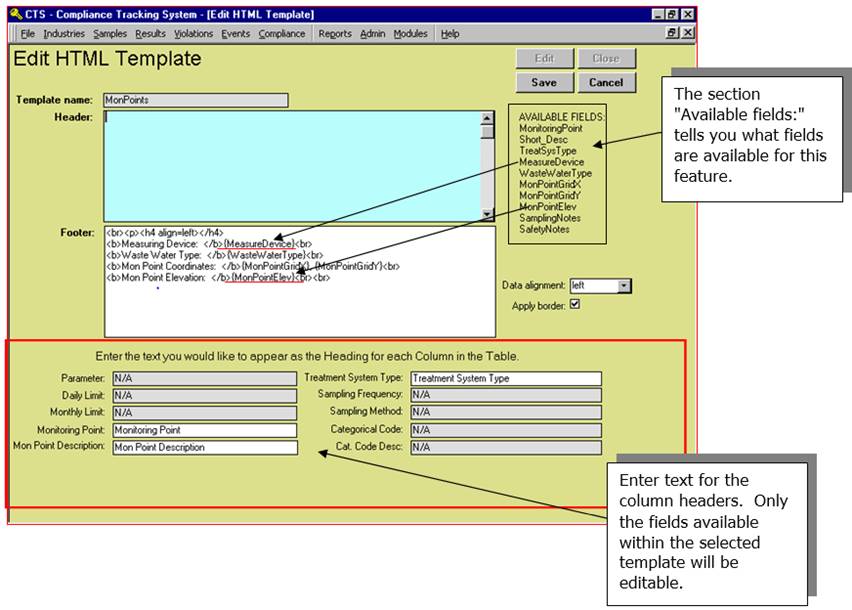
Note that
you can insert some of the monitoring point fields into the header or footer by
adding the field name (enclosed in braces). For example, if the field
"Long_Desc" is available, then you can put "{Long_Desc}" in
the header or footer - and it will be replaced by the actual value (the monitoring
point's "Long Description") when the HTML template is inserted into a
permit.
The following is an
example of editing the HTML document to provide a Header and Footer for the MS
Word Template.
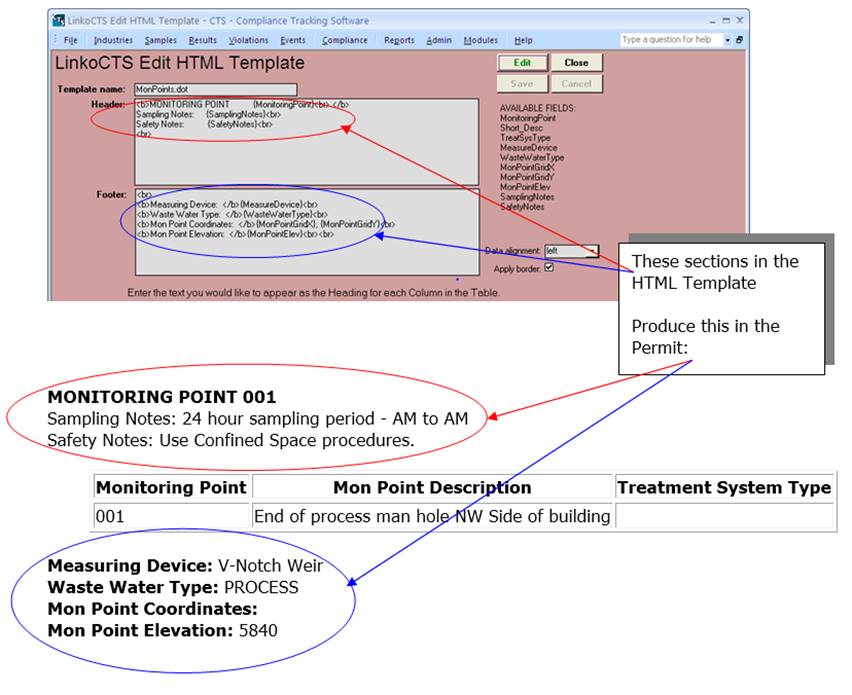
Monitoring
point limits and requirements (sampling type and schedule) are sub-grouped by
monitoring point - so when you include (for example) monitoring point limits,
you will see a separate header, table (of monitoring point limits), and footer
for each monitoring point.
The font
sizes and types in your final permit document are either controlled by the
Individual Template or the Master Permit Style Template. Which is used is determined by the “Base
Permit Style on:” selection on the Build Permits screen.
IF you
choose Master Permit Style Template, then the font sizes and types are not
controlled by the font sizes and types in the templates - rather, they are
determined by the style of the text in the templates, and the fonts for those
styles in the "Permit Style" template (the base template for permits). For example, if the font for the
"Normal" style in the "Permit Style" template is 12-point
Courier New, then any template text that is labeled “
HTML table
text is treated as "
You can
change the fonts for those styles by pressing the Edit Permit Style button on
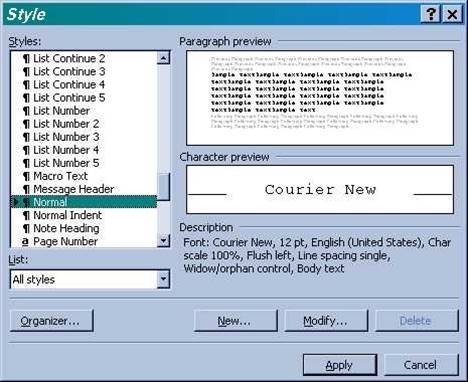
the Build Permits screen. Once you're in Word,
choose "Format", then "Style".
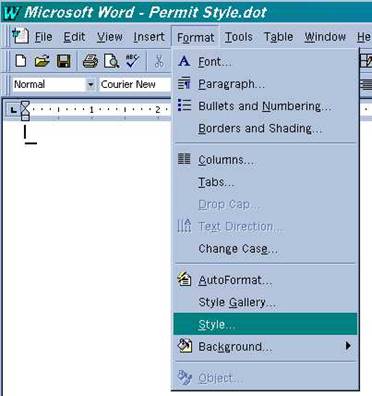
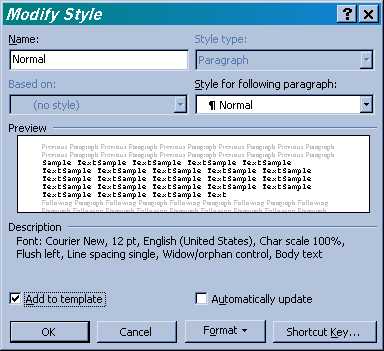
Select the
style you wish to modify, and then click the "Modify" button.
Be sure to
click the "Add to Template" checkbox.
(Exact instructions will vary from one Office version to another. For example, “Styles” is available under the “HOME” tab in Word.)