An optional feature for the Linko software is an add-on module called Remote Inspector. This module is available for purchase and allows an inspector to complete electronic inspection forms in the field, capture signatures, take pictures and print receipts. This data is then synchronized to the Linko database back at your office where you can instantly see the actual inspection form, pictures, signatures and inspection results.
In the field, inspectors have access to most of the Facility Details present on the Facility Details screen, as well as Contacts, Extractor/Grease Trap details, past inspections and other event details such as Phone calls, Permit expiration dates and past trap cleaning dates.
The Remote Inspector allows users in the field to change only inspection data. They can create new inspections or edit existing inspections. They cannot delete inspections nor can they update other Facility information present on the Facility Details screen.
On a defined schedule, the inspections performed in the field using Remote Inspector are downloaded to the Linko database in the office. Additionally, any changes made to the Linko database in the office are uploaded to the Remote Inspector once per day.
You can see the last time a sync was performed and even manually download any inspections by accessing the Remote Inspector configurations from Event Administration. From the Menu Bar at the top of the Linko software, select Admin à Event Administration à Configurations. If you have purchased Remote Inspector you will see the options below at the bottom of the screen.

|
Item |
Description |
|
Last Download Sync |
The last time inspections from the field using Remote Inspector were downloaded to the Linko database at the office. |
|
Next Download Sync |
The next scheduled time inspections from the field will be downloaded. |
|
Last Upload & Download Sync |
The last time inspections from the field were downloaded to the Linko database at the office followed by an upload of any changes from the Linko database being uploaded to Remote Inspector. |
|
Next Upload & Download Sync |
The next scheduled time inspections from the field will be downloaded then followed by an upload of any changes from the Linko database to Remote Inspector. Uploads of data are scheduled by Linko staff during installation. Times are selected that do not interfere with schedule database maintenance for example. By design, uploads are only allowed during the hours of 7:00pm and 4:00am Mountain Time. |
|
# of Months to Sync Past Events |
How far in the past should the Remote Sync keep synchronized with the Linko Software? |
|
# of Months to Sync Future Events |
How far in the future should the Remote Sync keep synchronized with the Linko Software? |
|
Sync Now |
This button
changes the date/time values of the Next Download Sync and the Next Upload
& Download Sync fields. This allows you to download inspections from the
Remote Inspector at any time. If there is a
value in the Next Download Sync field, the Sync Now button will take that
value and subtract the Interval amount of hours - if not it will take the SQL
server current date/time and subtract the interval hours. If there is a value in the Next Up/Down
Sync field, the Sync Now button will take that value and subtract one day -
if not it will take the SQL server current date/time and subtract one day. |
|
Show Status |
This opens a
Remote Inspector Status window showing what is in queue for syncing.
Typically a Technical Support tool. |
Selecting the Launch Sync button opens the Remote Inspector software. This allows you to download the inspections your inspectors have completed in the field as well as perform administrative functions (administrative functions are typically reserved for Linko Technical Support).
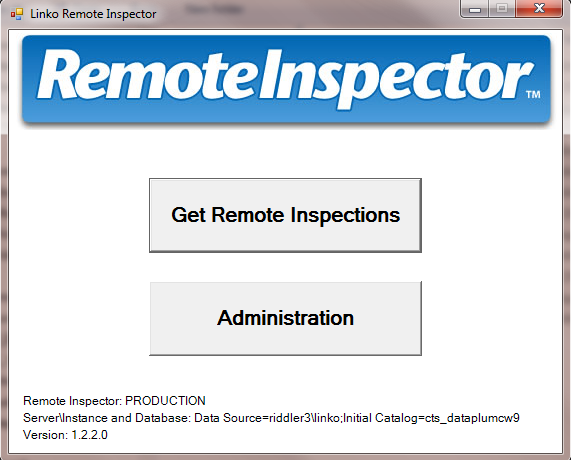
|
Item |
Description |
|
Get
Remote Inspections |
Immediately downloads any changed or completed inspections from the Remote Inspector software as made by inspectors in the field. |
|
Administration |
Give you access to an advanced feature set such as setting connection properties to your Linko database in the office. These setting are configured by the Linko staff during installation and configuration and some are password protected. That password is for Linko staff use only. |
Using the Download Sync Interval value above, this occurs no more frequently than once an hour.
When Next Download Sync time arrives, a Windows Service (Linko Synch Manager) will execute a download from Remote Inspector to CTS. This Linko Synch Manager is typically installed on one machine, a server that is always on.
After Download Sync takes place, the Next Download Sync date/time is incremented by the Sync Interval Hours.
Users can invoke a Download Sync at any time using the Launch Sync button. This opens the Remote Inspector application where the sync can be initiated.
Upload to Remote Inspector and Download to Linko
This is a full, round-trip sync. The order of the sync is to download from Remote Inspector to the Linko database in the office first, and then upload changes from the Linko database in the office to Remote Inspector second. That means if changes were made in both places for the same Inspection record, the changes on Remote Inspector would win.
The Upload and Download syncs only take place once per day, in the middle of the night. The windows service (Linko Sync Manager) must be running for this to occur. This sync is not allowed between the hours of 4:00am and 7:00pm Mountain Time. This prevents heavy upload traffic from degrading the performance of Remote Inspector for those that may be using the software. The time used to determine this is the time on the SQL Server here in Denver at our Remote Inspector hosting site.
When the Upload and Download sync takes place, a maximum number of events are sync’d to Remote Inspector. That number is set to 1000 by default. If there are more than 1000 events marked to be sync’d, only 1000 will sync and the rest will sync the following day. Events are sync’d in the order in which they are marked to be sync’d (the order in which they are edited or added in the Linko software).
After an Upload/Download Sync takes place, the Next Upload & Download Sync date/time is incremented by 1 day. For this reason, the time should never change. During Remote Inspector installation, Linko determines the Next Upload & Download Sync time. This is based on when customer maintenance schedules and other items that may affect the sync.
Is sync’d
|
Facility No. |
Facility Name |
|
Address, City, State, Zip |
Map Category |
|
Receiving Plant |
Trunk Line |
|
Classification |
Pump Frequency |
|
Inspection Frequency |
Permitted? |
|
Active? |
Expiration Date |
|
Effective Date |
Next Renewal |
|
Last Renewal |
Next Inspection |
|
Last Inspection |
Permit Type (PTX, AG. HLR, AG/HG) |
Not sync’d
|
Hauler |
Personnel |
|
Close Date |
Last Pump Out |
|
Next Pump Out |
|
Is sync’d
|
Salutation |
First/Last Name |
|
Title |
Company Name |
|
Address, City, State, Zip |
Phone |
|
|
Cell Phone |
|
Emergency Phone |
Fax |
|
Notes |
Contact Priority (1 is Primary Contact) |
Not sync’d
|
Pager |
Contact Type |
Is sync’d
|
Extractor ID (Extractor Name) |
Extractor Description |
|
Extractor Type |
Manufacturer |
|
Trap Size / Units |
Trap Depth / Units |
|
Cleaning Frequency |
Comments |
Not sync’d
|
Last Pump information is not displayed in Remote Inspector Extractors tab |
Not sync’d
|
Do not show up in Remote Inspector as Pump Out Manifests. Instead the basic Due and Complete Date and description and comments show up under the Other Events tab. |
|
The Last and Next Pump information is also not displayed in the Extractors tab or in the Facility Details tab in Remote Inspector. |
Is sync’d
|
Event Type |
Due Date |
|
Complete Date |
Performed By |
|
Created By |
Facility Person Present |
|
Assigned To |
Inspection Result |
|
Maintenance Log |
Reason |
|
Inspection (Event) Comments |
Internal Comments |
|
Event Doc link will be updated with a URL that points to the website where the custom inspection form and related pictures are stored. For this reason, any Event Doc value that exists in Linko will be overwritten with this URL after a sync takes place. |
|
|
Follow-up inspections are created in Remote Inspector after an inspection is completed in Remote Inspector. These follow-up inspection are created using the ‘Create Follow-up Events How’ and ‘Create Follow-up Event Based on’ configurations in Event Administration for user lexlinko (if how these follow-up events are created needs to be changed, Linko Technical Support can assist) as well as the Event Type ‘Auto Scheduler Frequency’ value. |
Not sync’d
|
Trap Inspection Details like depth of grease/solids/water and percent grease. |
|
Pre and Post Notify settings and Event Doc links (Pre / Post Events are a discontinued feature provided for backwards compatibility. Please see the Pre / Post Configuration setting.) |
Is sync’d
|
Event Type |
Due Date |
|
Complete Date |
Performed By |
|
Created By |
Assigned To |
|
Event Comments |
Internal Comments |
|
Permits, Generic, Sample, COC, Pump Out, Violation, Enforcement Events are uploaded. |
|
Not sync’d
|
Pre and Post Notify settings and Event Doc links. |
|
All Users are uploaded to Remote Inspector. However login credentials and security access to the Remote Inspector software are handled in Remote Inspector. This is administered by the Linko Technical Support staff. |
|
Event Types including Inspection Event Types and Frequencies |
|
Event details drop down values like Inspection Results and Maintenance Results. |
|
All Inspection Detail fields displayed on the Remote Inspector Inspection Details screen except Extractor observations. |
|
A URL to the Linko Inspection Form and Attachments page. It is inserted into the Doc Link field for that inspection in the LinkoCTS database at the office. |
|
4 Facility Groups are created for the customer when Remote Inspector is implemented. AG Active Facilities, PTX Active Facilities, HLR Active Facilities, AG/HG Active Facilities. |
|
Users can create their own Facility and Inspection groups in Remote Inspector and those are not sync’d to Linko in the office. |