Overview
This document is designed to guide the person responsible for the administration of the Linko database. More specifically this document is concerned with areas such as backups, preventative maintenance settings and performance enhancements. The operations and procedures described in this document should only be done when no one is in Linko.
If you are a Linko Cloud Customer, you have access to our software APIs. The API details are listed here:
To utilize our
software APIs, contact customer support to request an API Access Key: support@linkotechnology.com
or 877-546-5699 (dial 2 at auto-attendant
)
These views will exist in CTS_DATA. We are providing them for GIS integration as an ‘off-the-shelf’ solution. If you require different definitions or views, please contact Linko Technology at info@linkotechnology.com.
1) LinkoFOG FSE location table-view for GIS use
This SQL view is intended to be used by GIS for creating/updating a GIS Food Service Establishment (FSE) list with the currently active FSE locations. The view columns are listed below, with the native field name from the Linko table along with the field name that appears in LinkoFOG screens. Only Active (ActivePermit = True and PermitType = FOG) will appear in the view.
v_GIS_FSE_Locations – view of active FSE locations with site address and meta data
|
v_GIS_FSE_Locations
– populated by LinkoFOG (CTS_DATA SQL
database) |
|
||
|
CTS_DATA
Field |
Screen
Reference |
Description |
ViewField |
|
t_PermitAccounts:PermitID |
n/a |
Auto-number ID for FSE, invisible to users |
FSE_ID |
|
t_PermitAccounts:PermitNo |
Facility No |
User assigned alphanumeric identifier for the FSE |
FSE_No |
|
t_PermitAccounts:Permittee |
Name |
user assigned name for the FSE |
FSE_Name |
|
t_Site:SiteAddr1 |
Address |
user assigned location Address line 1 |
FSE_AddrLine1 |
|
t_Site:SiteAddr2 |
Address 2 |
User assigned location Address line 2 |
FSE_AddrLine2 |
|
t_Site:SiteCity |
City |
User assigned City |
FSE_City |
|
t_Site:SiteState |
State |
User assigned State |
FSE_State |
|
t_Site:SiteZipCode |
Zip Code |
User assigned Zip Code |
FSE_Zip |
|
t_PermitAccounts.SewerAcctNo |
Sewer # |
Optional – User assigned billing account number |
FSE_AcctNo |
|
t_PermitOps.ClassCode |
Class Code |
Optional – User assigned FOG Program Identifier classification |
FSE_Class |
|
t_PermitOps.SecondClass |
Secondary Class |
Optional - more detailed class code value |
FSE_SecondaryClass |
|
t_PermitBaseSched.EffectiveDate |
Effective Date |
Optional – effective date of permit |
FSE_EffectiveDate |
|
t_PermitBaseSched.ExpirationDate |
Permit Event Due Date |
Optional – expiration date of permit |
FSE_ExpirationDate |
|
t_PermitBaseSched.LastInsp |
Inspection Event Complete Date |
Optional - Last Inspection Date |
FSE_LastInspection |
|
t_PermitBaseSched.NextInsp |
Inspection Event Due Date |
Optional - Pending Inspection Date |
FSE_NextInspection |
|
t_PermitBaseSched.LastPumpOut |
Pump Event Complete Date |
Optional - Last Pump Out Date |
FSE_LastPumpOut |
|
t_PermitBaseSched.NextPumpOut |
Pump Event Due Date |
Optional - Pending Pump Out Date |
FSE_NextPumpOut |
|
t_PermitAccounts:Permittee (via t_PermitAccounts:PumperID) |
Pumper |
Optional - Name of Hauling Company assigned to FSE |
FSE_HaulerCompany |
|
t_PermitOps.ActivePermit |
Active |
Optional – Is the FSE actively being regulated |
FSE_Active |
2)LinkoFOG FSE Extractors table-view for GIS use
v_GIS_FSE_Extractors view of active FSE grease abatement devices (GAD) (e.g. interceptors or traps) there could be zero to many extractors per FSE
|
v_GIS_FSE_Extractors
– populated by LinkoFOG (CTS_DATA
SQL database) |
|
||
|
CTS_DATA
Field |
Screen
Reference |
Description |
View_Field |
|
t_PermitAccounts:PermitID |
n/a |
FK to FSE Locations |
FSE_ID |
|
tu_Extractors.ExtractorNo |
n/a |
Auto-number ID for extractor, invisible to users |
GAD_ID |
|
tu_Extractors.ExtractorID |
Extractor ID |
user assigned name for the FSE |
GAD_No |
|
tu_Extractors.ExtractorName |
Extractor Type |
Optional – type of device |
GAD_Type |
|
tu_Extractors.Manufacturer |
Manufacturer |
Optional – manufacturer of device |
GAD_MFG |
|
tu_Extractors.TrapSize |
Trap Size |
Optional – capacity of device |
GAD_Size |
|
tu_Extractors.Comments |
Comments |
Optional – comments relative to a device |
GAD_Comments |
|
tu_Extractors.CleaningFreq |
Cleaning Freq |
Optional – cleaning frequency |
GAD_CleanFreq |
|
tu_Extractors.TrapHeight |
Trap Depth |
Optional – depth of a device |
GAD_Depth |
|
tu_Extractors.TrapSizeUnits |
Units |
Optional – units relative to capacity, required if capacity is populated |
GAD_SizeUnit |
|
tu_Extractors.TrapHeightUnits |
Units |
Optional – units relative to depth, required if depth is populated |
GAD_DepthUnit |
|
tu_Extractors.ExtractorDesc |
Extractor Description |
Optional – location description or general description of a device |
GAD_Desc |
3) LinkoFOG FSE Violations table-view for GIS use
v_GIS_FSE_Violations view of historical violations relative to an FSE there could be zero to many violations per FSE
|
v_GIS_FSE_Violations – populated by LinkoFOG (CTS_DATA SQL database) |
|
||
|
CTS_DATA
Field |
Screen
Reference |
Description |
View_Field |
|
t_PermitAccounts:PermitID |
n/a |
FK to FSE Locations |
FSE_ID |
|
t_ViolEvents.EventID |
n/a |
Auto-number ID for violation, invisible to users |
Viol_ID |
|
tu_EventType.EventTypeAbbrv |
Violation Type |
Short Description of Violation Type |
Viol_Type |
|
tu_EventType.EventTypeDesc |
n/a |
Long Description of Violation Type |
Viol_Type_Desc |
|
t_Events.EventDesc |
Violation Description |
Optional – Description of the violation |
Viol_Desc |
|
t_Events.EventComments |
Internal Comments |
Optional – Internal Comments |
Viol_Comments |
|
t_ViolEvents.NCDate |
Date of NC |
Violation Date |
Viol_Date |
|
t_ViolEvents.MaxEnfDate |
Enforce Date |
Date of last enforcement action relative to the violation |
Viol_Enf_Date |
|
t_ViolEvents.CompleteDate |
In Compliance |
Date of violation was back in compliance |
Viol_InCompl_Date |
4) LinkoCTS IU location table-view for GIS use
This SQL view is intended to be used by GIS for creating/updating a GIS Industrial User list with the currently active IU locations. The view columns are listed below, with the native field name from the Linko table along with the field name that appears in LinkoCTS screens. Only Active (ActivePermit = True and PermitType = PTX) will appear in the view.
v_GIS_IU_Locations – view of IUlocations with site address and meta data
|
v_GIS_IU_Locations
– populated by LinkoCTS (CTS_DATA SQL database) |
|
||
|
CTS_DATA
Field |
Screen
Reference |
Description |
ViewField |
|
t_PermitAccounts:PermitID |
n/a |
Auto-number ID for IU, invisible to users |
IU_ID |
|
t_PermitAccounts:PermitNo |
Facility No |
User assigned alphanumeric identifier for the FSE |
IU_No |
|
t_PermitAccounts:Permittee |
Name |
user assigned name for the FSE |
IU_Name |
|
t_Site:SiteAddr1 |
Address |
user assigned location Address line 1 |
IU_AddrLine1 |
|
t_Site:SiteAddr2 |
Address 2 |
User assigned location Address line 2 |
IU_AddrLine2 |
|
t_Site:SiteCity |
City |
User assigned City |
IU_City |
|
t_Site:SiteState |
State |
User assigned State |
IU_State |
|
t_Site:SiteZipCode |
Zip Code |
User assigned Zip Code |
IU_Zip |
|
t_PermitAccounts.SewerAcctNo |
Sewer # |
Optional – User assigned billing account number |
IU_AcctNo |
|
t_PermitAccounts.WaterAcctNo |
Meter # |
Optional – User assigned billing meter number |
IU_MeterNo |
|
t_PermitAccounts.DailyFlow |
Daily Flow |
Optional – Industry average daily flow |
IU_DailyFlow |
|
t_PermitOps.ClassCode |
Class Code |
Optional – User assigned IU Program Identifier classification |
IU_Class |
|
t_PermitOps.SecondClass |
Secondary Class |
Optional - more detailed class code value |
IU_SecondaryClass |
|
t_PermitBaseSched.EffectiveDate |
Effective Date |
Optional – effective date of permit |
IU_EffectiveDate |
|
t_PermitBaseSched.ExpirationDate |
Permit Event Due Date |
Optional – expiration date of permit |
IU_ExpirationDate |
|
t_PermitBaseSched.LastInsp |
Inspection Event Complete Date |
Optional - Last Inspection Date |
IU_LastInspection |
|
t_PermitBaseSched.NextInsp |
Inspection Event Due Date |
Optional - Pending Inspection Date |
IU_NextInspection |
|
t_PermitAccounts.TrunkLine |
Trunk Line |
Optional – Trunk Line of IU discharge |
IU_ TrunkLine |
|
t_PermitAccounts.ReceivingPlant |
Receiving Plant |
Optional – Receiving plant of IU discharge |
IU_ReceivingPlant |
|
t_PermitOps.ActivePermit |
Active Industry |
Optional – Is the IU actively being regulated |
IU_Active |
5) LinkoCTS IU Monitoring Point table-view for GIS use
v_GIS_IU_MonitoringPoints view of IU monitoring points; there could be zero to many monitoring points per IU
|
v_GIS_IU_
MonitoringPoints – populated by
LinkoCTS (CTS_DATA SQL database) |
|
||
|
CTS_DATA
Field |
Screen
Reference |
Description |
View_Field |
|
t_PermitAccounts:PermitID |
n/a |
FK to IU Locations |
IU_ID |
|
t_MonPoints.MonPointID |
n/a |
Auto-number ID for monitoring point, invisible to users |
MP_ID |
|
t_MonPoints.MonPointAbbrv |
Monitoring Point |
user assigned abbrv. for the Monitoring Point |
MP_Abbrv |
|
t_MonPoints.MonPointDesc |
General Description |
Optional – Description of Monitoring Point |
MP_Desc |
|
t_MonPoints.TreatSysType |
Treatment System Type |
Optional – type of treatment system in use |
MP_TreatSysType |
|
t_MonPoints.WasteWaterType |
WasteWater Type |
Optional – type of wastewater discharged |
MP_WWType |
|
t_MonPoints.SampleNotes |
Sampling Notes |
Optional – notes to observe during sampling |
MP_SampleNotes |
|
t_MonPoints.SafetyNotes |
Safety Notes |
Optional – safety notes about monitoring point |
MP_SafetyNotes |
6) LinkoCTS IU Violations table-view for GIS use
v_GIS_IU_Violations view of historical violations relative to an IU; there could be zero to many violations per IU
|
v_GIS_IU_Violations – populated by LinkoCTS (CTS_DATA SQL database) |
|
||
|
CTS_DATA
Field |
Screen
Reference |
Description |
View_Field |
|
t_PermitAccounts:PermitID |
n/a |
FK to IU Locations |
FSE_ID |
|
t_ViolEvents.EventID |
n/a |
Auto-number ID for violation, invisible to users |
Viol_ID |
|
tu_EventType.EventTypeAbbrv |
Violation Type |
Short Description of Violation Type |
Viol_Type |
|
tu_EventType.EventTypeDesc |
n/a |
Long Description of Violation Type |
Viol_Type_Desc |
|
t_Events.EventDesc |
Violation Description |
Optional – Description of the violation |
Viol_Desc |
|
t_Events.EventComments |
Internal Comments |
Optional – Internal Comments |
Viol_Comments |
|
t_ViolEvents.NCDate |
Date of NC |
Violation Date |
Viol_Date |
|
t_ViolEvents.MaxEnfDate |
Enforce Date |
Date of last enforcement action relative to the violation |
Viol_Enf_Date |
|
t_ViolEvents.CompleteDate |
In Compliance |
Date of violation was back in compliance |
Viol_InCompl_Date |
Linko recommends that you back up your database often: daily, if possible. SQL Express doesn’t have job scheduling capability so database backups are a manual operation.
For System Administrators familiar with MS Full Version of SQL Server, you are already familiar with database backups. You can use the same backup processes and procedures with SQL Express databases. See the following procedure.
For Linko Users with Full SQL Server / Enterprise Versions of the software, please see these general instructions from Microsoft for backing up SQL Server databases:
https://msdn.microsoft.com/en-us/library/ms187510(SQL.90).aspx
SQL Express 2008 has new functionality in it that makes backing up the database a lot simpler than in the past.
As long as no one is using the software, you can simply copy the database files to a secure location.
The location of the databases (based upon a Typical Installation) is the following folders on the Database Service Computer:
C:\LinkoCTS\SQLData
You want to copy both of these files:
CTS_Data_data.mdf
CTS_Data_log.ldf
Create a DOS batch file, and the set up a “Copy Files to Secure Location” task under Scheduled Tasks for whenever everyone is out of Linko to run the Batch File. Then your databases will be backed up automatically every day.
We include the following procedure as an alternative way to do backups. It requires manual use of the SQL Management Studio and cannot be automated in SQL Express 2008 as it does not include SQL Agent.
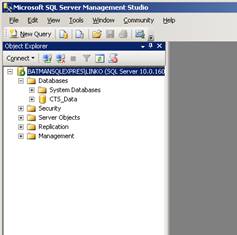
1. Open SQL Management Studio and connect to the Linko database (CTS_Data).
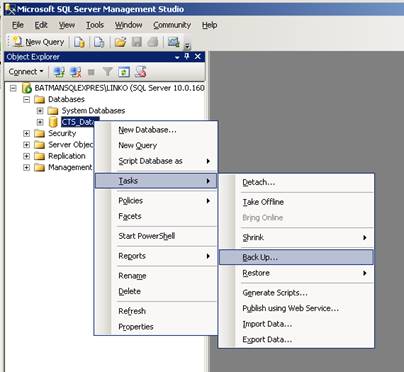
2. Right-click on CTS_Data, choose Tasks,
then Back Up...
3. The Database Back Up dialog.
Backup type should be
Full.



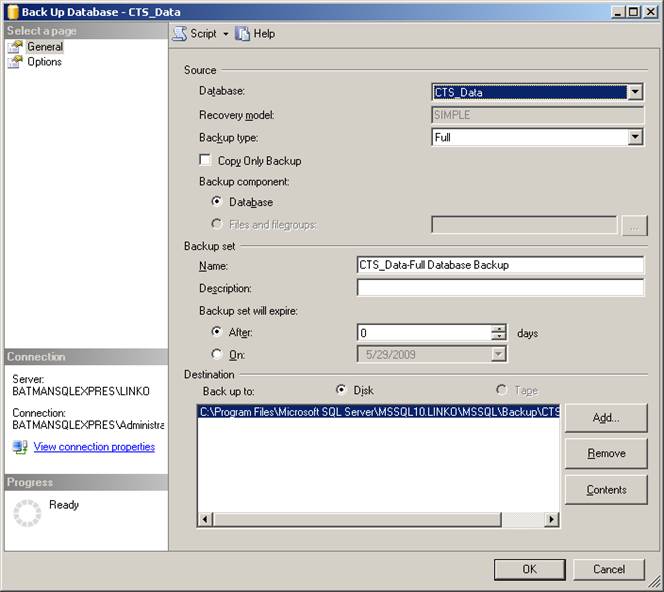
You may also want to change the default location of where the backup file will be located. In the Destination section click the Remove button. This will remove the default path line specified in the box. Click the Add button.
After clicking the Add button you will be presented with the dialog box below.
Click the browse button to navigate to another location.

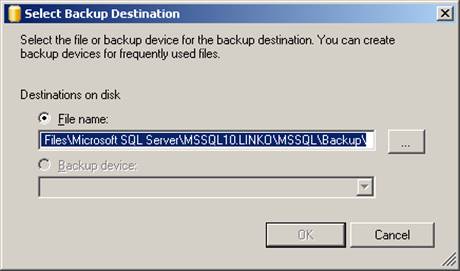

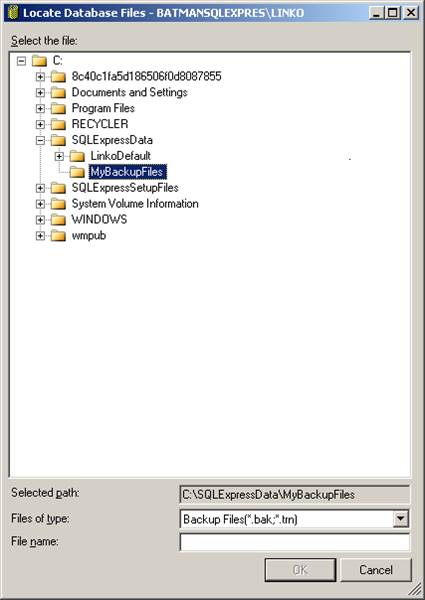
Browse to your Backup folder and be sure to enter a file name.
4. Backup Options screen.
 Linko
recommends that the Verify backup when finished option is checked.
Linko
recommends that the Verify backup when finished option is checked.

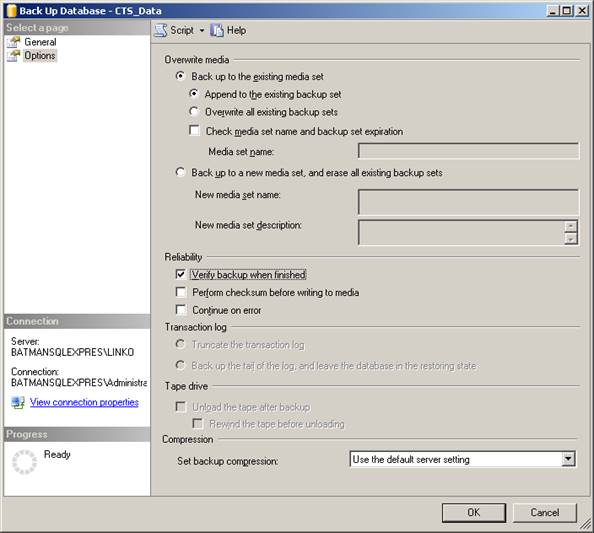
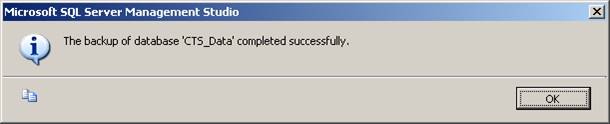
Click OK when you’re ready to start the backup operation. When finished you’ll be presented with the message box below:
FOR USERS OF THE LINKO SQL EXPRESS EDITION:
Note that the above procedures is a backup of the Linko Database but it still resides on the Hard Drive where the Database Service is installed (Assuming a Typical Installation). The .bak file needs to be moved to a network location for secure storage.
The entire folder C:\LinkoCTS on the
computer where the Database Service resides needs to be backed up to a network
location on a regular basis. The above backup process only addresses the
database itself, and none of the support files in the Shared Folders.
Linko recommends the following settings for both the SQL
Express and the Full SQL Versions.
These settings are defaulted to the values listed so there’s no need to change any of them unless they’re different.
Database
Properties – Options page
Right-click on CTS_Data and then click Properties
Automatic
Auto-close False
Auto-create
statistics True
Auto-shrink False
Auto-update statistics True
Statistics
Query statistics are managed automatically by SQL Server when auto-create statistics and auto-update statistics are set to Yes. This is recommended.
Recovery
Page
Verify Torn page
detection
File Size/Growth:
· CTS_Data_Data:
o Initial Size: 50 MB
o Automatically grow file
o By 10%
o 1 gig max file growth
· CTS_Data_Log: (if Full recovery model implemented)
o Initial Size: 10 MB
o Automatically grow file
o By 20%
o 2 gig max file growth

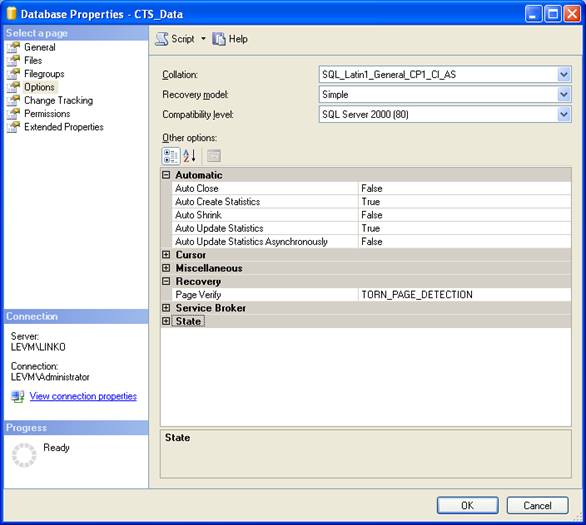
Recovery Model:
Simple (recommended, with nightly
scheduled backups)
Full (Optional)
Optional – Full Recovery Model
If you choose to implement the Full Recovery model, Linko recommends…
- Incremental transaction log backups should be performed at least twice daily (11:00am and 2:00pm)
- After performing your nightly Full database backup, perform a Full transaction log backup. (SQL will automatically truncate the transaction log after the log is backed up. It will not reduce the size of the physical log)
- After a complete database backup is performed, the transaction log backup series can be restarted. (It is not necessary to keep the transaction log backups created prior to the last full database backup.)
- Never manually truncate a log file until the log file has been backed up.
- To reduce the physical size of the CTS_Data_log file, use DBCC SHRINKFILE
- DBCC SHRINKFILE (cts_data_log)
- GO
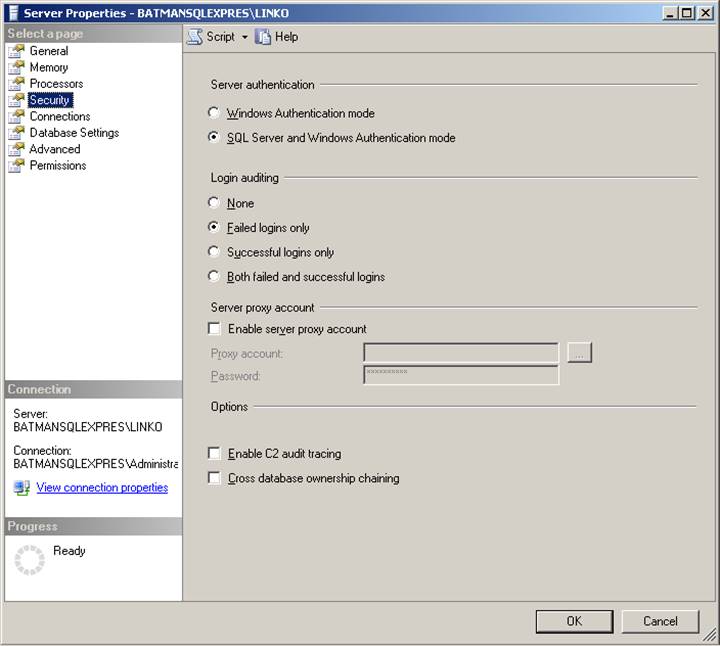
Server
Properties – Security page
Right-click on the top level of the Hierarchy which is the Server
Name\SQL Instance and then click Properties.
SQL Server and Windows Authentication mode should be checked.

Rebuilding Indexes and Shrinking Data Files
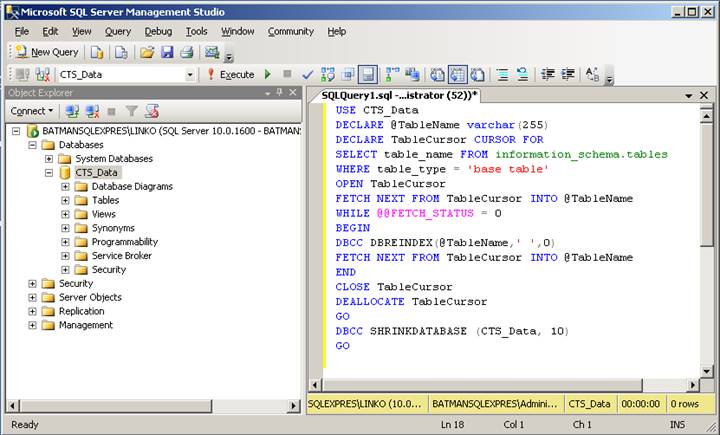
Indexes should periodically be rebuilt to reorganize pages, remove physical fragmentation and recalculate statistics. Shrinking the database improves performance. Linko recommends doing this monthly. Use the script below to rebuild indexes and shrink the data files. As with all the procedures outlined in this document this procedure should only be done while no one is in Linko.
USE CTS_Data
DECLARE @TableName varchar(255)
DECLARE TableCursor CURSOR FOR
SELECT table_name FROM information_schema.tables
WHERE table_type = 'base table'
OPEN TableCursor
FETCH NEXT FROM TableCursor INTO @TableName
WHILE @@FETCH_STATUS = 0
BEGIN
DBCC DBREINDEX(@TableName,' ',0)
FETCH NEXT FROM TableCursor INTO @TableName
END
CLOSE TableCursor
DEALLOCATE TableCursor
GO
EXEC SP_UPDATESTATS
GO
DBCC SHRINKDATABASE (CTS_Data, 10)
GO
Notes on Indexes:
1. As a possible additional maintenance step, Linko suggests that Indexes should occasionally be rebuilt (monthly) using DROP_EXISTING and FILLFACTOR with recommended fill factors to reorganize pages, remove physical fragmentation and recalculate statistics. Linko has a specially designed script to do this for each Linko Upgrade called the CTS_Data_Rebuild_Indexes.sql script.
2. FILLFACTOR will reduce page splitting and allocate additional space to tables that frequently have new data added to them.
3. Only run the CTS_Data_Rebuild_Indexes.sql script for the proper version of the CTS_Data database you have installed. Please contact Linko Support with any questions.
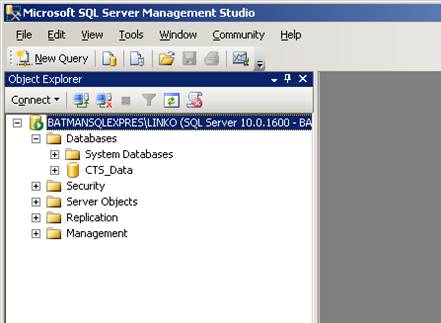
Click the New Query button in your Management Studio main view.

Paste the script above into the New Query window. Click the Execute button.

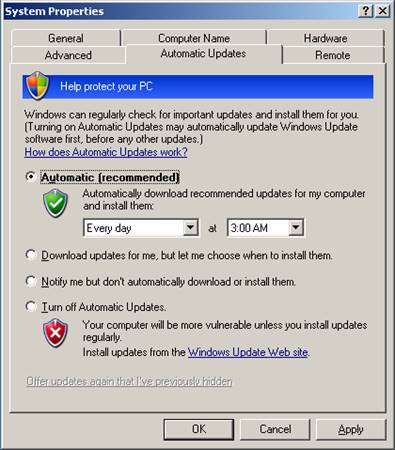
This setting will cause your Server to automatically download and install the latest updates from Microsoft. Linko recommends setting Automatic Updates as illustrated below.
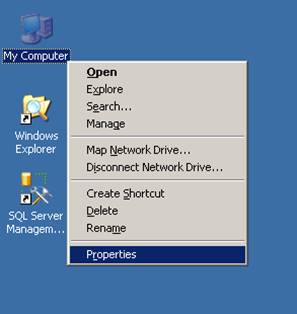
From your desktop, right-click on My Computer and click Properties.
Make sure that Automatic is checked and the time is set for an early morning hour.