|
Using Facility Management |
|
|
Facility Information |
Basic
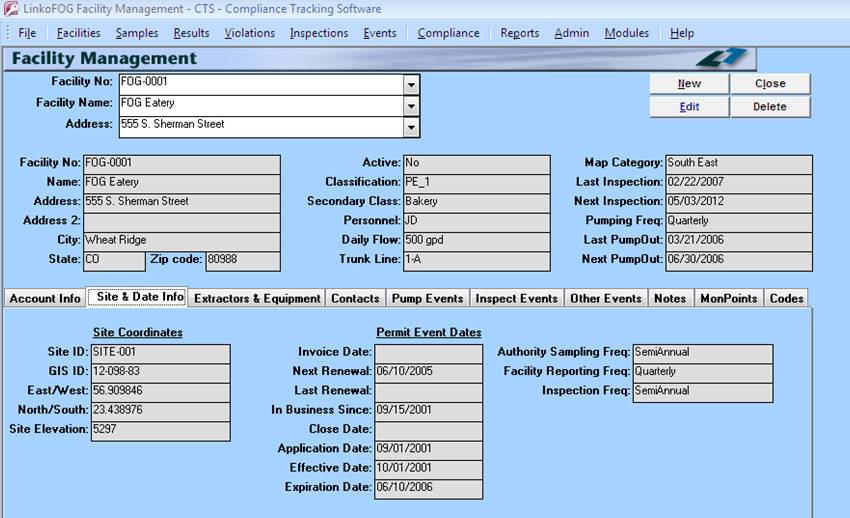
Facility Information is displayed whenever in Facility Management. Facility
No., Name, and Address along with fields to display Active, Classification,
and Inspection and Pump Out information give you important data in one view
that is always visible. |
|
Event Information |
Track
your last and next Inspection and Pump Outs.
These items are modifiable by creating and editing Events in Event Manager. This provides a quick view of when a Facility is next scheduled for
an Inspection or a Pump Out. |
|
Adding a New Facility |
From
the Facility Management Screen, Click
the <New> button, and then
enter in the Facility #, the Facility Name and other Facility information.
See the Facility Management Screen for more info on all the fields. NOTE: From the Facility Details Screen you can ONLY edit the information on the
Account Info and the Site & Date Info tabs. Note: All other information is added and modified
through the Add New and Details links on their respective tabs. |
|
Modifying Existing Facilities |
From
the Facility Management Screen, Click on the Edit button, opening the
Facility Details Screen. Now simply
make any modifications that you would like.
Next click the <Save> button to record the change or the
<Cancel> button to abandon the change.
Then to return to the Facility Management Screen, click on the close
button. From the Facility Details
Screen you can edit the information on the Account
Info and the Site & Date Info tabs. Note: All other information is added and modified
through the Add New and Details links on their respective tabs. |
|
Selecting Tabs |
The
Tab control remembers where you have been. If the last time you were in
Facility Management, you were in Pump Events, the next time you enter
Facility Management the tab selector will be on Pump Events. |
|
Deleting Facilities |
This
function is disabled by default in order to prevent unplanned Facility
deletions. You can enable it in the Configuration Screen. BEWARE that deleting a Facility will delete
every piece of data about that facility including; inspections, Pump Outs,
notes, contacts, etc. You cannot undo
a deletion! |
|
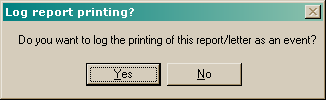
Logging Facility Letters |
Any
time you print one of the letters associated with Facilities, you are asked
if you wish to create an Event for each Facility being printed. Choosing Yes
creates an Event of type “LTR_PRNTD” which indicates the type of letter and
the date it was sent. |
|
|
|
|
Buttons |
Action performed |
|
New |
Opens Facility Management Edit window allowing you to create a new Facility/Permit. |
|
Edit |
Opens Facility Management Edit window allowing you to edit the selected Facility/Permit. |
|
Close |
Closes the screen, returns to the Main Menu. |
|
Deletes the selected Facility/Permit from the system. This button is disabled by default. To enable the ability to delete Facility/Permits go to Facility Admin à Configurations à Local Configurations à Enable Facility, Site and / or Monitoring Point Deletes and check the box. |
|
|
Record
Selectors |
Standard Record Selectors allowing you to move between displayed Facilities. |
|
Status
Bar |
Standard Status Bar allowing you to jump to a listing of Violations without enforcements, a listing of due and overdue Events, a listing of related Reports, a Calendar, a Calculator, Contact Information, or a new Phone Log Event. |
|
Facility Selection |
|
|
Facility No |
Drop down box offering a list of Facilities by Facility No. This changes the Facility details displayed below. |
|
Facility Name |
Drop down box offering a list of Facilities by Name. This changes the Facility details displayed below. |
|
Address |
Drop down box offering a list of Facilities by Street Address. This changes the Facility details displayed below. |
|
Facility Items |
Description. |
|
Facility No |
The main identifier for the Facility. This can also be the Permit No. This field is required |
|
Name |
The name of this Facility. This can also be the Permit Name. This field is required |
|
Address |
The first line of the Site’s physical address |
|
Address (cont.) |
The second line of the Site’s physical address |
|
City |
The
name of the city where this Facility Site is located. |
|
State |
The state where this Site is located |
|
Zip code |
The Zip Code or Postal Code for the Site’s location |
|
Active |
Is the Facility active? Yes or No. |
|
Classification |
What type of Facility is this? E.g. Fast Food, Cafeteria, Hotel… Classifications may be added to the CLASS CODES list via Facility Administration Section. This allows you to group similar Facilities. |
|
Secondary Class |
A second classification to describe this Facility, which can be utilized in conjunction with “Classification” to group Facilities in a more specific manner. |
|
Personnel |
POTW Personnel assigned to work with this Facility |
|
Daily Flow |
This Facility’s estimated average daily flow |
|
Trunk Line |
Identify what trunk line the Facility is discharging to. If you want to know which Facilities are on what trunk lines, build a “Group” on Trunk Line and print out a report. |
|
Map Category |
Map Category for this Site. Create Groups for each section of your town or city. Coordinate your sampling and inspection visits to a single section of town per day. Save yourself the driving time. Just type in a new Map Category or select a Map Category that has already been entered. |
|
Last Inspection |
The date of the last Inspection Event for this Permit. This value is taken from the last completed Inspection Event associated with this Permit and cannot be edited here. See Inspections to manage Inspection Events. |
|
Next Inspection |
The date of the next Inspection Event for this Permit. This value is taken from the next scheduled Inspection Event associated with this Permit and cannot be edited here. See Inspections to manage Inspection Events. |
|
The frequency with which the Facility should have its grease trap pumped. The best approach is to assign the Pump Out Frequency for each of your Facilities in this field first, before you create any Extractors or any Pump Out events. Permit Pump: When you assign a value to the Pumping Frequency field, Linko refers to that value as “Permit Pump”. Linko will automatically assign this “Permit Pump” to the Cleaning Frequency field whenever you create a new Extractor. You can then use “Permit Pump” in Event Type Details à “Auto Scheduling Freq” section. This tells LinkoAG to create follow-up Pump events based on the Pumping Frequency assigned to that Facility. |
|
|
Last Pump Out |
The date of the Last Pump Out event. This value is taken from the last completed Pump Out Event associated with this Permit and cannot be edited here. See Pump Outs to manage Pump Out Event. |
|
Next Pump Out |
The date of the next Pump Out Event. This value is taken from the next scheduled Pump Out Event associated with this Permit and cannot be edited here |
|
Tabs |
Description |
|
Account Info Tab |
The Account Info Tab displays account information for the Facility/Permit, such as Classification, Metering, Hours, etc. |
|
Site & Date Info |
The Site & Date Info Tab displays Permit date information for the Facility/Permit, such as Effective Date, Application Date, several frequencies and Site Coordinate information. |
|
Extractors & Equipment Tab |
The Extractors & Equipment Tab stores information related to the Grease Trap or Extractor along with the cooking Equipment on site. Note: Compliance Limits on the Extractor can be configured to enable tracking of Depth of Grease, Depth of Solids, Percent Grease, along with setting the Trap Size and Depth. |
|
Contacts Tab |
The Contacts Tab lists the contacts for this Facility/Permit. |
|
Pump Events Tab |
Use the Pump Events Tab to add, view, and modify Pump Outs. |
|
Inspect Events Tab |
Use the Inspect Events Tab to add, view, and modify Inspection Events. |
|
Other Events Tab |
The Other Events Tab lists any events for this Facility/Permit. |
|
Notes Tab |
The Notes Tab lists the notes associated with this Facility/Permit. |
|
Mon Points Tab (Monitoring
Points) |
The Mon Points Tab lists the monitoring points for this Facility/Permit. |
|
Codes Tab |
Assign Industry standards Codes via the Codes Tab. |