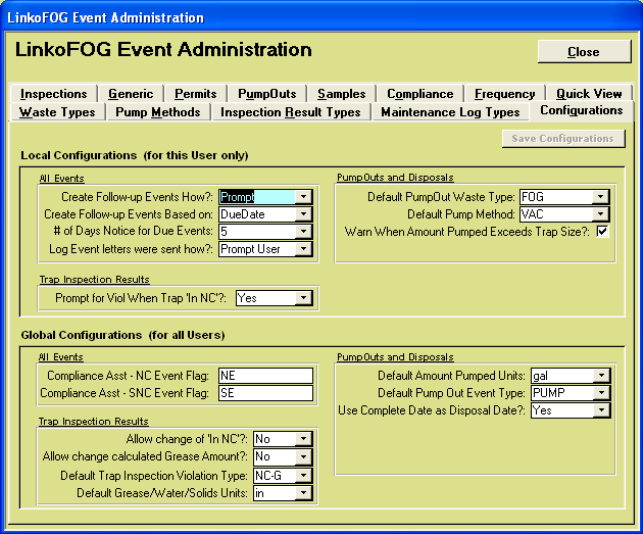
LinkoAG has a number of common features used throughout the software.

Editable/Non-editable Fields: In the example above you will notice some “White” fields and some “Gray” Fields. This is not an accident. It is an indicator of what fields are currently modifiable. All White fields are in an editable state and all gray fields are locked.
Date Fields: Double Click on any date field to open a pop up Calendar Date Selector. Date fields can include times using Military 24 hour format. Times must be entered manually in the field and cannot be entered in using the Double Click calendar.
Easy Sorting: In List View screens clicking on any column headers that are underlined will instantly sort the data on the screen either ascending or descending by that particular field.
Zoom Box: Any white or gray field that is underlined can be double-clicked to bring up an enlarged view screen or show other details regarding that field
If you are unable to access the video below, click here instead to launch it in your browser: Main Menu and Ribbon Bar
|
|
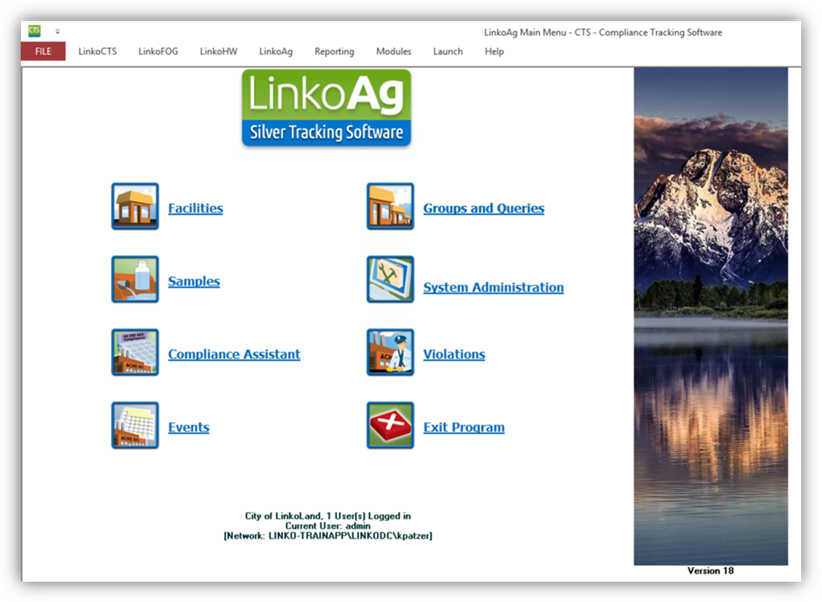
The Main Menu presents the functional sections of LinkoAG. Click on the buttons to open that section.
|
Item |
Description |
|
Opens Facility Management window. |
|
|
Pump Outs |
Opens the Pump Out Management window. |
|
Inspections |
Opens the Inspection Management window. |
|
Events |
Opens Event Management window. |
|
Compliance Assistant |
Opens Compliance Assistant window. |
|
Groups & Queries |
Opens Facility Groups window. |
|
Samples |
Opens Sample Management window. |
|
Violations |
Opens Violation Management window. |
|
System Administration |
Opens Administration Switchboard window. |
|
Exit Program |
Exits LinkoAG. |
If you are unable to access the video below, click here instead to launch it in your browser: Getting Help from Linko Support
|
|
Access the LinkoAG User guide by clicking on HELP in the Menu bar at the top. Then choose “LinkoAG Help.” That selection opens this User guide.
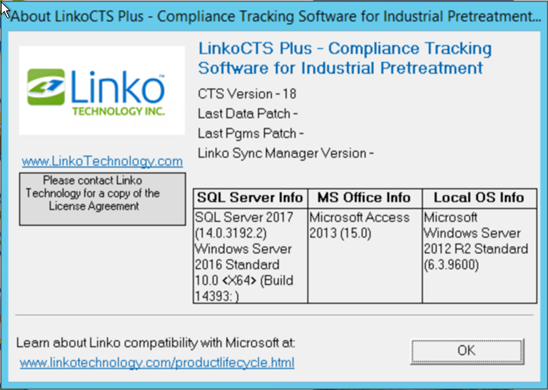
Clicking on the “About LinkoBase” in the above menu takes you to the following versioning screen, which provides information on the version information of the Linko Software, dates of updates, and Server and workstation information.
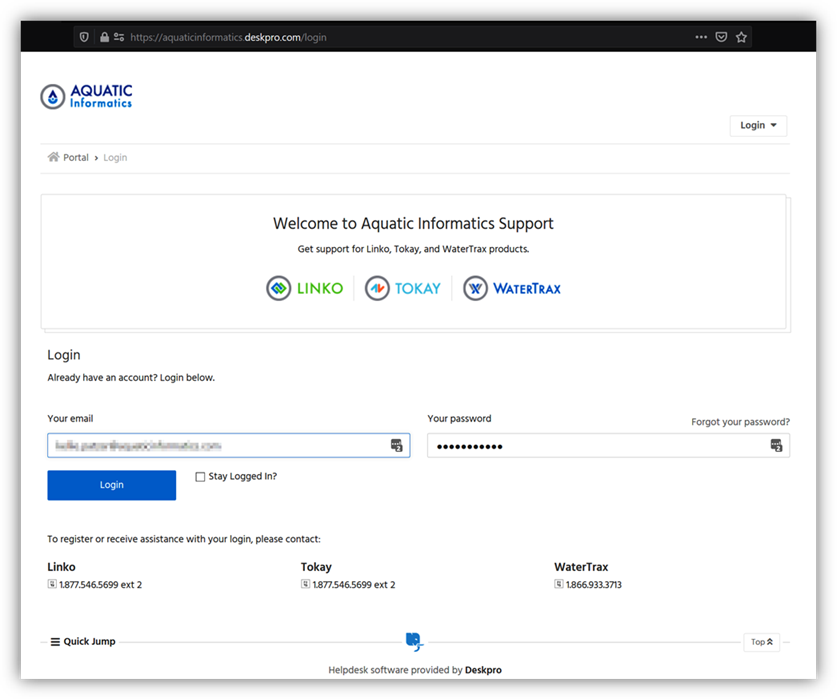
You can access the Online User Guide by choosing “Linko on the Web” and then choosing “Online Support.” That will take you to the Linko Customer Support Portal login page. If you do not know your Customer Support Portal login, please contact Linko Support.
After logging into the Customer Support Portal, search for “User Guides.”
The Menu bar has a few more options than the Main Menu, and gives you the ability to go from one section of the program to another without returning to the Main Menu. Some screens are only accessible via the Menu Bar.
Using the Menu Bar: As
you select one of the items on the Menu Bar, a list of options will
appear. Selecting from the list of
options will open the new screen you have chosen.

|
Item |
Description |
|
File |
Opens Main Menu and Exits the program |
|
Facilities |
Opens selections for Adding a Facility, going to Facility Management, Facility List View and Facility Table View. |
|
Samples |
Add a New Sample, View Samples and Sample Groups |
|
Results |
View Result Groups or View Samples |
|
Violations |
Create New Violation or View Violations |
|
Inspections |
Create a New Inspection Event or go to the Inspections Management Screen. |
|
Events |
Add a New Event, View Events, Calendar View and Auto Scheduler. |
|
Compliance |
Review Event Compliance |
|
Reports |
View Screen Specific Reports and Edit System Reports in the Flexible Reporter |
|
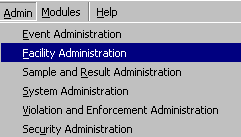
Admin |
Event Administration, Sample and Result Administration, System Administration, Facility Administration and Violation and Enforcement Administration |
|
Modules |
This option lists the modules that you have available, and buttons to go to them. |
|
Help |
Opens a help document. |
If you are unable to access the video below, click here instead to launch it in your browser: List View vs Single Record View
|
|
Linko screens start with a “list view” or general view of the information you are viewing. From most “list view” screens you can access a button to display a more “detailed view” of the information you are currently viewing. This is what we will refer to in our software as “List View” and “Details View”.
Details Button Opens Details
Screen.




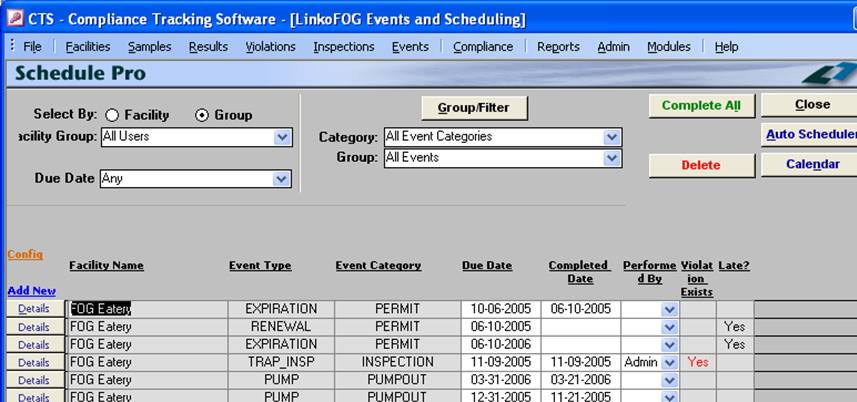

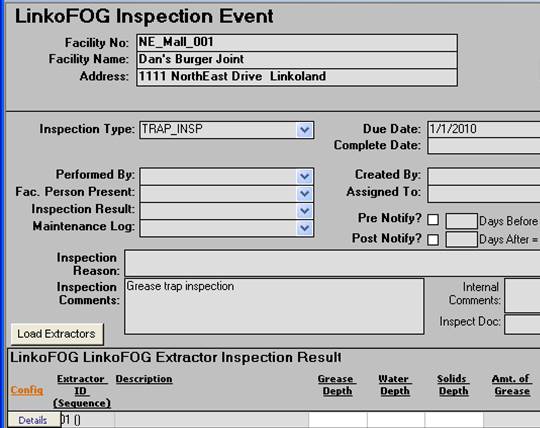
Add a new record by clicking on the Add New button. Editing records and more detailed viewing are done by clicking on the Details button.
Most “list view” screens can be customized by clicking on the Config hyperlink (seen above the Details Buttons and the Add New link). Data entry and modification can be done directly on the Pump Outs, Samples, Results, Facility List view, and Events Management List View screens.
Throughout the software, whenever you have a drop down list to select a Facility, you will also see the address of the Facility. This makes it easier to distinguish Facilities with the same name.
After adding Facility information you will be able to use the Facility Name or Facility Number drop down lists at the top of most screens to change the Facility information that you are viewing.
Samples, Inspections, Pump Outs, Events and Violations List View screens, as well as Compliance have a <custom> Date Range selector.
|
|
|




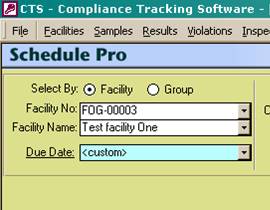
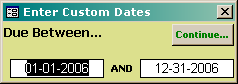
This Custom Date Range is a local configuration specific to each user or machine. Which means you can select a different custom date range than other users of the software. This date range will be available for you to use on each screen until you change it.
To change the custom date range, select <custom> from the View Date drop-down list. While <custom> is displayed, double-click on the word <custom>. That opens the “Enter Custom Dates” range selector you see above. Enter your date range and then click Continue to have the dates applied to the screen you are viewing.
Config Link, Linko Configure Screen, and Prompt for Defaults
If you are unable to access the video below, click here instead to launch it in your browser: Config Link
|
|
|
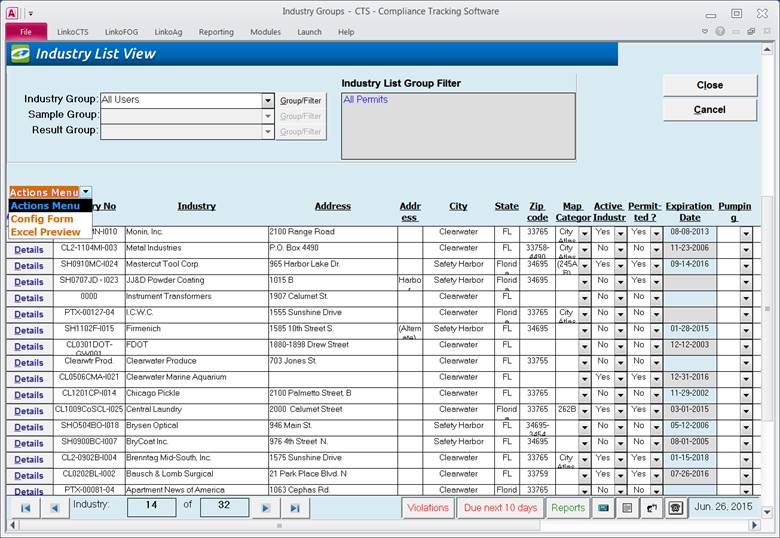
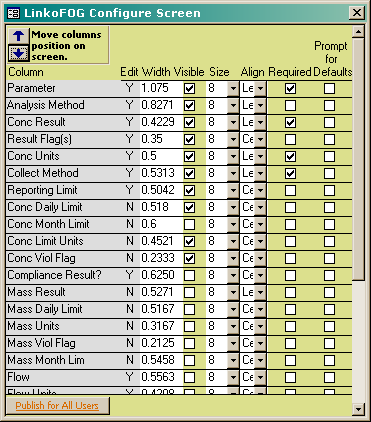
Most list view screens have a small orange Action Menu which contains the Config Link hyperlink that opens the “Configure Screen” for that list view screen. The Configure Screen gives you several options depending on the screen you are configuring. You can:
- Change the Width of the fields being displayed
- Check whether or not a field should be Visible on the screen
- Change the font Size of the field
- Change how the text is Aligned (Center, Left, or Right) within the field
- Indicate whether the field Requires data be entered into it (not available on all screens)
- Change the order in which fields are displayed on the screen using the “Move Columns Position on Screen” arrows
- Indicate whether you should be Prompted for Defaults (see below)
The “Prompt for Defaults” configuration applies specifically
to the Results Management List View
screen. This column allows the user to
select which fields will have the data repeated for each Parameter Result in a
sample. For example, if you checked
“Collect Method” and “Conc Units” for Prompt for Defaults, when you create a
new sample and then go to enter concentration results for that sample, you will
be prompted to enter the “Collect Method” and “Conc Units” that apply to each
parameter being sampled. The value you
enter for these will be applied to each parameter with a concentration result
of ‘NA’ (meaning Not Analyzed – I.e. you haven’t entered a Result yet). This limits the amount of data entry
required. Each user can configure
whether they are presented with the Enter Default Results screen by changing “Prompt for ‘NA’ Result Defaults on New
Samples?” in the Sample and
Results Admin section.
The Publish for All Users button on the Configure Screen can be used to force a specific screen configuration onto all users. This is useful for ensuring all users of the software are working with the same data fields and are entering data into the same required fields. If a screen configuration is “Published” then each time a user opens the Linko software, that form configuration is pulled onto that users system. Any changes that the user may have made in their last session (on that screen configuration) will be over-written. You can control this functionality in System Administration.
Quickly find, sort and group the information you want in most List View screens by using the Quick Filter. A Right-click on a displayed field opens the Quick Filter menu. Quick filter searches only the Fields selected to be Visible in the Configure Screen for that list view.
|
|
|
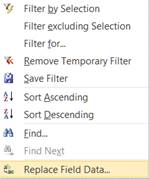
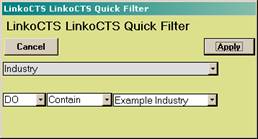
In List View screens clicking on any column headers that are underlined will instantly sort the data on the screen either ascending or descending by that particular field. You also can go through the steps of using the Group Filter at the top of the List View.
Quick Filter is available on the following screens: Facility List View, Event Management List View, Inspection List View, Pump Out List View, Facility Groups, Sample Groups, Result Groups and the Chain of Custody List View screens.
If you apply a Temporary Filter with the Quick Filter, Linko will show the Filter results, and a small control button will appear next to the “Group Filter” button.


This “Remove Temporary Filter” button allows the user to return to the previous non-filtered list view when clicked
Record Selectors can be seen on many of the list view
screens as well as the details view screens.
The selectors help you to navigate from one record to the next and also
display the total number of records. Simply click on any of the arrows to
switch from record to record.

|
Item |
Description |
|
|<
|
Move to the first Item in collection of Items. |
|
<
|
Move to the previous Item in collection of Items. |
|
(Item number) |
Number of this Item among all Items. |
|
(Total # of Items) |
Total count of all Items. |
|
> |
Move to the next Item in collection of Items. |
|
>|
|
Move to the last Item in collection of Items. |
The items available within the Status Bar change depending on which screen you are on and what features are available.
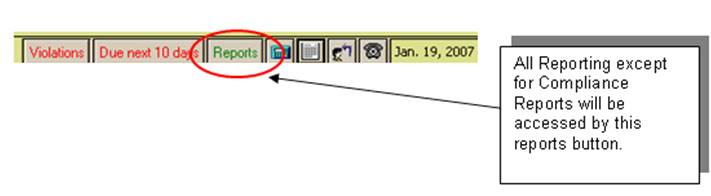
|
Item |
Description |
|
Violations |
This Button displays only when there are Violations without Enforcements and Opens the Violation List View to see them. |
|
Due
Next # Days |
Opens Event List View displaying only Events that are past due or due to be completed in the number of days showing. Quickly see what is past due or due. The # of days can be configured in Event Admin à Configurations à Local Configurations à All Events à “Number of Days’ Notice for Due Events”. This Button only displays when there are Events due or past due. Note: This Button always opens
the Event
Management List screen. If you are in Pump
Out Management or in Inspection Management, you will leave those screens and
go to Event Management to see all types of events. |
|
Reports |
Opens Reports window displaying Reports valid for displayed data. For example, clicking this button while displaying a Violation will open up Reports window offering ‘Violation Summary’, ‘Violations with Related Items’, etc. While displaying a Sample, the Reports window would open offering ‘Samples by Quarter’. |
|
Calculator
|
Opens a calculator. |
|
Calendar |
Opens window displaying a calendar. You can also access this calendar by double clicking on any of the date fields. |
|
Contacts |
Opens Contact Information window so you can rapidly find a person you need to call. |
|
Phone
Log |
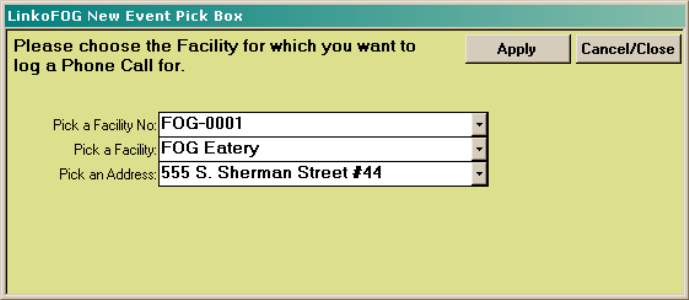
Opens Choose a Facility window so that you can choose one and place an event for that Facility in your Phone Log. Then opens a General Event Details window for that Facility with a default event type of ‘PHONE’. You can then track your Phone Calls as Events in Event Management. |


|
Item |
Description |
|
Apply |
Apply your choice of Industry. |
|
Cancel/Close |
Cancels your choice, closes window without opening an Event Details or Phone call screen. |
|
Pick a Facility No |
Combo box offering a list of Facilities by Facility #. |
|
Pick a Facility |
Combo box offering a list of Facilities by Name. |
|
Pick an Address |
Combo box offering a list of Facilities by their street address, in the event of different AG Facilities named the same. For Example, with the Street address, you can find the Burger King on Kipling instead of the one on Wadsworth. |
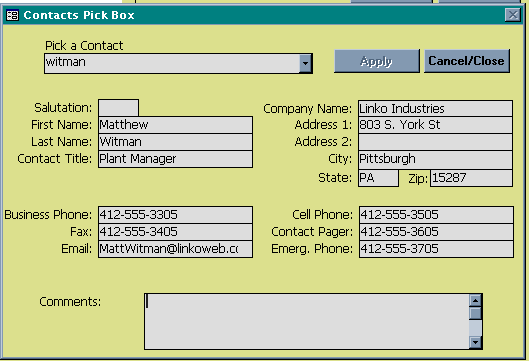
Get the details of any Contact from the Standard Status Bar.
|
Item |
Description |
|
Pick a Contact |
Combo box allowing user to select a Contact for display. Sorted by last name |
|
Apply |
Will automatically fill in the Contact information on the Contact form if the user is creating a new contact and has clicked on the Pick Contact Button. If the user has selected the Contact status bar option, this button is disabled |
|
Cancel/Close |
Cancels and closes the screen without changing the Contact information |
|
Salutation |
Salutation for this Contact, for example ‘Dr.’ or ‘Mr.’ |
|
First Name |
First Name of this Contact |
|
Last Name |
Last Name of this Contact |
|
Contact Title |
Title for this Contact, for example ‘Director of Operations’ |
|
Company Name |
Name of Contact’s Company |
|
Address 1 |
First address line for this Contact |
|
Address 2 |
Second address line for this Contact |
|
City |
City for this Contact |
|
State |
State for this Contact |
|
Zip Code |
Zip Code for this Contact |
|
Business Phone |
Business phone number for this Contact |
|
Fax |
Fax phone number for this Contact |
|
Email |
Email address for this Contact |
|
Cell Phone |
Cell phone number for this Contact |
|
Contact Pager |
Pager number for this Contact |
|
Emergency Phone |
Emergency phone number for this Contact |
|
Comments |
Comments about this Contact |
Customize how the software works by setting numerous configurations. Local Settings affect only a single user, while Global settings affect all users. These configuration settings appear throughout the System Administration screens and affect different parts of the software. Below is an example of configurations related to Pump Outs, Inspections and other Events. Configurations Tabs are available for System Admin, Facilities Admin, Samples and Results Admin, and Violations and Enforcements Admin.
See Flexible Forms under System Admin to set up Global / Local Configurations.