|
Item |
Description |
|
Permitted |
Does this Facility require a permit? Yes or No. |
|
Facility Alias |
Alternative Name for the Facility
for use in secure labeling of Facilities. |
|
Receiving Plant |
Do you monitor more than one WWTP? Then identify the Receiving Plant for each Facility |
|
Meter Number |
Meter number for this Facility |
|
Worldstone |
Track which
Facilities use Worldstone/Joslin measuring devices. |
|
Billing Rate |
Identify the type of billing for the Facility. |
|
Account |
Sewer Account number for this Facility |
|
Sewer # |
Additional sewer line information for grouping Facilities. |
|
Compliance Status |
A Compliance Status can be assigned to a Facility based upon their status in a Violation and Enforcements proceedings. This field is managed in Facility Administration. |
|
Pumper |
Assign the waste hauler typically pumping this Facility’s extractors. |
|
Hours |
Hours of operation for this Facility. Tracking this information will help you to get a feel for what their production hours are and how often to monitor them |
|
Square Feet |
Square feet at this Facility’s location |
|
Number of Employees |
Number of employees for this Facility |
|
Seating Capacity |
Assign restaurant capacity based upon customer seating. |
|
# of Meals Served |
Assign restaurant capacity based upon the meals served. |
|
Monthly Fee |
The Permit fee amount billed to the user, if any. |
|
Annual Fee |
The Permit fee amount billed to the user, if any. |
|
Item |
Description |
|
Site ID |
Assign the site / location this facility associated with. |
|
GIS ID |
|
|
East/West |
East/West (X) grid coordinates |
|
North/South |
North/South (Y) grid coordinates |
|
Site Elevation |
This location’s elevation |
|
Invoice Date |
The date of the permit’s next invoice. This value is taken from a Permit Invoice Event associated with this Permit and cannot be edited here. See Event Manager. |
|
Next Renewal |
The next time that the permit is due to be renewed. This value is taken from a Permit Renewal Event associated with this Permit and cannot be edited here. See Event Manager. |
|
Last Renewal |
The last time that the permit was renewed. This value is taken from a Permit Renewal Event associated with this Permit and cannot be edited here. See Event Manager. |
|
In Business Since |
The date the Facility opened. This value may be used in grandfather clauses |
|
Close Date |
Track Facilities that have been closed. |
|
Application Date |
Track the Permit Application Date for the Facility |
|
Effective Date |
The date the permit becomes effective, used as the default date effective for monitoring point limits |
|
Expiration Date |
The date the permit expires. This value is taken from a Permit Expiration Event associated with this Permit and cannot be edited here. See Event Manager. |
|
Authority Sampling Freq |
The frequency with which the Authority should sample. Can be used in the Auto Scheduler to generate events |
|
Facility Reporting Freq |
The frequency with which the Industrial User should file a compliance report with the Authority. Can be used in the Auto Scheduler to generate events |
|
Inspection Freq |
The frequency with which the Authority should inspect the Facility. Can be used in the Auto Scheduler to generate events |
|
Grease Compliance Limits |
Determine
Trap Inspection compliance by comparing trap measurements for grease, solids
and/or Grease Amounts (percent grease) to Compliance Limits. LinkoAG will calculate the amount of grease
in a trap using the formula you select. |
|
Add New |
Opens
the Extractor Details Screen. When a new Extractor is
created, a Monitoring Point will be automatically created. Whether or not the
Monitoring Point is automatically created is a setting available at Facility
Administration à Configurations Tab à Global Configurations à “Auto-Create Monitoring
Points for Traps.” It can be set to Yes or No. |
|
Add New (bottom frame) |
Add
/ view / modify food equipment for that facility via the Equipment Details Screen. Food Equipment information is available on
Facility Reports. |
|
Compliance Limits Set Limit in Effect Set as default |
Depth
of solids and grease and a formula relating them to the total volume of the
Extractor can be configured for calculating Non Compliance, and then Set as
the Default limits for all newly created extractors. The
limits that can be set are: Depth of Grease, Depth of Solids, Amount of
Grease, and a Custom or Calculated Amount of Grease (percent grease). A
Compliance limit must be checked as “In Effect” for it to be used in
determining non-compliance. A trap can have a limit but if the limit is not
checked as “In Effect”, then it will not be used in tracking compliance. Compliance
Limits will be assigned to a new Extractor if “Default” units had previously
been created by using the Set As Default button in the Extractors Detail. |
|
Item |
Description |
|
Opens Extractor Details screen allowing you to create an Extractor. The bottom Frame Add New opens the Equipment Details Screen allowing you to create or edit Equipment installed at that Facility. |
|
|
Details |
Opens Extractor Details screen displaying selected the Extractor for edit / modification or in the bottom frame opens the Equipment Details. |
|
Equipment
Details Items |
|
|
Equipment Type |
Choose
the Equipment Type that is installed. This list is managed in Facility
Administration. |
|
Equipment Quantity |
How
many of the devices are installed. |
|
AG Factor |
Rate
the impact of the Device in terms of effect on the WWTP. |
|
Plumbed to Grease
Interceptor |
Yes
/ No on whether or not it flows into the Grease Interceptor. |
|
Comments |
Type
in your comments. |
|
Other Field Names and Config |
The List View Configure
Link Allows you to select which fields are displayed, their order and
settings. The Extractors Tab has a variety of Fields that can be used to
provide the information you wish. |
|
Extractor ID |
This is a unique identifier for an Extractor at a particular Facility. The same ID number can be used with another Facility but will refer to that Facility’s list of extractors. For example, each facility may have an Extractor “001” but Linko sees the Extractors as “Facility xyz Extractor 001”. Extractor ID’s are automatically assigned when a new Extractor is created to “001” and incremented as needed. |
|
Extractor Type |
Users can define different types of Extractors in the Facilities Administration section under the Extractors tab. Then assign the appropriate Extractor type to this Trap. |
|
Extractor Description |
Allows the user to identify an extractor by its location, size, proximity, and so forth. |
|
Trap Size |
The size/volume of the Extractor/Trap. This value must be numeric, decimals are okay. This Trap Size value is used in Pump Out Events to check the amount that is Pumped. If the Amount Pumped exceeds the Trap Size a warning is displayed. |
|
Size Units |
Units for Measuring the Extractor / Trap SIZE. This unit type is automatically added when creating a new Extractor. The value is set in Event Administration, under the Configurations tab, the Global Configurations, Pump Outs and Disposal section, ”Default Amount Pumped Units”. Typically will be GAL but other settings may be used. The “Default Amount Pumped Units” also determines the units for Amount Pumped in Pump Out Events. |
|
Depth |
Enter
the depth of the Extractor / Trap. This value must be numerical and decimals
are okay. |
|
Depth Units |
Units
for Measuring TRAP DEPTH. This is a User configurable setting in Event Administration, under the Configurations tab, the Global
Configurations, the Trap Inspection Results section, “Default Grease / Water
/ Solids units”. Typically will be IN (inches) but other settings may be
used. This setting is also used in Trap_Insp. Details for the units that the
Inspector enters for the Grease, Water, and Solids values. |
|
Grease Limits |
The calculated amount of Grease as compared to the total volume of the extractor, based upon the calculations as configured in the Extractor Details under Facilities Management. |
|
Cleaning Frequency |
Assigned Automatically if a value has been entered in the Pumping Frequency field in the Facility information on the Facility Management screen. Other values can be selected from the pull-down. Pull-down values are added in the Event Administration, Frequency tab. |
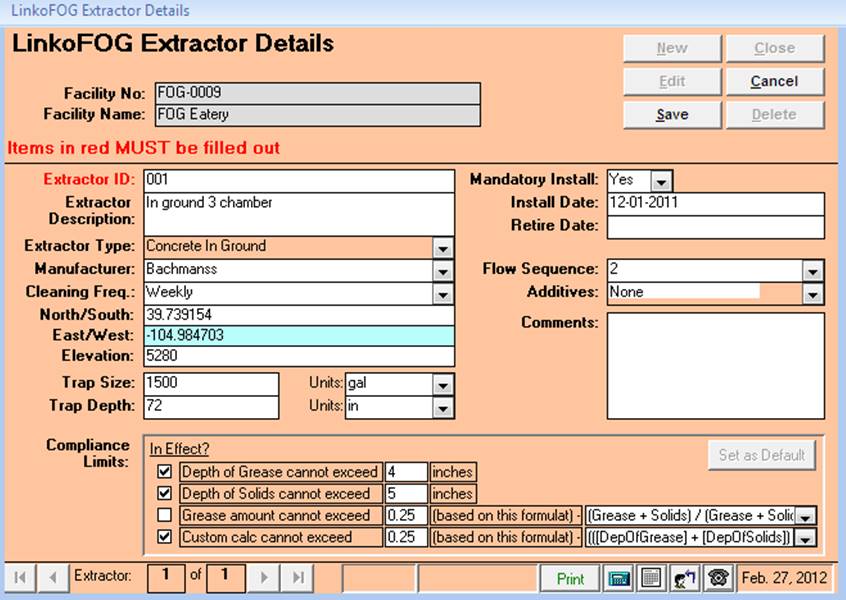
|
Item |
Description |
|
Facility No |
Facility No of Facility whose Extractor is displayed below |
|
Facility Name |
Name of Facility whose Extractor is displayed below |
|
New |
Clears values and allows you to create a new Extractor. While editing, the New, Edit, Close, and Record Selector buttons will be disabled |
|
Edit |
Allows you to edit the displayed Extractor. While editing, the New, Edit, Close, and Record Selector buttons will be disabled |
|
Save |
Saves the changes made to the Extractor |
|
Close |
Closes the screen |
|
Cancel |
Cancels any changes made to the Extractor |
|
Delete |
Deletes the Extractor |
|
Set
as Default |
Not active during EDIT, this allows the Compliance Limits to be set as the default for any new Extractor. |
|
Extractor ID |
This
is a unique identifier for an Extractor at a particular Facility. The same ID
number can be used with another Facility but will refer to that Facility’s
list of extractors. For example, each facility may have an Extractor “001”
but Linko sees the Extractors as “Facility xyz Extractor 001”. Extractor ID’s
are automatically assigned when a new Extractor is created to “001” and
incremented as needed. |
|
Extractor Description |
Allows
the user to identify an extractor by its location, size, proximity, and so
forth. |
|
Extractor Type |
Users
can define different types of Extractors in the Facilities
Administration section under the Extractors tab. Then assign the appropriate
Extractor type to this Trap. |
|
Manufacturer |
Allows
the user to enter in Manufacturers and they will be listed again in the
pull-down as needed. |
|
Cleaning Frequency |
This
value is automatically filled in when a Pumping Frequency has been established on
the Facility
Management screen. Other
values can be selected from the pull-down. Frequency pull-down values are
added in the Event Administration, Frequency tab. |
|
North / South |
GPS
coordinates for North / South |
|
East / West |
GPS
Coordinates for E / W |
|
Elevation |
Location
elevation. |
|
Trap Size |
Enter
the size of the Extractor / Trap. This
value must be numeric, decimals are okay. This Trap Size value is used in Pump Out Events to check the amount that is Pumped. If the Amount Pumped exceeds the
Trap Size you will receive a warning from Linko. |
|
Units |
Units
for Measuring the Extractor / Trap SIZE.
This unit type is automatically added when creating a new Extractor. See
“Default Amount Pumped Units” for configuration
information. |
|
Trap Depth |
Enter
the depth of the Extractor / Trap. This value must be numerical and decimals
are okay. |
|
Units |
Units
for Measuring TRAP DEPTH. This is a User configurable setting in Event Administration, under the Configurations tab, the Global
Configurations, the Trap Inspection Results section, “Default Grease / Water
/ Solids units”. Typically will be IN (inches) but other settings may be
used. This setting is also used in Trap_Insp Details for the units that the
Inspector enters for the Grease, Water, and Solids values. |
|
Mandatory Install |
This
is a Yes / No selection. |
|
Install Date |
Date
of Installation. |
|
Retire Date |
You
can enter a date that an extractor was taken out of service. If a retire date
has been entered, the extractor will not be added to the list of extractors when
you create a Trap_Insp. event and use the Load Extractors button. |
|
Flow Sequence |
Identifies
what compartment in a multi-compartment trap this Extractor is. This can help
identify how the water flows through different compartments in the trap
before it enters the sewer. |
|
Additives |
Allows
the user to enter Additives that may be used in the Extractor, and they will
be listed again in the pull-down as needed. |
|
Comments |
Any
additional information needed. |
|
Compliance Limits |
Depth
of solids and grease and a formula relating them to the total volume of the
Extractor can be configured for calculating Violations, and then Set as
Default limits for all newly created extractors. The
limits that can be set are: Depth of Grease, Depth of Solids, Amount of
Grease (percent grease), and a Custom or Calculated Amount of Grease. A
Compliance limit must be checked as “In Effect” for it to be used in determining
non-compliance. A trap can have a limit but if it is not checked, than it
will not be used in tracking compliance. A user can choose which, if any, of
the 4 limits are being used for compliance in the Extractors Detail. Compliance
Limits will be assigned to a new Extractor if “Default” units had previously
been created by using the Set As Default button in the Extractors Detail. |
|
Depth of Grease cannot exceed __ inches. |
The
limit in inches of Grease for this Extractor. |
|
Depth of Solids cannot exceed __ inches. |
The
limit in inches of Solids for this Extractor. |
|
Grease amount cannot exceed |
The
user may select one of two formulae to calculate the Grease Amount limit.
{(Grease + Solids) / (Grease + Solids + Liquids)} or {(Grease + Solids) /
Depth of Trap} |
|
Custom Calc. cannot exceed |
The
user may also create a custom formula for calculating the Grease Amount
Limit. Access the Extractor Limit Formula
Builder by
clicking on the pull-down and choose “Create a New Formula”. Custom
Amount represents any custom formula a POTW can define for a specific trap. |
|
Record
Selectors |
Standard
Record Selectors allowing you to move between displayed Extractors. |
|
Status
Bar |
Standard
Status Bar allowing you to Print the information for the
Extractor, or jump to a Calendar, a Calculator, Contact Information, or a new
Phone Log Event. |
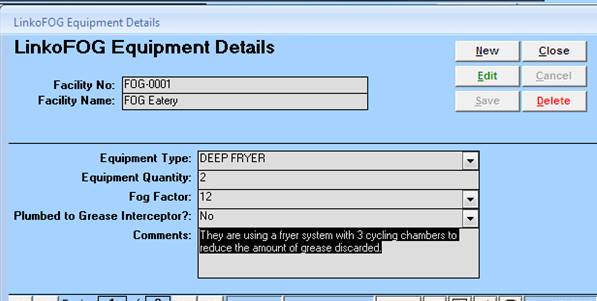
LinkoAG lists the equipment installed for a Facility under the Extractors & Equipment tab.
|
Equipment Type |
Choose
the Equipment Type that is installed. This list is managed in Facility
Administration. |
|
Equipment Quantity |
How
many of the devices are installed. |
|
AG Factor |
Rate
the impact of the Device in terms of effect on the WWTP. |
|
Plumbed to Grease
Interceptor |
Yes
/ No on whether or not it flows into the Grease Interceptor. |
|
Comments |
Type
in your comments. |
If neither of the 2 pre-built formulas meets your Authority’s exact needs, use the Extractor Limit Formula Builder to create a Grease Amount Limit formula that does.
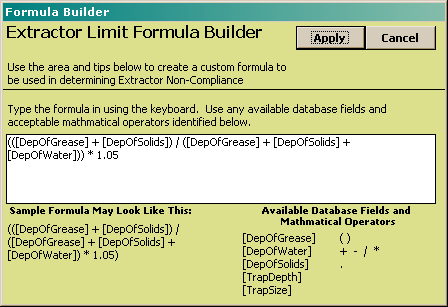
Configure the Grease Limit formula in the Extractor Detail screen for that Extractor for that Industry using the Extractor Limit Formula Builder. The formula is used in a Trap Inspection event to calculate compliance for the Extractor depending upon the field results observed by the Inspector.
The formula must follow the format shown. The brackets are necessary. You can use the Available Database fields and the Math Operators.
[DepOfGrease], [DepOfWater], and [DepOfSolids], are entered by the Inspector into the Inspection Event.
[TrapDepth] and [TrapSize] come from the Extractor Details information.
|
Manage
Facility Contacts. A partial Contact is automatically created when you create
a new Facility. You should then
complete the contact as contact information is used on several letters. This
is user configurable at Facility Admin à Configurations à Local Configurations à “Auto-Create a New Contact
when Creating a New Facility.” Quickly
look up any Facility Contact from the Status Bar Contacts button: |
|
|
Add New |
Use
the <<Add New>> Link to create a new Contact. The facility name and address are
automatically loaded from the Facility Management screen for that Facility. |
|
Details |
Click
on the <<Details>> button to open the Facility Contacts Details
Screen to modify, delete or simply view the Contact. To
make any changes, first click on the <Edit> Button. When the changes
are complete, click on the save button. |
|
Item |
Description |
|
Add New |
Opens Facility Contacts screen allowing you to create a new Contact |
|
Details |
Opens Facility Contacts screen displaying selected Contact |
|
(Salutation) |
|
|
First Name |
First name of this contact |
|
Last Name |
Last name of this contact |
|
Title |
Title for this contact, for example ‘Director of Operations’ or ‘President’ |
|
Phone |
Phone number of this contact |
|
Contact Type |
Type of contact for this Facility, for example Legal or Mailing |
|
Email |
Email address for this contact |

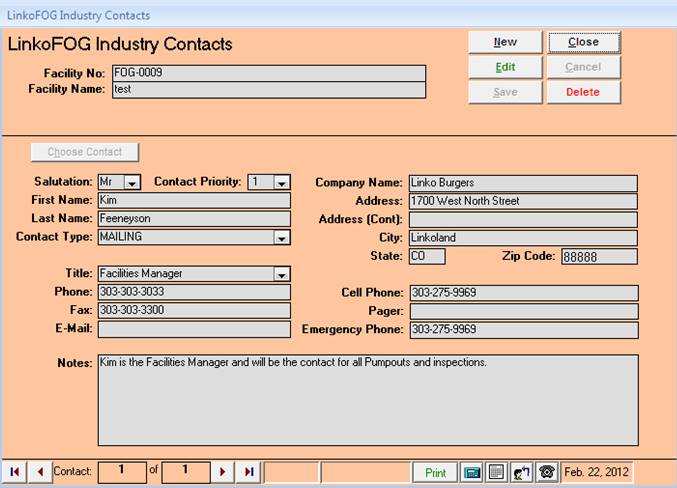
|
Item |
Description |
|
Facility No |
Facility No of Facility whose contacts are being displayed below |
|
Facility |
Name of Facility whose contacts are being displayed below |
|
New |
Clears values and allows you to create a new Contact. While editing, the New, Edit, Close, and Record Selector buttons will be disabled |
|
Edit |
Allows you to edit the displayed Contact. While editing, the New, Edit, Close, and Record Selector buttons will be disabled |
|
Save |
Saves the changes made to the Contact |
|
Close |
Closes the screen |
|
Cancel |
Cancels any changes made to the Contact |
|
Delete |
Deletes the Contact |
|
Choose
Contact |
Allows you to choose an existing contact for association with this Facility/Permit |
|
Salutation |
Salutation for this Contact, for example ‘Dr.’ or ‘Mr.’ |
|
Contact Priority |
Priority for this Contact. Keep in mind that there has to be at least one contact with a priority of 1 |
|
First Name |
First Name of this Contact |
|
Last Name |
Last Name of this Contact |
|
Contact Type |
Type of contact for this Facility, for example Shipping, Legal, Mailing Contact, etc. |
|
Company Name |
Name of Contact’s Company. (Most likely the name of the Facility) |
|
Address 1 |
First address line for this Contact |
|
Address 2 |
Second address line for this Contact |
|
City |
City for this Contact |
|
State |
State for this Contact |
|
Zip Code |
Zip Code for this Contact |
|
Title |
Title for this Contact, for example ‘Director of Operations’ |
|
Phone |
Business phone number for this Contact |
|
Fax |
Fax phone number for this Contact |
|
E-Mail |
Email address for this Contact |
|
Cell Phone |
Cell phone number for this Contact |
|
Pager |
Pager number for this Contact |
|
Emergency Phone |
Emergency phone number for this Contact |
|
Notes |
Comments about this Contact |
|
Record
Selectors |
Standard Record Selectors allowing you to move between the Contacts for this Facility. |
|
Status
Bar |
Reduced Status Bar allowing you to view a Calendar, a Calculator, Contact Information, or create a new Phone Log Event |
|
Pump Out Type |
This
pull-down allows you to choose which type of Pump Out Events will be
displayed while you are in Facilities Management. The setting will be
retained as you move from one Facility to another. |
|
Add New / Adding events |
Opens
the Event Pick Box and then takes you to the Pump Out Events Screen, To create a new Pump Out event, select a
Facility from the <Facility No> or <Facility Name>list box then
click the <Add New> button under the Pump Events tab. Complete all the
fields, and then click <Save>. |
|
Config |
Use
the Configuration Screen hyperlink to modify the fields that are displayed
for the Pump Out under the Pump Out Events tab. |
|
Details |
Opens
the Pump Out Details button for viewing or changes. |
|
Item |
Description |
|
Pump Out Type |
Combo box offering a choice of different Pump Out Types to be displayed in the list below. This selection remains as you move from one Facility to another. |
|
Add New |
Opens New Event Pick Box window for this Facility and allows you to choose the type of Event you want to create. Once you choose an Event Type, an Edit Event window opens for the PUMPOUT. |
|
Details |
Opens the Pump Out and Disposal Details screen. Disposal Information was added to the Pump Out events so that Pump Out and Disposal can be tracked together as part of 1 database record. |
|
Other Field Names and Config |
The List View Configure
Link allows you to select which fields are displayed, their order and
settings. The Pump Event Tab has a variety of Fields that can be used
including Extractor info and Hauler Info. |
|
Event Type |
Typically will be an event of type PUMP but other Pump Out types can be added in Event Admin. |
|
Hauler |
This information is pulled from the Facilities Management Account Info tab for the Facility. The Inspector may also choose a different Hauler than the one that is listed in the Facility info. |
|
Amount Pumped |
How
much the Hauler pumped. This must be a
numeric value. |
|
Units |
Units
for how much was pumped. The units’ value defaults to the “Default Amount
Pumped Units” selected in the “Pump Out and Disposals” Global Configuration
section of the Configurations tab of Event Admin. |
|
Completed Date |
The
actual date that the Pump Out event was completed |
|
Disposal Date |
When
the Hauler disposed of the pumped materials. |
|
Manifest # |
When
the POTW uses a Manifest to track a Pump Out by a Facility, you can show that
Number here. |
|
Inspection Type 2 Inspection Screens |
This
pull-down allows you to choose which type of Inspection Events will be
displayed while you are in Facilities Management. Each
Inspection Type you see in the list will be associated with a specific
Inspection Details screen. One screen
allows you to track simple inspection details such as the outcome of an
inspection, like Pass/Fail. The other
screen will allow you to track trap measurements like depth of grease, water
and solids as well as percent grease. You
can control which screen is associated with which Inspection Type by going to
Event Administration à Inspections tab then the Event Type Details screen. |
|
Add New / Adding events |
To
add an Inspection event to track, select a Facility from the <Facility
No.> or <Facility Name> list box to choose the Facility. Next,
click the <Add New> button under the Inspect Event tab. This opens the Event Pick Box where you select an Event Category of “Inspection” and an Inspection
Event type of your choice. Next
you enter the Inspection Details Screen, complete all the fields,
and click <Save>. Adding
a New Trap_Insp. type of Inspection Event and saving it will automatically
load the list of Extractors not retired for the Facility. |
|
Violation / In NC |
The
IN NC Flag on a Trap Inspection is set to YES if any of the 4 limits have
been exceeded AND they have been marked “In Effect” for verifying compliance. Linko
will prompt the user to create a Violation if there is one limit in effect
that has been exceeded. If multiple limits are exceeded, they are combined
into 1 violation; the user will only be prompted once. No check for Violation
will occur until info is entered into each of the Depth of Grease, Solids,
and Water / Amount of Grease fields. If
a Violation has been created for a Trap Inspection, the “Violation?” field
will display a Red YES. Double-clicking the
Red Yes will take you to the Violation Management screen. |
|
Config |
Use
the Configuration Screen hyperlink to modify the fields that are displayed
for the Inspection under the Inspect Events tab. |
|
Details |
Opens
the Inspection Details button for viewing or changes. |
|
Item |
Description |
|
Inspection Type |
Combo box offering a choice of Inspection Types, or All, to be displayed in the list below. This selection remains as you move from one Facility to another. |
|
Add New |
Opens New Event Pick Box window for this Facility and allows you to choose the type of Event you want to create. Once you choose an Event Type, an Edit Event window opens for the appropriate Inspection Type event. |
|
Details |
Opens the appropriate Inspections Details screen, could be a TRAP_INSP or one of the General types |
|
Other Field Names and Config |
The List View Configure
Link allows you to select which fields are displayed, their order and
settings. The Inspect Event Tab has a variety of fields that describe the
Inspection and the Facility. |
|
Event Type |
The
type of Inspection event. A new Inspection Event type may be added to the
drop down list via the Event Administration, Inspections tab. |
|
Due Date |
The
date that this event is due to be completed.
This date is filtered on by the Quick View Due Date function |
|
Completed Date |
The
actual date that the inspection was completed |
|
Overall Inspect
Result |
This
field shows the result of the Inspection as entered by the Inspector. |
|
Maintenance log |
Shows
the status of the Maintenance log as kept by Facility representatives and
entered by the Inspector. |
|
Description |
Comments
from the Inspector about the Inspection. (8000 character max) |
|
Violation Exists |
This
will show a red YES if a Violation has been
assigned to the Inspection. |
|
Adding New Events |
Clicking
on the <Add New> link opens the Event Pick Box. First Choose an Event
Category and Type and click Ok. This
opens the Events Details screen for that Event Type and Category. Fill in all
of the information you can for the event item and save it. After you have added and saved the
information, it will appear in the list view under the Other Events Tab. |
|
View |
Using
the Event Category drop down box, choose the criteria to filter by. If you would like to see all of the events
for the Facility regardless of type, select ALL. |
|
Details |
Click
on the <<Details>> button to open the Event Details Screen to
modify, delete or simply view the Event. |
|
Item |
Description |
|
Event Category |
Combo box offering a choice of Event Categories, or All, to be displayed in the list below. This selection remains as you move from one Facility to another. |
|
Add New |
Opens New Event Pick Box window for this Facility and allows you to choose the type of Event you want to create. Once you choose an Event Category and Event Type, an Edit Event window opens for the appropriate Event Category. Event Category options are Generic Event, Inspection Event, Permit Event, and Sample Event |
|
Details |
Opens appropriate Edit Event window for selected Event: Generic Event, Inspection Event, Permit Event, Sample Event, and Violation |
|
Category |
The Event Category for this event |
|
Event Type |
Type of Event. This is user editable in system admin. |
|
Description |
Description of this event. If you double click on this field a pop-up window will open allowing you to view the full text. Any edits you make in this pop-up window will NOT be saved |
|
Due Date |
The date this Event is due to be completed |
|
Completed Date |
The date that this Event was completed |
|
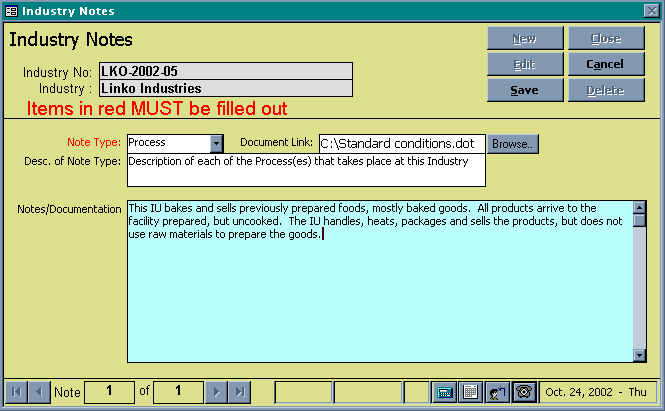
Clicking the <Add New> link opens Facility Notes
screen. Choose a Notes Type and fill in the description. Use the Document Link to store links to
Documents, Images or any other type of electronic file that you use to track
Facility information. Add new note Types and
modify existing types in Facility Administration Section. |
|
|
Details |
Click on the
<<Details>> button to open the Notes Details Screen to modify,
delete or simply view the Note. |
|
Item |
Description |
|
Add New |
Opens Facility Notes screen allowing you to create a new Note |
|
Details |
Opens Facility Notes screen displaying selected Note |
|
Notes
Type |
Type of note this is, such as HazMat or Spill |
|
Permit
Notes |
Actual notes, such as information about the hazardous materials stored at this Facility (for HazMat Note Type) or a description of the site’s Spill Plan (for Spill Note Type) |
|
Linked
Documents |
This checkbox indicates whether or not you have associated a word document with this note |
Facility Notes Details
|
Item |
Description |
|
Facility No |
Facility No of Facility whose notes are being displayed below |
|
Facility |
Name of Facility whose notes are being displayed below |
|
New |
Clears values and allows you to create a new Note. While editing, the New, Edit, Close, and Record Selector buttons will be disabled |
|
Edit |
Allows you to edit the displayed Note. While editing, the New, Edit, Close, and Record Selector buttons will be disabled |
|
Save |
Saves the changes made to the Note |
|
Close |
Closes the screen |
|
Cancel |
Cancels any changes made to the Note |
|
Delete |
Deletes the Note |
|
Note
Type |
Type of note this is, such as HazMat or Spill |
|
Document
Link |
Stores the location of an existing file for rapid retrieval. PDF, DOC, EXL, and many more can easily be associated with these notes |
|
Browse… |
Opens a file browser allowing you to select a document to associate with this industry which a user can later view. When multiple machines have the Linko software installed, be sure you store any linked documents to a location all users have access to. That way everyone can open the documents you store. Viewing the document: In earlier versions of the Linko software, to view the linked document, the user must click on Edit, and then click on the Browse button. In versions greater than 12.0, the user can directly click on the Browse button without clicking Edit first. Facility Notes Security: View Only users can click the Browse button and the system will open a copy of the attachment. The user will receive a warning that any changes they make will not be associated with the Linko application. A view only user cannot add a new attachment. All other users (Add, Edit, and Delete) have the authority to open the original attachment and make edits, or they can change/remove the attachment. |
|
Desc. of
Note Type |
Description of this Note Type. Keep in mind that this list is updateable in the Facility Administration Section |
|
Notes/Documentation |
Actual notes, such as history of facility and more |
|
Record Selectors |
Standard Record Selectors allowing you to move between Notes that have been created for this Facility. |
|
Status Bar |
Reduced Status Bar allowing you to view a Calendar, a Calculator, Contact Information, or create a new Phone Log Event |
|
Print |
Clicking on PRINT will print a Note Details report that includes the document link if it exists. |
|
Also
sometimes referred to as “Outfalls,” these are locations where compliance samples
are collected. You can have an unlimited number of monitoring points per
facility, and you must have at least one monitoring point in order to enter
samples and Data. |
|
|
Add |
Adds
a new Monitoring point. Puts you in the Monitoring Point Details Screen so
you can enter the rest of the information about that point. You can also add
a new monitoring point from the Monitoring Point Details Screen using the
“New” button. |
|
Details |
Click
on the <<Details>> button to open the Monitoring Point Details Screen
to modify, delete or simply view the Monitoring Point. |
|
From
the Monitoring Points Details Screen, you will be able to add Monitoring
Points Limits. |
|
|
Add |
If
you have not added any Monitoring Point Limits yet, click on the <Add New> link. Fill in your Monitoring
Point Limit information. |
|
Details |
Click
on the <<Details>> button to open the Parameter Limits Details
Screen to modify, delete or simply view the Parameter. |
|
Item |
Description |
|
Add New |
Opens Monitoring Points screen allowing you to create a new Monitoring Point |
|
Details |
Opens Monitoring Points screen displays selected Monitoring Point |
|
Monitoring Point |
Name of the Monitoring Point |
|
Date Issued |
Date this Monitoring Point was issued |
|
Description |
Description of the Monitoring Point |
|
Item |
Description |
|
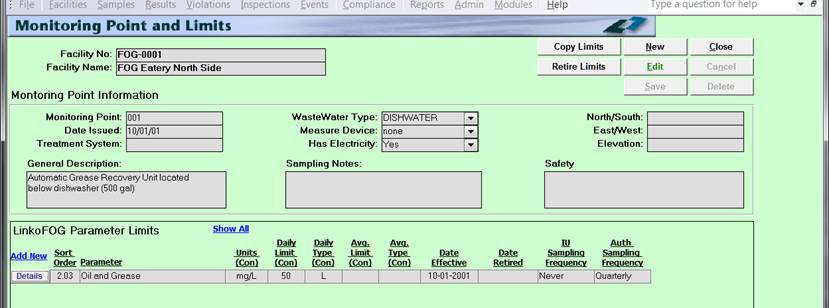
Monitoring
Point and Limits |
Show Monitoring Point details information at the top with a list of limits underneath. |
|
Facility No |
Industry No of Facility whose Monitoring Points are being displayed |
|
Facility |
Name of Facility who’s Monitoring Points are being displayed |
|
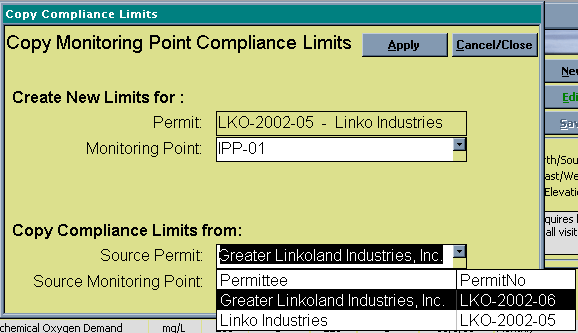
Copy
Limits |
Opens Copy Monitoring Point Limits screen. This screen allows you to copy limits from a different Monitoring Point to this one. |
|
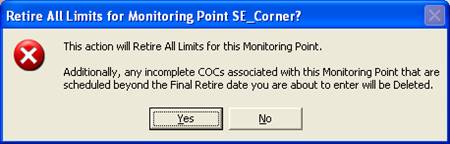
Retire
Limits |
Prompts the user to enter a date from which to Retire all the Limits for the Monitoring Point.
|
|
New |
Clears values and allows you to create a new Monitoring Point. While editing, the New, Edit, Close, and Record Selector buttons will be disabled |
|
Edit |
Allows you to edit the displayed Monitoring Point. While editing, the New, Edit, Close, and Record Selector buttons will be disabled |
|
Save |
Saves the changes made to the Monitoring Point |
|
Close |
Closes the screen |
|
Cancel |
Cancels any changes made to the Monitoring Point |
|
Delete |
Deletes the Monitoring Point. Users may be required to remove all of the limits and results using those limits prior to deleting the monitoring point |
|
Monitoring Point |
The identifying name or number for the monitoring point |
|
Date Issued |
The date this Monitoring Point was issued |
|
Treatment System |
Treatment system used at this Monitoring Point |
|
Wastewater Type |
Wastewater type at this Monitoring Point |
|
Measure Device |
Flow Measurement device used for this Monitoring Point |
|
Has Electricity |
Is there Electricity available at this Monitoring Point? Yes or No |
|
North/South |
North/South (Y) grid coordinates for this Monitoring Point |
|
East/West |
East/West (X) grid coordinates for this Monitoring Point |
|
Elevation |
Elevation of this Monitoring Point |
|
General Description |
Short description of this Monitoring Point |
|
Sampling Notes |
Notes about how samples are taken from this Monitoring Point |
|
Safety Notes |
Safety notes about this Monitoring Point |
|
|
|
|
Add New |
Opens the Monitoring Point Limits screen to create a new Parameter Limit. A new Parameter Limit can also be created within any Monitoring Point Limits using NEW. |
|
Parameter |
The pollutant parameter name |
|
Sort Order |
Provides the ability to sort the Parameters based upon the Sort Order number assigned under the Parameter Details in Samples and Results Administration. |
|
Units (Con) |
The concentration unit of measurement for this parameter |
|
Daily Limit (Con) |
The concentration daily limit for this parameter |
|
Daily Type (Con) |
The type of daily limit, e.g. local, categorical, state, etc. |
|
Monthly Limit (Con) |
The concentration monthly limit for this parameter |
|
Monthly Type (Con) |
The type of monthly limit, e.g. local, categorical, state, etc. |
|
Date Effective |
The date these limits became effective |
|
IU Sampling Frequency |
The frequency at which the parameter should be sampled by the Industry. |
|
Auth. Sampling Frequency |
The frequency at which the parameter should be sampled by the Authority (POTW). |
|
Record
Selectors |
Standard Record Selectors allowing you to move between selected Monitoring Points (if more than one). |
|
Status
Bar |
Standard Status Bar allowing you to jump to a listing of Violations without enforcements, a listing of overdue Events, a listing of related Reports, a Calendar, a Calculator, Contact Information, or a new Phone Log Event |
|
Item |
Description |
|
Apply |
Copies monitoring point limits from selected Source Monitoring Point |
|
Cancel/Close |
Closes window without copying any monitoring point limits |
|
Permit |
Industry/Permit that Monitoring Point Limits will be copied to |
|
Monitoring Point |
Monitoring Point that Monitoring Point Limits will be copied to. This drop down box lists all Monitoring Points for the selected Permit |
|
Source Permit |
Permit that contains the Monitoring Point that Limits will be copied from. This drop down box lists all Permits |
|
Source Monitoring Point |
Monitoring Point that the Monitoring Point Limits will be copied from. This drop down box lists all Monitoring Points for the selected Source Permit |


|
Item |
Description |
|
Facility No |
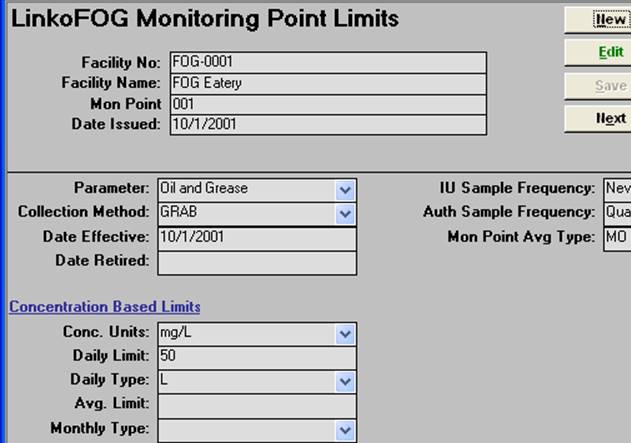
Facility No of Facility whose Monitoring Point Limits are being displayed |
|
Facility |
Name of Facility whose Monitoring Point Limits are being displayed |
|
Monitoring Point |
The identifying name or number for the Monitoring Point whose limits are being displayed |
|
Date Issued |
The issue date for the Monitoring Point whose limits are being displayed |
|
New |
Clears values and allows you to create a new Monitoring Point Limit. While editing, the New, Next, Edit, Close, and Record Selector buttons will be disabled |
|
Edit |
Allows you to edit the displayed Monitoring Point Limit. While editing, the New, Next, Edit, Close, and Record Selector buttons will be disabled |
|
Save |
Saves the changes made to the Monitoring Point Limit. Only enabled while editing or creating an entry |
|
Next |
Displays the next Monitoring Point Limit |
|
Close |
Closes the screen |
|
Cancel |
Cancels any changes made to the Monitoring Point Limit. Only enabled while editing or creating an entry |
|
Delete |
Deletes the Monitoring Point Limit |
|
Parameter |
The pollutant parameter name. Where can I add a new parameter or change an existing one? In the Sample Administration Section. |
|
Date Effective |
The date these limits became effective |
|
Date Retired |
The Date the Limit is no longer in effect. |
|
Collection Method |
The method to be used when taking a sample for this parameter |
|
IU / Authority Sample Frequency |
The frequency at which the parameter should be sampled. The fields are for reference only and are not flagged as a violation if the parameter is not sampled according to the frequency noted here. Reports can be generated in Compliance Assistant however indicating required vs. actual IU Sample Frequency. |
|
Mon Point Avg Type |
The type of average that will be calculated when using the Compliance Assistant to calculate SNC. The default is "MO" for monthly averages. You can select "NA" for No Averages or "FD" for Four-Day Averages (used for older electroplaters). The Four-Day average will group samples by fours, then calculate the average of those 4 samples |
|
Concentration Units |
The concentration unit of measurement for this parameter |
|
Concentration Daily Limit |
The concentration daily limit for this parameter |
|
Concentration Daily Type |
The type of daily limit, e.g. local, categorical, state, etc. |
|
Concentration Monthly Limit |
The concentration monthly or average limit for this parameter |
|
Concentration Monthly Type |
The type of monthly limit or average, e.g. local, categorical, state, etc. |
|
Record
Selectors |
Standard Record Selectors allowing you to move between Limits. |
|
Status
Bar |
Reduced Status Bar allowing you to view a Calendar, a Calculator, Contact Information, or create a new Phone Log Event |
|
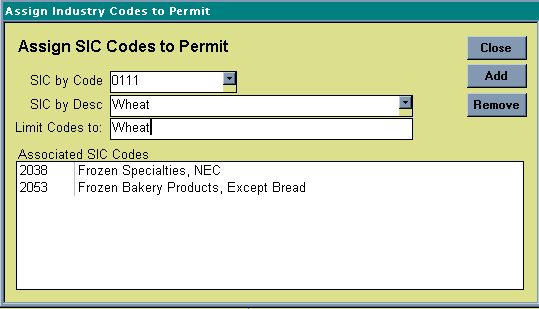
Clicking on the<< Edit Button>> opens the Facility Codes
Details Screen. Choose your Code
either by the code itself or by the description and click on the Add Button.
To remove a code association from the list click on the
<<Remove>> Button. Add new codes and modify existing ones in our Facility Administration Section. |
|
|
Item |
Description |
|
Associated SIC Codes |
List of all SIC codes associated with this Industry/Permit. Keep in mind that this list is updateable in the Facility Administration Section. |
|
Edit (SIC Codes) |
Opens Assign SIC Codes window allowing you to change the SIC codes associated with this Industry/Permit. |
|
Associated CAT Codes |
List of all CAT codes associated with this Industry/Permit. Keep in mind that this list is updateable in the Facility Administration Section. |
|
Edit (CAT Codes) |
Opens Assign CAT Codes window allowing you to change the CAT codes associated with this Industry/Permit. |
|
Associated NAICS Codes |
List of all NAICS codes associated with this Industry/Permit. Keep in mind that this list is updateable in the Facility Administration Section. |
|
Edit (NAICS Codes) |
Opens Assign NAICS Codes window allowing you to change the NAICS codes associated with this Industry/Permit. |
|
Item |
Description |
|
Close |
Closes window. |
|
NAICS – SIC – CAT by Code |
Drop-down listing NAICS – SIC – CAT Codes by their Code value. |
|
NAICS – SIC – CAT by Desc |
Drop-down listing NAICS – SIC – CAT Codes by their Description. |
|
Limit Codes to |
By entering a term in this box and hitting enter or tab, you can limit the Codes listed in the drop down boxes above |
|
Add |
Adds the Code on the left to the list of Codes associated with this Permit/Industry |
|
Remove |
Removes the Code selected in the list below |
|
Associated NAICS – SIC – CAT Codes |
A list of all the NAICS – SIC – CAT codes associated with the Permit/Industry |