Next Return to the Main Menu and click on the Rate Period button. You will see the screen below:
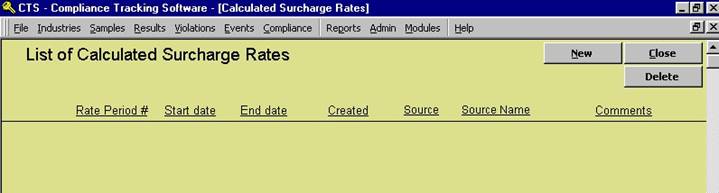
To calculate a new rate click on the new button and you will see the screen below:
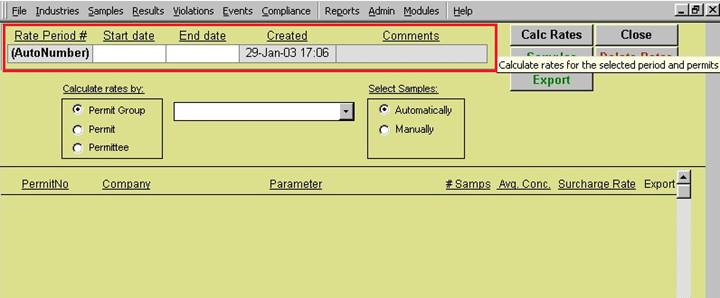
Fill in the date range that you would like to create a surcharge rate for.
Choose the industry or group that you would like to create the rates for as well as select whether you would like to manually select samples or automatically select the samples to be used in the rate generation process. If you select automatically the program will include all of the results from within the date range selected in the rate calculation.
Next click on the Calc Rates button. If you have Manually selected, in the select samples option, then you will be brought to a samples screen. You can then choose the samples you would like to include in the surcharge and then go to results and do the same thing. Once on results screen you can then click on the Finish and Calc button to complete the calculation. However, if you have automatically selected, in the select samples option, then you will be brought to the screen below.
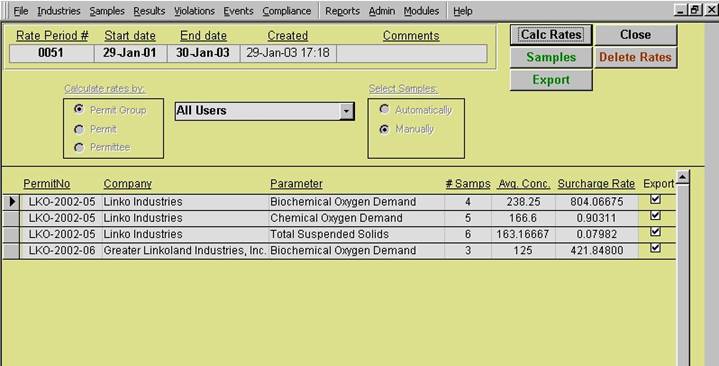
Users can then export these rates by clicking on the export button or create a report by clicking on the reports button on the bottom of the screen.
That is all there is to the Surcharge Assistant.