Sampling Assistant Screens
|
Chain
of Custody |
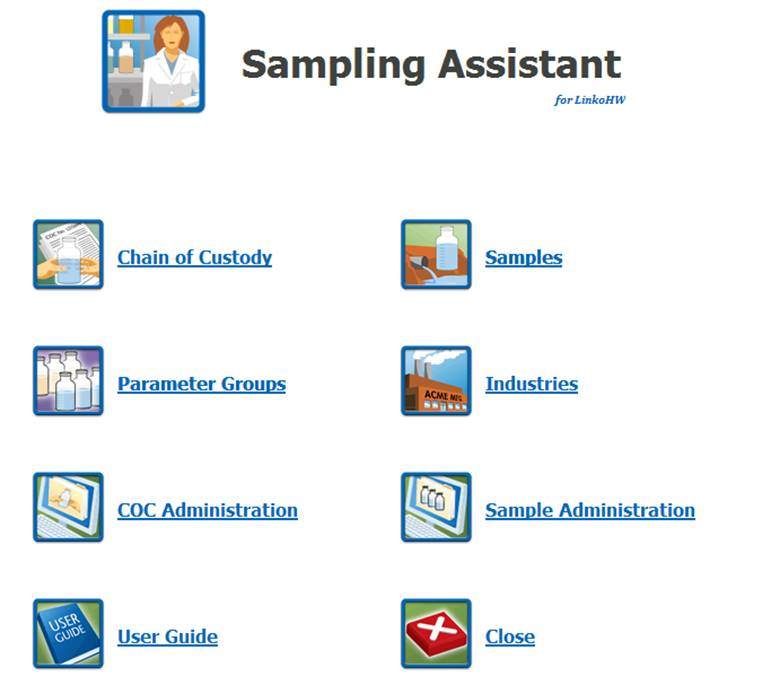
Opens the Chain of Custody List View screen to manage your chains of custody records. |
|
Parameter
Groups |
Opens the Parameter Group List screen and from there you access the Parameter Groups details screen to add, edit and view your Parameter Groups. |
|
COC
Administration |
Opens the COC Administration window for configurations for the Sampling Assistant module. |
|
Samples |
Opens the Sample Management section of the software so you can view current samples. |
|
Industries |
Opens the Industry Management section of the software so you can check Monitoring Point and Limit information. |
|
Sample
Administration |
Opens the Sample and Results Administration screen so you can check Collection and Analysis Methods and view Parameter information. |
|
User
Guide |
Depending on the version of your software, this may open a local User Guide or one on the internet. |
|
Close |
Returns to Linko. |
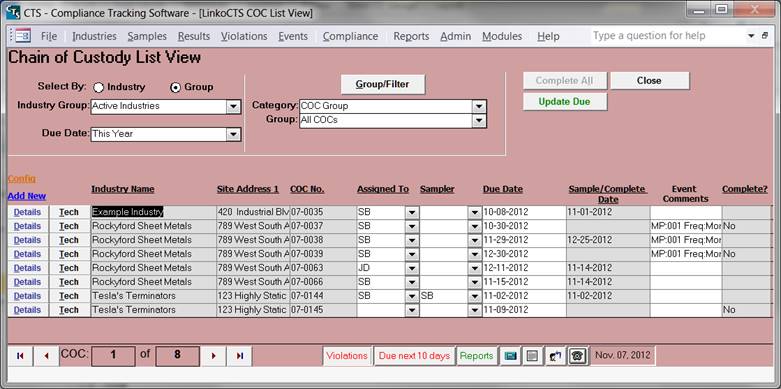
Manage your chains of custody here, produce reports or print COCs.
|
Create a COC |
Click
on Add New to Use the Chain of Custody Builder screen to enter the
information about your sampling event. |
|
Distribute Work Load |
Use
the Tech button when one person schedules and creates a new COC record and
another person is the actual sampler. This simplifies the process of
completing the COC for the sampler and lessens the amount of time they have
to spend in the Linko software. |
|
Select by: |
Industry: Allows you to select, and
work with a single Industry. Group: Allows you to select, a
group of Industries to work with all at the same time. These groups are created in the Industry
Groups Section of the software. |
|
Industry No: |
Use the Industry No: pull-down listing to select which Industry’s COC’s you want to view. Type in the first few letters and Linko will jump to that Industry. This field is visible when you choose “Select by Industry.” |
|
Industry Name: |
Use the Industry Name: pull-down listing to select which Industry’s COC’s you want to view. Type in the first few letters and Linko will jump to that Industry. This field is visible when you choose “Select by Industry.” |
|
Industry Group: |
Select an Industry Group from the pull-down listing to display their COC’s in the list. Only visible when “Select by: Group” is chosen. |
|
Due Date: |
Drop down box offering a list of time periods. Choosing a time period limits the Chains of Custody displayed to the ones that have a Due Date within that time period. The user can create a Custom Date range (See the Custom Date explanation in the List and Details View section of Common Features in the LinkoCTS User Guide) or add / modify / delete Date Ranges available in the listing via the Quick View tab of Event Administration. |
|
Category |
Choose the Category Group for the COCs. This screen is designed to exclusively show COCs so no other option will appear in the drip down list. . You can use the GROUP selection to create a Type of group filter by creating a new group using Group/Filter. |
|
Category / Group |
Choose
the COC Group that you would like to filter on. These can be customized by clicking on the
Groups/Filter button above it |
|
Group/Filter |
Opens
the Filter form to create and modify groups and filters to organize your
Chain of Custodies. |
|
Quick Filter |
Access
the Quick Filter function by a Right Click on a field of interest and sort
for and select just the records you want to display. |
|
Complete All |
Allows you to add the Completed date for every
event listed on the screen at one time. |
|
Update Due |
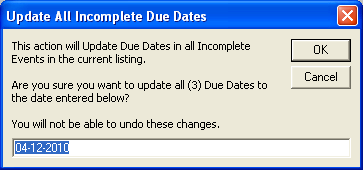
Mark all Incomplete Events with new Due Date.
Clicking this control opens this window:
Enter the Due Date you want to change the Event
to. Note: This
completes the COCs but does not prompt you to create Samples. No samples will be created. If you want Samples to be automatically
created, you must complete the COC’s one a time using the Chain
of Custody Builder screen. |
|
Close |
Closes
the screen, returns to the Main Menu |
|
Config |
The List View Config Link allows you to select which
fields are displayed, their order and settings. COC List View has a variety
of additional Fields that can you can choose to display, including more
complete Industry address info and Sampler and Assigned to fields. |
|
Add New |
When
you have chosen “Select by Group” clicking on Add New opens the New Event
Pick box to create a new COC for the selected industry. Users can ONLY select a COC event category
and type for the event. When
you have chosen “Select by Industry” the software goes right to the Chain
of Custody Builder screen. |
|
Details |
Opens the Chain of Custody Builder
screen. |
|
Tech |
Opens
the Sample Tech Screen. |
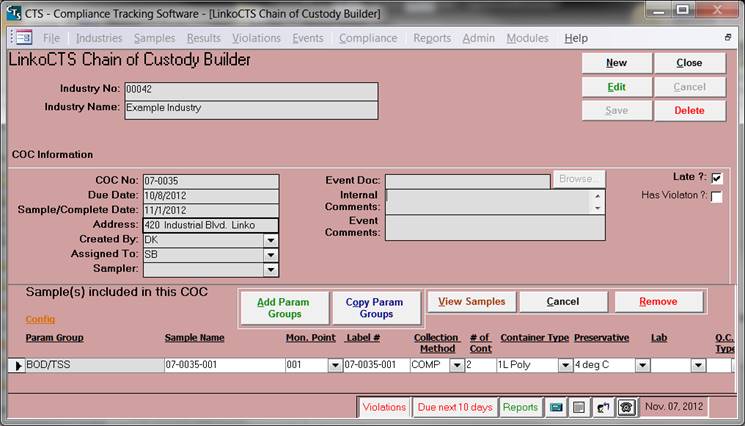
Enter in the information for the Sampling event and the Parameters that are going to be sampled for.
|
New |
Clears values and allows you to create a new Chain of Custody. While editing, the New, Edit, Close, and Delete buttons will be disabled. |
|
Edit |
Allows you to edit the displayed Chain of Custody. While editing, the New, Edit, Close, and Delete buttons will be disabled. |
|
Save |
Saves the changes made to the Chain of Custody. Only enabled while editing or creating an entry. |
|
Close |
Closes the screen. |
|
Cancel
(top
section) |
Cancels any changes made to the Chain of Custody. Only enabled while editing or creating an entry. |
|
Delete
|
Deletes the Chain of Custody. |
|
COC No. |
Linko
auto-populates the COC No. field based upon settings you configure in the
Chain of Custody Administration. Enter
in value of your choice as long as the value is unique. |
|
Due Date: |
The
Date the Sample is scheduled to be collected. |
|
Sample / Complete
Date: |
The
Date the Sample was completed. |
|
Address: |
Location
of the Industry. |
|
Created By: |
The
person that created the Chain of Custody. |
|
Assigned to: |
The
person assigned to do the sampling. |
|
Sampler: |
The
person who actually did the sampling. |
|
Event Doc: |
Any
documentation that needs to be associated with the COC can be linked here. |
|
Internal Comments: |
Comments
that will not show on the COC reports. (8000 character max) |
|
Event Comments: |
Comments
about the Chain of Custody. (8000 character max) |
|
Late? |
This
field is auto-populated by Linko when the Due Date passes and there is no
complete date or the complete date is later than the due date. This
field indicates that the sample was taken after its Due Date. |
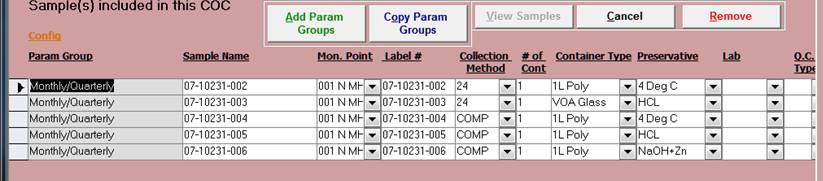
The bottom section of the form opens for use after the Sample / Complete Date has been added to the Chain of Custody in the top section of the Chain of Custody Builder Screen.
The Samples are listed according to the Param Groups that the user adds. Linko will automatically break out Samples based upon the Container Type and Preservative.
|
Add Param Groups |
Clicking
on “Add Parameter Groups” opens the Select Analyses screen, where you choose which of
the Parameter Groups (Sets of Parameter Analyses) that you wish to add to the
Sample. You
click the Checkbox next to the chosen Analysis. (Parameter Group) Then
you click on Continue. This
brings you to the Choose a Monitoring Point
for this Analysis screen. It
shows the previously selected Analysis and which Monitoring point for that
Industry you wish to take the sample from. Click
on Select. This
returns to the Chain of Custody Builder screen. |
|
Copy Param
Groups |
Opens
the Copy COCs screen where you can choose a previously created COC that has all the
Parameter Groups you want to add to this sample. You choose the Industry and
the COC and it copies all of the Parameter Groups from that old COC into the
current one. |
|
View Samples |
After
you have entered in the Sample Complete Date for the COC and created the
Sample(s), clicking on this button will open a Samples Group filter to view
the Samples created. From
this Sample Screen, you can view results once they have been entered or if
you wish you could enter the results this way. (Best practices are to use the
Sample Management section of the software for Results entry.) |
|
Cancel (bottom section) |
Allows
the user to undo any data entry made into the user modifiable fields in the
Samples listing. |
|
Remove |
Removes
the highlighted / selected Parameter Group from the COC |
|
Config |
The List View Config Link allows you to select which
fields are displayed, their order and settings. The “Samples included in this
COC” screen has a variety of additional Fields that can you can choose to
display, including Lab, Matrix and QC Type. |
|
Param Group |
Double-click
this field to see what parameters are included in the parameter group. |
|
Sample Name |
The
name of the sample created by Linko based upon the COC # and the number of
Samples associated with the COC. This value can be edited. |
|
Mon. Point |
The
Monitoring Point selected as the sampling point. |
|
Label # |
Linko
creates the Label# the same as the Sample Name. This value can be edited. |
|
Collection Method, #
of Containers, Container Type, and Preservative |
This
information is pulled from the configuration of the Parameter group. |
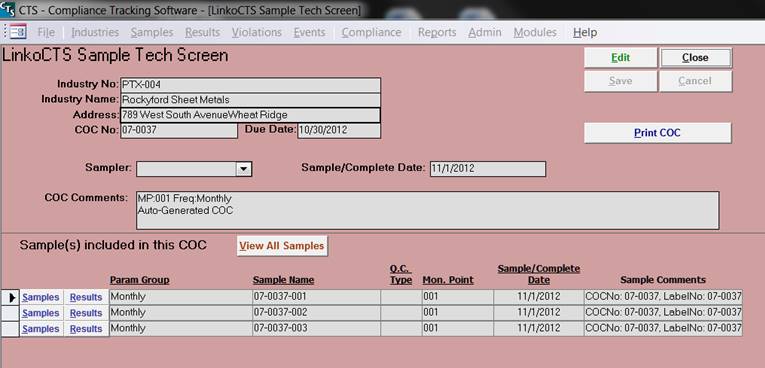
This screen is used by the POTW Personnel fulfilling the role of a Sampling Technician. Enter this screen from the Chain of Custody List View by clicking on the Tech button.
This screen can be used by the Tech to do the following:
Print a COC.
Complete the sample.
Create the sample record in the database.
Enter in Sample info and put in results.
|
Edit |
Allows you to edit the displayed Chain of Custody. While editing, the New, Edit, Close, and Delete buttons will be disabled. |
|
Save |
Saves the changes made to the Chain of Custody. Only enabled while editing or creating an entry. |
|
Close |
Closes the screen. |
|
Cancel |
Cancels any changes made to the Chain of Custody. Only enabled while editing or creating an entry. |
|
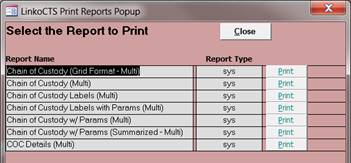
Print COC |
This is an alternative to using the Reports button
to find the COC forms to print. Clicking this opens the Select the Report to Print
Screen:
Choose the Chain of Custody form you want and
click on PRINT. |
|
View All Samples |
After
you have entered in the Sample Complete Date for the COC and created the
Sample(s), clicking on this button will open a Samples Group filter to view
the Samples created. From
this Sample Screen, you can view results once they have been entered or if
you wish you could enter the results this way (Best practices are to use the
Sample Management section of the software for Results entry. This
lists all the Samples on the COC |
|
Samples /
Results |
These
buttons allow the user to view the individual Sample record details and just
the results for that one Sample. |
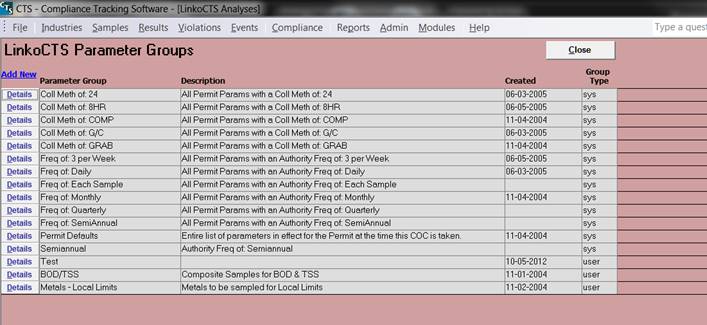
Click on the “Parameter Groups” item from the Sampling Assistant Main Screen menu selections to get to the Parameter Groups List View Screen.
The configuration and use of Parameter Groups allows you to speed up the COC Creation process. You can identify what samples are to be taken. Assign samples to the Parameter Group one time and use the Parameter Group repeatedly.
|
Parameter Group |
This is the name assigned to the Parameter Group.
When creating your own Parameter Groups use a Group Name that is very
descriptive |
|
Description |
This field allows you to give a fuller description
of the contents and the purpose of the group. |
|
Created |
This record shows the date the Parameter Group was
created. |
|
Group Type |
Group Type tells you whether
or not the Parameter Group is a System Group, one included with Linko, or a User
Group, one that you create and customize for your own use. Note the various system
groups that come with Linko preconfigured. The Systems “sys” groups are
provided by Linko and automatically create groups of parameters based upon
the information in the Monitoring Point and the Parameters listing. You can't change the
Parameters assigned to the Outfall here, you have to do that in Industries.
You use the Parameters assigned to the Outfall to create Groups of Parameters
to Sample for. You CANNOT EDIT THE SYSTEM
PARAMETER GROUPS - A System Group cannot be edited, so if you click on the
DETAILS of a System Group you will get a dialog box saying exactly that. |
|
Details |
Delete an event. |
|
Add New |
Opens
the Parameter Group Details screen to create a custom
parameter group. |
|
Close |
Closes
the screen, returns to the Main Menu |
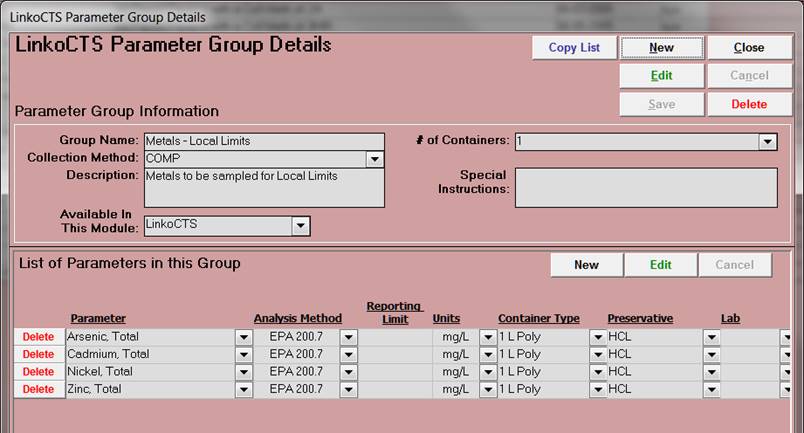
Create your new Parameter Groups or edit the existing ones from this screen.
|
Copy List |
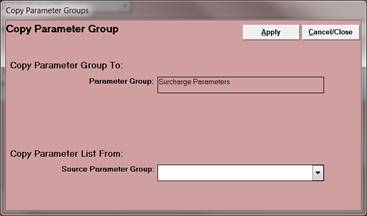
Opens the “Copy Parameter Group” screen:
This provides a shortcut for starting a new Parameter Group. Copy the Parameters that already exist in another Parameter Group and use that as the starting point for your new Group. |
|
New |
If you haven’t already entered this screen via the “Add New” from the Parameter Groups Screen, you can create a new Parameter Group by clicking here. |
|
Edit |
Allows you to edit the details of the displayed Parameter Group. While editing, the New, Edit, Close, and Delete buttons will be disabled. |
|
Save |
Saves the changes made to the Parameter Group. Only enabled while editing or creating an entry. |
|
Close |
Closes the screen. |
|
Cancel |
Cancels any changes made to the Parameter Group. Only enabled while editing or creating an entry. |
|
Delete |
Delete the Parameter Group displayed. |
|
Parameter Group Information |
This section of the screen is where you describe what you are sampling. |
|
Group
Name: |
Enter a simple though meaningful name for your group. |
|
Collection
Method: |
The parameters in the group will all have the same collection method applied so assign it here. |
|
Description: |
Enter information about the parameters that are part of this group so that you can easily choose which Parameter Group you need by the Group Name and its description. |
|
Available
in this Module: |
This selection allows you to choose to make the Parameter Group you create available in other Modules of the Linko Software. So if you create a Conventional Pollutants Parameter Group in LinkoCTS, then you can make it available in LinkoFOG also by selecting “ALL” in the dropdown listing. |
|
#
of Containers: |
Enter the number of containers that will be used for this Group. |
|
Special
Instructions: |
Enter in any special handling instructions. These can be printed on the COC. |
|
List of Parameters in this Group |
This is where you enter in the Parameters for the Group. This section is edited separately from the Parameter Group Information. |
|
New
|
Opens a data input line so that you can select the Parameter to add to the Group. Once you select the Parameter from the list, Linko automatically adds values to the remaining fields depending on what information has been added to that Parameter in the Parameter listing under Samples and Results Admin. Note: If you make a change to the Configuration of a Parameter in Samples and Results Admin, for example, you change the Default Lab; this change does not propagate out to any pre-existing Parameter Groups. You will have to make the change in Samples and Results Admin and also in the Parameter Groups in Sample Assistant. This provides you with the ability to assign different values in the Parameter Group than are configured under the Samples and Results Parameter Listing Configuration. You can use “mg/l” as the default units in Samples and Results Admin, but for a special case Parameter Group in Sample Assistant, you can change that to “ug/l.” |
|
Edit |
Very similar to the function of the NEW button, this allows you to go back into an existing parameter and make changes. |
|
Cancel |
Removes the bottom section of the screen from either the EDIT mode or the NEW mode. If you have not indicated to the software that you have completed data entry on the Parameter you are working on by clicking out of it, your changes will be lost. |
|
Parameter |
This is where you choose the Parameter to add to the Group. |
|
Analysis Method,
Units, Container Type, Preservative, Lab |
Each of these criteria is automatically pulled from the value for the Parameter as it listed in the Parameter listing under Samples and Results Admin. These can be modified for the individual Parameter Group by selecting the individual dropdowns. |
|
Reporting Limit |
Reporting Limit was provided in the Parameter Groups screen to allow the user to communicate to the Lab what reporting limit they must be able to achieve for a parameter. That reporting limit can then optionally be placed on a COC that will end up at the lab. |
|
Delete |
You can quickly remove one of the parameter from the Group by clicking here. |
|
Record
Selector “Analysis” |
You can quickly view each of the Parameter Groups by using this selector to click through the records of each of the Parameter Groups. |
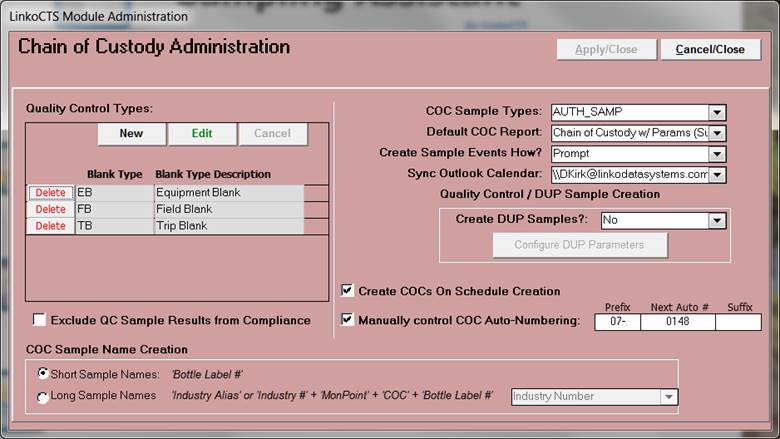
Configure various settings used in different parts of the Sampling Assistant Module.
|
Quality Control Types |
Using New and Edit (or CANCEL to escape data input mode) the user
can enter types of Quality Control Samples for the COCs. Examples would include Equipment Blanks and Field
Blanks. The Quality Control Types appear in the Select Analyses Screen
in the Create Blank Dropdown so that the user can add either DUPs or BLANKs
to their Analyses selection and have the appropriate bottles added to their
COC. |
|
Exclude QC Sample Results from
Compliance |
When this is selected the results reported for the
QC samples will be marked with the value of “NO” in the “COMPLIANCE RESULT?”
field so that the Linko Compliance Assistant will not include that result in
its Compliance and SNC Calculations. |
|
COC Sample Types |
Select what type of Samples you are going to be
creating COCs for. This type is used
to identify the sample in the Samples Management screen. |
|
Default COC Report |
The automatically selected Report when clicking
“Print COC” from the Tech Screen. |
|
When you complete the COC by entering in the
Sample Date, Linko will create the Sample records in the database. Use this
selection to choose whether to have Linko create the Sample Record
automatically, prompt the user to approve creating the Sample Record, or to
Never create the Sample Record. |
|
|
Sync Outlook Calendar |
For users with the add-on module Outlook Sync, use
this field to configure your COCs so that the scheduled COCs will be added to
your Outlook Calendar. |
|
Quality Control /
DUP Sample Creation |
|
|
Should the Sample Tech screen automatically create
a QC Sample? |
|
|
Configure DUP Samples |
Sampling Assistant provides an alternate process
to follow when duplicate samples are being taken on a regular basis as part
of the Quality Assurance Program. See the Configure
DUP Parameters screen. |
|
Create COCs On Schedule Creation |
As Authority sampling schedules are created, COCs
can also be created. COCs are created
based on a sampling frequency period end date. Using both a Monthly and Quarterly frequency that
end Mar 31st as an example, a single COC with a due date of Mar. 31st is
created. The bottles in that COC are
based on the parameters that have an Auth Sample Frequency of Monthly or
Quarterly. Each day both Sampling Schedules and COCs are
automatically created or maintained in the future. This way the user can always have a year’s
worth of COCs created. The distance in
the future these are maintained in configurable in Samples and Results
Administration in the LinkoCTS Software. Auto-Creating COC’s is only available for CTS
clients who bought Sampling Assistant. The Sampling Schedule feature is described in the
LinkoCTS User Guide under the Additional Features section in
“Scheduling Samples or COC’s based on Sampling Frequencies” See the online User Guide at: Online
User Guide Click in this field to enable the automatic
creation of COCs based upon the Schedule that is created via the MPs for the
Industries. |
|
Manually Control COC
Auto-Numbering |
When this box is checked Linko will use the values
in the “Prefix”, “Next Auto #” and “Suffix” fields to automatically create a
COC number. |
|
Prefix |
Letters
to begin the auto-generated COC number. |
|
Next Auto# |
Numbers
that count sequentially for part of the Auto-number |
|
Suffix |
Any
ending phrase for the COC. Default is for this field to be blank. |
|
|
|
|
COC Sample Name
Creation |
In this section you can choose the way that Linko
automatically creates the Sample Name |
|
Short Sample Names |
Creates the Sample Name based on the Bottle Label
# |
|
Long Sample Names |
Creates the Sample Name based on combining
these: ‘Industry Alias or Industry #’
+ ‘Mon Point’ + ‘COC’ + ‘Bottle Label #’ Choose the Industry Alias or Number from the
dropdown.
|

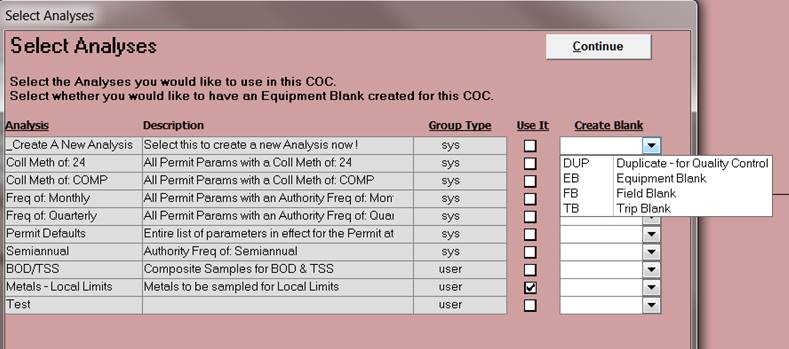
This screen appears when you click on the “Add Param Groups” button on the Chain of Custody Builder Screen.
Use this screen to select the Parameter Group(s) that you want to apply to the Chain of Custody by clicking in the Use It column and then clicking on Continue.
Note: If there is more than one Monitoring Point at the Industry, another screen will appear, the Choose Monitoring Point for this Analysis Screen.
If there is only one Monitoring Point, the user is returned immediately back to the Chain of Custody Builder screen.
|
Analysis |
This is the name assigned to the Parameter Group. |
|
Description |
This field is the fuller description of the
contents and the purpose of the group. |
|
Group Type |
Group Type tells you whether
or not the Parameter Group is a System Group, one included with Linko, or a
User Group, one that you create and customize for your own use. Note the various system
groups that come with Linko preconfigured. The Systems “sys” groups are
provided by Linko and automatically create groups of parameters based upon
the information in the Monitoring Point and the Parameters listing. |
|
Use It |
Click here to choose the
Parameter group you want to add to the Chain of Custody. |
|
Create Blank |
Click on the dropdown to
choose which kind of blank you want to add to the sampling. A duplicate bottle(s) is created for the
Param Group selected. |
|
_Create a New Analysis |
If you click in “Use It” for
this selection and then click on Continue Linko will
open a new Parameter Group Detail Screen
so you can create a new Group right there. |
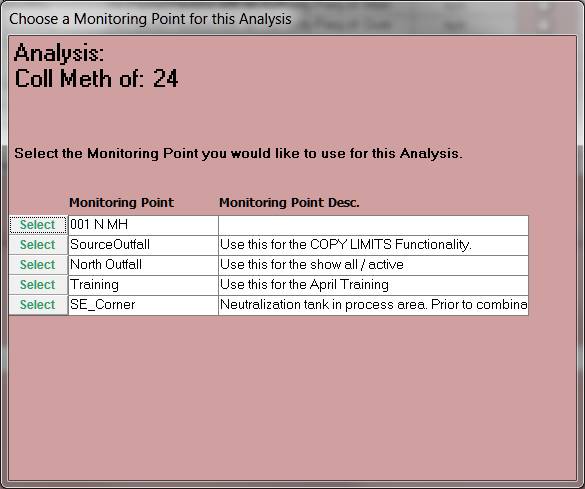
When adding a Parameter Group to a new Chain of Custody, if there are two or more Monitoring Points at the Industry, this screen will appear allowing you to select which Monitoring Point you wish to collect the sample at.
Click on Select to choose the Monitoring Point and you will be returned to the Chain of Custody Builder screen.
The Monitoring Point information is pulled from the Industry Screen under the Monitoring Point tab.
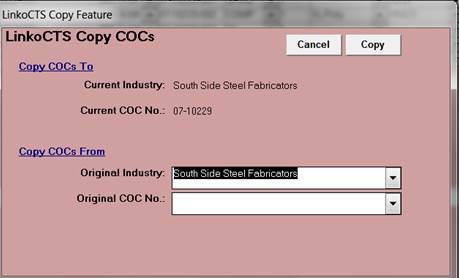
This screen appears from the Chain of Custody Builder screen when you click on Copy Param Groups.
Use the Original Industry drop down selector to choose the Industry to copy the Parameter Groups from.
Use the Original COC No: drop down selector to choose the exact COC number.
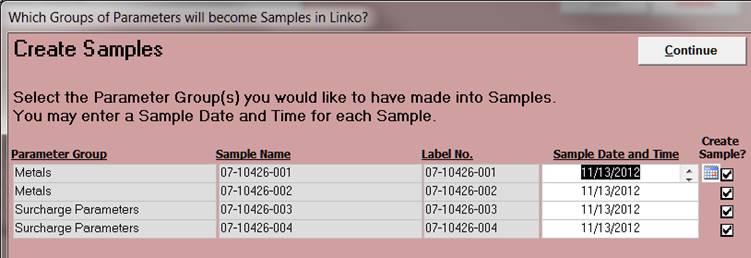
This summary screen appears after you enter in the Sample / Complete Date for the COC. You can modify the Sample Date and add a time if desired.
2 dialog boxes appear informing the user of the steps of the process, as follows:
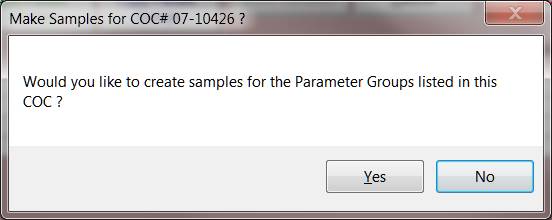
You have the option to not create the Samples in the database by clicking on “NO.”
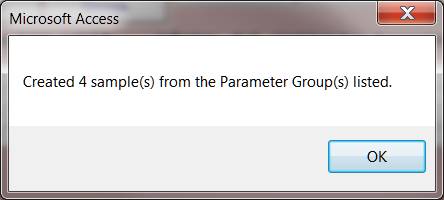
This notifies the user that the Samples were created. You must click “OK” to continue.
Note: These Create Samples screen will be displayed based on the Create Sample Events How configuration in COC Administration screen.
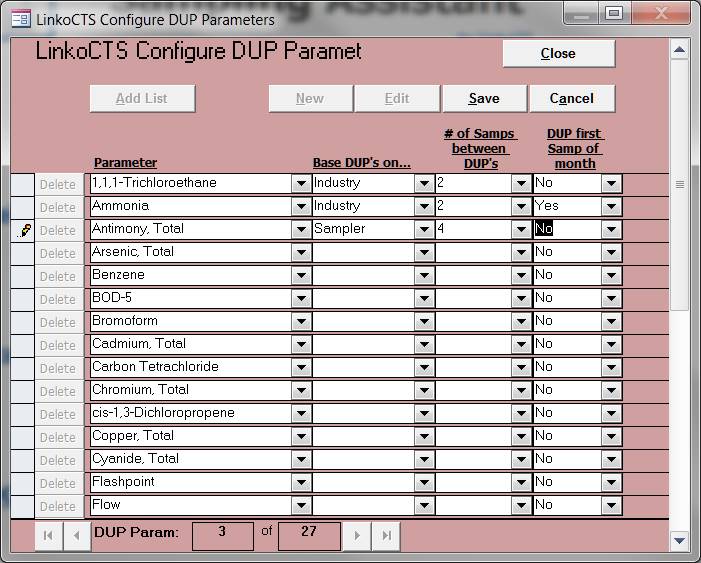
Use this screen to configure how often and under what circumstances a QA dupe should be taken. For example, should dupes be taken every 4 samples at that IU, or every 4 samples by a sampler, or the first sample of each month?
This process can be used instead of the Create Blank selection on the Select Analysis screen during the “Add Param Group” process while creating a COC.
Use the Delete key to remove a Parameter from the DUP configurations.
Use the dropdown selectors under: “Base DUP’s On”, “# of Samps between DUP’s”, and “DUP First Samp of Month” to configure the manner and circumstances of the DUP collection.
|
Add
list |
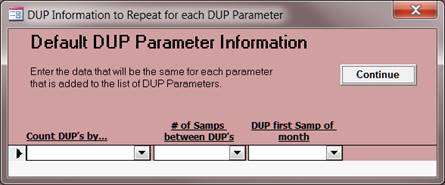
Opens the Default DUP Parameter Information. Here you can configure the information that will be the same for each parameter that is added. Use the dropdowns to Count DUP’s by “Industry” or “Sampler” Count the “# of Samples between DUPs” and select a number Or indicate that a DUP should be created with the first sample of the month.
|
|
New |
Click here to add a New Parameter for configuration. A data input line will open. Be sure to complete your data input and move to another record before clicking on Save to exit the data input mode. |
|
Edit |
Allows you to edit the details of the displayed DUP Parameter configurations. While editing, the New, Edit, Close, and Delete buttons will be disabled. |
|
Save |
Click on Save to exit your data input or Edit mode. |
|
Cancel |
Cancels any changes made to the Parameter being configured. Only enabled while editing or creating an entry. |
|
Close |
Closes the screen. |
If the Create Dup Samples configuration is turned on and configure, the use of the Create DUP Samples alters the TECH sampling process:
The “Technician” COC
Completion Process with DUP Parameters configured.
1. From the Chain of Custody List View screen, Click on the Tech button for the selected COC.
2. From the Sample Tech Details screen click on Edit.
3. Confirm the value of the “Sampler” field and change if necessary.
4. Enter the “Sample/Complete Date:” and any comments.
5. Click on Save.
6. A message box appears notifying you that you have not created any Dupe Samples for this COC yet. Do you want to create them now?
a. 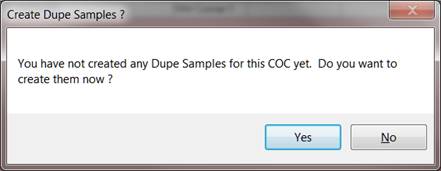
b. The typical answer is “YES.”
c. Now you are presented with the “DUP Creation” Screen.
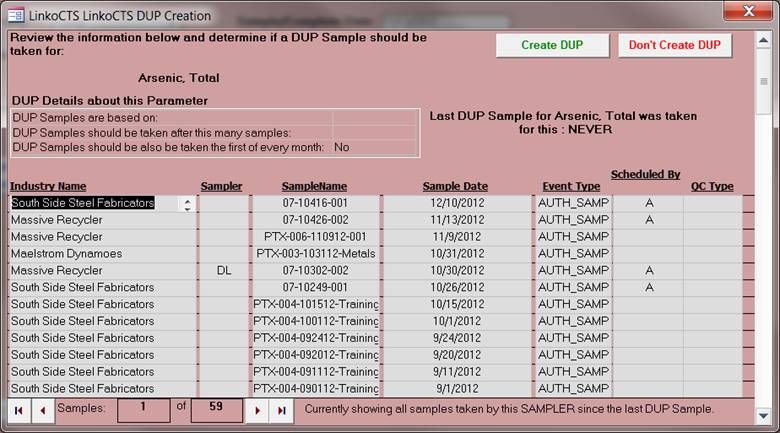
d. You must review the information in this screen and determine if a DUP Sample must be taken. Click on Create DUP or Don’t Create DUP
e. This screen will flash for each Sample that is part of the COC.
7. Now, a message dialog box appears asking whether or not you wish to create samples for the Parameter groups listed in the COC.
a. This step creates the Sample records in the Database.
b. Say “Yes” or “No” as desired (typically “Yes”)
8. The Create samples screen appears.
a. Confirm the “Sample Date and Time” and modify as needed.
b. Uncheck the “Create Sample” checkbox if you don’t wish to create one of the samples listed.
9. Click on Continue.
10. A message box appears informing of the successful completion of the Samples in the Database
a. Say “Okay.”
11. Select the Results button on the Sample you collected a field observation for.
12. Enter the Result you observed in the field (e.g. pH)
13. You can click Close to exit the Result Management Screen and then again to exit the “Sample Tech” Screen.