Using the Create Schedule Tool to Create a Sampling Schedule in Sampling Assistant
The Sampling Assistant Module can be configured to utilize the Sample Scheduling function in the software. This becomes the basis for creating and maintaining COC / Sampling Schedules.
Please see the LinkoCTS Online User guide under Configuring Sample Schedules and Frequency Reports in the Additional Features section to configure the Linko Software for Sample Schedule Creation.
When the user clicks on the Create Schedule button on an Industry’s Monitoring Point, the software creates a database table that includes both Authority and Industrial User Sampling records based on the frequencies assigned in the Parameter Limits for the Industrial User’s Monitoring Point.
When configured properly, the Sampling Assistant Module then creates Chain of Custody Events for all the Sampling records in the previously created table. An “Events by Due Date Report” can then be run from Events, or COC reports can be run from Sampling Assistant.
The software keeps the Sampling Schedule and the Chain of Custody Events list up to date on a daily basis, so that once created, it stays current without further action on the part of the user.
1. From the Sampling Assistant Main Screen, click on COC Administration.
2. Locate the field: “Create Sample Events How?”
3. “Create Sample Events How?” is used to select what happens when a Complete Date is entered in a COC record. Click on the dropdown and make a choice from the following:
a. “Prompt” - shows a message when you click on the SAVE in a COC Record after entering a complete date
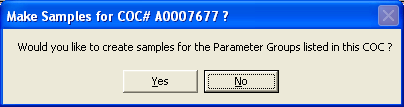
The User has to make a choice whether to click on YES to have Linko create the Sample for the COC, or NO to not have it be created.
b. “Never” – Linko doesn’t create the Samples for the COC. No messages are shown when you click on the SAVE in a COC Record after entering a complete date.
c. “Always” – Linko always creates the Sample as soon as the Complete Date is entered. No messages are shown when you click on the SAVE in a COC Record after entering a complete date
4. Locate the field: “Create COCs on Schedule Creation”
a. “Create COCs on Schedule Creation” is used in conjunction with the Sampling Scheduler to determine if the COC Events are created when a user clicks on the “Create Schedule” button in the Monitoring Points Limit screen.
b. It additionally determines if COCs are created each day automatically.
c. Click in the Selector Box to add a check to create COCs based on the Sampling Schedule Records and extend the list each day automatically.
d. Uncheck the Selector Box to disable creation of COC Events.
1. Choose an Industry you want to set up the schedule for.
2. Go to the Monitoring Points tab for the Industry.
3. To schedule Samples you must confirm that the Parameter Limits are configured properly.
a. Ensure that the Limits are entered with desired frequencies for both:
IU Sample Frequency
Auth Sample Frequency
4. Under the Parameter Limits section, scroll through the Parameter Limits, examining the IU Sample Frequency column, and the Auth Sample Frequency column.
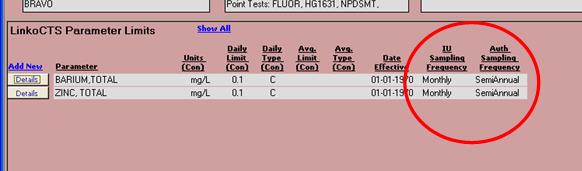
The exact values will depend on your Pretreatment program and the Industry’s permit.
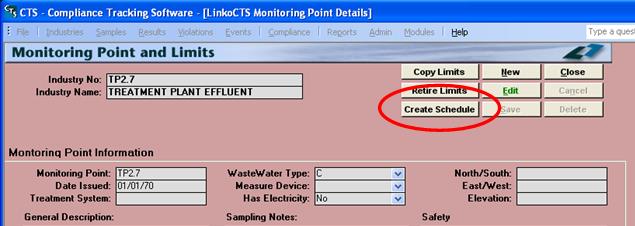
5. At the top of the Monitoring Point Details screen, click on the Create Schedule button.
6. You will receive a confirmation dialog window.
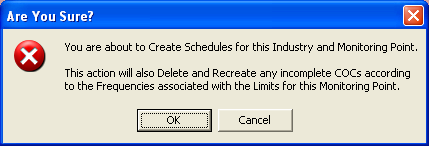
Click OK to continue.
Using Event Management
1. Go to Events.
2. Confirm that the Industry you just created the Schedule for is selected.
3. Select the Time Period you want to check in the “Due Date” selector.
4. Under Category select “COC Events.”
5. At the bottom of the Event Management List View Screen, click on Reports.
6. View the “Events by Due Date” Report.
Using Sampling Assistant
1. Select Sampling Assistant from the Modules Main selection.
2. Confirm that the Industry you just created the Schedule for is selected.
3. Select the Time Period you want to check in the “Due Date” selector.
4. At the bottom of the Chain of Custody List View, click on Reports.
5. View the “COC’s Due (Multi)” Report. This lists the COC’s not completed.
1. Sampling scheduling is available only for the LinkoCTS software.
2. If an Industry has been configured for the value of “NO” under the Account Info tab for the field “Active Industry”, the Create Schedule is NOT available.
3. Clicking on the Create Schedule button recreates any previously existing schedules.
4. Any previously completed COCs are not affected by the changes that clicking on Create Schedule does when recreating a schedule
5. Any previously created schedule records in the database that were not used to create a COC Event will be deleted by creating another schedule.
6. When creating a new schedule, and limit frequencies, effective dates, or retire dates have changed in such a manner that the schedule will be different, the new records will be created based upon the changed values.
7. Any old database schedule records that are associated with complete COCs are left intact. This means it is possible to get an additional record for a completed COC.
8. This would generate an additional value in the “Number of Samples Required” when viewing the Frequency Reports in Compliance Assistant and would show two COC’s, one Completed and one needing Completion.
9. The Schedule Process includes steps that group a Weekly or a BiWeekly scheduled sampled with another sample scheduled during that same period, for end of months getting combined into the weeklies.
When to Click
1. When limit Authority or IU Frequencies, Effective Dates, or Retire Dates have changed
2. When new limits are added (wait and click after all new limits are added)
3. When limits are deleted
When Not to Click
1. When a Daily, Monthly or other limit value has changed.
2. When the collection method has changed
3. When units have changed
1. Each day the Linko software will update the sampling schedule into the future. As each day passes the software identifies if the next frequency sampling schedule should be created.
2. COCs and schedules are only created into the future and are only created for Mon Points that already have a schedule. That means if a user creates a new Mon Point today, it will not automatically get a schedule and COCs created for it when tomorrow comes. The user needs to select the Create Schedule button to create the first schedule and COCs. From that point forward, the schedule and COCs will be automatically maintained.