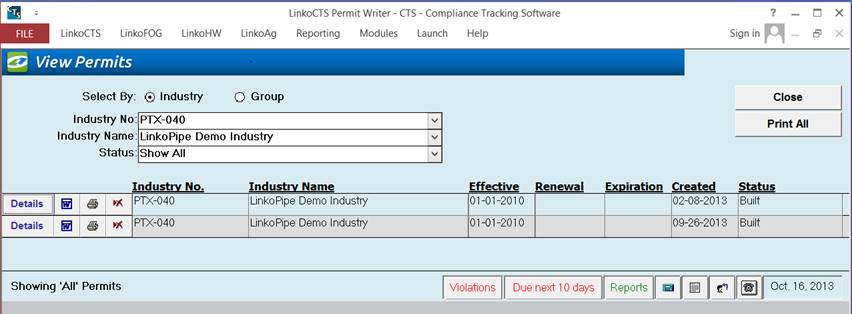
View the records kept for the Permit creation or attempted creation process for an Industry or a Group.
When using the View Permits Screen, first choose the Industry from either the Industry No: or the Industry Name. Or select “Group” to choose a Group of Industries. Type in the first letters in the Pull-Down boxes, and Linko will jump to the text you entered.
Next, choose a pertinent Status. Status changes the Permit Creation records that are listed in the following ways:
- You can select to view the record for the Permit with the “Most Recent Effective” date (this shows just the most recent permit record for the Industry(s) displayed).
- You can “Show All” the permit records regardless of status.
- You can show just the records that have a Permit “Built” for them (this displays all the records with a Built Status for an Industry regardless of the date effective).
- You can show the records that had a problem when trying to build the Permit with “Unable to Build.”
- You can show which Industries don’t have a Permit built for them with “None Exist.”
- Choose the Industry or Group.
- Once the Industry / Group in question is listed, select Status of “Show All.”
- Confirm that the Status shows: “Built”.
- Choose the Industry.
- Once the Industry in question is listed, select status of “Show All.”
- Confirm that the Status shows: “Built”.
- Use the Microsoft Word icon to open Word with the Permit displayed.
- Edit the Permit for that Industry as necessary and save the changes.
- Choose the Industry or Group.
- Once the Industry / Group in question is listed, select status of “Built”.
- Confirm that the Status shows: “Built”.
- Click on the Printer icon to print the Permit document for the selected Industry.
- The Print All button sends the Permits for all the listed records to the printer.
- First be sure you want to do this.
- Click on the “Cross out” Red X delete symbol.
- You will receive a Delete Permit warning message.
- Say Yes if you wish to proceed.
- This deletes the Permit creation record for the selected Industry from the database and also deletes the MS Word Document from the hard drive.
|
Select by: |
Industry: Allows you to select, and
work with permits for a single Industry one at a time. Group: Allows you to select, and
work with permits for a whole group of Industries at the same time. These groups are created in the Industry
Groups Section of the software |
|
Industry No: |
Use the Industry No: pull-down listing to select which Industry’s Permit information you want to view. Type in the first few letters and Linko will jump to that Industry. |
|
Industry Name: |
Use the Industry Name: pull-down listing to select which Industry’s Permit information you want to view. Type in the first few letters and Linko will jump to that Industry. |
|
Industry Group: |
Select an Industry Group from the pull-down listing to display their permits in the window. Only visible when “Select by: Group” is chosen. |
|
Status: |
Sorts the listing of Permits depending on the Status of the Permit creation process records associated with the Industry: 1. Show All: displays all the Records regardless of the Status of the Permit creation process. 2. Built: lists the records that show “Built” for the status; if the Industry has had more than one permit built for it, it will list each of the records with that status. 3. Unable to Build: Displays the records where there was a problem when attempting to build the permit. 4. Most Recent Effective: Displays the records that have a built Permit, and if they have more than one, it will only display the record information with the most recent date Effective. 5. None exist: notes that no Permit creation process has been completed. The status is also displayed in the lower left corner of the window. |
|
Close |
Exits the View Permits window. |
|
Print All |
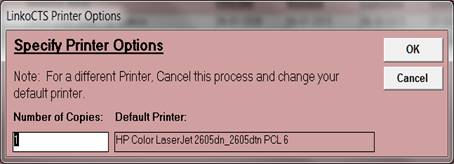
Clicking on Print All sends the Permits for all the listed records to the printer. A separate “Specify Print Options” Screen opens where you can select the number of copies to print and confirm the default printer.
|
|
Magnifier
Glass / Details |
Click on details to enter the Permit Section Details screen and manage print order, sections that are assigned, build schemas, add new sections, and edit templates. |
|
Word |
Use the Microsoft Word icon to open Word with the Permit displayed. Edit the Permit for that Industry as necessary and save the changes |
|
Print |
Click on the Printer icon to print a selected Industry. A separate “Specify Print Options” screen will open. See PRINT ALL above. |
|
Delete
Word Doc and Record |
Click on the “Cross out” Red X delete symbol to delete the selected Permit from the hard drive and the record of the Permit Creation process from the database. |
|
Industry No. / Name |
Number and Name of the Selected Industry. |
|
Effective |
Shows the Date Effective of the Permit as kept in the record. The Date Effective for the Permit is pulled from the “Effective Date” field under the Industry Dates in Industry Management at the time that the Permit is built, and it may be blank. One Industry can list multiple records for multiple Permits each having a different Date Effective. Your Permit creation process should include updating the “Effective Date” prior to building the Permit with Permit Writer. |
|
Renewal |
Shows the Renewal Date for the Permit. The Renewal Date is pulled from the “Next Renewal” Date field under the Industry Dates in Industry Management at the time that the Permit is built, and may be blank. This field is updated by Permit Events of Type “Renewal.” If you have not created events of this type for the Industry then no value will be displayed. Your Permit creation process should include creating Permit Renewal Events prior to building the Permit with Permit Writer, and allows you to track the last time the Permit was renewed as well as the next time it is scheduled to be renewed. |
|
Expiration |
Shows the Expiration Date of the Listed Permit as kept in the record. The Expiration Date for the Permit is pulled from the “Expiration Date” field under the Industry Dates in Industry Management at the time that the Permit is built, and may be blank. This field is updated by Permit Events of Type “Expiration.” If you have not created events of this type for the Industry then no value will be displayed. Your Permit creation process should include creating Permit Expiration Events prior to building the Permit with Permit Writer. |
|
Created |
Displays the date that the Permit was built in Permit Writer. |
|
Status |
Three different status descriptions for a Permit Record may appear: 1. Built – at least one Permit has been built for the Industry 2. None Exist – no permits have been built for the Industry 3. Unable to build – a Permit build was attempted but did not succeed. Typical causes of this are missing templates for sections that have been assigned, or no sections were assigned. |