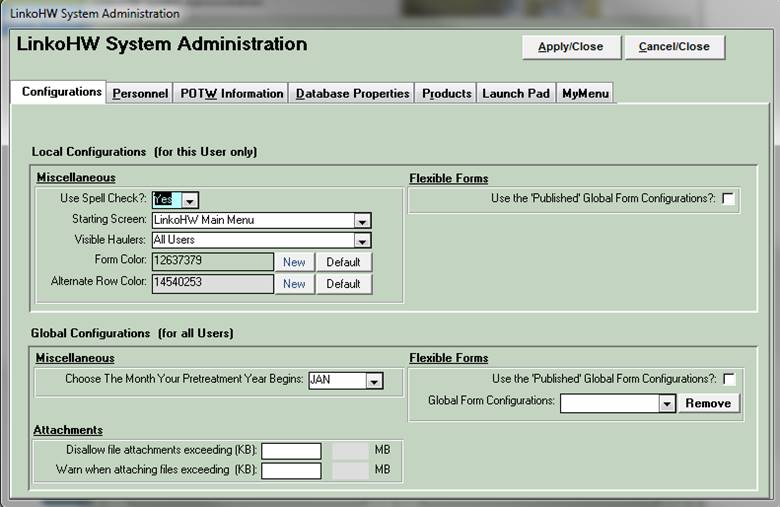
|
Buttons |
Action performed |
|
Apply / Close |
Closes form and saves any changes. |
|
Cancel / Close |
Closes form without saving any changes. |
|
Local
Configurations |
For This User
Only |
|
Miscellaneous |
|
|
Use Spell Check |
When YES, a Spell Check will be performed on most data entry fields - fields where large amounts of text can be entered (memos). |
|
Starting Screen |
What screen should open when the user starts Linko? Selection will depend on what modules and features you have installed. When you open LinkoCTS, it will automatically display this screen. |
|
Visible
Industries |
Use Groups
and Queries to create a
group of Active Industries, or a group of Industries assigned to a certain
POTW personnel. Then choose that Group from this field’s listing, and only
those Industries in that group, will appear in a Select By: Industry
selection list. This permits the
user to set what list of Industries will show in the drop down lists.
Previously, if you retired an Industry or it closed, it was still in your
lists. Now you can use this field to set what Group you have defined as the
one you want the drop down listings to use. The Groups
and Queries listing will
continue to show all the Industries in the database. |
|
Form Color |
Use the color picker to change the form color to whatever color you would like. You can always use the default color button to reset the color. |
|
New (Form Color) |
Choose a New form color from the Color Pick screen. |
|
Default
(Form Color) |
Return your forms to the default color. |
|
Flexible Forms |
|
|
Use the Published
Global Forms Configuration |
Checking this selection box forces this user of LinkoCTS to use the globally published list view forms and their configurations... |
|
Global
Configurations |
For All
Users |
|
Miscellaneous |
|
|
Choose the Month
Your Fiscal Year Begins |
Enter the month that the fiscal year begins at your POTW. This date will customize the quarters that you see within our system. With this field filled in, the 1st Quarter that you see in our system will be the first quarter that your POTW uses. This will be consistent for all of the Quarters. This is a Global setting for all users, and is not affected by the Global / Local Configurations for Flexible Forms. |
|
Flexible Forms |
|
|
Use the Published
Global Forms Configurations |
Checking this selection box over-rides any Local Configurations, and forces all users to use the globally published forms and their configuration in List Views. All users are forced to get the screen configurations regardless of the Local Configuration value. |
|
|
|
|
Disallow file attachments
exceeding (KB): |
Allows you to prevent users from attaching large files. Large files can be slow to preview or open over a network. This is especially true of images. |
|
Warn when attaching
files exceeding (KB): |
When a use attaches a file exceeding this size, they will first be warned. This allows you to notify the user that the file can be attached but it may be so large that previewing it or opening it later may cause slowness in the software. |
|
Dynamic System
Labels |
|
|
Customize Existing
System Labels |
Opens the Dynamic System
Labels Edit window. |
|
Export List |
Exports a list of system fields with their original and dynamic
labels to Excel. |
Local Configurations apply to whoever uses that computer, if Linko does not have Security. If you use Linko Security, you have to login as an individual user to access Linko, and then the configuration changes you make are applied individually to that logged-in user. This means a user can go to a different computer and get their personal configurations. Global Configurations are applied to all users.
The use of Local Configurations and Global Configurations allows your POTW to create standardized screen setups for all users or allow individual setups. One possible scenario would be the Linko System Administrator using the Global Setting to force everyone on LinkoHW to have a standard setup. Then later, the Admin could turn off the Global Settings and allow certain users to configure their own screens.
If the Linko Security feature is installed, access to change the Local Configuration fields in System Administration can be disabled.
|
Local Configurations, Use the ‘Published’ Global Forms Configurations |
Global Configurations, Use the ‘Published’ Global Forms Configurations |
User gets: |
|
Selected |
Unselected |
The Screens that are published for all users. |
|
Unselected / Selected |
Selected |
The Screen configurations that have been Published to all Users: The Global Settings over-ride the local. |
|
Unselected |
Unselected |
None of the Published settings. |
Linko customers (who have System Admin rights) can Customize Existing System Labels. They can give the fields on the screens a new label allowing them to repurpose otherwise unused fields to match their needs.
Configuration takes place in System admin screen.
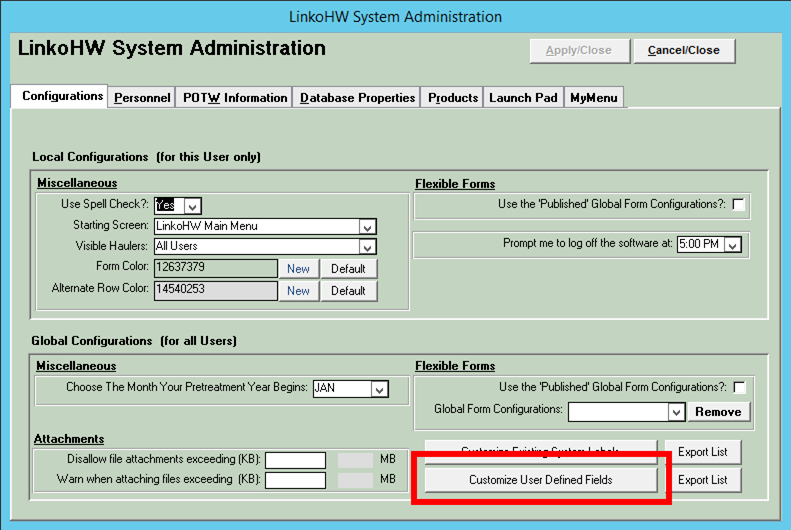
An example of the System Labels that can be changed for LinkoHW Facilities and Permits is here:
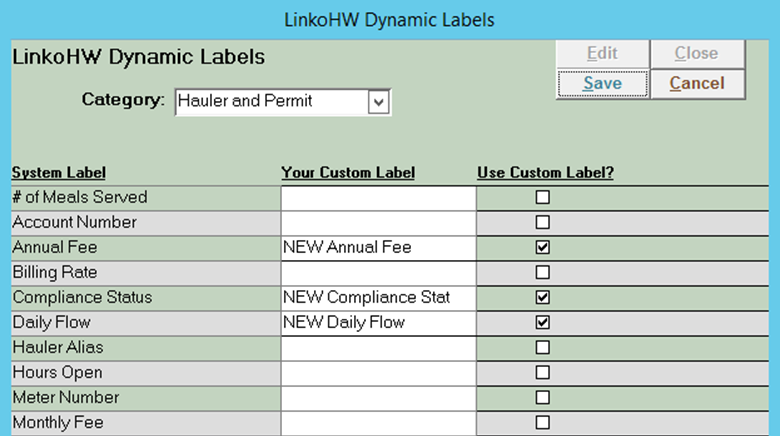
Here’s an example of what the changes look like on the screens where the fields appear. Italicized fields are candidates to be re-labeled:
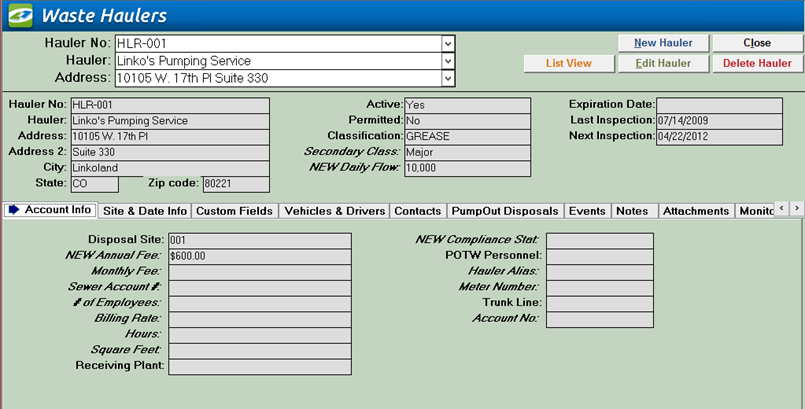
A list of categories, or areas of the software, that support DSL are below:
|
Field Name |
HW Labels Category Name |
|
MapCategory SiteElev |
Map Category Site Elevation Category: Site
(One set of fields that apply to all Applications) |
|
PermitAlias WaterAcctNo SewerAcctNo PermitMonFee (alias Permitfee) |
Hauler Alias Meter Number Sewer Account # Annual Fee Category: Hauler and
Permits |
|
BillingRate ComplianceCode* Hours SqFootage Employees MonthlyFee SecondClass DailyFlow |
Billing Rate Compliance Status Hours Square Feet # of Employees Monthly Fee Secondary Class Daily Flow Category: These
are in the same category as above |
|
TreatSysType SamplingNotes SafetyNotes MeasureDevice Electricity MonPointElev |
Treatment System Sampling Notes Safety Notes Measure Device Has Electricity Elevation Category: Monitoring Points |
|
ExtractName* ExtractDesc Manufacturer ExtractorElev FlowSequence Additives |
NONE |
* These fields have lookup lists and the labels are also changed for these in System Admin.
- Reports created before a dynamic label change will not populate with the new label. New reports must be created to reflect new dynamic labels. (The Export List button will generate an Excel file that can be used as a reference when designing Reports in Flexible Reporter.)
- Groups created before dynamic label changes will not display the new labels.
- Label Names are limited to 20 characters and cannot use any special characters such as apostrophes, quotes, etc.
- After a label is changed, other users of the software must log out and back in to see the change.
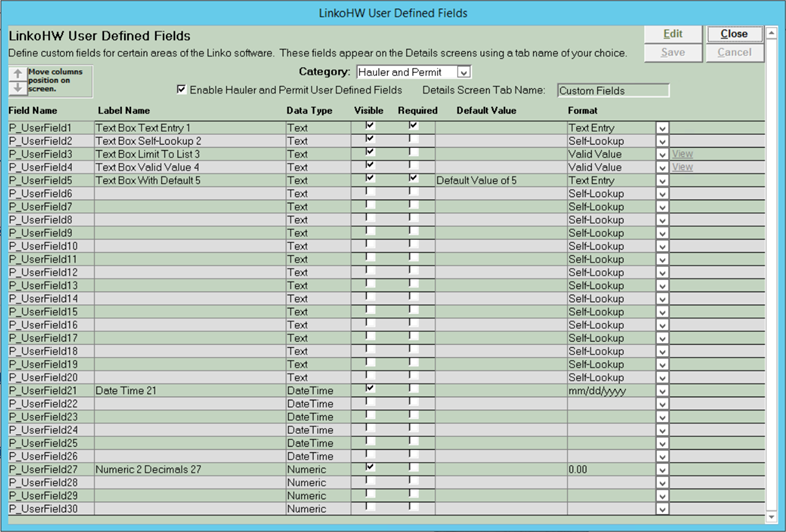
Linko software administrators can add up to 30 user defined fields to 5 areas of the software. This allows customers to tracking additional data points that the software currently does not track. It allows them to customize the software for their unique IPP, FOG, HW regulatory requirements.
Fields are defined in a central location and are automatically visible to all users of the software after they log into the software.
Configurations include defining field label names, required entry, valid value pick lists and data and number formats as well as default data for new records created.
|
Application |
Category |
|
LinkoHW |
Hauler and Permit Monitoring Points Generic Events Permit Events Inspection Events |
- Hauler Management and Details screens
- Hauler List View screen
- Hauler Groups and Queries screen
- Monitoring Point Details
- Inspection Details and Inspection Details Trap
- Generic Event Details
- Permit Event Details
Takes place in System admin screen. Linko customers (who have System Admin Edit rights) can configure User Defined Fields.
An example of the User Defined Fields that can be configured for LinkoHW Facilities and Permits is here:
Here’s an example of what the changes look like on the screens where the fields appear.
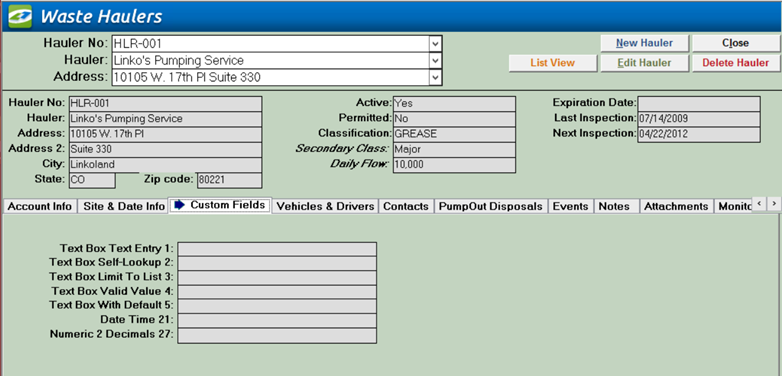
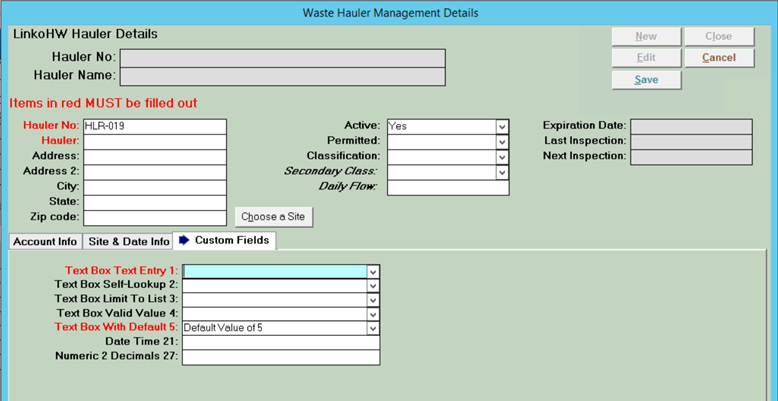
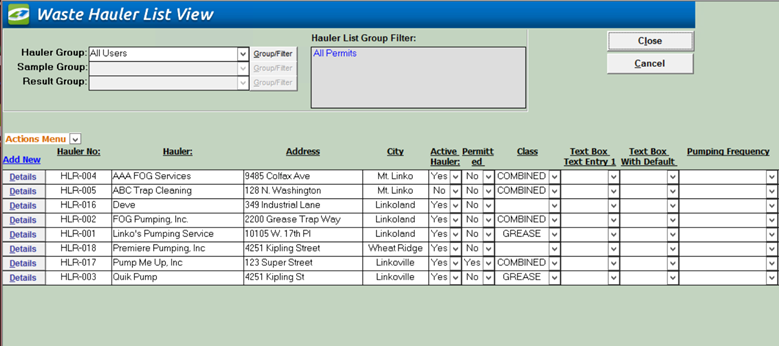
|
Field Name |
At the database level, this is the name of the field |
|
Label Name |
At the UI level, this is the user-defined name applied to the field |
|
Date Type |
The type of data that the field can handle (either text, date/time, or Numeric |
|
Visible |
If checked, the User Defined Field will be visible on the UI |
|
Required |
If checked, the user is required to populate data in the field |
|
Default Value |
If setup, the value will be populated in the field automatically |
|
Format |
Either Text Entry, Self-Lookup, Valid Value, Date, Time, Numeric, Decimal |
|
View |
For Valid Value format – allows a view of the setup window |
- Up to 30 User Defined Fields can be utilized:
- 20 Text fields; 6 date fields, 4 numeric fields
- Text fields can handle unlimited data, although large amounts is not recommended
- Pick list for Text Fields are limited to 25 characters
- User Reports and Mail Merge letters can be created using these new fields.
- The Export List button will generate an Excel file that can be used as a reference when designing Reports and Templates in Flexible Reporter with these User Defined Fields.
- If a UDF Label changes over time, previously created Groups will still have the previous Label name displayed. User must delete and recreate group to see new label name.
- Label Names are limited to 25 characters and cannot contain special characters such as apostrophe, quotes, etc.
- After a user defined field is configured, other users of the software must log out and back in to see the change.
- Fields identified as Required will be automatically added to the List view screens.