|
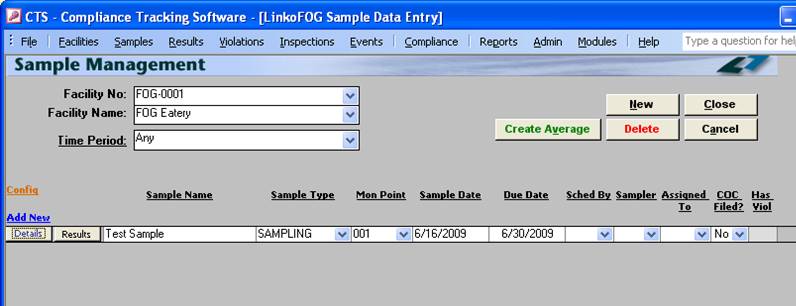
View Samples for a Facility |
Use one of the pull-down
boxes labeled <Facility No> or <Facility> to select a
Facility. When you select a Facility,
the samples for that Facility will appear on the screen. |
|
||
|
Time Period |
Drop down box offering a list of time periods. Choosing a time period limits the samples displayed to the Sample Dates that are within that time period. Custom Time Periods can be created in the Quick View tab of Event Administration. |
|
||
|
Add a New Sample |
Click the New button.
Complete each of the fields on the Samples Details Screen with appropriate information - you must fill in the columns with red
labels. Click the Save
button to Save or the Cancel to abandon the addition. |
|
||
|
Data Entry |
Enter information on a new
Sample right here at the Sample Management screen without going into the
Sample Details. This speeds data entry. |
|
||
|
Sample Sorting |
Samples are listed most
recent on top, and you can use the scroll bar on the right hand side of the
screen to view samples at the bottom if you have that many. You can change the sorting of the screen by
clicking on a column header. |
|
||
|
Modifying Samples |
To change information in a
sample, simply click on the Details button (the “S”
Button), to open the Details Screen, click on the Edit Button
and modify the field of interest. |
|
||
|
Save / Cancel |
Use the Save button
to save or the Cancel
button to abandon your changes. |
|
||
|
Delete Samples |
To delete a sample, select
the Sample by clicking in one of the fields. Next click on the Delete button. If there are violations or other events
associated with that sample you may be required to delete those items prior
to deleting the current sample. |
|
||
|
Auto schedule next Sample |
Users can complete the Sample Date, and when this
date is entered, Follow-up Sample events are created (Prompted or
Automatically, depending on config settings).
Now, when Samples are completed, the MonPointID and Scheduled By
values are also pushed to the follow-up event - whether completed from the
Samples list, Events list, or Sample Details screens. |
||
|
Filter Criteria |
Description |
|
||
|
Facility No |
Drop down box offering a list of Facilities by Facility No. This changes the Facility’s samples displayed below. If you know the facility number then you can simply start typing it in the drop down list. The list will instantly jump to the Number. |
|
||
|
Facility Name |
Drop down box
offering a list of Facilities by Name.
This changes the Facility’s samples displayed below. If you know the facility name then you can
simply start typing it in the drop down list.
The list will instantly jump to the Name. |
|
||
|
Time Period |
Drop down box offering a list of time periods. Choosing a time period limits the samples displayed to the ones that have Sample Dates within that time period. The user can create a Custom Date range (See the Custom Date explanation in the List and Details View section of Common Features) or add / modify / delete Date Ranges available in the listing via the Quick View tab of Event Administration. |
|
||
|
Buttons |
Action performed |
|
||
|
Create Average |
Opens Sample Averages window allowing you to combine several samples into one Sample Average value. |
|
||
|
New |
Creates an Input Row allowing you to create a new Sample. |
|
||
|
Delete |
Allow you to delete a Sample and all of its parameter results. |
|
||
|
Close |
Closes the screen, returns to the Main Menu |
|
||
|
Cancel |
Allows you to exit out of creating a New Sample. |
|
||
|
Sample Details button |
Opens Sample Details screen displaying the selected Sample |
|
||
|
Results button |
Opens Result Management screen displaying results for the selected Sample |
|
||
|
Record Selectors |
Standard Record Selectors allowing you to move between displayed Samples. |
|
||
|
Status Bar |
Standard Status Bar allowing you to jump to a listing of Violations without enforcements, a listing of overdue Events, a listing of related Reports, a Calendar, a Calculator, Contact Information, or a new Phone Log Event |
|
||
|
Item |
Description |
|
||
|
Sample
Name |
Linko can enter the name of the Sample, automatically or you can type your own in each time. Set the configuration in Samples Admin, “Auto-Fill Sample Name.” |
|
||
|
Sample
Type |
What kind of Sample event, Authority, Industry, Re-Sample, Compliance Sample, Surcharge Sample, etc. |
|
||
|
Mon
Point |
The Monitoring Point where the Sample was taken |
|
||
|
Sample
Date |
The date the Sample was taken |
|
||
|
Due
Date |
The date the Sample must be completed by |
|
||
|
Sample
Comments |
Comments about this Sample |
|
||
|
Has Viol |
Whether or not there are any violations associated with this Sample. Double-clicking this field when it has a red YES will take you to the Violations Management screen. Double-clicking this field when it is blank will ask you if you want to Create a Violation. |
|
||
|
Other Field
Names and Config |
The List View
Configure Link Allows you
to select which fields are displayed, their order and settings. The Sample
Management screen has a variety of Fields that can be used including
information about who scheduled and completed the sample; and the analyzed
date, comments and sample document. |
|
||
|
Sched By |
Who scheduled this sample collection? e.g., the Authority or the Facility |
|
||
|
Sampler |
The person who collected the Sample |
|
||
|
Created By |
Shows the listing of POTW employees from the Personnel Tab in System Administration and one can be selected to indicate that person created the Sample Record. |
|
||
|
Assigned To |
Shows the listing of POTW employees from the Personnel Tab in System Administration and one can be selected to indicate that the Sample was assigned to them. |
|
||
|
COC Filed |
Chain of Custody status. A check indicates that the COC is on file with sample results. This item is configurable to be checked manually or automatically when all of the results are entered and there are no results with NA values. If the sample was created from the Linko Chain of Custody Assistant, double-clicking this field will take you to that Chain Of Custody record in the software. |
|
||
|
Analyzed Date |
The actual date the Sample was tested in the lab. |
|
||
|
Analyzed By |
Shows the listing of POTW employees from the Personnel Tab in System Administration and one can be selected to indicate who in the authority did the testing (if applicable) |
|
||
|
Late |
If the Sample Date exceeds the Due Date, this field will indicate YES that it was late. |
|
||
|
Used in Avg? |
Indicates whether this sample is one of the samples used to calculate a Sample Average |
|
||
|
Internal Comments |
Your comment (8000 character max) can be entered here or in the Details screen for the Sample. |
|
||
|
Sample Document |
A document can be attached by double-clicking in this field, which opens a File Manager window. This is the same function as the Browse button in the Details Screen for the Sample. View the document once it has been entered here by clicking on the Browse button. |
|
||
|
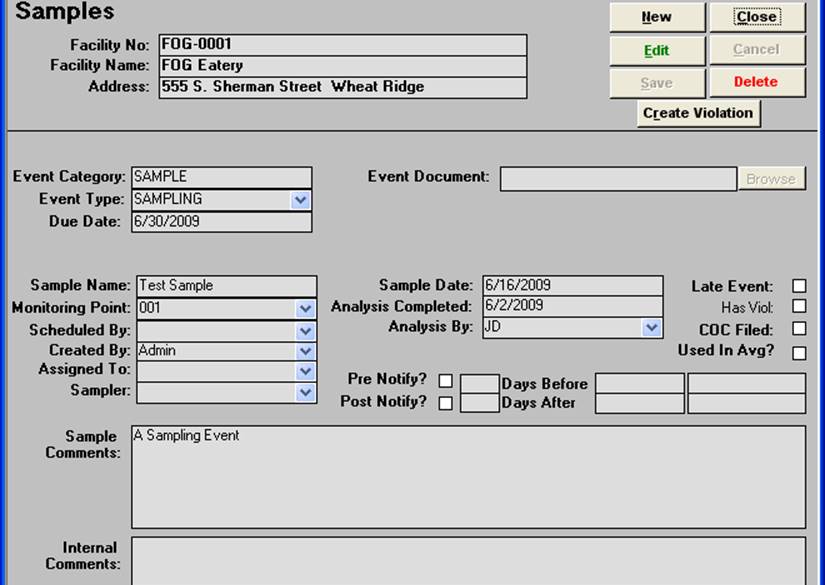
Item |
Description |
|
Facility No |
ID of Facility whose Sample is being created. |
|
Facility |
Name of Facility whose Sample is being created. |
|
Create Violation |
Opens Violation Details page allowing you to create a new Violation for this Sample |
|
New |
Clears values and allows you to create a new Sample. While editing, the New, Edit, Close, and Record Selector buttons will be disabled |
|
Edit |
Allows you to edit the displayed Sample. While editing, the New, Edit, Close, and Record Selector buttons will be disabled |
|
Save |
Saves the changes made to the Sample. Only enabled while editing or creating an entry |
|
Close |
Closes the screen |
|
Cancel |
Cancels any changes made to the Sample. Only enabled while editing or creating an entry |
|
Delete |
Deletes the Sample. |
|
Event
Category |
Samples are considered a type of Event. This field is not editable, it will always be ‘SAMPLE’ |
|
Event
Type |
This combo box lists all possible Sample types available. These types are editable in Event Admin. |
|
Due
Date |
The scheduled date for the Sample to be taken |
|
Event
Document |
Link to a document associated with the particular sample |
|
Browse... |
Opens a file browser allowing you to select a word document for association. View the document once it has been entered here by clicking on the Browse button. |
|
Sample
Name |
The name of the Sample. Sample name can be automatically generated depending on configuration in the Samples and Results Admin. |
|
Monitoring
Point |
The Monitoring Point where the Sample was taken. Drop down box lists all Monitoring Points associated with this Facility |
|
Scheduled
By |
Who scheduled this sample collection? e.g., the Authority, the Facility, or a Violation occurrence? |
|
Created
By |
Person who created this event. This can be used in bigger systems to track who is scheduling the events to be completed |
|
Sampler |
The person who collected the Sample |
|
Assigned
to |
Allows the POTW to choose which personnel were assigned to do the sampling. |
|
Sample
Date |
The date the Sample was taken. Keep in mind you will also see a Start and End date on the parameter level. This adds flexibility to the sampling event. |
|
Analyzed
Completed |
The date the laboratory analysis was done. |
|
Analysis
By |
This provides a pull-down of POTW personnel to choose who did the laboratory testing. This field is not used when testing is done by an external lab. |
|
Late
Event |
Whether or not this Sample Event is late. If the event is late, this will be automatically filled in by the system |
|
Has Viol |
Whether or not there are any violations associated with this Sample. If a Violations was created for this Sample, clicking this label will open the Violation window listing all of the Violations for the single sample |
|
COC Filed |
Chain of Custody status. A check indicates that the COC is on file with sample results. This item is configurable to be checked manually or automatically when all of the results are entered and there are no results with NA values |
|
Used In
Avg? |
Is this Sample part of a Sample Average? This is set automatically by the system when averages are created. |
|
Pre
Notify/Post Notify? |
Pre Notify Events are either created on an Event Type level in the Event Administration or on the fly within any of the Events screens (Samples Included). Pre and Post Notify will automatically generate events before and after the original events are due. For example, users can create a pre-event to notify POTW personnel of an upcoming sample event. This can be used to prepare the sample bottles and review the types of samples to take. This is available only when entering a New sample. This is a discontinued feature provided for backwards compatibility. Please see the Pre / Post Configuration setting. |
|
Sample
Comments |
Comments about this Sample |
|
Internal
Comments |
Internal Comments about this Sample (8000 character max). |
|
Record Selectors |
Standard Record Selectors allowing you to move between Samples. |
|
Status Bar |
Reduced Status Bar allowing you to view a Calendar, a Calculator, Contact Information, or create a new Phone Log Event |
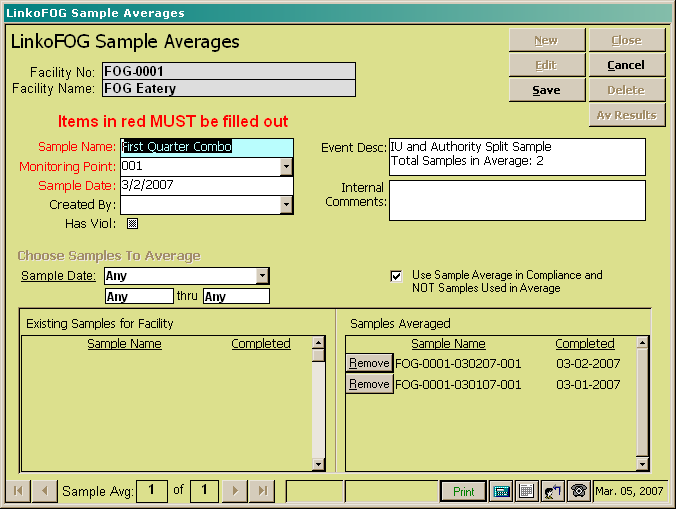
Use Sample Averages to average two or more samples, such as field grabs, into one compliance or non-compliance sample, or for averaging the results of a split sample between the Facility and the POTW.
|
Buttons |
Action performed |
|
New |
Create a new sample average |
|
Edit |
Allows
you edit a previously created Sample Average. |
|
Save |
Generates the averages from
the samples and prompts you to create violations if some averaged results
exceed their limits. |
|
Close |
Closes the screen. Returns to the Sample Management screen |
|
Cancel |
Cancels the averaging and
returns to the Sample Management screen or the first sample average in the
list |
|
Delete |
Deletes the Sample Average
currently being displayed on the screen |
|
Av Results |
Quickly View the Average
Results by clicking on this button. |
|
Items |
Description |
|
Facility No. |
The
number of the Facility that you are creating the Average for. This
information is pulled from the Samples Admin screen when you chose the Create
Average. |
|
Facility Name |
The
name of the Facility that you are creating the Average for. This information
is pulled from the Samples Admin screen when you chose the Create Average. |
|
Sample Name |
An auto-generated value
based on when the sample was made and which Facility it is for. This name can be modified. |
|
Monitoring Point |
Choose a Monitoring Point
to average the samples for. User must select
a single Monitoring Point to average, after which, a list of Existing Samples
to Average will be displayed |
|
Sample Date |
Date of the Averaged Sample
that you are creating. |
|
Created By |
POTW personnel who created
the sample average. |
|
Event Description |
Sample Comments (8000
character max). The number of samples
being averaged is auto-added to this field. |
|
Internal Comments |
Sample Comments to be
shared only with the POTW. Not printed
on NOV Letters or other public reports. (8000 character max) |
|
Has Viol |
This field will indicate
that the Sample Average you create has a Violation. |
|
Choose Samples to Average |
Use this Sample Date list
box to browse and select the samples to be used for the average sample.
Choose the Monitoring Point first. Then choose the Date range of the samples
to average. Use the Quick view for
standard date ranges. |
|
Existing Samples for Facility |
This will list the Samples
from the Date range that are available to be used in the Average. The Add button
moves the selected sample from the Existing Samples list to the Samples
Averaged side. |
|
Samples Averaged |
Displays the samples that
have been selected for use in the average sample. The Remove button
takes the selected sample out of the list and returns it to the Existing Samples
list. |
|
Use Sample in Compliance |
This is an important item
to be aware of!! If you choose to use
the Sample Average in compliance, the samples in that average will be removed
from compliance calculations. Otherwise
if the check box is not checked, the individual samples and not the average
will be used in the compliance calculations.
You will see a check box on the results to indicate whether a result
is used in compliance calculations. |