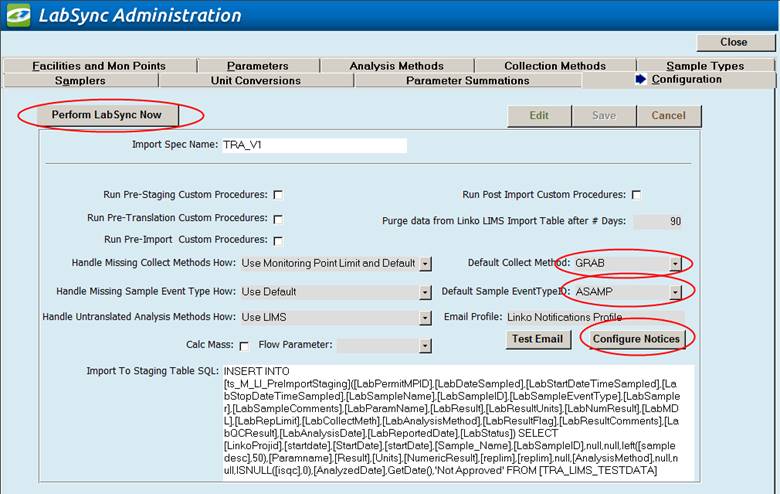
Perform LabSync
Now
After updating translations (of failed records), users may also force a manual sync to immediately update log records and transfer lab results to Linko.
Default Sample Translation
Values
|
Field |
Description |
|
Default Collect Method |
If using default collection methods (not translated from LIMS), this is the value that will be used if there is none provided |
|
Default Sample EventTypeID |
If this value is not provided by LIMS, the is the sample event type that will be used by the import |
Configure
Notices:
Click the Configure Notices button to add/edit email addresses for Email notices. There may be one or more notices purchased and configured for each user implementation. None is required – it is possible to use the system without notification. It is also possible that Email notices are configured to be sent when LIMS data is reported, before it has received final QC approval.
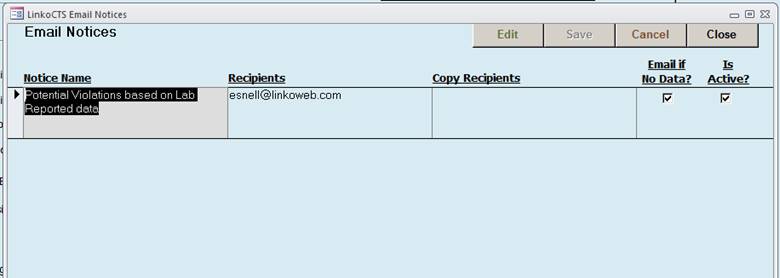
Under the configure notices button, your email report(s) will be listed, you may edit the emails to be submitted to; multiples may be listed separated with semi-colon. CC email address may be entered under Copy Recipients. The email will process daily, however, there may not be lab data available daily. You can configure the email to send only when data is present (uncheck the “email if no data”) check box.
Other Configuration
Screen Values
After “Go Live” with Linko LabSync, the system configuration values should NOT be changed.
|
Field |
Description |
|
Import Spec name |
Uniquely identifies the name of the specification. Currently, only 1 specification can be defined at a time. |
|
Run Pre-Staging Custom Procedures |
Identifies if custom import logic exists for this Import Spec. If so, special scripts are executed that manipulate data beyond the standard import process. |
|
Run Pre-Translation Custom Procedures |
“” |
|
Run Pre-Import Custom Procedures |
“” |
|
Run Post Import Custom Procedures |
“” |
|
Handle Missing Collect Methods How? |
Use Monitoring Point Limit and Default – Linko requires a Collection Method. if the Lab does not provide a Collection Method, this instructs LabSync to use the one assigned in the MPLims. If there is no MPLim, it uses the Default Collection Method. Force Translation – a collection method must be provided by the Lab for the data to be imported and it must be translated to a Linko term |
|
Handle Missing Sample Event Type How? |
Use Default – Linko requires a Sample Event Type. if the Lab does not provide one, this instructs LabSync to use the it uses the Default Sample Event Type ID Force Translation – a Sample Event Type must be provided by the Lab for the data to be imported and it must be translated to a Linko term |
|
Handle Untranslated Analysis Methods How |
Use LIMs – Any Parameter Result with a Lab Analysis method that has not been translated to a Linko Term with have the Lab Analysis Method used. Force Translation – The Result will not be imported into Linko until the Lab Method is translated to a Linko term. |
|
Calc Mass |
If checked, mass results will be calculated for the lab data just imported. This assumes the Lab provided a Flow value in the same sample. |
|
Flow Parameter |
The Linko Flow Parameter that is used to calculate mass. |
|
Purge data from Linko LIMS Import Table after # Days |
Linko keeps this many days’ worth of LIMS data in the Linko database (based on Lab Reported Date). Any LIMS data that is older than this is deleted from Linko. This configuration should be set to match the date range of data being retrieved from the LIMS in view v_M_LI_LIMS_Data. |
|
Import To Staging Table SQL: |
This SQL Statement populate the LabSync staging table. Useful to Linko Technical Support in troubleshooting issues. |
|
Email Profile: |
SQL Server profile used to send mail for email notifications |
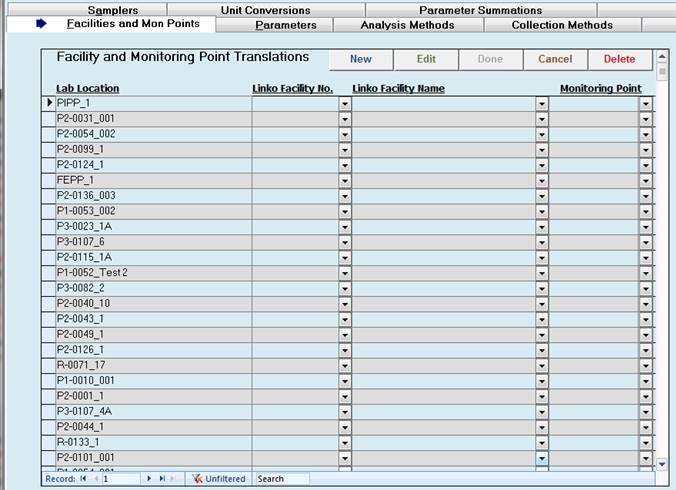
This screen is used primarily for translating Laboratory sampling location to a Linko Permittee + Monitoring Point location. If a translation does not exist for a Lab Location, the data will not be imported into Linko. Once a translation exists, the record will automatically attempt to be imported the next time LabSync routine is schedule to run or if the user clicks “Perform LabSync Now”
LabSync security permissions: Add Rights are required to add/edit/delete data on these screens.
Users may sort columns ascending or descending order.
In edit mode, can right-click filter to focus on specific data (or missing Linko translations).
To update a translation, click Edit and use either the Linko Facility No. drop down or the Linko Facility Name drop down to link the permittee location. After that has been identified, click the drop down under Monitoring Point to set that location. If no representative Facility or Monitoring location is found, you may need to close and go to Linko Industrial Management module to add a new location.
 De
De
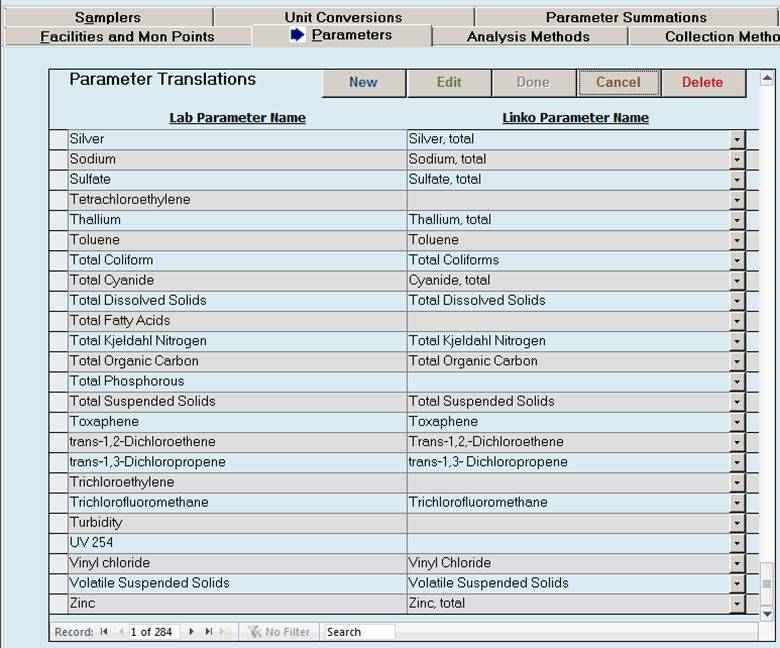
This screen is used primarily for translating Laboratory tests or parameters to a Linko equivalent parameter. If a translation does not exist for a Parameter, the data will not be imported into Linko. Once a translation exists, the record will automatically attempt to be imported the next time LabSync routine is schedule to run or if the user clicks “Perform LabSync Now”
LabSync security permissions: Add Rights are required to add/edit/delete data on these screens.
Users may sort columns ascending or descending order.
In edit mode, can right-click filter to focus on specific data (or missing Linko translations)
To update a translation, click Edit and use the Linko Parameter Name drop down to link the lab parameter definition. If no representative Linko Parameter is found, you may need to close and go to Sample Admin > Parameters configuration to add a new a parameter to Linko. This admin screen is available from the LabSync Main Menu.
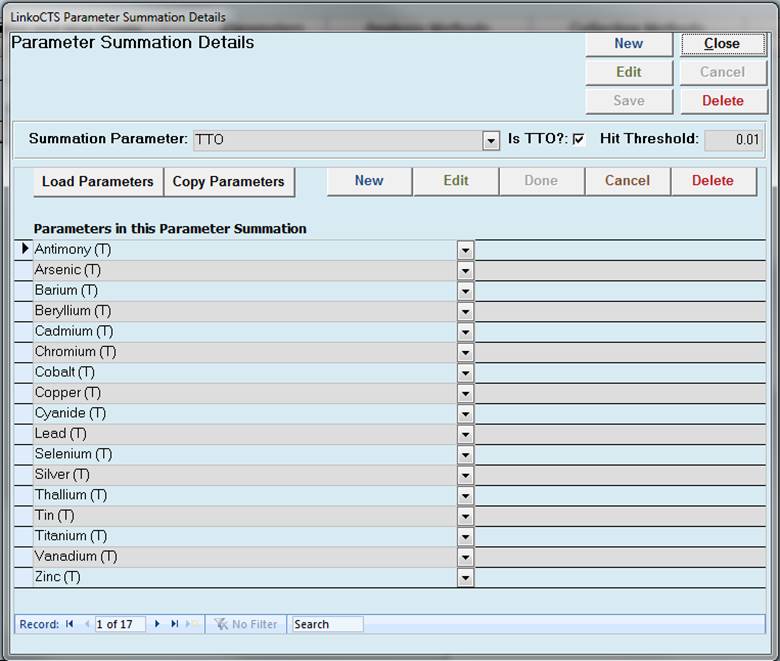
Define a summation parameter. All parameter results included in that summation are ‘summed’ and the result is placed in the Summation Parameter’s result value in Linko Samples and Results.
|
Summation Parameter |
Select the Parameter name which will be the summation parameter that will appear in a sample. Industries and Monitoring Points must have this parameter defined in their Monitoring Points Limits screen for a summation to appear for samples imported. Ie, add TTO as a Monitoring Point Limit and during import TTO will be calculated and a result created. |
|
Load Parameters |
Allows you to load a list of parameters into the Summation based upon the Default Analysis Method assigned those parameters in Samples and Results Administration. |
|
Copy Parameters |
Allows you to copy a list of Parameters from another Summation Parameter into the current Summation Parameter. |
|
Is TTO? |
Check this box if the Summation Parameter is TTO. This tells the software that each “Parameter in this Parameter Summation” must meet or exceed the Hit Threshold before it will be summed. |
|
Hit Threshold |
When Is TTO is checked, this field is visible. The value here must be met or exceeded before the parameter will be included in the sum. |
This screen is used for translating samplers documented with the logged in laboratory sample to a Linko User\Sampler value.
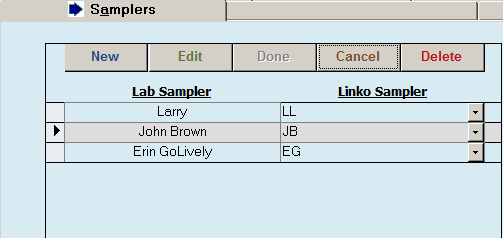
After each sync attempt,
any missing or pending sampler translations will have a value under the Lab
Sampler column and a blank in the Linko Sampler Column. Click the Edit button to select the
equivelent value in Linko. If the value
does not exists and you desire to add the sampler, you must exist the LabSync
module, and add the sampler as a user under LinkoCTS System Administration.
You may also, click the
New button and type in the expected Lab Sampler value and match it to an
existing LinkoCTS value.
Sampler transalations are
considered optional; that is they are not required to be mapped for the data to
imported. If a Lab Sampler exists
and there is no mapped Linko Sampler,
the analyses data will be imported to Linko without any sampler being
designated.
This screen is used for translating laboratory units values to Linko units. It also will provide conversion factors to be applied when applicable.
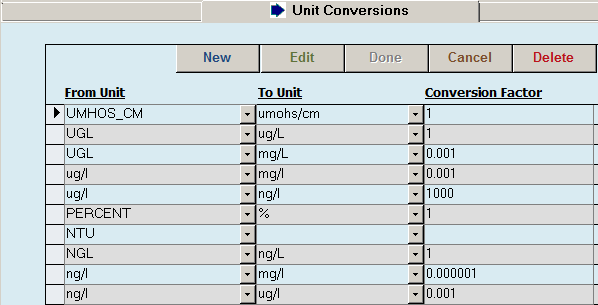
Analyses data entered into LinkoCTS must contain a valid Linko defined unit value and if the data being imported has monitoring limits, then the unit imported must be in the same unit as the limit. The sync process will attempt to convert the unit to the unit of the limit if there are parameters defined with limits at a monitoring point, otherwise it will convert the unit to the default parameter unit in the Linko Parameters definitions table. Most cases, it is a straight 1:1 conversion. Once configured, this table may not need updated.
This screen is used for translating lab analysis methods used when generating results. When mapped, the system will use the Linko Analysis method value.
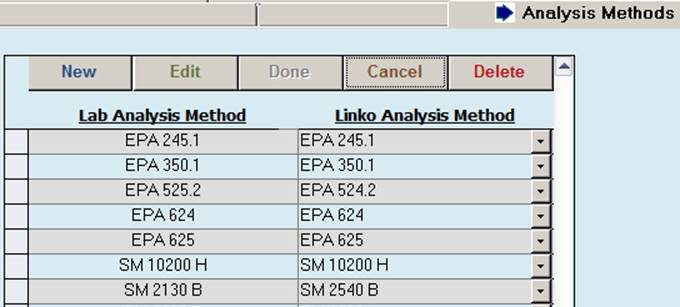
The LabSync Configuration
tab, may be configured to use the default lab method provided, if this is set,
there is no need to map Linko values.
Linko allows (new) values from the lab to be directly imported for Analysis
Method. If the configuration is set to
use the Linko translated value, it will use the Linko Value, if none is mapped,
the value will be left blank.
This screen is used for translating lab collection methods entered to Linko Collection methods.
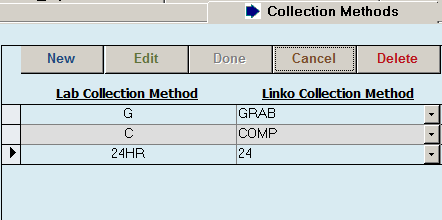
The LabSync Configuration
tab, may be configured to use the default Linko Collection method defined under
each IUs Monitoring Point requirements and if non exist, the a default value
defined in the configuration screen.
This setting is used if the lab cannot provide collection method – as
some locations do not log that data within at LIMS sample data. The alternate configuration is to map them
from the Lab provided to Linko. This is
a required field, so if no mapping is provided, nothing will be imported.