Importing
images is done in two steps – 1) importing those images into the “Imported
Images” directory, and 2) storing them along with associated information in the
LinkoCTS+ database.
Click
the “Import images” button, and you’ll see the following screen:
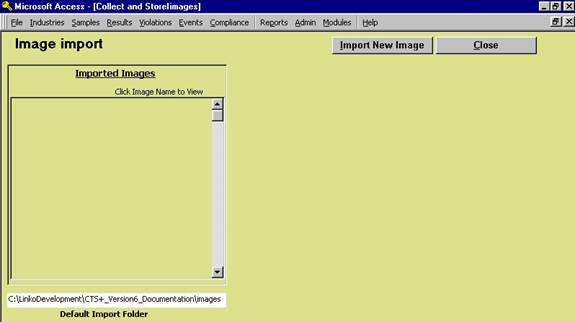
Click the “Import” button, and a file browser will pop up.
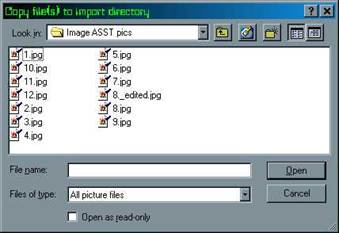
Navigate
to the directory which contains the images you want, then select them. You can select multiple images by holding
down the Ctrl key as you click their filenames, or select all images in a given
directory by pressing Ctrl-A.
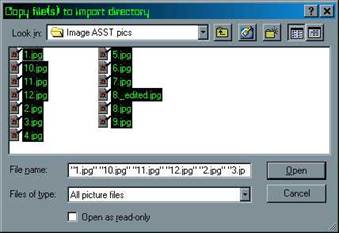
Once
you’ve selected the pictures you want, click the “Open” button. This will copy
the selected images to the Imported Images directory.
Now
you’re back to the import image screen.
Note that the Imported Images lists all of the images you selected. Click on a picture’s filename to see that
picture.
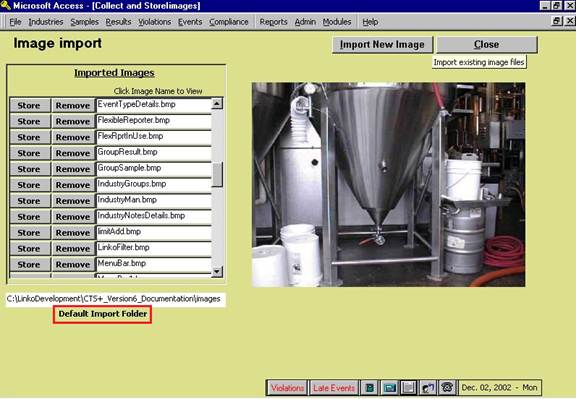
Default Import Folder should be used if you usually import your images from the same directory.
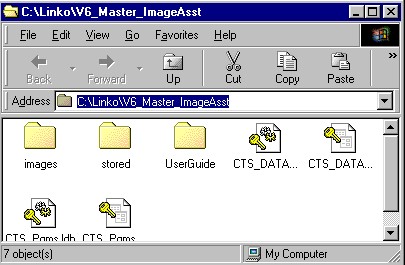
1. Simply type in the directory path or double click in the path text box to bring up an explorer window.
2. Locate and click on the folder that you would like to set as your default folder and copy the Address field from the window and paste it into the text box.
3. Highlight the address field and use the Ctrl C command to copy the address.
4. Next close the file window down and remove the text in the Default Folder text box and use the Ctrl V command to paste the text into it.
5. This is a manual process but it is worth it in order to have the default directory always open to the folder that you keep your images in.
To store the image, click the “Store” button. You’ll see the following form:
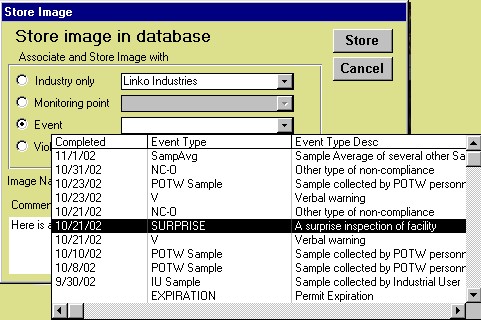
You
must select at least a permit number
to associate with the image. In
addition, you can select a monitoring point or event or violation to
go with that image. You can also enter
comments to be associated with the image, and change the “original filename”
(this name will be stored in the database – it has no effect on the actual
image filename).
Click
“OK” to store the image in the database.
When you return to the image import form, you’ll notice that that image is no longer in the working
directory.
When
you’re finished importing images, you can clear out the working directory by
pressing the “Remove” button, or leave those images in the directory for the
next time you want to work with them.
Click
the “Close” button to return to the main screen.