From the main screen, click “Browse Images”. You’ll see the following form.
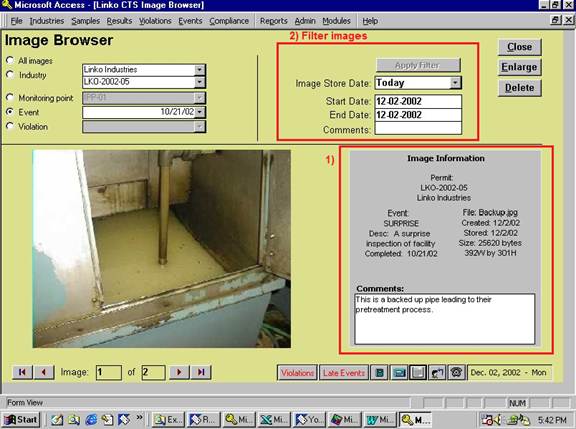
1) Note that the form displays the comments, which were entered when the image was stored, as well as the date it was stored, the date the image file was created, and the original filename. The form also shows you what permit is associated with the image, and the additional reference if it exists (monitoring point, event, violation).
You can view all the images available, or limit them to images from a single permit. You can limit them further to images associated with a single monitoring point, event, or violation.
2) In addition, you can filter the images by store date (the date they were imported into the database), or the comments. Simply enter the date range or comments or both and click on the Apply Filter button. Only the images that meet all of the selected information will be displayed.
You can enlarge the image for a better view by pressing the “enlarge” button.
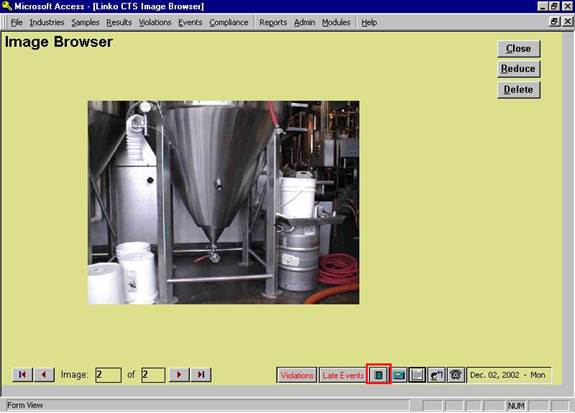
Click the “Reports” button just like you would in the rest of the program to preview a report containing the image and its associated date. Also these reports will also be modifiable in the Flexible reporter.
Click the “Delete” button to delete the picture. You can’t undo this delete, so be sure you’re deleting the correct picture!
Click “Close” to return to the main screen.