Once the surcharge limits and rates are established, you are ready to calculate and make Surcharge invoices.
1. From the main menu, click Create Surcharge Bills.
2. Select the permit for which you want to
make an invoice using the  list box.
3. Click the New button. The following screen appears.
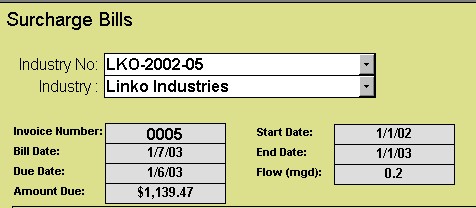
4. Enter the Due Date (the day on which payment is due).
Tip! The
Invoice Number and Bill date are filled in automatically.
5. Enter the Start Date and End Date range. This is the range of dates for which the
Surcharge ASSISTANT will review samples and results to make the bill.
6. Enter the flow for the specified date range.
7. Click the Save Button when finished.
8. To calculate the invoice, click the Calc Bill
button. The surcharge amounts are
calculated then listed for each parameter.
Users can modify the flow for each of the parameters and also select or
not select any of the parameters to be used within the surcharge bill. If you modify a Flow within the parameter
list, then simply click on the Calc Bill button to recalculate the bill.
9. To review and print the invoice, click the
Reports button on the bottom of the screen.
Note! Parameters are
included or removed from invoices by using the Invoice checkbox. To include the parameter on the invoice, be
sure the box is checked. To leave it off
the invoice, remove the checkmark.

Tip! To edit or make changes to an existing invoice, simply re-enter the data and then click the Cal Bill again. The new information is displayed.
10. To review the samples and results used in the surcharge calculations, click the Samples button, and the Results from there.