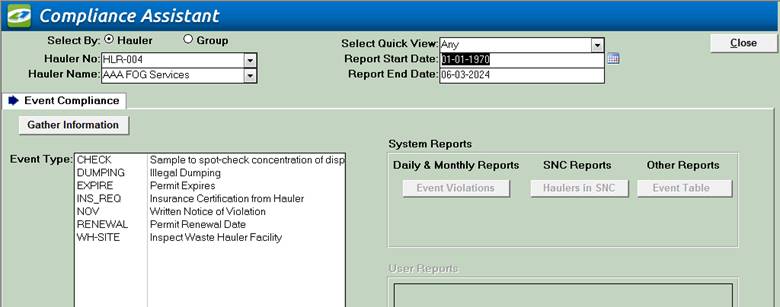
By gathering Event Compliance data, you can quickly see what events were completed late, how late they were and even have the software automatically create violation records for you.
|
Event Compliance |
Enter
LinkoHW Compliance Assistant from the Menu Bar / Compliance / Review
Compliance. When
you click on the Gather
Information button for the Event Compliance Tab, the program: § Gathers the Events that
match your selection criteria. § Reviews Event Types to see
which events are “Compliance Events” and what the Compliance Days Late are set to. § Calculates Event compliance
by comparing Event Due Date with Event Complete Dates. § Flags events for NC or SNC
depending on the exceedance of Compliance Days Late A
status message is displayed as the calculations are performed and when the
process is complete. The
reports display event information and flag late Compliance Events as NC or
SNC. Violations are temporarily created for your review in the Violations
Tab. |
|
Review Violations |
Running Gather Information for Event Compliance will create Temporary Violations if any of the Event Types have exceeded their permissible Days Late. These Violations have not been saved as records in the Linko Database. They are created temporarily so that you may review the Violations before telling Linko to create them as records in the Database. Linko
will inform you that Violations have been created and the Violations tab will
become available. Open the Violations Tab and review the Violations and
create Violations of interest. Note:
the Violations Tab does not become visible until after the User gathers
information. You must review the list of Temporary Violations prior to
creating them to ensure the Facility has not already received a violation for
the particular incident. |
|
Buttons |
Action performed |
|
Close |
Closes
the screen, returns to the Main Menu. |
|
Gather
Information |
Begins
the compliance check by gathering the data and calculating the averages. |
|
|
|
|
System Reports |
|
|
Event
Violations |
List
of events with due date violations. This is in a Report format |
|
Haulers In SNC |
Lists all Waste Haulers based on your current
search criteria that have events that exceeded the “Days Late Allowed SNC”
setting in Event Administration. |
|
Event
Table Report |
Data
view of events which have due date violations |
|
|
|
|
User Reports |
|
|
User Reports |
Future
versions of Compliance Assistant will provide the ability to make a custom
user report based upon one of the System Reports used for Events. |
|
|
|
|
Tabs |
Description |
|
Event Compliance |
Linko automatically lists the Event Types that
have been configured with “Days
Late Allowed NC” or “Days Late Allowed SNC”.
Users can select individual event types from which to gather information for
the reports. Note: By default all items listed in the Event
Type selection box are included in the criteria. However, if you select one or two items in
the selection box, just those items are included in the criteria and the
other items are not. |
|
Violations |
After Gathering Information, Linko automatically
creates Temporary Violations when appropriate for the Event Types chosen. |
|
Field Name |
Description |
|
Select by: |
Hauler: Allows you to select, and
check the compliance of permits, one at a time. Group: Allows you to select, and
check the compliance of a whole group of permits at the same time. |
|
Hauler |
Displayed
only when using "Select by: Hauler" mode. Use to select a HAULER from the list box. |
|
Select Quick View |
Drop
down box offering a list of time periods.
Choosing a time period limits the Samples reported on to the ones that
have a Sample Date within that time period. The user can create a Custom Date
range (See the Custom Date explanation in the List and Details
View section of Common Features) or add / modify / delete Date Ranges
available in the listing via the Quick View tab of Event Administration. |
|
Report Start Date |
The
beginning date in the range of samples to use in the compliance check. |
|
Report End Date |
The
end date in the range of samples to use in the compliance check. |
|
Events Type |
The
types of events to include in the compliance check. |
|
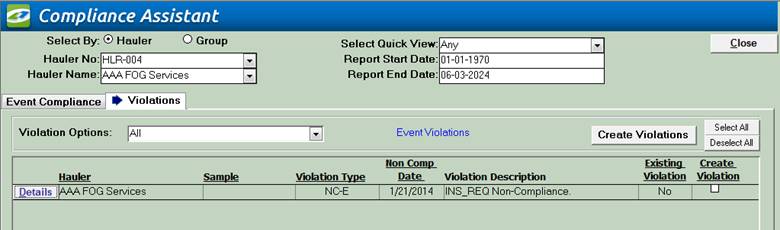
Violations Tab |
Displays
both the Existing and Temporary Violations. Temporary Violations are generated after
Compliance Assistant completes the Gather Information process. Existing Violations are the current Violations
that exist in the Database manually created for Non-Compliant Events. Users can edit the Details of Violations,
ignore the temporary Violations that Linko lists, or Create them as permanent
records in the Database. If
you choose to create permanent violations records in the database, you can
then view and manage those violations in Violation Management. There you can enforce the violation and send
Notice of Non-Compliance letters. |
|
||
|
Violation Selection |
Sort: Clicking on Industry,
Sample, Non-Comp Date, and Create Violation column names allows Sorting
Ascending or Descending. Violations Options: Drop-Down list allowing the
User to view Only Pending, Only Existing, or All Violations. |
|
||
|
Buttons |
Action performed |
|
||
|
Create
Violations |
Clicking on Create Violations instructs Linko to create and add Violation Records to the Database for each of the listed Records that have a Checkmark in the ‘Create Violation’ column. |
|
||
|
Details |
Opens
the Violation Details screen for review of the Violation. |
|
||
|
Select
All / Deselect All |
These
allow you toggle on and off having all the Violations selected for creation. |
||
|
Item |
Description |
|
||
|
Facility |
Displays the Hauler Name associated with the violations
displayed |
|
||
|
Sample |
This
field is not applicable to Event Compliance as these Violations are not
Sample based. |
|
||
|
Violation Type |
Indicates the type of the Violation depending on the circumstances of the sample and the compliance calculation. Typically, this field will display ‘SNC-E’ for a non-compliant event type. |
|
||
|
NonCompDate |
The date that the Non-Compliance (Violation) occurred. This is the Due Date of the Non-Compliant event. |
|
||
|
Violation Description |
Displays
the details of the Violation Description. Only the first line is displayed.
To read the whole Violation Description, double-click in the Violation
Description field and the ZOOM window will open showing the full description.
(This is not editable.) |
|
||
|
Existing Violation |
Linko
displays a checked box to indicate that the Record indicated is an Existing
Record in the Database. |
|
||
|
Create Violation |
Click
in the box to indicate that this is one of the Violations that you want to
create as a permanent record in the database. |
|
||