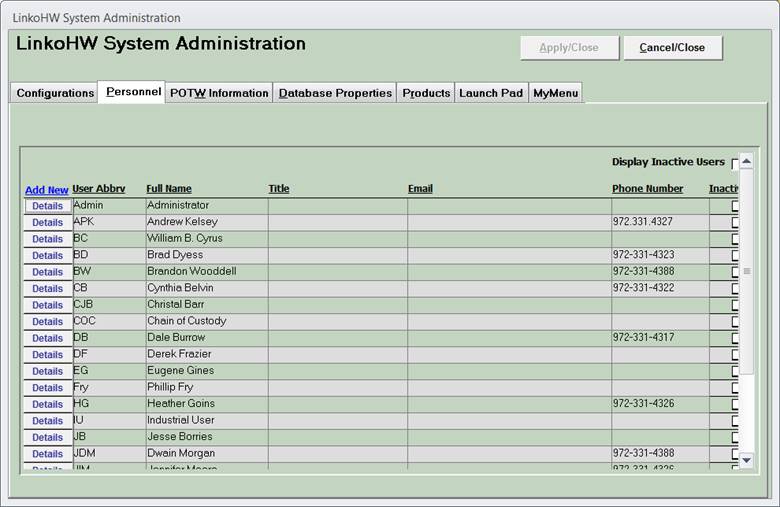
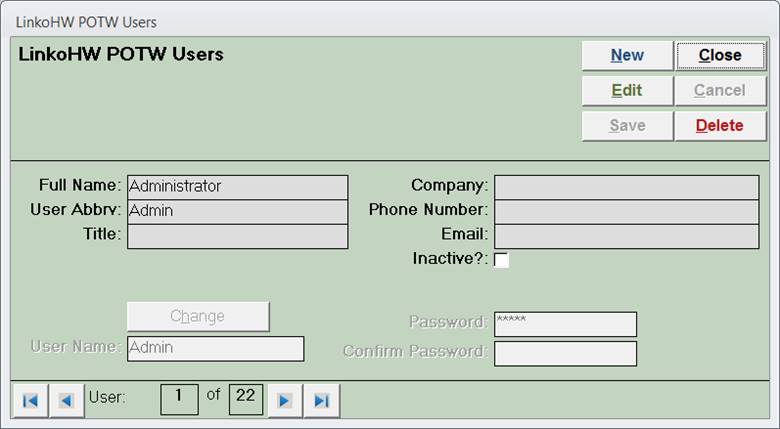
Set up your POTW personnel with their contact information and Linko Login information if Security is enabled.
|
Buttons |
Action performed |
|
Apply
/ Close |
Not
applicable to this screen. |
|
Cancel
/ Close |
Closes
form without saving any changes. |
|
Add New |
Allows
users to add new POTW personnel |
|
Details |
Allow
users to view and modify POTW personnel |
|
Item |
Description |
|
User Abbreviation |
Main
indicator of who performed or is scheduled to perform a task. This abbreviation is displayed on reports
and screens. With this in mind chose
your abbreviations carefully. |
|
Full Name |
Full
Name of POTW personnel |
|
Title |
Title
can be added via the Personnel section and a mail merge field is available so
that the Title can be used in Mail Merge letters. |
|
Email |
Email
can be added via the Personnel section and a mail merge field is available so
that the email address can be used in Mail Merge letters. |
|
Company |
This
is generally the POTW; however, if you have consultants that you track, you
can identify what company he/she works for. |
|
Phone Number |
Contact
number for that POTW person. This
information can be added to many reports and letters. |
|
Inactive |
Personnel
can be inactivated by editing the details of the individual. Inactive personnel will no longer be a
selectable option in drop down menus.
The personnel will remain assigned to any event previously assigned. |